
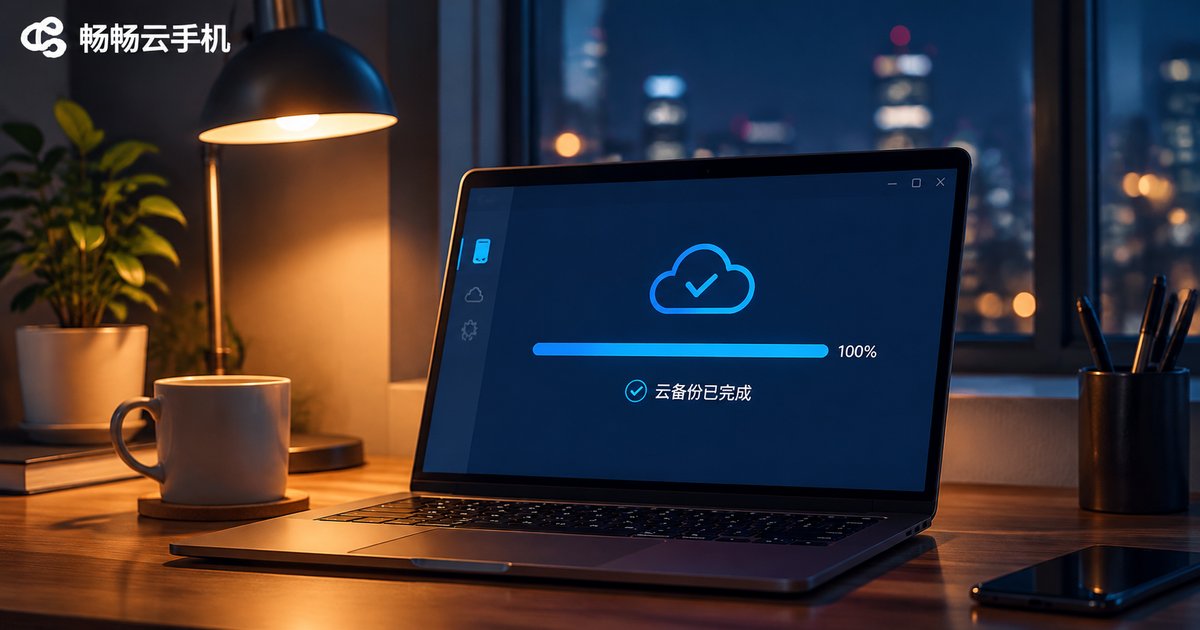
Cloud Phone Backup: What Gets Saved, How to Back Up, and How to Restore
Why a Cloud Phone Still Needs a Backup
Most people pause the first time they hear the phrase cloud phone backup. The device already lives in the cloud, so what is there to back up? Quite a lot, actually. A cloud phone keeps the device running on a remote server, but an online device is not the same as data with a spare copy. One accidental deletion, one failed app update, one broken configuration change, and the photos, documents and chat history inside that device can be gone.
A backup is really just an extra point in time. It does not stop accidents from happening, but it can shrink the damage to going back to yesterday. This guide covers three things: which data a cloud phone backup actually covers, how to run one step by step, and what to watch out for during a restore.
What a Cloud Backup Covers
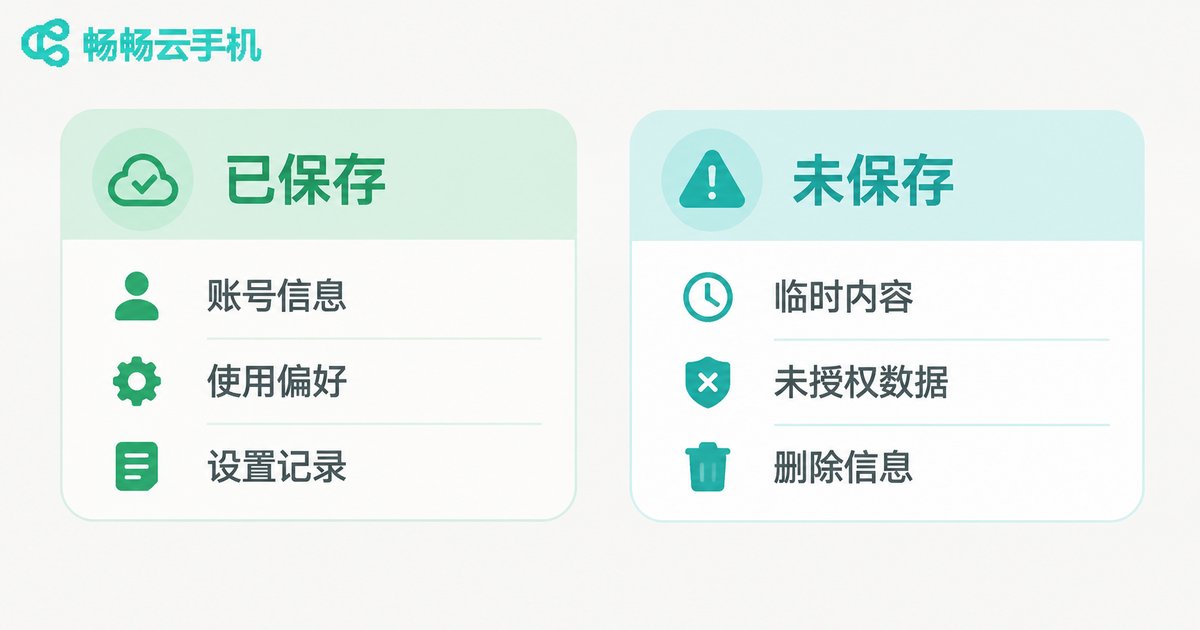
Providers draw the line in slightly different places. The table below follows the usual boundaries, so you can check it against the data you actually care about:
| Data type | Backed up | Notes |
|---|---|---|
| Contacts, SMS, call logs | Yes | Saved together with account data |
| Photo albums, videos, recordings | Yes | Large footprint; select separately if needed |
| Documents and downloaded files | Yes | Covered as part of device storage |
| Installed apps and some app data | Partial | App cache and runtime state are excluded |
| System settings and home layout | Yes | Layout can be restored |
| Login credentials, payment info, codes | No | Excluded for security; verify again yourself |
| Running tasks and processes | No | A backup stores data, not a running state |
Pay attention to the last two rows. A backup is not a clone of the whole device; it is a restorable snapshot of the data. That is why, after a restore, apps that require a login — messaging, email, game accounts — usually ask you to verify once more. That is normal behaviour, not a failed backup.
Three Things to Check Before You Start
The prep work takes a few minutes and saves a lot of trouble later.
First, confirm free storage. A backup file takes up space inside the cloud phone. If storage is already close to the limit, the task may stop halfway. Check the remaining capacity in the device details and clean up first if it is below 20 percent.
Second, note where your important files live. Which directory holds that project folder, which album collects your screenshots. After a restore, checking against a short list is far faster than browsing around.
Third, pick a sensible moment. Avoid periods when a batch download or a large import is in progress. Backing up while data is actively changing tends to produce an incomplete snapshot.
Step-by-Step Backup Workflow
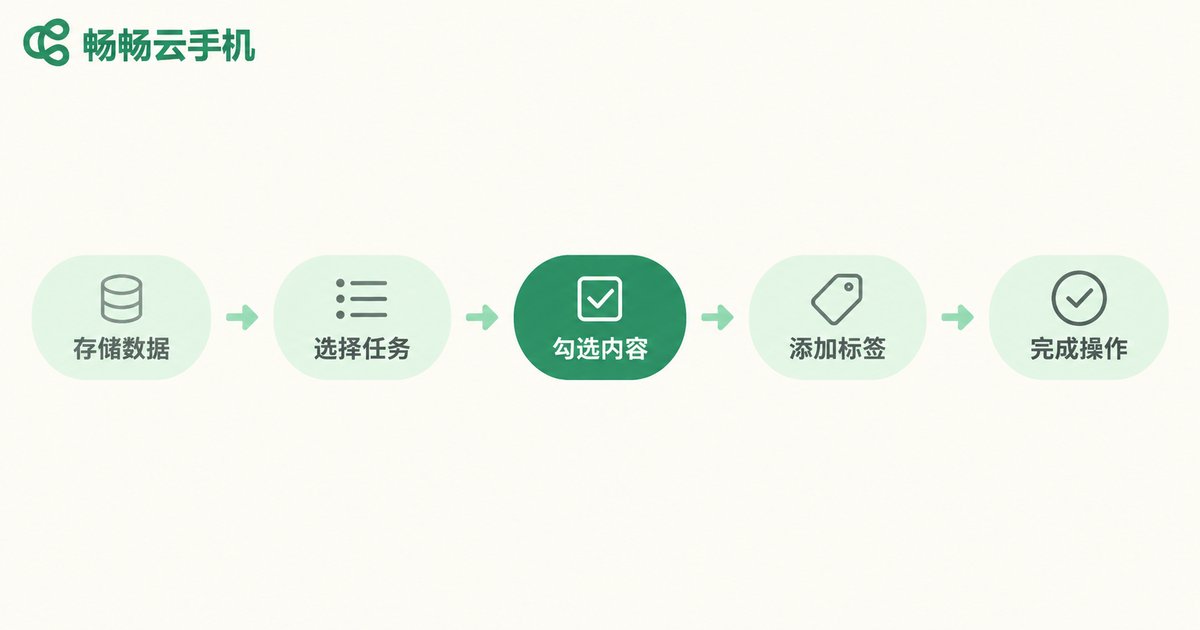
Using the ccloudphone console as an example, the flow is roughly five steps:
Step 1: Sign in and open device management. Find the cloud phone you want to back up and confirm it is running.
Step 2: Open the cloud backup entry. On the device management page, locate the backup and restore section and open the backup list.
Step 3: Create a backup and choose the scope. You can run a full backup or tick only the heavy items such as albums and documents. A full backup for the first run, then partial ones as needed, works well.
Step 4: Name it and submit. Give the backup a name you will recognise later, for example October project archive, plus the date. Naming habits directly affect how fast you find the right backup months from now.
Step 5: Wait for completion and verify. When the task finishes, go back to the list and confirm the status reads completed, then check whether the file size is close to what you expected. A clearly smaller figure usually means some items were not selected.
The Right Order for Restoring Data
Restores go wrong more often than backups, and the order matters.
Pick the timestamp before you click anything. Find the matching restore point in the list and confirm the backup was taken before the problem occurred. Choosing the wrong point means overwriting current content with older data.
Decide which device receives the data. You can restore onto the current device or onto a fresh cloud phone. If you only need a handful of files back, restoring to a new device and pulling them out is far safer than overwriting the device you are working on.
Verify immediately after the restore. Open the album and count the photos, open the document directory and check the files, then log into the key apps one by one to confirm account status. Five minutes here prevents the classic situation of thinking a restore worked when it only partly did.
Do not delete the old backup yet. Clean up history only after the new data proves reliable. Keeping the two or three most recent points is a sensible default.
Four Mistakes Worth Avoiding
Mistake one: treating a backup as live sync. A backup is a snapshot of one moment. Files changed the next day do not join it automatically; you need to run another backup.
Mistake two: backing up once and forgetting it. Data changes daily, so a month-old backup has limited value today. Important milestones — a finished project, the eve of a major update — deserve their own backup point.
Mistake three: deleting the backup right after a restore. A freshly restored system often needs further adjustment. If something goes wrong during that adjustment and there is no backup left, you are stuck.
Mistake four: ignoring app-private storage. Some apps keep data in their own private directory and sync it back only after you sign in again. That is not data loss; it is the app sync mechanism doing its job.
Habits That Make Backups Effortless
Turning backup into a habit beats memorising a list of steps. A few habits you can adopt today:
Set a fixed rhythm, such as once a week. Put the date in every backup name so the list sorts itself. Keep important files in one dedicated directory inside the cloud phone so they are easy to tick in one go. And run a manual backup before any major configuration change.
For people running multiple accounts, producing content, or working remotely on a cloud phone, these habits pay off quickly — when data goes wrong, the size of the loss usually depends less on technique than on whether you have a usable previous point in time.

Why ccloudphone
ccloudphone builds cloud backup into the console as a standard feature. There is no extra tool to install and no complicated command to memorise. Device management, backup and restore all sit in the same interface, and the backup list keeps the timestamp and file size so you can judge which point is usable. You can see the current capabilities on the ccloudphone website.
Beyond backup, ccloudphone delivers a complete cloud device experience: the device keeps running in the cloud, so shutting down your local machine does not interrupt the task; multiple devices are managed separately, keeping work and personal accounts apart; and configurations are chosen on demand, so you only use what you need. For users who need long, stable runtime without being limited by local hardware, that combination is the practical choice.
Frequently Asked Questions
Q1: The phone is already in the cloud, so why back it up?
Running in the cloud and having an independent copy of your data are two different things. Accidental deletion, a failed app update, or a wrong configuration change can all affect current data. A backup gives you a point you can fall back to.
Q2: Does the backup include chat history inside apps?
It depends on the app. Some apps keep chat history in a private directory and sync it back after you sign in again. Export important records from within the app as an extra precaution.
Q3: How long does a backup take?
It depends on the data volume and network conditions. Documents and settings alone are usually quick; large photo and video libraries take noticeably longer. Running it during idle network hours is a good idea.
Q4: Can I restore to a different cloud phone?
Yes. Restoring to a new device is the safer option, especially when you only need a few files back, because it avoids overwriting existing data on your current device.
Q5: How long are backup files kept?
Retention depends on device storage space and account settings. Maintain your own naming and cleanup habits, keep the two or three most recent key points, and do not rely on a single early backup indefinitely.
Q6: Apps ask me to sign in again after a restore. Did something break?
No. Login credentials are security-sensitive and normally excluded from backups. Signing in again is the expected flow, and it also confirms the restore completed properly.


