

How to Use Cloud Phones for Live Streaming: Stream Setup, Network Requirements and Picture Settings
Why More Streamers Are Going Live with Cloud Phones
When people think of live streaming, they picture high-end PCs and professional gear. In reality, cloud phones are becoming a practical choice for streaming. A cloud phone runs on a cloud server with its own system and independent network connection, stays online around the clock, and consumes none of your local device's battery or performance.
For streamers, this means three things. First, less pressure on local hardware — an ordinary phone or computer can remotely control an HD stream. Second, the stream is pushed from the cloud, over data-center networks that are usually more stable than home broadband. Third, one device can manage multiple cloud phones, ideal for teams broadcasting on several platforms or accounts at once. To make a stream go smoothly, though, three things matter: push preparation, network readiness and picture settings. Let's go through them one by one.
Push Stream Preparation: A Practical Pre-Live Checklist
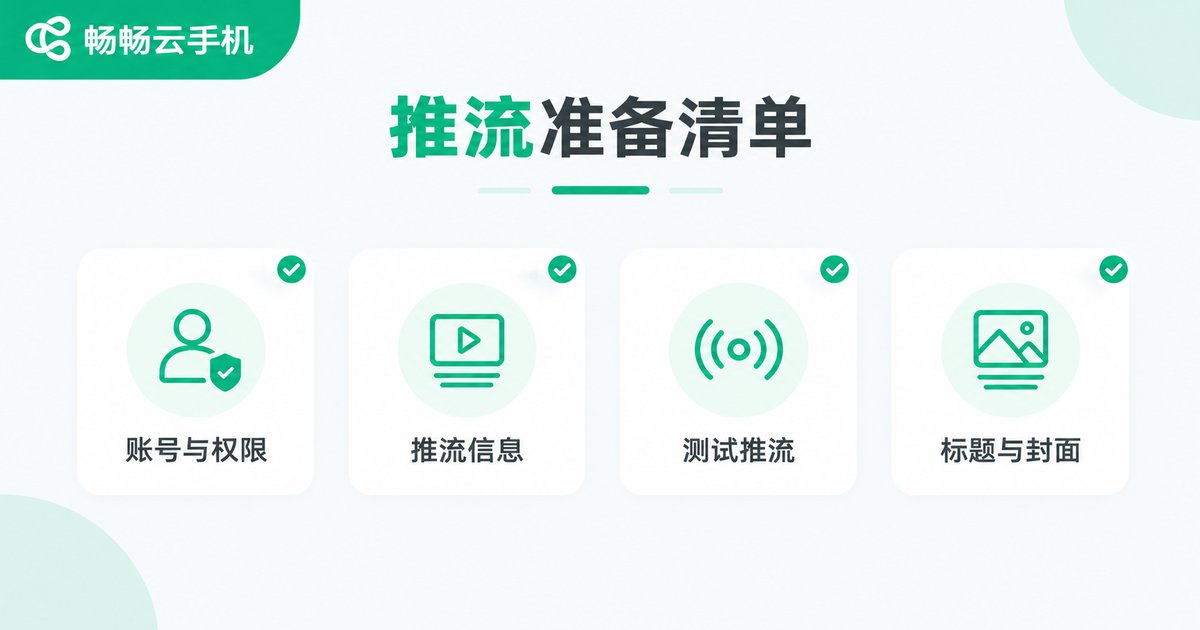
Push streaming means encoding your picture and audio and uploading them continuously to the streaming server. Before going live inside a cloud phone, confirm each item on this checklist:
1. Account and permissions: make sure your streaming account has completed identity verification and has live permissions enabled, then log in inside the cloud phone and check that the account status is normal.
2. Push stream details: if you use the streaming app's built-in go-live feature, set everything inside the app; if the platform provides a separate push URL and stream key, obtain them right before the stream — stream keys usually expire and must be regenerated.
3. Test stream: push a short test feed before going live to check that audio is clear, the picture orientation is correct and latency is acceptable.
4. Title, cover and category: these directly affect how many viewers enter your room. Prepare the title and cover in advance and store them in the cloud phone for quick reuse.
Network Requirements: Stability Beats Raw Speed
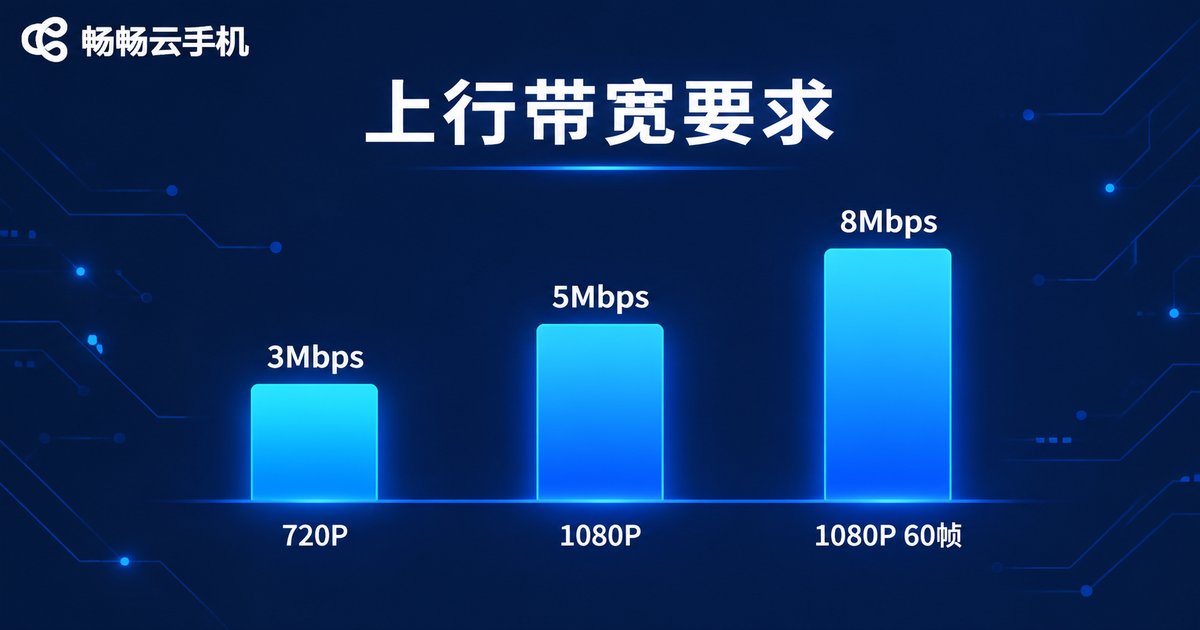
The biggest enemy of a live stream is not slow bandwidth but network fluctuation. Pushing a stream is a continuous upload process, so what really determines quality is upload bandwidth. Use this table to pick your resolution:
| Resolution | Recommended frame rate | Recommended upload bandwidth |
|---|---|---|
| 720P | 30 fps | 3 Mbps or higher |
| 1080P | 30 fps | 5 Mbps or higher |
| 1080P high frame rate | 60 fps | 8 Mbps or higher |
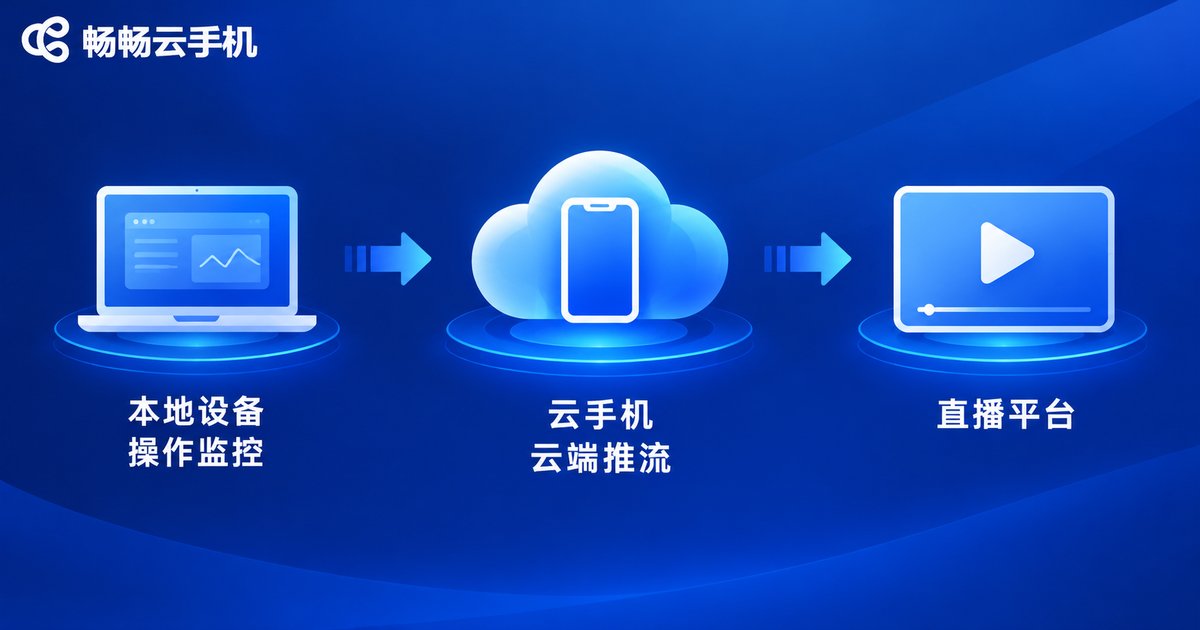
Cloud phone streaming has a natural network advantage: the stream travels over the data center's network, which offers ample, stable bandwidth, while your local connection only carries monitoring and control traffic. Even so, follow three rules: connect your local device to stable Wi-Fi or a wired network so the monitoring view stays smooth; schedule important streams away from peak evening congestion; and run a speed test before going live, keeping about 20% headroom on your upload bandwidth.
Picture Settings: Balancing Sharpness and Smoothness
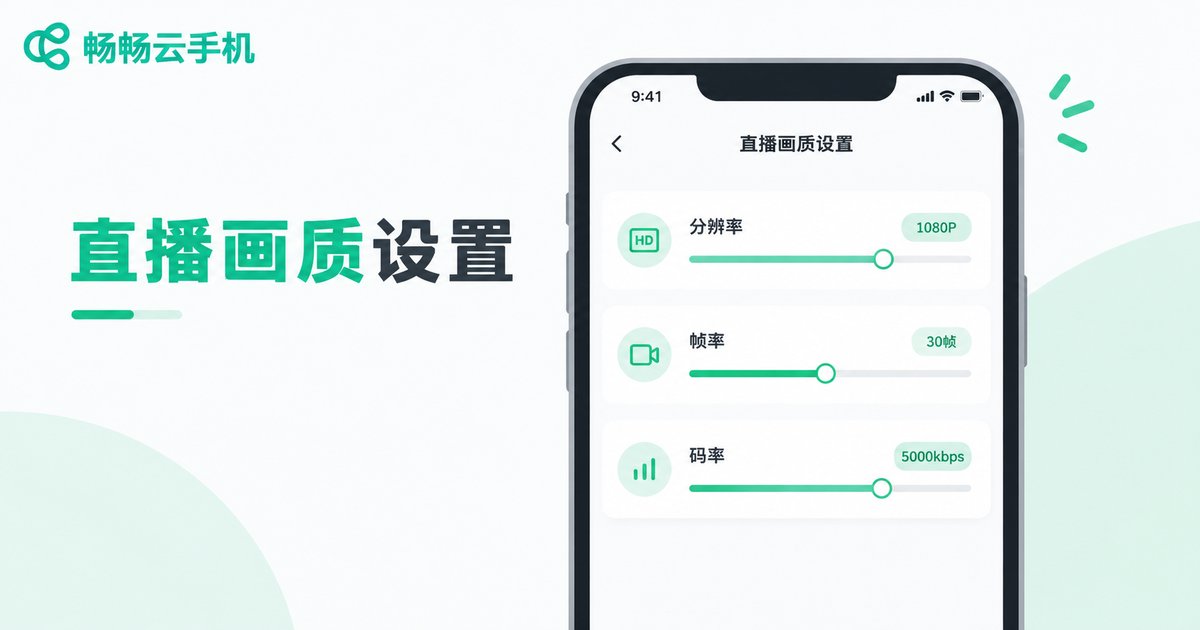
Beginners often max out every setting, but the key to picture settings is matching: resolution, frame rate and bitrate must complement one another, and together they must fit your upload capacity.
Resolution: for vertical live streaming, 720P or 1080P is sharp enough; higher resolutions demand more bandwidth and decoding power.
Frame rate: for motion-heavy content such as gaming or dancing, start at 30 fps; for chat or product showcases dominated by static shots, 24–30 fps still looks smooth.
Bitrate: bitrate governs image detail. Stay within the safe range for your resolution — for example, pair 1080P at 30 fps with roughly 5000 kbps. Slightly lower is better than exceeding your upload capacity, which causes stuttering and dropped frames.
Final checks: close unnecessary background apps inside the cloud phone and lock the streaming app's background permission; adjust and save beauty and filter settings in advance; decide between landscape and portrait based on the platform and content before going live, since switching mid-stream can cause black screens or re-buffering.
Live Streaming with ChangChang Cloud Phone: A Five-Step Workflow
Using ChangChang Cloud Phone (ccloudphone) as an example, the whole process boils down to five steps:
Step 1, add a cloud phone. Register on the ChangChang Cloud Phone website or app and add a cloud device; the system provisions an independent cloud phone you can access remotely at any time.
Step 2, install the streaming app. Download your usual streaming app inside the cloud phone, log in with your streamer account, and confirm identity verification and permissions.
Step 3, finish the push settings. Following the checklist above, set the title, cover, resolution, frame rate and bitrate, then run a test stream.
Step 4, go live and monitor. Once you tap go-live, the cloud phone keeps pushing the stream from the cloud while you monitor the room, reply to comments and pace the interaction from your local device.
Step 5, wrap up. Account status and stream-related data stay in the cloud, so next time there is no need to reconfigure — just go live.
None of this depends on local hardware performance: one ordinary computer or phone can manage multiple cloud phones at once, which is the biggest efficiency gain cloud phone streaming offers over traditional setups. If you stream on multiple platforms or want a streaming device that is always online, visit the ChangChang Cloud Phone website to learn more.
FAQ
Q: Will streaming from a cloud phone lag?
With a suitable cloud phone configuration and sufficient upload bandwidth, the stream is pushed from a data center and is usually more stable than a typical home network. Run a test stream before going live to confirm.
Q: If my local network drops, does the stream stop?
Generally, no. The push happens in the cloud; a local outage only affects your monitoring and control. Reconnect when the network recovers and continue managing the room.
Q: How many streams can one cloud phone push at once?
Run one room's push task per cloud phone. For multi-platform broadcasting, use separate cloud phones so the streams don't interfere with each other and stability stays high.
Q: What is the maximum picture quality?
Mainstream 720P and 1080P run smoothly; higher quality depends on the cloud phone configuration and platform rules. Follow the matching principles in the picture settings section.
Q: Do I need to keep my local computer on?
Stay online during setup and monitoring. Because the push runs in the cloud, local hardware demands are low, and brief offline periods generally don't affect an ongoing stream.


