
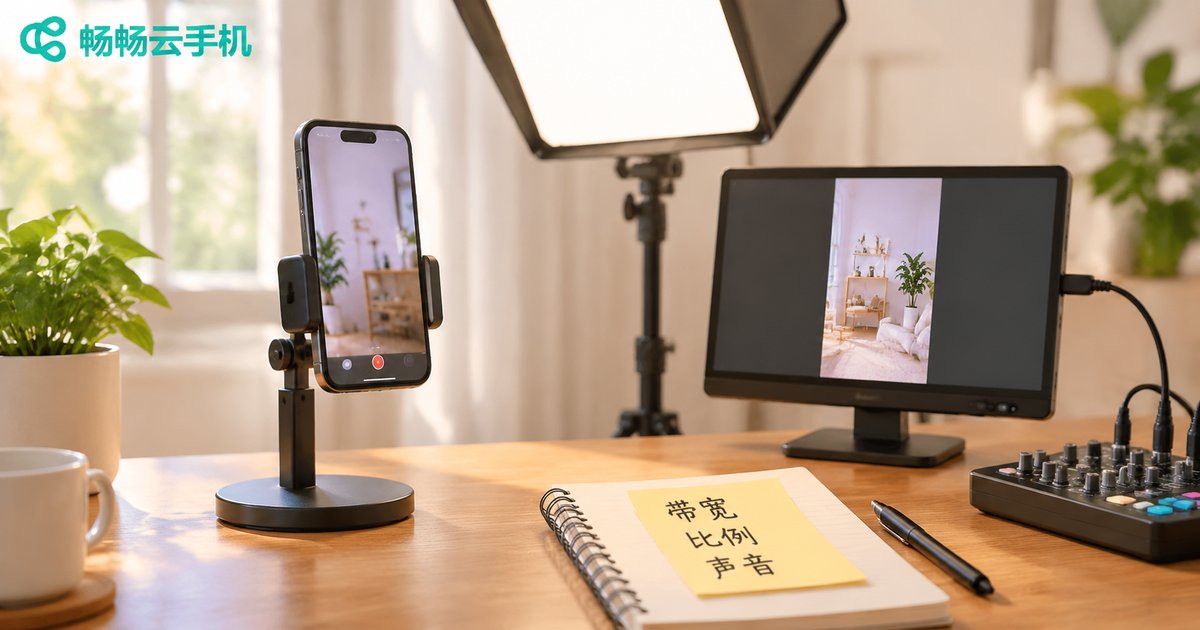
How to Prepare for Cloud Phone Live Streaming: Network Bandwidth, Aspect Ratio, and Audio Settings
Understand the cloud phone streaming chain first
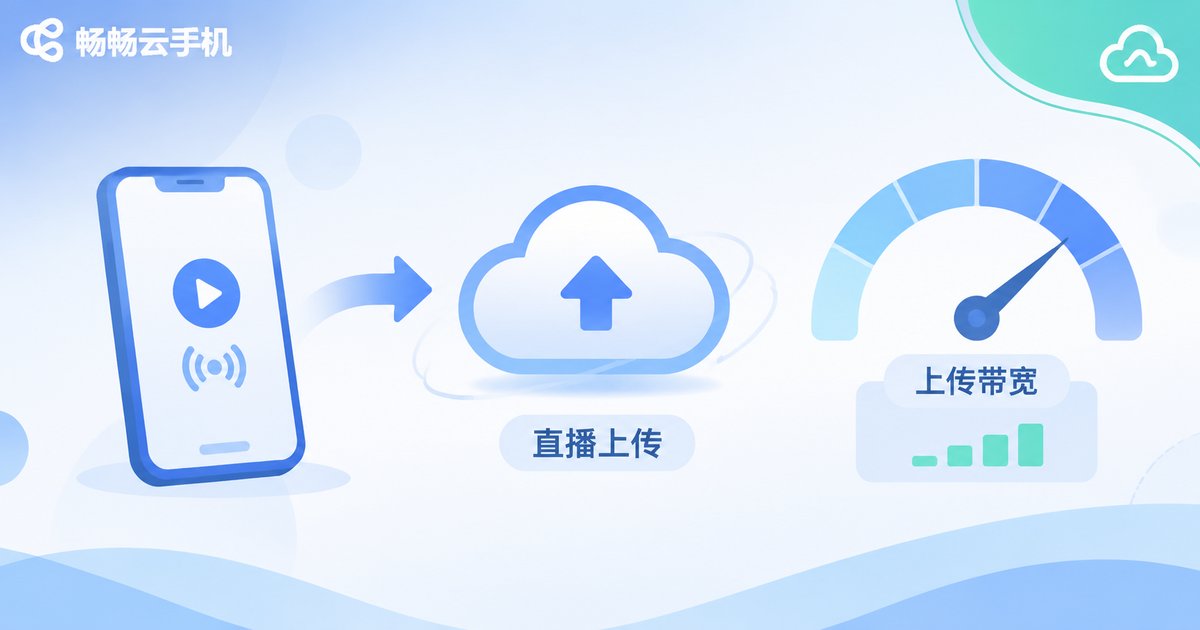
Streaming from a cloud phone means running the live app or streaming tool on a cloud Android instance, then sending video and audio to the platform over the network. You do not need to overcomplicate the setup. Focus on three basics: stable upload bandwidth, the right aspect ratio, and clean audio.
The chain is simple: cloud phone instance → video encoding and streaming → live platform. If any part is unstable, viewers may see stuttering, blur, higher latency, or audio-video drift. Check in that order before replacing gear.
Network bandwidth: upload matters most
Live streaming uses upload bandwidth. Many people only check download speed, then wonder why the stream stutters. Reserve about 1.5 times your video bitrate. For example, 1080p at 30fps often uses 4–6 Mbps, so prepare at least 8–10 Mbps upload and watch latency and packet loss, not just the peak number.
| Resolution | Frame rate | Suggested video bitrate | Suggested upload headroom |
|---|---|---|---|
| 720×1280 (9:16) | 30fps | 2–3 Mbps | 5 Mbps or more |
| 1080×1920 (9:16) | 30fps | 4–6 Mbps | 8–10 Mbps |
| 1920×1080 (16:9) | 30fps | 4–6 Mbps | 8–10 Mbps |
| 1920×1080 (16:9) | 60fps | 6–8 Mbps | 12 Mbps or more |
Run a speed test three times before going live. Prefer wired network or stable 5GHz Wi-Fi. Close unnecessary background updates, cloud sync, and auto downloads inside the cloud phone. If you use ccloudphone, choose a network node based on real latency, packet loss, and stability, and refer to the official site for current usage notes.
Aspect ratio: match the platform first
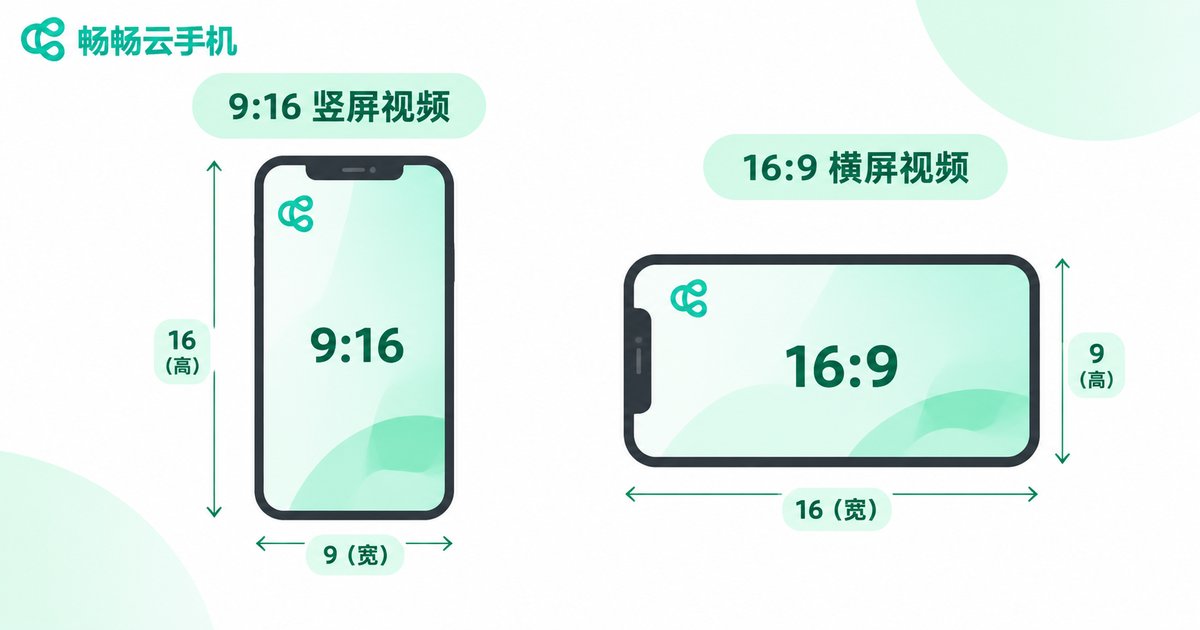
Platforms have different default aspect ratios. Short video, e-commerce, and many mobile live streams use 9:16 vertical. Game streaming, desktop streaming, and some education scenarios use 16:9 horizontal. Before going live, set the live app capture ratio and the streaming tool output resolution to the same value to avoid extra cropping by the platform.
- 9:16 vertical: commonly 1080×1920, 30fps, 4–6 Mbps video bitrate;
- 16:9 horizontal: commonly 1920×1080, 30fps, 4–6 Mbps video bitrate;
- Complex scenes or game streaming: try 60fps at 6–8 Mbps, but add upload headroom at the same time.
After setting the ratio, use the preview to check the safe area. Do not let captions, product cards, or price stickers get cropped. For vertical streams, also watch headroom above the person and the area covered by on-screen buttons.
Audio settings: clean beats loud
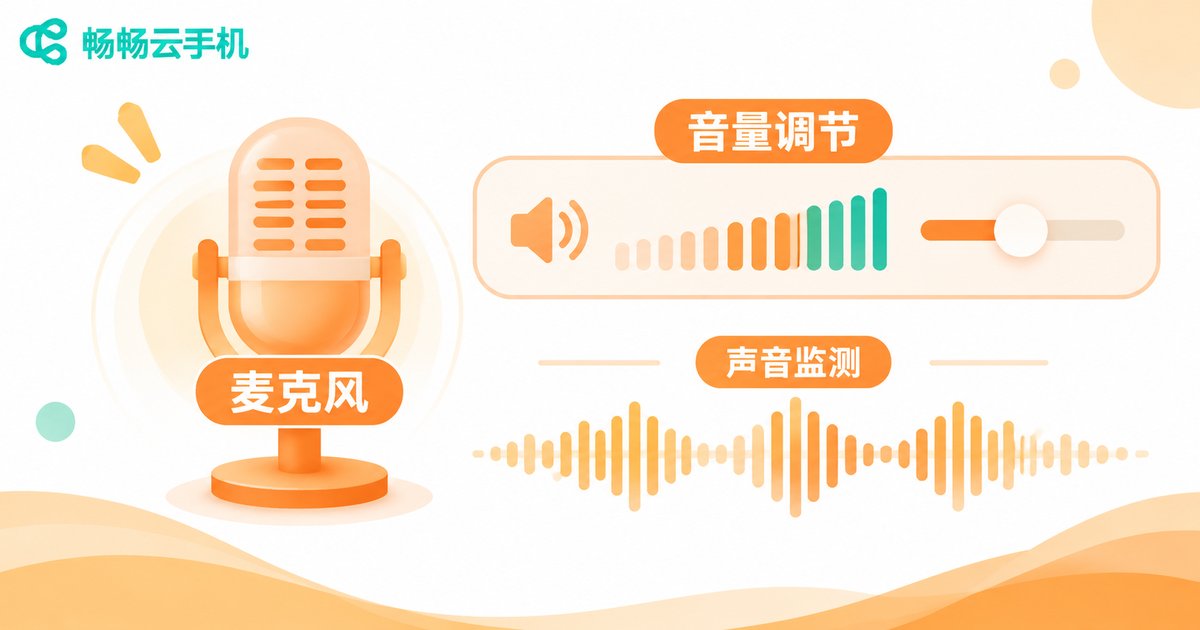
The most common audio issues are clipping, echo, background noise, and audio-video drift. Start by matching sample rates. Use 44.1kHz or 48kHz on both ends; do not set one side to 44.1kHz and the other to 48kHz. Lower the microphone gain first, then raise it slowly until normal speech peaks without hitting red.
You can enable noise reduction and echo cancellation in the platform or streaming tool, but do not overdo it or the voice may sound muffled. Monitor with headphones to reduce echo from speakers. Record a 30-second clip before going live and check peak level, noise floor, and lip sync. In multi-person streams, agree on who speaks first to avoid overlap and stacked echo.
Cloud phone preparation: stability and keep-alive
A cloud phone is a remote runtime environment, so stability and keep-alive matter. Close unnecessary background apps and keep only the live app and streaming tool. Set the screen to stay awake and enable background keep-alive so lock screen or cleanup does not interrupt the stream. Log in to your accounts in advance and check camera, microphone, and storage permissions. Use a stable connection to the cloud phone and avoid frequent switching between Wi-Fi and mobile data.
ccloudphone provides cloud Android instances that can be controlled remotely from a client, suitable for live streaming, app running, and similar scenarios. For available configurations, network nodes, and usage details, refer to the official ccloudphone website. Before going live, install the app, sign in, set permissions inside the cloud phone, and run a full streaming test.

Pre-launch checklist
Use a checklist before you go live. It is more reliable than fixing problems in the moment.
| Check item | Suggested standard |
|---|---|
| Upload bandwidth | At least 1.5 times the bitrate, stable latency, low packet loss |
| Aspect ratio | Matches the platform, preview is not cropped |
| Audio | Sample rates match, no clipping, audio and video in sync |
| Permissions | Camera, microphone, and storage permissions enabled |
| Keep-alive | Screen stays awake, background not cleaned, account signed in |
FAQ
Q: How much upload bandwidth do I need for live streaming?
A: Set the video bitrate first, then reserve about 1.5 times that amount. 1080p at 30fps often uses 4–6 Mbps, so 8–10 Mbps upload or more is recommended, with attention to latency and packet loss.
Q: What resolution should I use for vertical live streaming?
A: A common choice is 1080×1920 at 30fps and 4–6 Mbps. If the network is limited, start at 720×1280 to confirm stability, then move up.
Q: How do I fix echo in the audio?
A: Monitor with headphones and turn off speakers first. Enable moderate echo cancellation. In multi-person streams, avoid speaking at the same time and check whether the microphone is too close to a speaker.
Q: Does a cloud phone stream need to stay in the foreground?
A: Enable screen awake and background keep-alive, and test the stream status after lock screen or switching apps. Behavior may vary by cloud phone and live app, so rely on your own test.
Q: What is the most useful test before going live?
A: Run a 10-minute full preview and check bandwidth curve, aspect ratio, audio peak, and lip sync. If all four are stable, start the official stream.


