
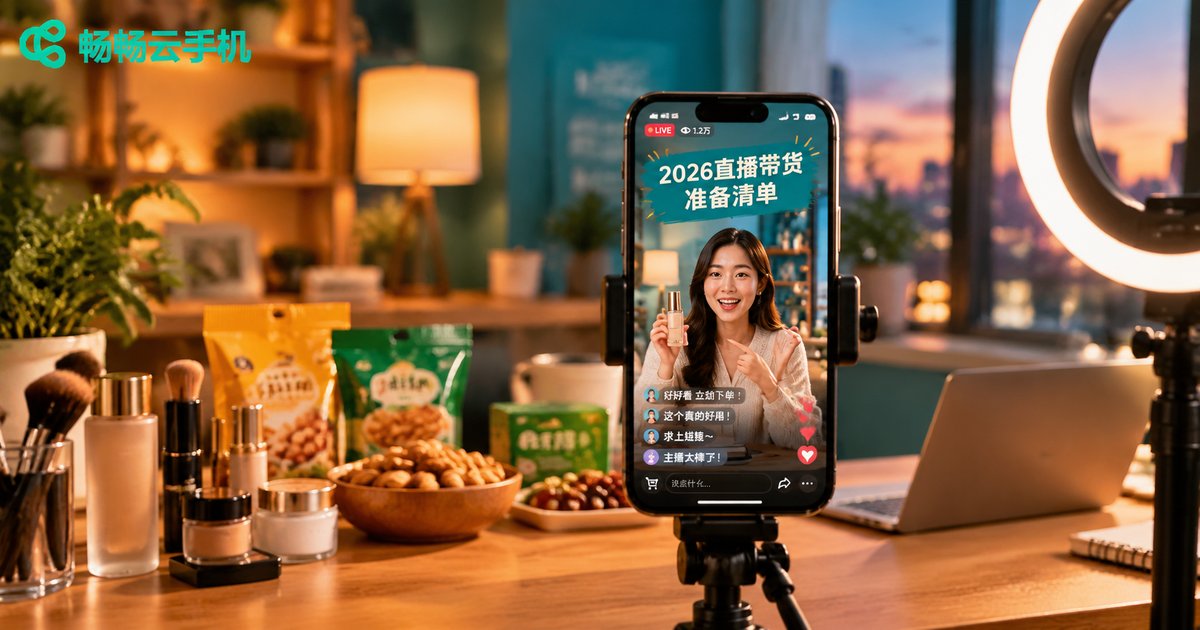
2026 Cloud Phone Live Commerce Checklist: Network, Video and Audio Settings
Introduction: In 2026, Live Commerce Is Won on Stability and Details
By 2026, live commerce audiences are used to smooth, high-definition streams: one small stutter and they swipe away; one moment of noisy audio and trust drops instantly. That is why, before you go live, you need to prepare the three fundamentals — network, video and audio. This article gives you a practical checklist you can follow before every stream, so you stay calm before going live and never fall apart during the show.
Why More Hosts Are Going Live With a Cloud Phone
A cloud phone is an Android device that runs in the cloud, consuming none of your physical phone's performance or battery. Take CCloudPhone (ccloudphone) as an example: your account stays online on a cloud device, and you can sign in from a computer or another phone to enter your streaming workspace anytime. Overheating, low memory and dead batteries on your physical phone will no longer interrupt your broadcast.
For teams running multiple accounts across platforms, a cloud phone also isolates each live commerce account on its own cloud device, keeping environments clean and separate and making management far more organized.
Network Setup: Upload Bandwidth Is the Lifeline of Live Streaming
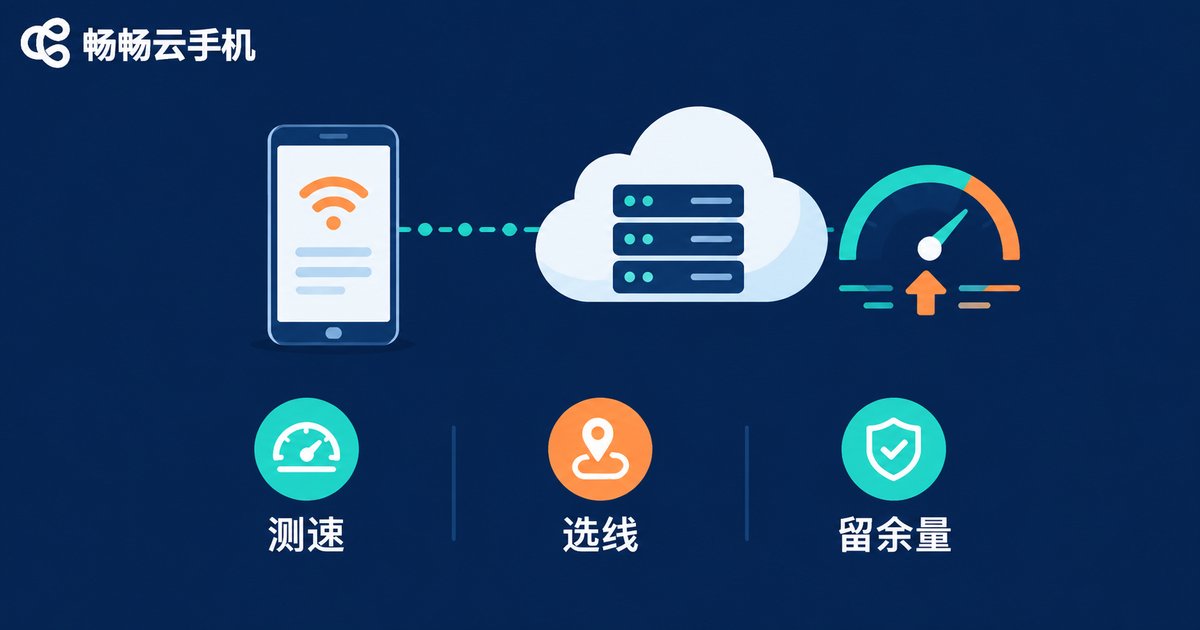
Watching videos mostly consumes download bandwidth, but live streaming pushes your picture out in real time — upload bandwidth is what truly determines smoothness. Do three things before going live:
First, run a speed test. Check your upload speed with a reliable tool and write the number down instead of guessing.
Second, choose a stable network environment. Prefer a wired connection or stable Wi-Fi, and avoid crowded places with congested signals.
Third, keep headroom. Your upload bandwidth should be about 50% higher than what the stream requires, so peak-hour fluctuations do not cause stuttering.
| Stream Quality | Recommended Upload | Best For |
|---|---|---|
| 720P | 3 Mbps or more | Talk-driven streams |
| 1080P | 5 Mbps or more | Beauty, fashion and detail shots |
| 1080P high frame rate | 8 Mbps or more | Tasting, unboxing and motion-heavy scenes |
When streaming through a cloud phone, the picture is rendered on the cloud device and delivered to viewers as a video stream, so you need to watch both the cloud route quality and your local network: pick a cloud node close to your target audience, and make sure your local connection can smoothly receive the cloud feed.
Video Setup: Resolution, Frame Rate and Bitrate in One Pass
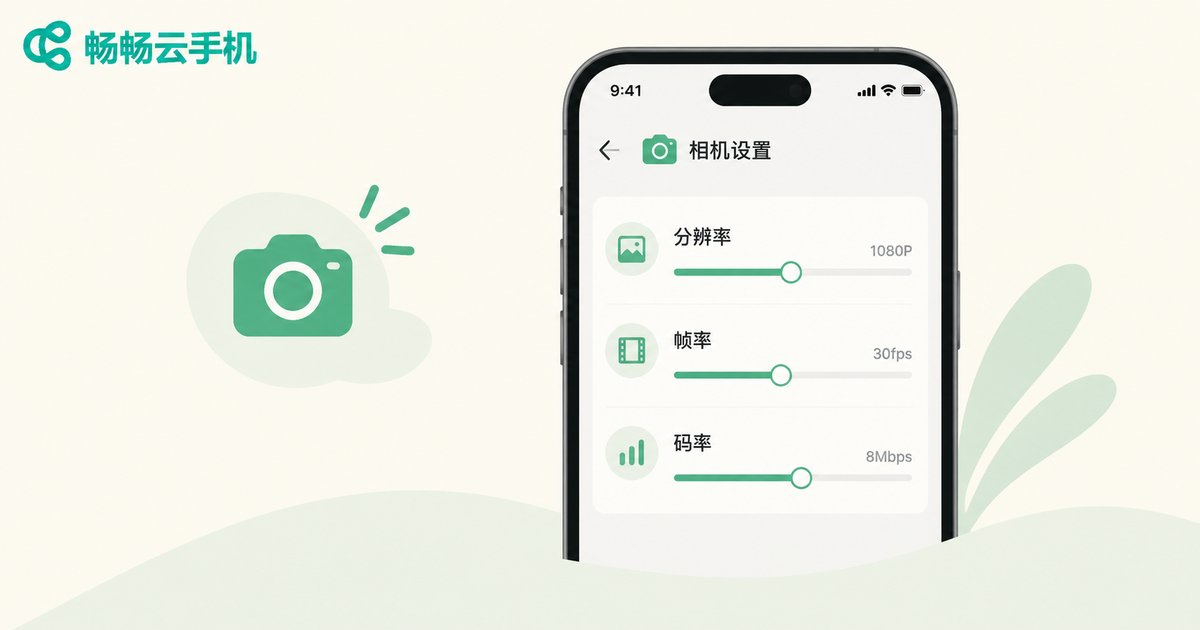
Your picture is the first impression viewers get. Confirm three parameters in advance:
Resolution: For live commerce, 720P is the minimum; go straight to 1080P when possible. Product texture, craftsmanship and true color show far more clearly, which reduces buyer doubts and returns.
Frame rate: 24-30 fps is enough for talk-heavy streams; if your show includes try-ons, tastings or demos, start at 30 fps so motion stays smooth.
Bitrate: Too low and the image looks blocky; too high and it exceeds your upload bandwidth and stutters. Match it to the network conditions in the table above.
Lighting is part of your picture too: light your face from the front with a ring light or softbox, avoid backlighting and harsh overhead light, and keep the background tidy with products neatly arranged — the whole scene will look far more professional.
Audio Setup: Let Buyers Hear Every Selling Point
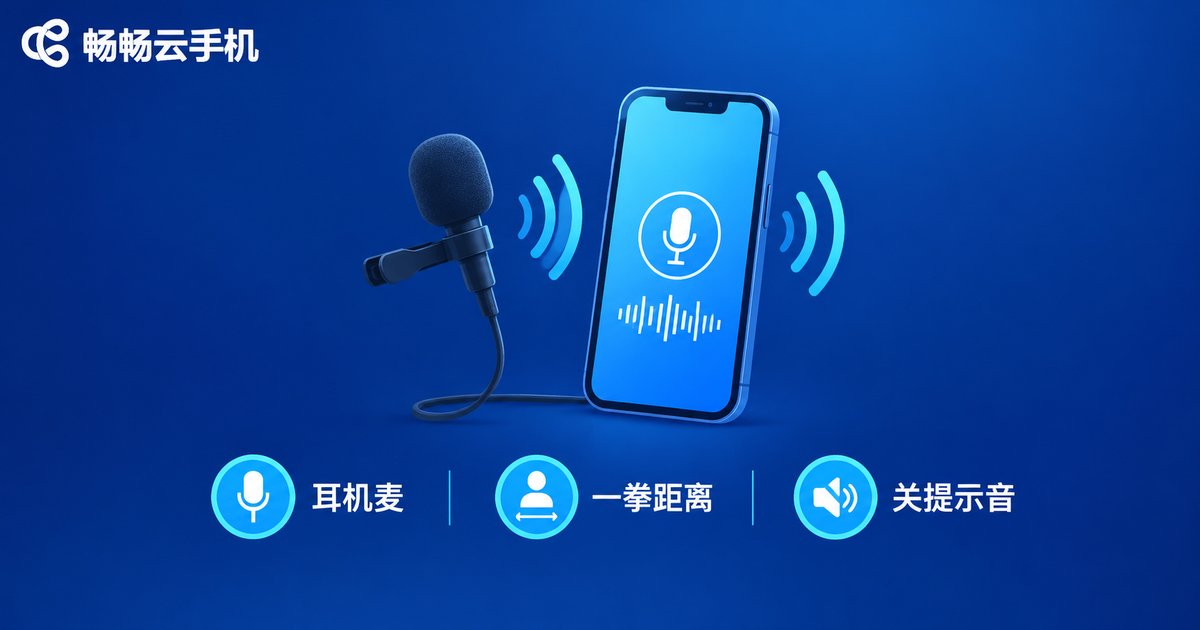
Many streams fail not because the picture is blurry but because the audio is messy. Viewers forgive average video quality, but they rarely tolerate speech they cannot hear clearly. Check four things:
1. Use a headset microphone. It captures far cleaner sound than the loudspeaker and effectively prevents echo.
2. Control the distance. Keep the microphone about one fist away from your mouth — full sound without popping.
3. Kill the noise. Turn off message alerts and minimize keyboard, fan and air-conditioner noise before going live.
4. Do a test recording. Record 30 seconds of audio and listen from the viewer's perspective before adjusting anything.
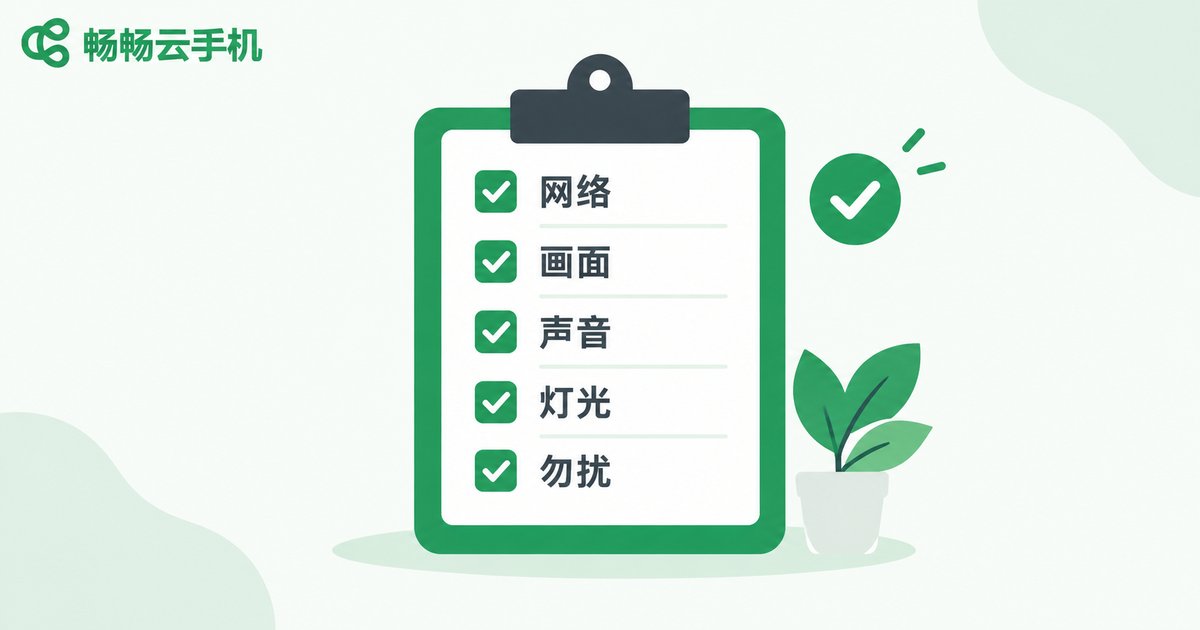
The Final Pre-Live Checklist
Spend five minutes on this list before every stream:
✅ Upload speed test passed with about 50% headroom
✅ Cloud device and streaming account online and ready
✅ Resolution, frame rate and bitrate set for your content type
✅ Face lit from the front, background clean and tidy
✅ Headset microphone connected, test playback clear and noise-free
✅ Device set to Do Not Disturb so calls never interrupt the stream
Once this routine becomes a habit, every stream has a stable floor — the rest is up to product selection and your script.
FAQ
Q: Will live streaming on a cloud phone have high latency?
As long as both the cloud route and your local network meet the requirements, streaming on a cloud phone is basically as smooth as on a physical phone. Do a short test stream before going live to confirm latency and quality are acceptable.
Q: Can I use a cloud phone for streaming on an average computer?
Yes. The heavy lifting happens in the cloud; your local device mainly displays the stream and handles input, so an ordinary office computer is enough.
Q: How do I choose between 720P and 1080P?
720P is enough for talk-driven streams. If you need to show product details such as beauty, fashion or jewelry, go with 1080P and make sure your upload bandwidth can support it.
Q: What should I do about audio noise during a stream?
First check that you are using a headset microphone, then remove nearby noise sources such as air conditioners, fans and keyboards, and finally locate the issue with a test recording. Most noise problems come from a microphone that is too far away or a loud environment.
Q: How should bandwidth be allocated for multiple simultaneous streams?
Each stream consumes its own upload bandwidth. Estimate the total by multiplying the per-stream requirement by the number of streams, keep total demand below about 70% of your upload capacity, then start streams one by one.


