

How to Reduce Cloud Phone Latency in 2026: Network Optimization and Parameter Settings
Where Does Cloud Phone Latency Come From?
When a cloud phone feels laggy, many users blame the server first, but latency is actually the sum of several stages: your input travels up to a cloud server, the server runs the app and renders the screen, then compresses the display into a video stream that is sent back to your phone for decoding. If any stage in this chain — network transmission, cloud processing, video encoding and return, or local decoding and display — breaks down, controls stop feeling responsive. Find the bottleneck first, then fix it.
Network Optimization: Your First Priority
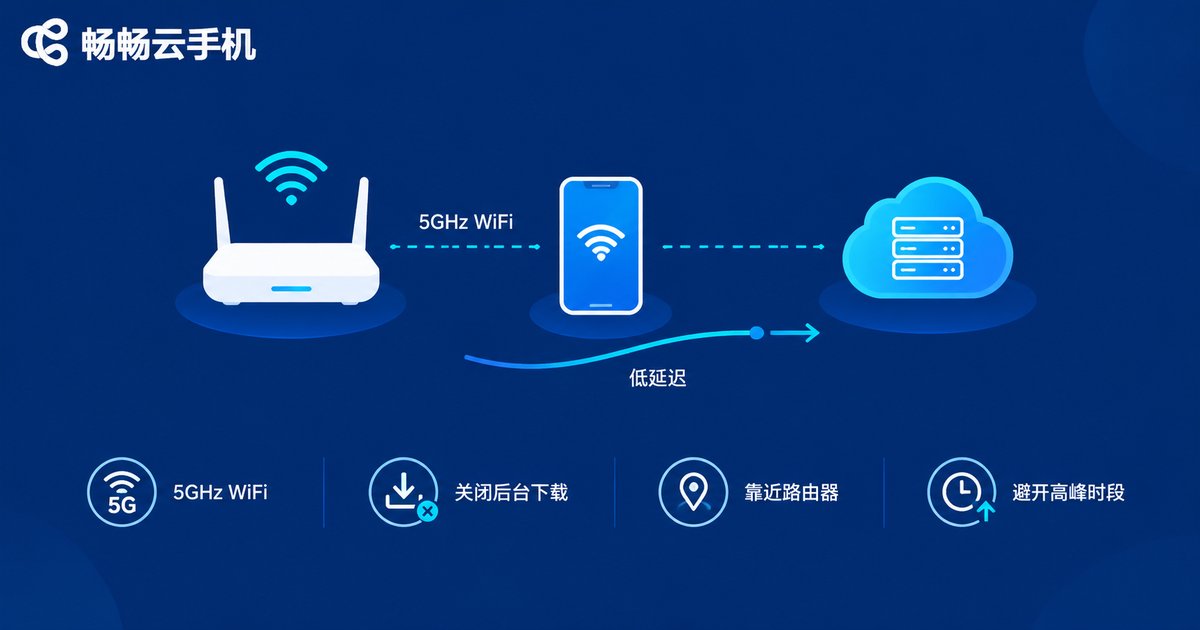
For most users, network quality determines the majority of the experience. These steps deliver the fastest results:
- Switch to 5GHz WiFi: the 2.4GHz band is crowded and prone to interference, while 5GHz offers lower latency and better stability. A wired connection or sitting near the router works even better.
- Free up bandwidth: downloads and HD streaming on the same network compete with your cloud phone's video stream — pause them before important sessions.
- Avoid peak hours: neighborhood broadband often congests in the evening; mornings and late nights usually show noticeably lower latency.
- Test before tuning: run a latency and packet-loss test first. If your local network alone exceeds 50ms, fix the local network before touching any settings.
Parameter Settings: Balancing Clarity and Smoothness
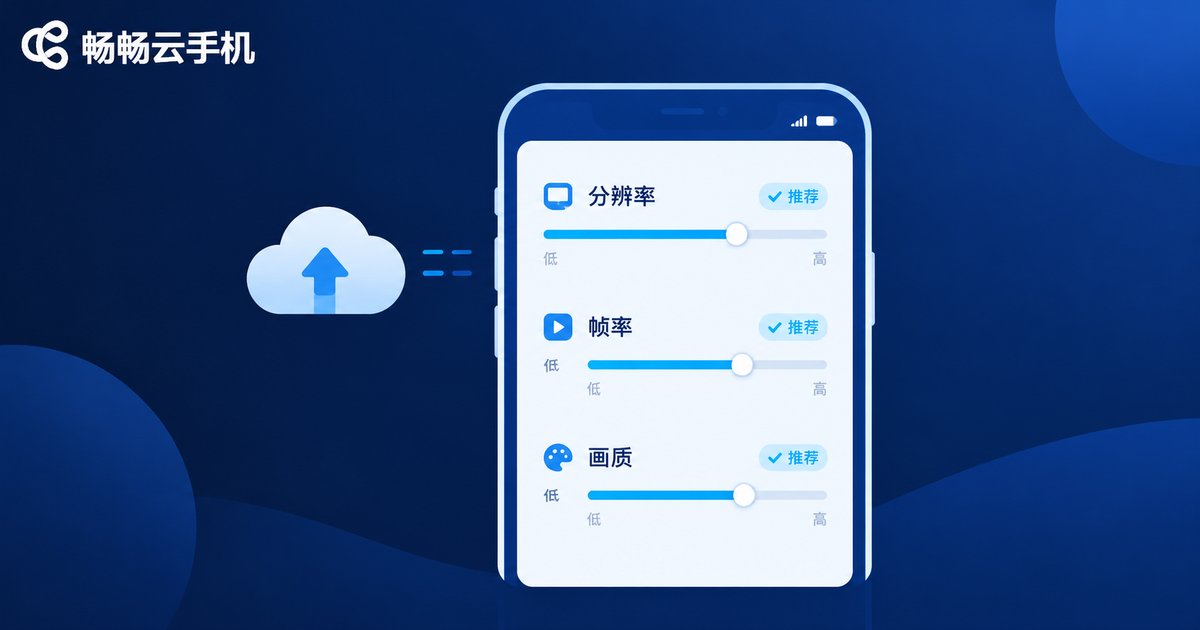
Most cloud phone apps provide display and performance settings, and tuning them can noticeably reduce perceived latency. The core principle: when bandwidth is limited, prioritize a stable frame rate over resolution.
| Setting | Recommendation | Effect |
|---|---|---|
| Resolution | Step down from HD to SD or smooth mode | Less data to transmit, more responsive controls |
| Frame rate | Cap at 30 or 60 fps to avoid fluctuations | A stable frame rate matters more than a high one |
| Quality | Choose auto or smooth mode | Automatically lowers bitrate on weak networks to reduce stutter |
| Performance mode | Enable high-performance or game mode | Prioritizes cloud resources and cuts processing latency |
A practical routine: lower the resolution first, then cap the frame rate, then adjust quality. Change one setting at a time, play for a few minutes, and decide whether to keep adjusting based on how it feels.
Do Not Let Your Local Device Drag You Down
Cloud phones have modest hardware requirements, but your local device still affects the decoding and display stages:
- Close background apps that auto-start in bulk to free memory and decoding headroom;
- An overheating phone decodes less efficiently — remove the case and avoid long sessions while charging;
- Keep the cloud phone app updated; newer versions usually include transport and decoding optimizations;
- Battery saver mode throttles network and performance — turn it off before important sessions.
Pick the Right Platform: The Foundation of Low Latency
Network and settings tuning improves the experience, but the cloud platform's own scheduling capability is the true foundation of low latency. If you are still choosing a cloud phone, take a look at ccloudphone. It provides a cloud-based Android environment that supports running multiple apps in parallel and background tasks, and combined with the network optimization and parameter settings in this article, overall responsiveness improves noticeably. For details on features and plans, please refer to the official ccloudphone website.

FAQ
Q: My internet speed is fast, so why is the cloud phone still laggy?
High bandwidth does not mean low latency. Latency depends on round-trip time and stability. Focus on ping and packet loss, and prefer 5GHz WiFi or a wired connection.
Q: Will lowering the resolution make the picture too blurry?
Slightly, but on a phone screen a smoothness-first strategy usually feels better. Start with smooth mode to confirm the latency improvement, then raise the quality step by step to find your balance.
Q: Is the difference between 5GHz and 2.4GHz WiFi really that big?
Near the router, 5GHz clearly offers lower latency and better interference resistance. Far away or through several walls, 2.4GHz may actually be more stable — test both in your real environment.
Q: What latency is normal for a cloud phone?
On a healthy network, the perceived delay between input and on-screen response usually falls between a few dozen and around one hundred milliseconds. If it consistently exceeds 200ms with packet loss, check your local network first, then the cloud node and your settings.


