
Cloud Phone Screen Blurry? How to Fix It: Clarity, Bandwidth and Resolution Optimization
Why Does a Cloud Phone Screen Look Blurry?
Almost every new cloud phone user runs into the same issue: the picture looks soft, details smear together, and in-game text is hard to read. To fix it, you first need to understand how a cloud phone produces an image — your apps and games actually run on a remote server, and what you see is a live video stream encoded in the cloud and delivered over the network.
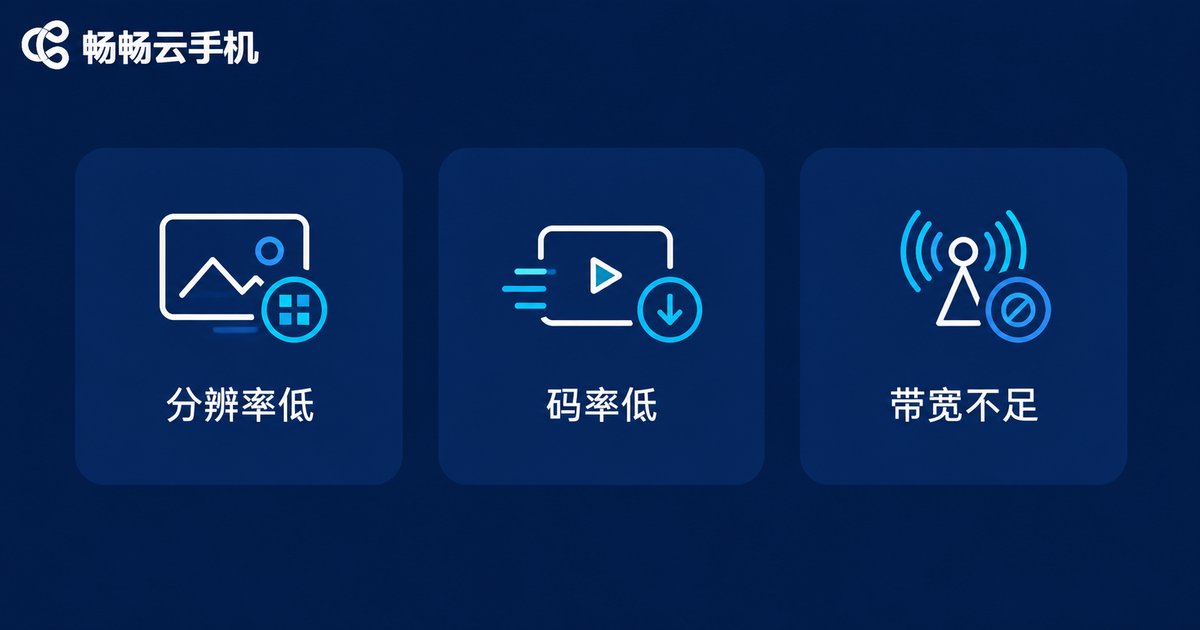
Because the picture is a video stream, its clarity depends on three links in the chain: the rendering resolution in the cloud, the bitrate of the video encoding, and the bandwidth and stability of your local network. If any one of them falls short, the image turns blurry. Let's troubleshoot each one in turn.
Step 1: Raise the Quality Preset
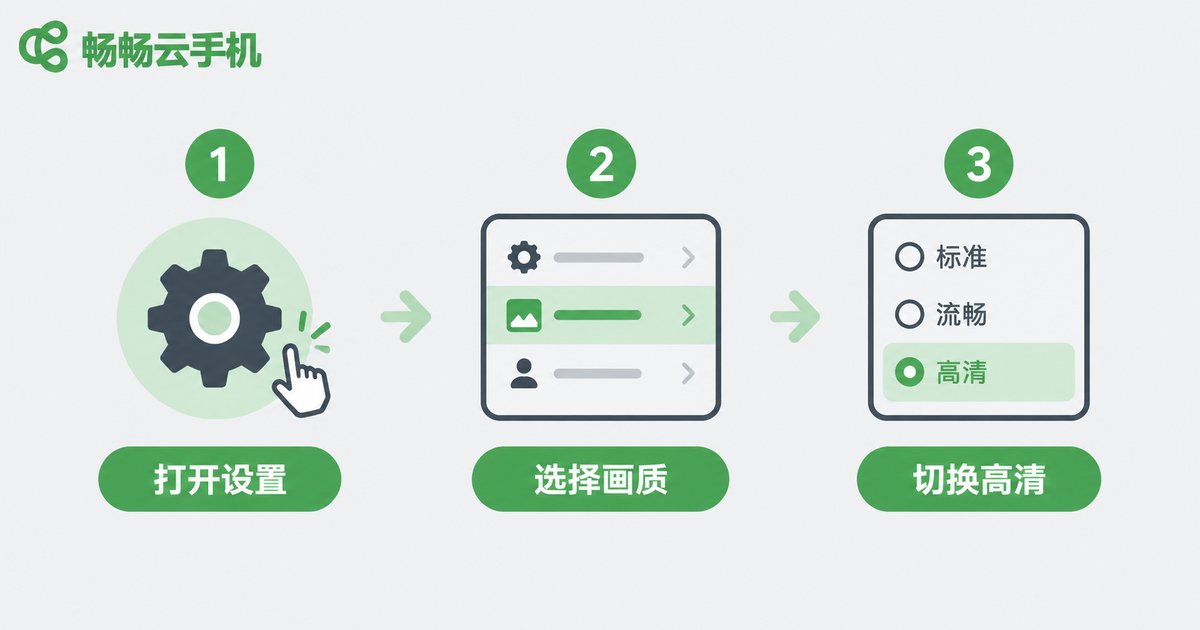
Most cloud phone clients ship with a conservative default quality to guarantee smoothness for everyone. Open Settings → Display / Picture inside your cloud phone (the exact menu name varies by version) and look for the clarity or quality option, usually offered as Smooth, SD, HD and Ultra HD. Choose HD or Ultra HD and the improvement is immediate.
One detail worth noting: some clients keep separate quality settings for the cloud phone screen and for casting or external displays. If you are casting to a TV or monitor, check both.
Step 2: Make Sure Your Bandwidth Is Enough — and Stable
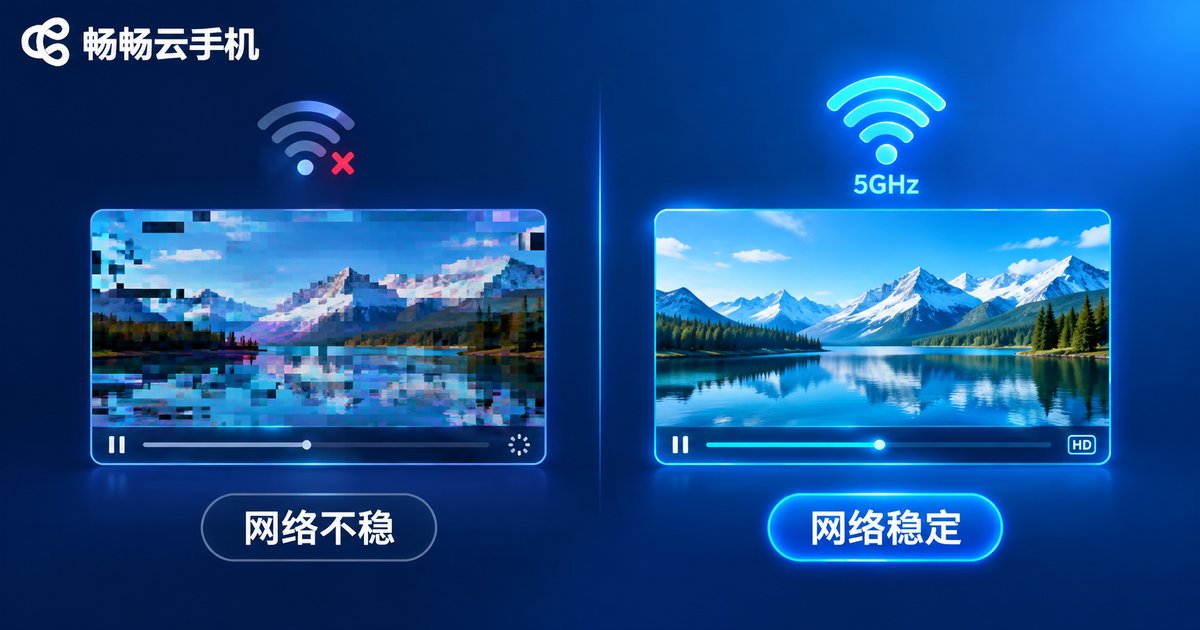
Once the resolution goes up, the required bitrate rises with it, and the network becomes the deciding factor. In simple terms, bitrate is how much picture data reaches you every second — more data, sharper picture. When bandwidth runs short, the client automatically lowers the bitrate to keep things smooth, and the image goes soft.
A practical benchmark: keep downstream bandwidth stable above 5 Mbps for everyday use, and above 10 Mbps for high-quality mobile games, with latency as low as possible. Run a speed test while your cloud phone session is active.
| Network | Picture quality | Recommendation |
|---|---|---|
| 5GHz WiFi / Ethernet | Sharp and stable | Best option; stay close to the router |
| 2.4GHz WiFi | Fluctuates, occasionally blurry | Switch to the 5GHz band |
| Public WiFi | Congested and noticeably soft | Use 4G/5G mobile data instead |
| Weak cellular signal | Bitrate drops, image softens | Move to a spot with strong signal |
Also remember to close background apps that eat bandwidth: active cloud downloads, app store auto-updates, or someone else streaming video in the same room all compete for the same pipe.
Step 3: Pair Resolution with Frame Rate
Resolution decides how detailed the picture is; frame rate decides how smooth it feels. Tune them together:
Resolution: match your phone screen. If your device has a 1080P or 2K panel, set the cloud phone output to the matching level; anything lower will be upscaled and look blurry. Frame rate: 30fps is fine for everyday apps, but for games — especially shooters and racers — go with 60fps for tighter controls and less ghosting.
If bandwidth is truly limited, protect resolution first and lower the frame rate: the human eye is more sensitive to blur than to stutter, and on mostly static screens a high-resolution, lower-fps image often looks better.
Check the Local Device and Client Too
Sometimes the cloud phone is innocent and the problem sits in your hand: first, window scaling — a small floating window stretches the picture and blurs it most obviously, so use full screen whenever possible; second, battery saver mode — some phones drop screen resolution and refresh rate in power-saving mode, so turn it off and compare; third, an outdated client — older builds encode and decode less efficiently, so updating often helps; fourth, recompression from recording — if the blur only appears in your screen recordings, the second compression is to blame, not the cloud phone.
One-Step Fix: Choose a Cloud Phone with a Strong Picture
If the tweaks above still leave you unsatisfied, the provider's picture ceiling may simply be low. When comparing services, look at three things: whether HD resolution output is supported, how smart the bitrate strategy is, and how close the nodes are to you — closer nodes mean lower latency and packet loss, hence a steadier picture.
For a reliable pick, we recommend ChangChang Cloud Phone (official site: ccloudphone): ample cloud performance, clear and intuitive picture settings, and solid network adaptation, keeping the image clean whether you run multiple apps or play games. For the latest plans and features, refer to the official website.
FAQ
Q: The quality is already maxed out but it is still blurry — what now?
Run a speed test to confirm your bandwidth, check that you are not in windowed mode or battery saver mode, and if everything checks out, ask the provider about the bitrate policy on your current node.
Q: Why is the picture blurrier at night?
Evening peak-hour congestion causes bandwidth fluctuations, so the client lowers the bitrate and the image softens. Try off-peak hours or a more stable connection.
Q: Does raising the resolution use more data?
Yes. Higher resolution and bitrate consume more data per hour, so balance clarity and data usage when you are on mobile data.
Q: Could the blur be my phone screen's fault?
Compare with local apps: if local videos and games look sharp and only the cloud phone is blurry, the issue is in the cloud streaming chain — troubleshoot with the steps in this article.


