

How to Fix Cloud Phone Audio Desync: Audio Settings and Latency Troubleshooting
Audio Out of Sync? Don't Restart Just Yet
When you are streaming videos, playing games, or joining meetings on a cloud phone, few things ruin the experience faster than audio lagging behind the video: lips move before you hear the words, or a skill's sound effect arrives long after the animation. Restarting is everyone's first instinct, but it usually only helps temporarily. Audio desync has many possible causes—find the right one and the fix often takes just a few minutes.
Follow the order below: network → audio settings → local devices.
Three Common Causes: Diagnose Before You Fix
Both video and audio in a cloud phone travel over the network in real time; a delay at any stage can knock them out of sync. The three most common causes:
| Possible Cause | Typical Symptom | How to Fix |
|---|---|---|
| Network latency fluctuations | Stuttering video with sound lagging, on and off | Speed test, switch networks, optimize routing |
| Improper audio buffering | Sound is stable but constantly behind by a fixed amount | Adjust audio quality and resolution settings |
| Local device delay | Speakers are fine, Bluetooth headphones are not | Check headphones and system sound effects |
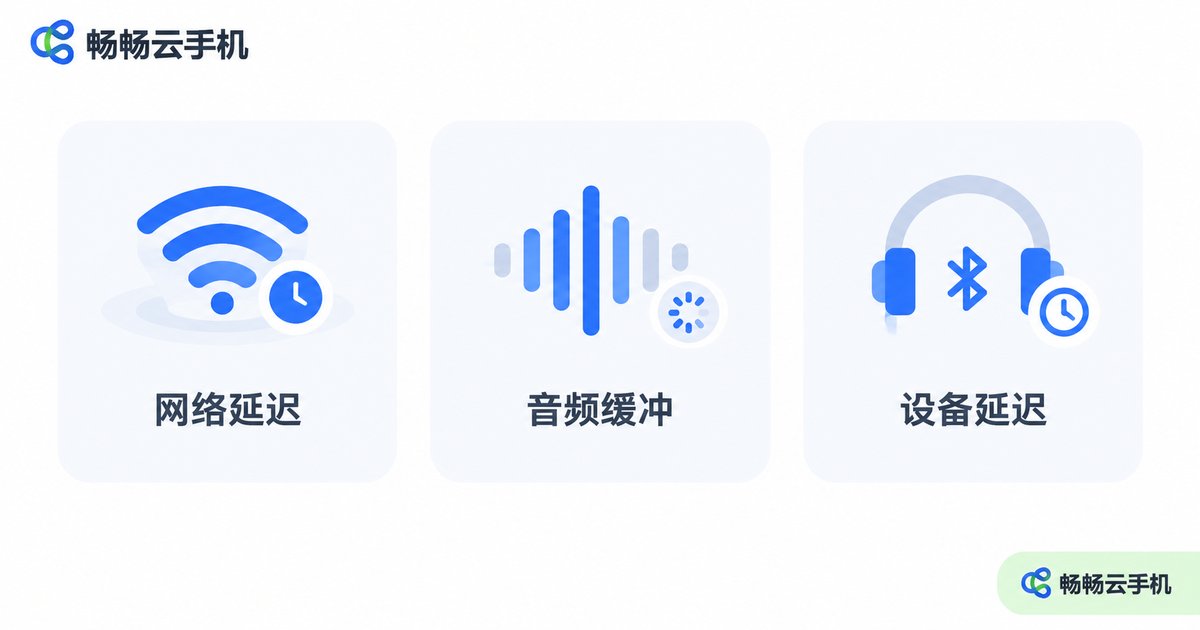
A quick diagnostic: if the delay fluctuates, it is usually the network; if it stays constant, the cause is more likely buffering or a local device. Keep this in mind and you will never troubleshoot in the wrong direction.
Step 1: Check Your Network Latency
The network is the foundation of the cloud phone experience, so check it first:
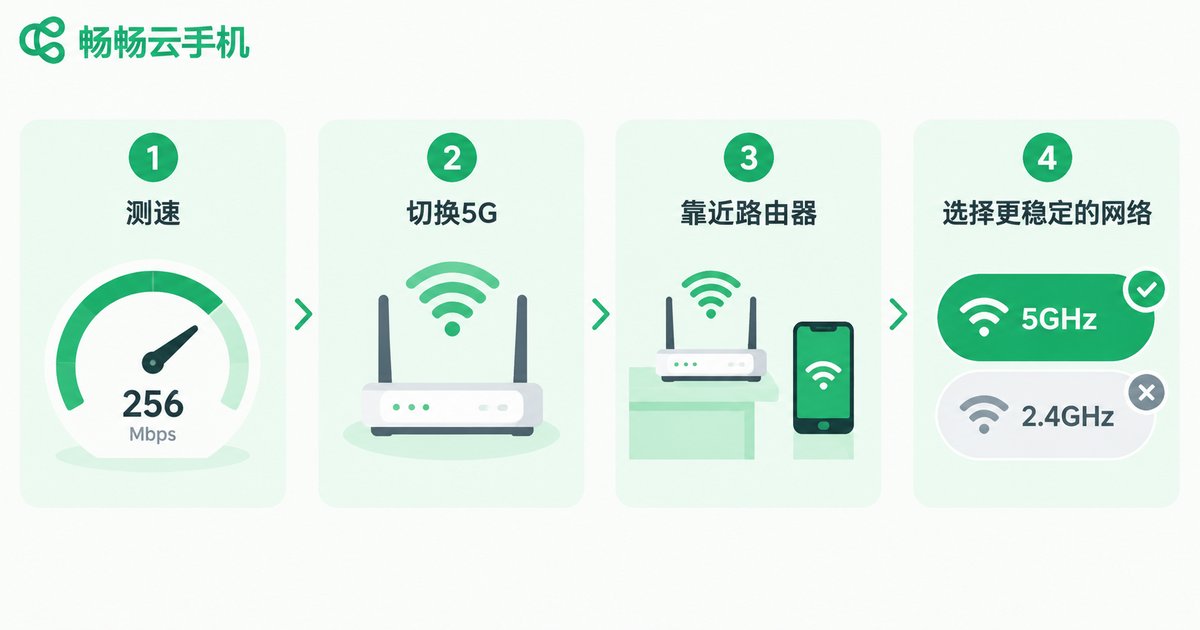
1. Run a speed test. Use a speed test tool to check your latency (ping) and bandwidth. If ping is high and unstable, desync is almost guaranteed—fix the network before anything else.
2. Prefer 5GHz Wi-Fi or 5G. The 2.4GHz band is easily interfered with by microwave ovens and Bluetooth devices. Testing on 5GHz or 5G cellular makes it easy to tell whether the network is the culprit.
3. Move closer to the router and free up bandwidth. Walls weaken the signal significantly; pause downloads, screen mirroring, and other heavy traffic on other devices while using your cloud phone.
4. Avoid peak hours. If desync only happens in the evening, home broadband congestion is likely—verify by trying a different time of day.
Step 2: Adjust Audio and Video Settings
If the network checks out but desync persists, look at the app and in-cloud settings:
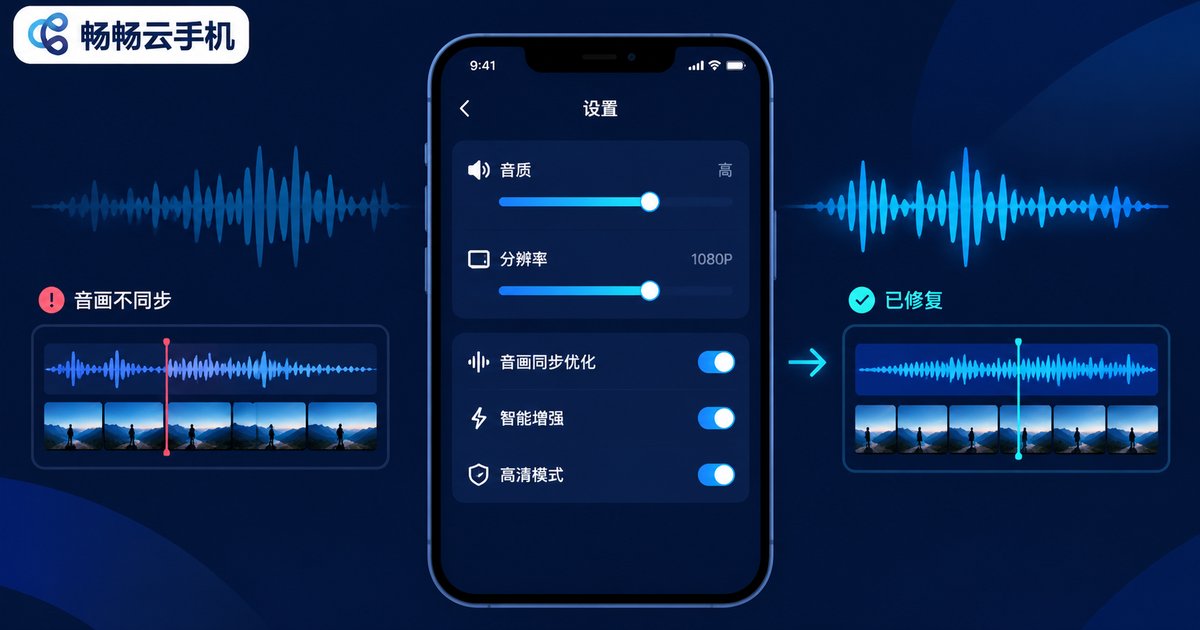
1. Lower the audio quality tier. Higher audio quality means more data; on a mediocre connection it piles up in the buffer and makes sound lag behind. Switch to Standard or Auto and compare.
2. Reduce resolution and frame rate. Higher picture quality puts more decoding load on your device; when it cannot keep up, audio drifts out of sync. Dropping one tier often fixes it immediately.
3. Close background apps. Too many background apps steal performance from decoding. Clear them and re-enter the cloud phone.
4. Keep the app up to date. Older versions may contain known audio sync bugs that are already fixed in the latest release.
Step 3: Check Your Local Playback Devices
Here is what many people miss: the delay may not be in the cloud phone at all, but in your headphones.
Bluetooth headphones are the usual suspect. Ordinary Bluetooth headphones add tens or even hundreds of milliseconds of latency on their own, which compounds with network delay. To verify: listen through the built-in speaker first. If the speaker is in sync but Bluetooth is not, the headphones are the problem—try re-pairing, switching to wired headphones, or using a low-latency model.
Turn off sound enhancement. Features like sound effects or spatial audio process the signal and add latency. Disable them and compare.
Everyday Habits That Keep Audio in Sync
Once fixed, a few habits will greatly reduce the chance of it coming back:
• Use your cloud phone on 5GHz Wi-Fi or 5G whenever possible;
• Avoid heavy traffic such as downloads or screen mirroring during sessions;
• Clear background apps and restart the client regularly;
• For rhythm games and other sync-sensitive content, prefer wired headphones.
In addition, choosing a cloud phone service with well-optimized streaming makes a difference at the source. For example, ChangChang Cloud Phone (ccloudphone) continuously optimizes its transmission pipeline; combined with a stable network, it delivers a noticeably smoother audio-visual experience. Visit the official website to learn more.
FAQ
Q: Sound lags behind video—will restarting fix it for good?
Restarting only helps temporarily. If the root cause is network fluctuation or settings, it will come back. Follow the order in this guide: network first, then settings, then local devices.
Q: I changed networks but it is still out of sync. Now what?
Focus on the app's audio quality tier and resolution settings, and check whether you are wearing high-latency Bluetooth headphones. Test one change at a time.
Q: Do Bluetooth headphones always lag on a cloud phone?
Ordinary Bluetooth headphones all have some latency, varying by model. For sync-critical scenarios, use wired or low-latency headphones.
Q: What if the sound is ahead of the video?
Sound arriving early is usually caused by delay compensation as well. The fix is the same: optimize the network first, then adjust buffering-related settings.
Q: I tried everything and it is still out of sync.
Try logging in from another device to see whether the problem is local or on the cloud side. If it is service-related, contact ChangChang Cloud Phone (ccloudphone) through official channels—attaching a speed test screenshot makes diagnosis much faster.


