

Cloud Phone Black Screen Troubleshooting Guide: Display, Network and Client Settings Check
Why Does a Cloud Phone Screen Go Black? Start with the Three Links
When users see a black screen on a cloud phone, they often assume the device is broken. In reality, most black screens are not faults at all — they come from one of three links: display rendering, network transmission, or client settings. A cloud phone generates its picture on a remote server and streams it to your screen in real time, so if any link in that chain stalls, the picture can go dark.
Remember one troubleshooting order: display first, then network, then client. Work through the checks in that order and most black screen issues can be fixed by yourself within a few minutes.
Step 1: Check Display and Picture Settings
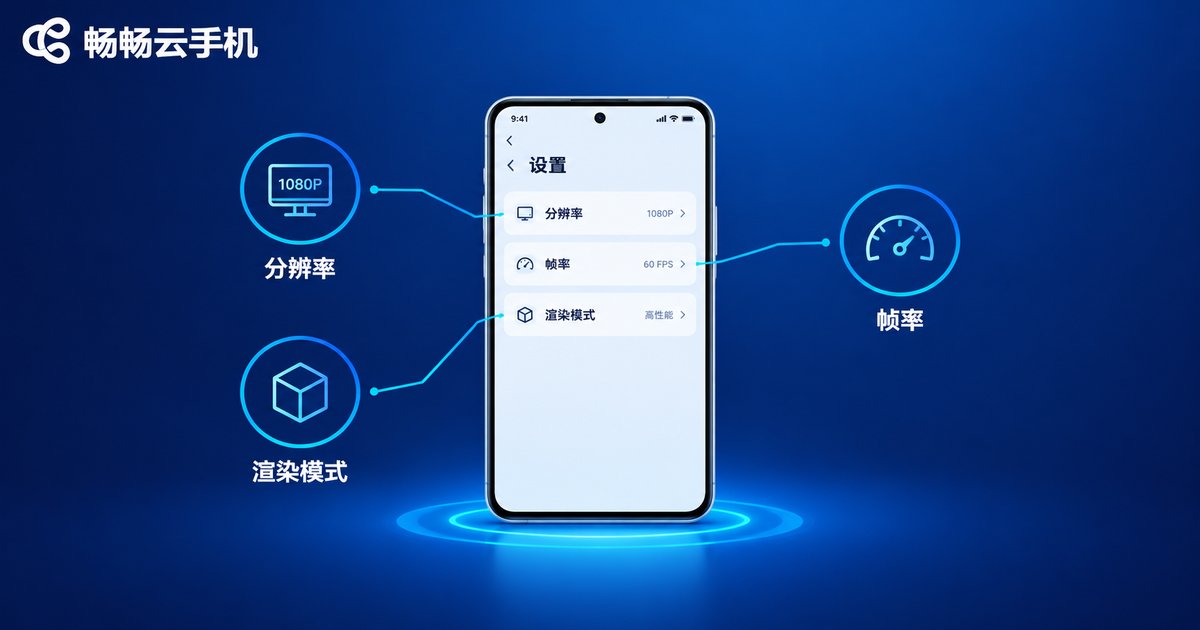
If you can still hear sound and control the phone while the screen is black, the cloud phone itself is running fine and the issue is most likely in the rendering link. Check the following three items in order:
1. Is the resolution or frame rate set too high? Older or lower-performance devices may fail to decode high-resolution, high-frame-rate streams, causing black or flickering screens. Lower both the resolution and frame rate by one step and see if the picture returns.
2. Does the rendering or decoding mode match your device? If the client offers multiple rendering or decoding modes, try switching between hardware and software decoding — compatibility varies from model to model.
3. Does it only go black in one app? If only one game or app goes black while everything else works fine, that app is likely incompatible with the current quality settings. Simply lower the quality for that specific app.
Step 2: Check Your Network Connection
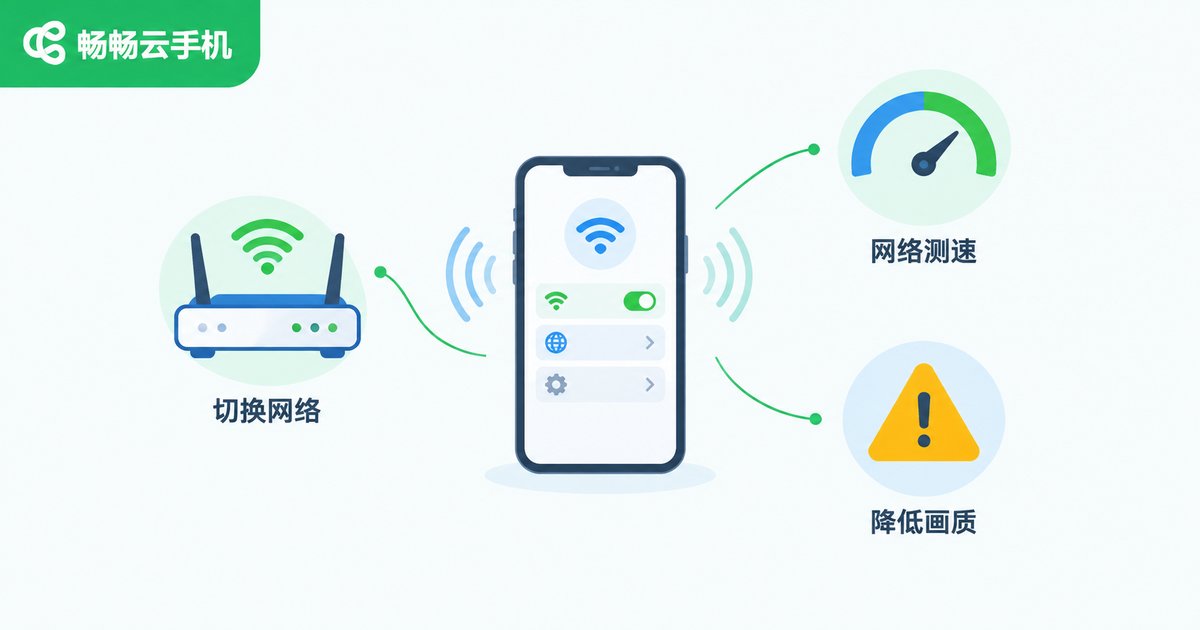
Cloud phones demand more from your network than ordinary video streaming. Insufficient bandwidth, high latency, or heavy packet loss can freeze the picture and then turn it black. Here is how to check:
1. Run a speed test first. Use a speed test tool to check your current download bandwidth and latency. If bandwidth is clearly below normal or latency fluctuates wildly, the network is the likely culprit.
2. Switch networks and compare. Toggle between Wi-Fi and mobile data once and see whether the black screen improves. If it recovers after switching, the original network is the problem — reboot your router or move to a spot with a stronger signal.
3. Lower the quality and bitrate. On a mediocre connection, a lower picture quality is far more stable than forcing high quality and suffering repeated black screens.
Step 3: Check the Client Settings
If the display and network both look fine but the black screen persists, inspect the client itself:
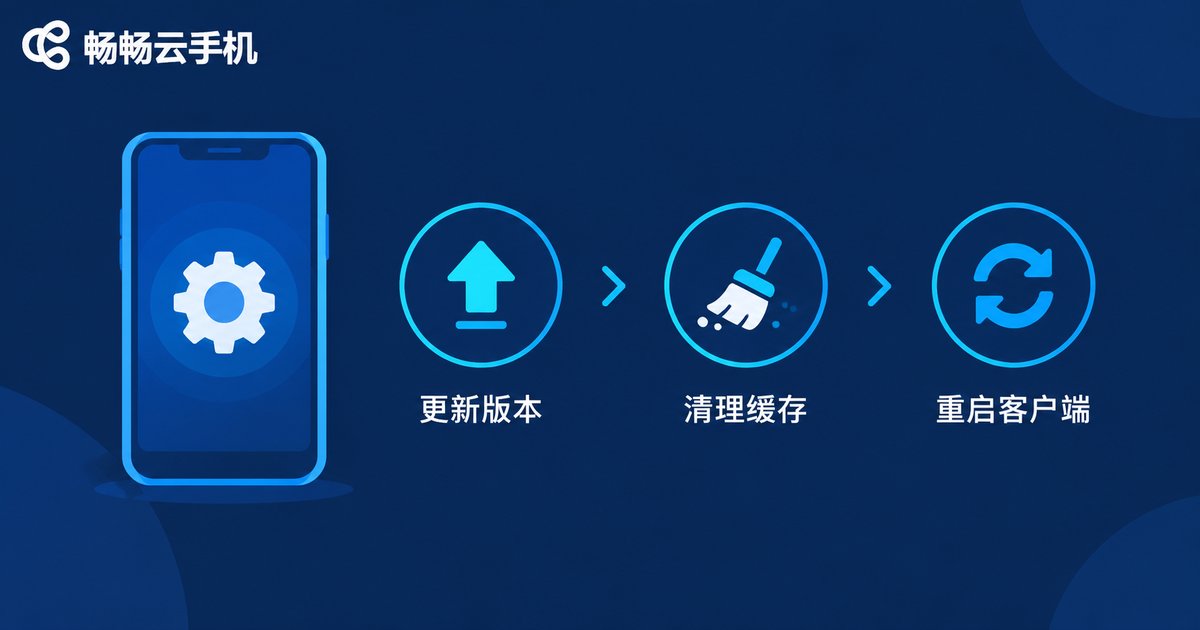
1. Update to the latest version. Older client versions may contain known display bugs — check the app store for updates and install them promptly.
2. Clear the cache and restart the client. Cache files accumulated over long use can cause rendering glitches. Clear the cache, fully exit the client, and reopen it — many mysterious black screens are fixed exactly this way.
3. Check battery saver and background restrictions. Aggressive power-saving policies on some phones restrict background networking and rendering for the cloud phone client. Whitelist the client or lift its background restrictions.
4. Reinstall as a last resort. Uninstalling and reinstalling the latest version rules out problems caused by a corrupted installation package.

Quick Reference: Match Your Symptoms
Different black screen symptoms usually point to different causes. Use the table below to locate the problem faster:
| Symptom | Most Likely Cause | Recommended Fix |
|---|---|---|
| Sound and controls work, but no picture | Rendering or decoding error | Switch rendering/decoding mode, lower resolution |
| Only one app goes black | App incompatible with quality settings | Lower the quality for that app only |
| Picture stutters, then fades to black | Network jitter or heavy packet loss | Speed test, switch networks, lower bitrate |
| Black screen right after launching | Corrupted cache or outdated version | Clear cache, update or reinstall the client |
| Black screen on every device and network | Cloud instance error | Restart the cloud instance or contact support |
Still Black After All That? Contact ChangChang Cloud Phone Support
If you have been through every step above and the screen is still black, the cloud instance itself may be malfunctioning. First try restarting the cloud instance: shut it down and power it on again from the device manager — it is like rebooting the phone in the cloud, and it clears many abnormal states.
If a restart does not help, contact the support team of ChangChang Cloud Phone (ccloudphone) directly. To speed things up, provide as much of the following as possible: your device model, system version, network type (Wi-Fi or mobile data), and exactly when and how the black screen occurs. With this information, support can quickly tell whether it is an isolated case or a widespread issue and give you a targeted solution.
FAQ
Q: My cloud phone screen is black but I still hear sound — did I get disconnected?
Not necessarily. Sound means the cloud side is still running; the issue is most likely in picture transmission or decoding. Start with Step 1 and check rendering and quality settings.
Q: Restarting my phone fixes it, but the screen goes black again later. What should I do?
Recurring black screens are usually caused by network jitter. Stay on a stable Wi-Fi connection and lower the picture quality and frame rate in the client to reduce bandwidth pressure.
Q: Will clearing the cache delete the data inside my cloud phone?
No. You are only clearing local client cache files. Apps and data inside the cloud phone are stored in the cloud and are not affected.
Q: I switched to a new phone and it still goes black. Where is the problem?
If the black screen persists across different devices and networks, the cloud instance is likely at fault. Restart the instance first; if that does not work, contact ChangChang Cloud Phone support.


