

Cloud Phone Lagging? Don't Replace Your Device Yet! The Right Order to Optimize Bitrate, Resolution, and Decoding
It's Not Always the Device: How the Picture Actually Reaches Your Screen
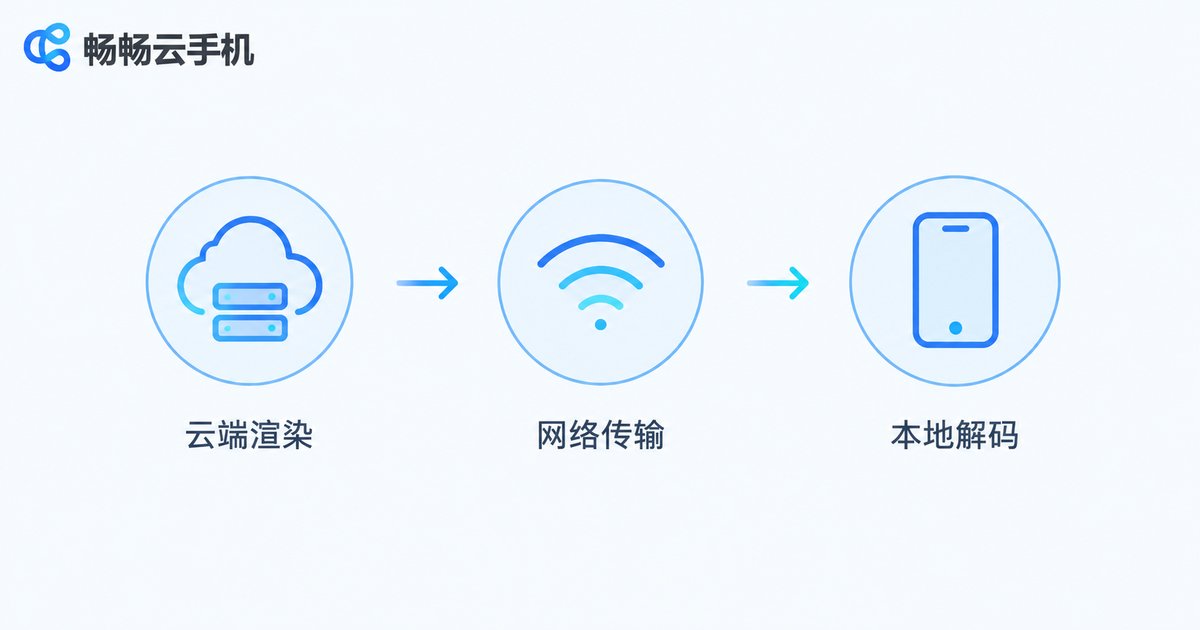
When a cloud phone starts stuttering, the first reaction is often 'my device is too old, time to replace it.' In reality, a cloud phone renders everything in a data center, then encodes, compresses, and streams the video to your phone, where it gets decoded and displayed. A hiccup anywhere along this chain shows up as lag — and in most cases, tuning three parameters (bitrate, resolution, decoding method) fixes it, no new hardware required.
First, identify which type of lag you have:
- Blurry image, mosaic blocks, washed-out colors — bitrate too low or bandwidth insufficient;
- Frame freezes followed by sudden jumps, audio fine while video trails behind — unstable network;
- High input delay, frequent frame drops, phone running hot — the decoding method is the bottleneck.
Step 1: Switch the Decoding Method — Free, Fast, Effective
There are two decoding modes. Software decoding relies on your CPU to process every frame: broadly compatible but performance-hungry, and once the phone heats up, frames start dropping. Hardware decoding hands the job to a dedicated chip inside your phone, using almost no CPU — smoothness improves and heat drops immediately.
That's why this is always step one: go into settings and switch decoding from software to hardware. It costs nothing and makes a dramatic difference on older devices. Only a few models show artifacts like a green screen or corrupted colors with hardware decoding — if that happens, simply switch back.
Step 2: Adjust Resolution to Find the Sweet Spot
Resolution controls sharpness — and directly determines how much data must be transmitted and decoded. The higher the resolution, the more bandwidth and decoding power it demands. Many users jump straight to 1080P or even 2K, only to end up laggy and blurry at the same time because their connection can't keep up.
Match resolution to your real bandwidth:
| Bandwidth | Recommended resolution | Expected result |
|---|---|---|
| 20 Mbps or more | 1080P | Sharp and smooth |
| 10–20 Mbps | 720P | Clear and smooth |
| 5–10 Mbps | 720P or 540P | Mostly smooth |
| Below 5 Mbps | 540P or lower | Smoothness first |
Practical trick: drop to 720P first. Once it runs smoothly, step the resolution up gradually — the point where one more notch starts to lag is your personal sweet spot.
Step 3: Fine-Tune Bitrate Last — Trade a Little Sharpness for Smoothness
Bitrate is the amount of data streamed per second. Higher bitrate means richer detail, but also higher demands on your network. When the connection wobbles, an overly ambitious bitrate causes stuttering, artifacts, even disconnects.
Always adjust bitrate last — it's the fine-polishing step after resolution is settled. The diagnosis is simple: frequent mosaic blocks or color patches mean the bitrate is too low or the network is unstable; a sharp picture that still stutters means the bitrate exceeds what your connection can carry, so dial it down one notch.
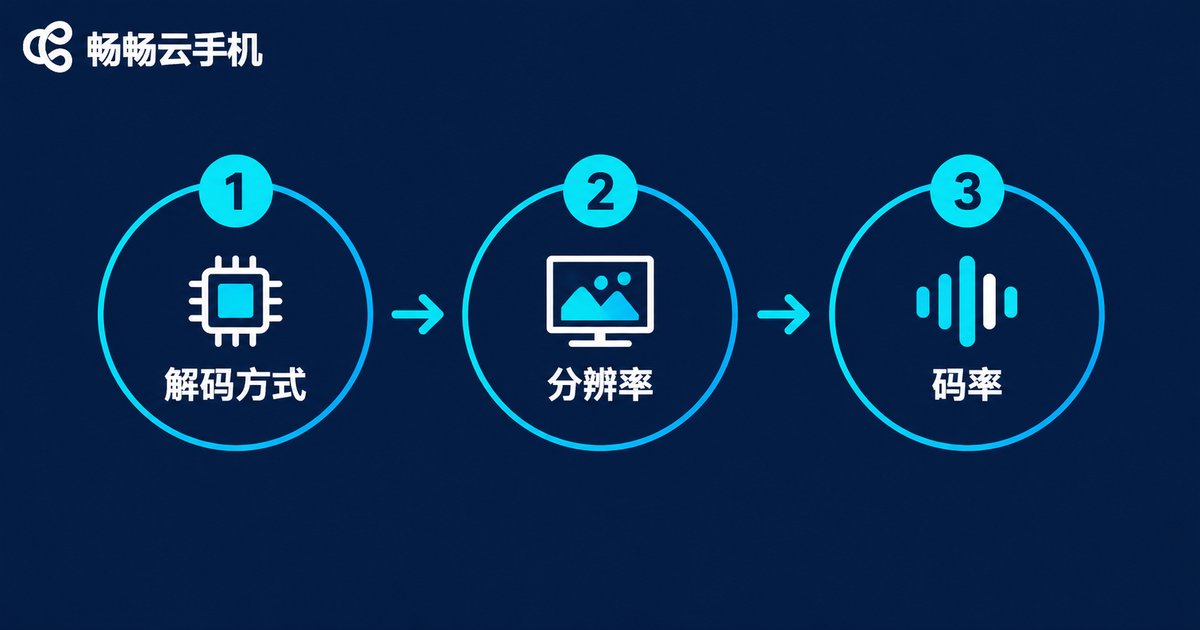
The Optimization Order at a Glance
| Order | Setting | Mainly fixes | Signal to look for |
|---|---|---|---|
| 1 | Decoding method | Frame drops, heat, input delay | Hot phone, older model |
| 2 | Resolution | Overall lag, tight bandwidth | Still lags on a different network |
| 3 | Bitrate | Blur, mosaic artifacts | Color blocks, lost detail |
Why this exact order? Because decoding is a local problem with zero cost to fix, resolution is the single biggest lever, and bitrate is only the final polish. Work in the wrong order and you can tweak every slider without ever touching the root cause.
Two Often-Overlooked Boosters
1. Your network matters more than any setting. The same parameters glide along on 5GHz WiFi but turn into a slideshow on 2.4GHz or a crowded public hotspot. Prefer 5GHz WiFi for cloud phones; on mobile data, stay where the signal is full bars.
2. Pick a frame rate you can sustain. 60fps is indeed smoother than 30fps, but it nearly doubles the data. On a tight connection, a stable 30fps beats a fluctuating 60fps every single time.

How to Adjust These on CCloudPhone
On CCloudPhone (ccloudphone), these picture settings are typically found in the settings panel or the floating menu, under the picture/clarity options: the decoding mode can be toggled between software and hardware, while clarity presets correspond to different resolution and bitrate combinations. Use the automatic preset for everyday sessions, and when a specific network environment acts up, fine-tune manually in the order of decoding first, resolution second, bitrate last. When the network fluctuates noticeably, stepping down one clarity level is usually the fastest way back to smooth playback.
FAQ
Q: Hardware or software decoding — which one should I choose?
Choose hardware decoding by default; it suits the vast majority of devices. Only switch back to software decoding if hardware decoding causes artifacts such as a green screen or distorted colors.
Q: Why did the picture get blurrier after I lowered the bitrate?
Bitrate is literally the amount of detail data per second — lowering it always costs some sharpness. The right approach: use resolution to secure smoothness first, then give bitrate as much headroom as your bandwidth allows.
Q: I optimized everything and it still lags. Now what?
Test your actual speed and latency: if ping exceeds 50ms or packet loss is obvious, the network is the problem, not the settings. Try a different network or a less crowded time of day.
Q: Is mobile data really that different from WiFi for cloud phones?
Yes. Mobile networks have volatile latency and congest at peak hours. 5GHz WiFi is far more stable and is always the recommended choice.
Q: So should I replace my device or not?
After following the order in this guide: if frame drops persist even with hardware decoding and your device is old and runs hot, an upgrade makes sense. If the issue is simply insufficient bandwidth, even the newest phone won't help.


