
Cloud Phone Black Screen but Shows 'Running'? VNC Exclusive Conflict and Force Restart Guide
Black Screen but Status Shows 'Running': What Is Going On?
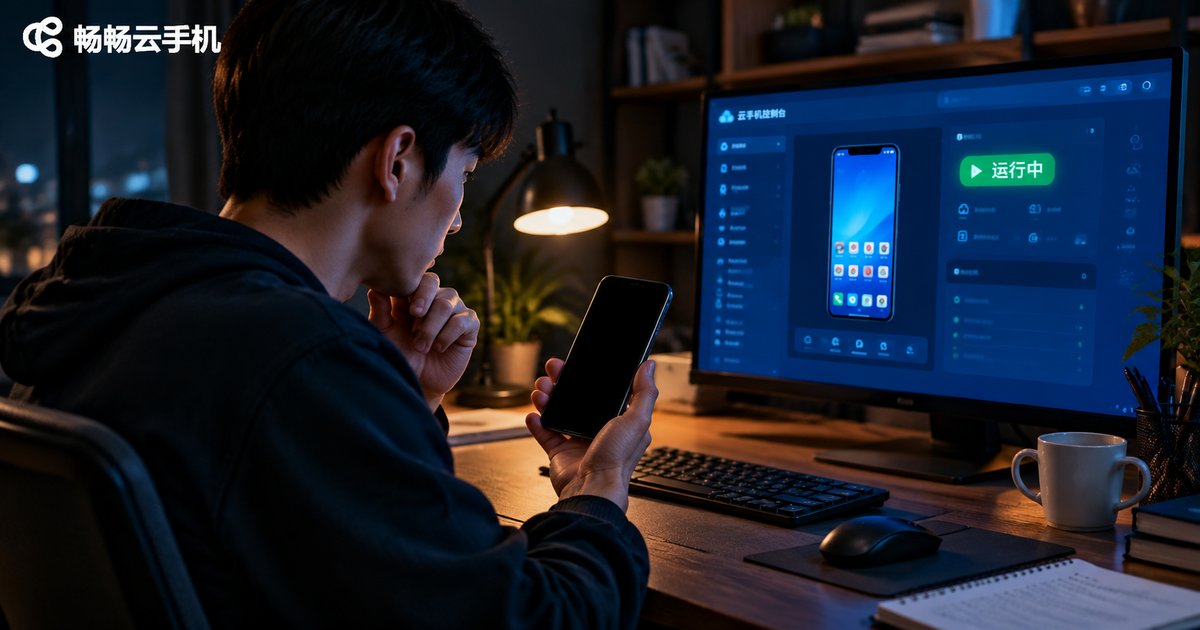
You open your cloud phone and the instance status clearly reads 'Running', yet the screen area is pitch black. The first time this happens, it is easy to panic: is my cloud phone broken? Are my games and apps still running?
Good news first: in the vast majority of cases the cloud phone itself is not faulty at all. 'Running' means the cloud instance's system and apps are working perfectly—the black screen only means the video stream is not reaching your device. In other words, the 'brain' is still working; the 'picture' simply got stuck on the way.
The Culprit: VNC Exclusive Conflict
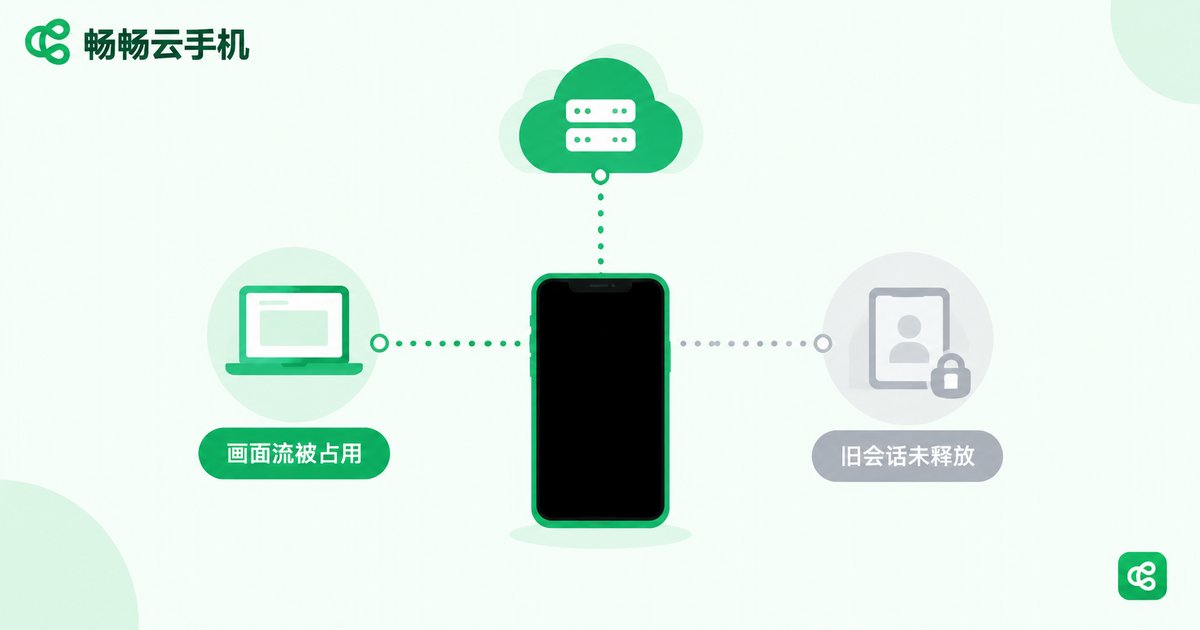
A cloud phone's picture is streamed from the cloud to your phone or computer in real time. For security and performance reasons, one video stream can normally be held exclusively by only one client at a time—this is the VNC exclusive mechanism.
When a previous session fails to exit properly—because of a sudden network drop, an app crash, or your computer going to sleep—the server may still believe 'the old session is watching' and keeps holding the stream. When you reconnect, the new session cannot take over the exclusive lock, and you end up with a running instance and a black screen.
| Common Triggers | Typical Symptom |
|---|---|
| Network switching on the subway or in an elevator | Endless black screen and loading after reconnecting |
| App swiped away by the system | Stuck on a black screen when reopened |
| Computer sleeps or the lid is closed | Picture stops refreshing after wake-up |
| Another device still logged in to the same instance | Black screen or queue no matter who connects |
Three Quick Checks in 30 Seconds
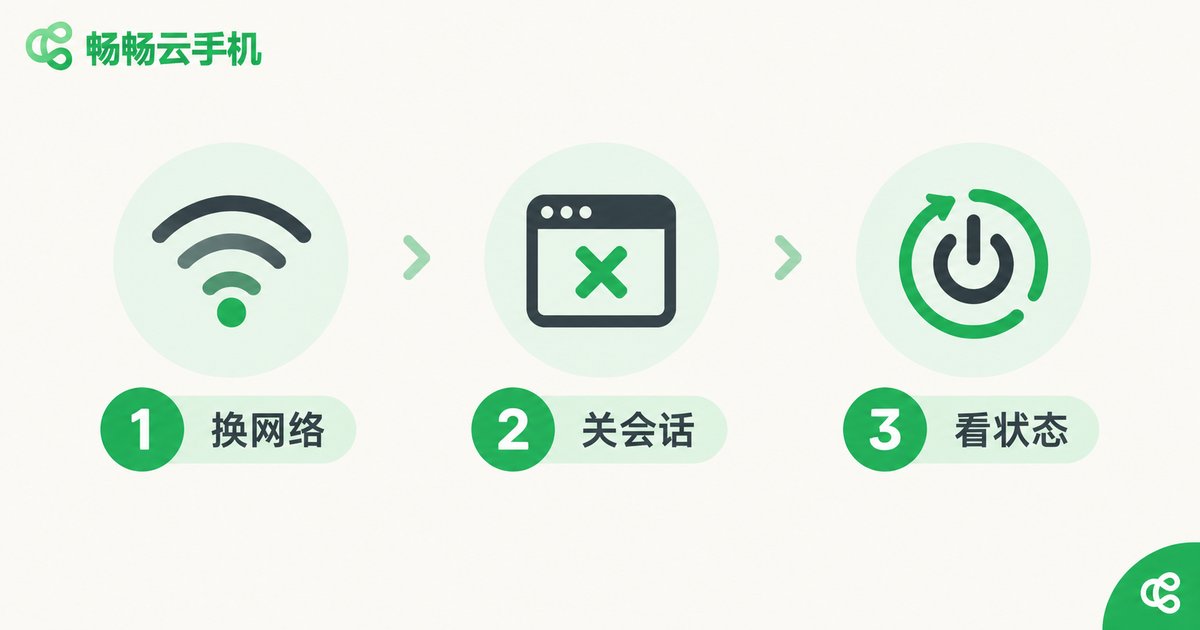
Before force-restarting, run through the following checks in order—many black screens are already fixed at step two:
Step 1: Switch networks. Toggle once between Wi-Fi and mobile data to rule out local network fluctuations breaking the stream.
Step 2: Close redundant sessions. Fully exit the app and reopen it, and make sure no other phone, tablet, or web client is still logged in to the same cloud phone.
Step 3: Check the status. Go back to the instance list and confirm the status still says 'Running'; if it shows 'Shutdown' or anything else, simply power it on and reconnect.
How to Force-Restart the Cloud Phone Correctly
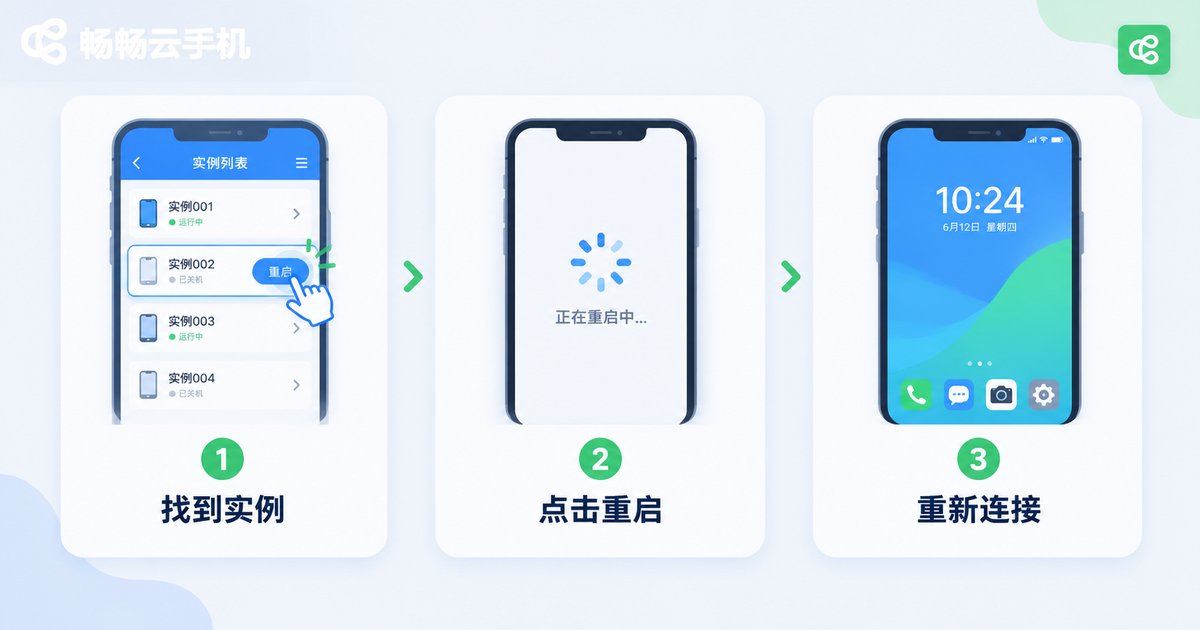
If the screen stays black after the checks, it is time to force-restart the instance to release the occupied video stream. Taking ccloudphone as an example, the process is very simple:
1. Open ccloudphone and go to the instance management list;
2. Find the cloud phone with the black screen and tap the 'Restart' button;
3. Wait until the status returns to 'Running', then tap to reconnect the screen.
A restart works just like rebooting a phone: it will not delete any apps, games, or data inside the cloud phone. Running tasks only pause briefly and resume once the restart completes. The vast majority of black screens caused by VNC exclusive conflicts are completely fixed at this step.
Still Black? Advanced Troubleshooting Checklist
If the picture still does not come back after a force restart, check the following one by one:
· Clear the client cache, then log out and sign in again;
· Update the app to the latest version, as older versions may have streaming compatibility issues;
· Try logging in from another device to tell whether the problem is local or in the cloud;
· If none of the above works, contact ccloudphone's official customer support with your instance ID and ask them to assist from the backend.
Daily Habits to Keep Black Screens Away
A few small habits can dramatically reduce black screen incidents:
· Use the cloud phone in a stable Wi-Fi environment and avoid frequent network switching;
· Watch one cloud phone from one device at a time; if several people need to check it, take turns;
· Disconnect properly when you leave—do not kill the app in the background or shut down abruptly;
· After long hours of running tasks, restart the instance periodically to clear leftover sessions.
Choose the Right Platform and Half the Trouble Disappears
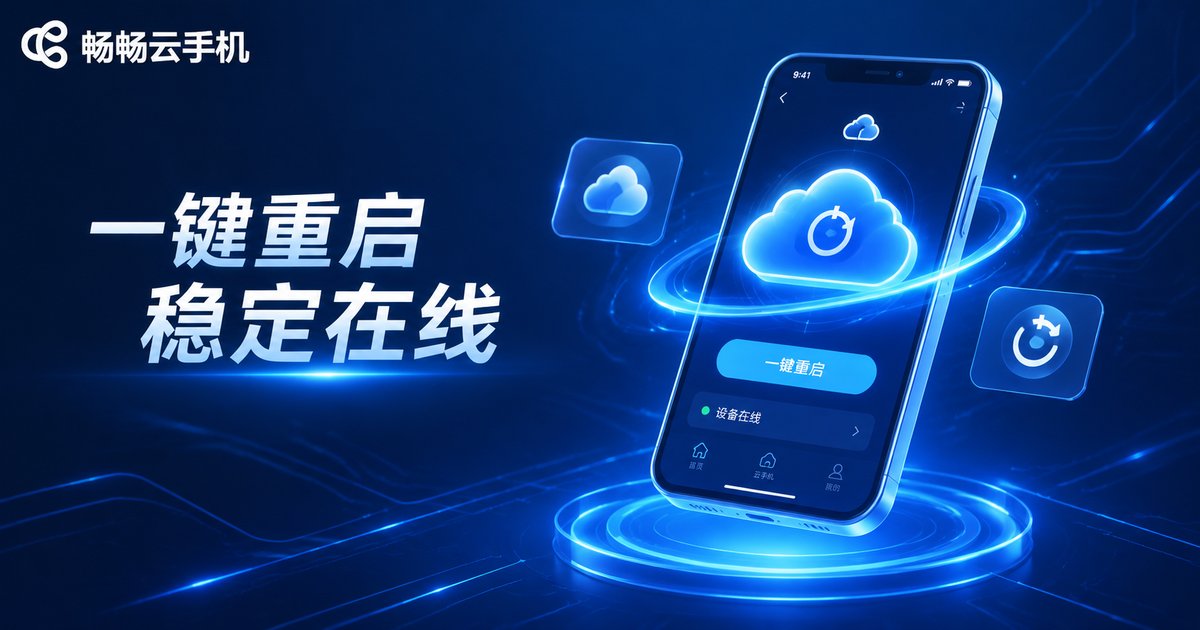
Besides knowing the emergency fixes, choosing a platform with stable streaming and convenient management matters just as much. ccloudphone provides a reliable cloud runtime and a clean, intuitive instance management interface, with a restart entry built into the console—so when a black screen happens, you can recover on your own with one tap instead of waiting. Whether it is game AFK grinding, always-on apps, or managing multiple cloud phones in one place, ccloudphone delivers a smooth and worry-free experience.
FAQ
Q: Will a force restart delete the data inside my cloud phone?
No. A force restart merely reboots the cloud instance, just like restarting a phone; apps, game accounts, and files are all preserved.
Q: Are the tasks inside the cloud phone still running during a black screen?
Yes. The status 'Running' means the cloud system is working normally and your tasks are not interrupted—the picture simply is not being delivered to your device.
Q: Why is the screen still black after switching networks?
It means the problem is not your local network but the stream being held by a stale session. Closing redundant clients or force-restarting will solve it.
Q: Can two people watch the same cloud phone at the same time?
It is not recommended. The video stream is exclusive, and multiple simultaneous connections easily trigger a VNC exclusive conflict and cause black screens. Take turns instead.
Q: How long until the picture recovers after a restart?
Usually between thirty seconds and two minutes. Reconnect once the status shows 'Running' again and the picture will display normally.


