
How to Fix Cloud Phone Black Screens and Crashes from GPU Virtualization and OpenGL Version Mismatch
Black Screen on Launch, Crash at Loading? Don't Uninstall Yet
When running large 3D games or always-on apps on a cloud phone, two problems are the most frustrating: a completely black screen while sound keeps playing, and a crash right at the loading screen. Many users blame the network or the device and restart or reinstall repeatedly, yet the issue persists. In fact, a very common cause is that the cloud phone's GPU virtualization does not match the OpenGL version the app requires. This guide takes you from the underlying principles to hands-on fixes, step by step.
First, Understand How a Cloud Phone Renders Images
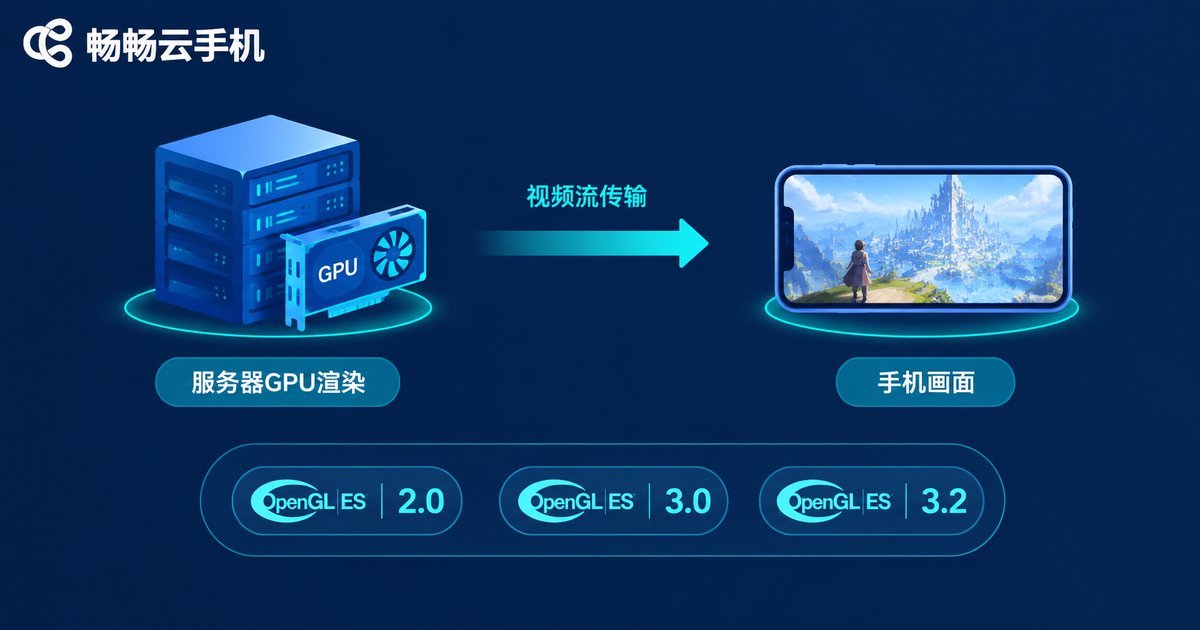
A cloud phone is not a physical handset. It is an Android system running on servers in a data center. Every frame you see is rendered by a virtual GPU on the server and then streamed to your device as a video feed.
That is exactly where things break: many demanding 3D apps check the supported OpenGL ES version (for example, OpenGL ES 3.0 or higher) or call specific rendering instructions. If the host GPU driver or the virtualization passthrough on the cloud phone does not match what the app expects, the app may fail to detect a usable GPU and show a black screen, or it may crash the moment a rendering call fails. Understanding this gives your troubleshooting a clear direction.
A Three-Minute Check: Is It Really a GPU or OpenGL Issue?
Before changing any settings, compare your symptoms against the table below to avoid wasted effort:
| Symptom | More likely a GPU/OpenGL issue | More likely another cause |
|---|---|---|
| Black screen but sound and touch feedback still work | Rendering layer failure | Network issues usually come with lag or disconnects |
| Crash always at the loading screen or intro cinematic | Heavy rendering scene | Random crashes often mean insufficient memory |
| Same app works on one instance but fails on another | Different instance GPU environments | Account or data corruption |
| Light apps run fine, only large 3D games fail | Unmet requirement for a newer OpenGL version | — |
The Five-Step Troubleshooting Process: From Software to Hardware
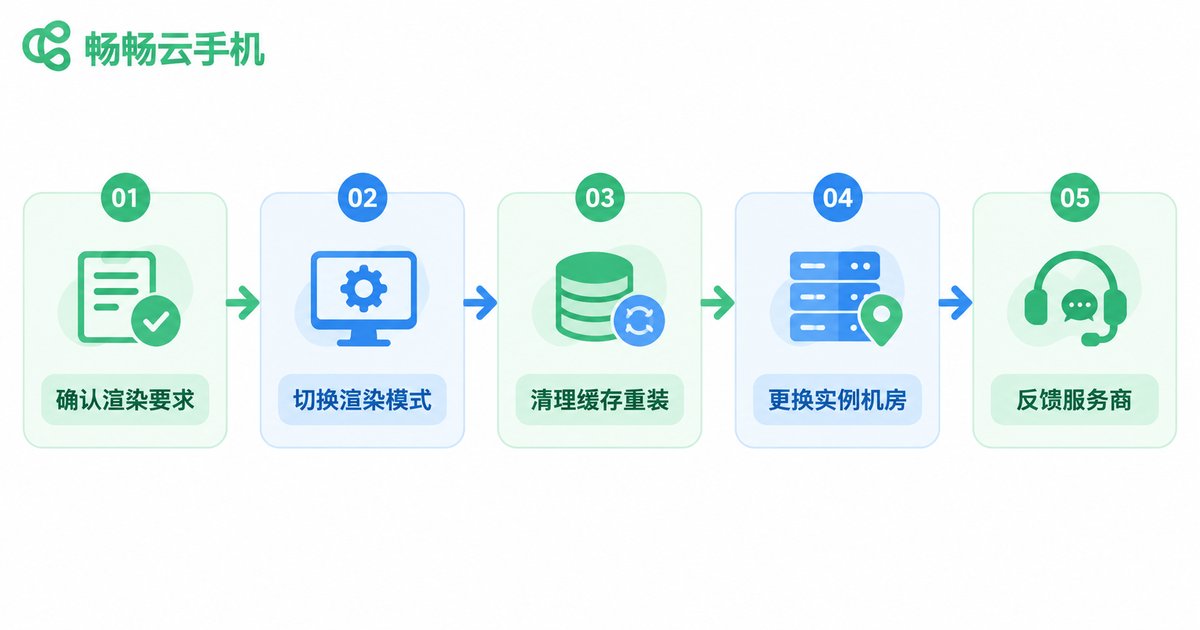
Step 1: Check the app's graphics requirements.Look up the required OpenGL ES version and graphics API on the game or app's official site or configuration notes. The higher the requirement (for example, OpenGL ES 3.2 or Vulkan), the more the cloud phone's GPU virtualization compatibility matters.
Step 2: Switch the cloud phone's rendering mode.Most cloud phone clients offer graphics options such as performance mode and compatibility mode. When facing a black screen or crash, switch to compatibility mode first and launch the app again; if the image becomes extremely choppy, you can switch back to performance mode. This single step resolves most version mismatch problems.
Step 3: Clear the cache and reinstall the app.Old shader caches can become invalid after a GPU environment change and cause rendering errors. Clear the app's cache and data inside the cloud phone, then reinstall it to rule out corrupted local files.
Step 4: Change the instance or region.Different regions and instance plans may be assigned different host GPUs. If black screens happen across a whole region, moving to another region or a higher-tier instance often fixes it immediately, which also confirms a GPU environment issue.
Step 5: Update the client and report to support.Collect the app name, the time the issue occurs, and your instance details, then send them to the cloud phone's support team. A reliable provider keeps optimizing for apps that require newer OpenGL versions.
Quick Reference: Common Scenarios
| Scenario | Likely cause | What to do |
|---|---|---|
| Large 3D game shows a black screen with sound | OpenGL version check failed | Switch to compatibility mode or change instance plan |
| Crash right after entering the game, no error dialog | Rendering call failure | Clear cache and reinstall, update the cloud phone client |
| Glitched visuals or color blocks | GPU virtualization passthrough error | Restart the instance, contact support if it persists |
| Some windows go black during multi-instance use | Insufficient GPU resource allocation | Run fewer instances at once or adjust the instance plan |
Prevent It at the Source: Choosing the Right Cloud Phone Matters
Instead of troubleshooting every time, evaluate the maturity of the GPU virtualization before you commit to a platform: whether it supports mainstream graphics APIs, whether it keeps improving compatibility for apps that require newer OpenGL versions, and whether GPU scheduling stays stable across multiple instances. An Android cloud phone service like ChangChang Cloud Phone (ccloudphone) supports multi-instance app running and stable background tasks, and compatibility issues can be reported directly to its official support team for follow-up, which makes the whole experience far less painful.

Frequently Asked Questions
Q: Are black screens and crashes always caused by GPU virtualization?
No. Network jitter, low memory, and app bugs can cause similar symptoms. Use the symptom table above first: if only large 3D apps fail and the issue disappears after switching instances, a GPU or OpenGL level cause is more likely.
Q: Does compatibility mode affect image quality?
Slightly, possibly. Compatibility mode prioritizes keeping the app running, while performance mode prioritizes frame rate. Get the app running stably first, then raise in-game quality settings gradually.
Q: Why does the same game run fine on my friend's multi-instance setup but black-screens on mine?
You are probably on different regions or instance plans, which means different host GPU environments. Compare your region and instance details, then decide whether to switch regions or change plans.
Q: Will upgrading my plan fix an OpenGL mismatch?
If the black screen comes from insufficient GPU performance or a low-tier instance, upgrading usually helps. If it is a pure version compatibility issue, the provider's compatibility updates matter more, so report the problem to support as well.


