
Cloud Phone iOS Guide: How to Download, Feature Limitations and Hands-on Review
What an iOS cloud phone actually is
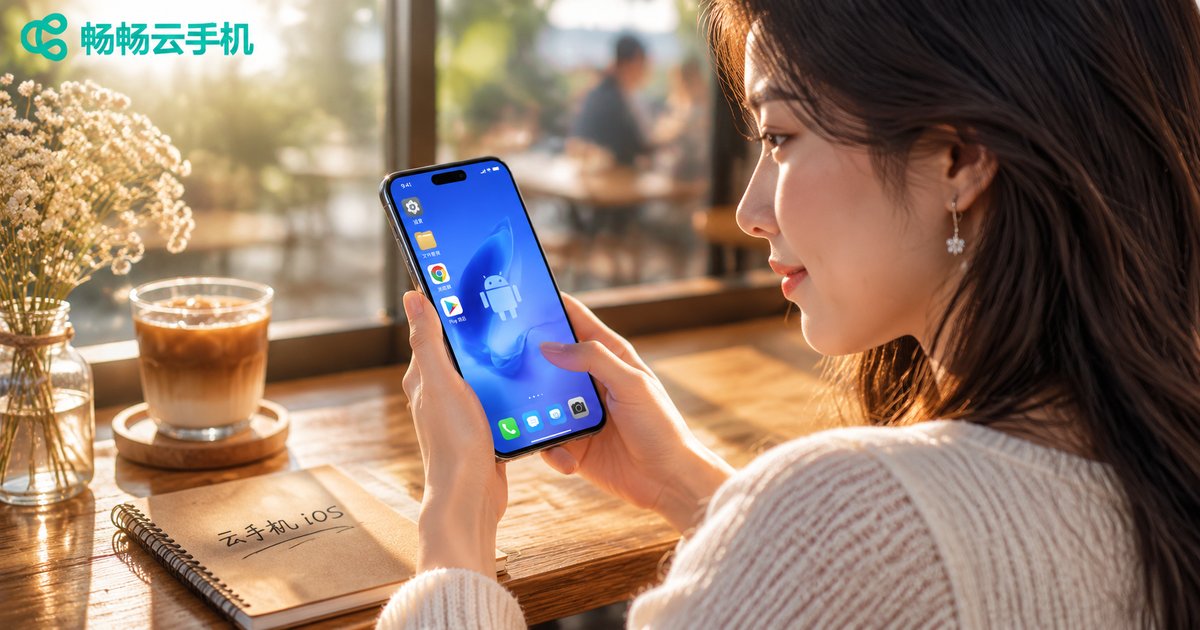
In plain terms, a cloud phone is an Android handset running inside a data centre. The screen you see on your iPhone is a live stream from that remote device. Your taps and swipes travel back to it, it executes them, and the result is pushed to you. That is how an iOS device ends up running Android apps and Android-only game servers.
For iPhone users the point is simple: iOS cannot install Android apps and cannot log into Android game accounts. A cloud phone opens an Android window inside your iPhone. And because all the heavy lifting happens in the cloud, your phone stays cool and the battery barely moves, even when something runs for hours.
Three ways to get it on iOS
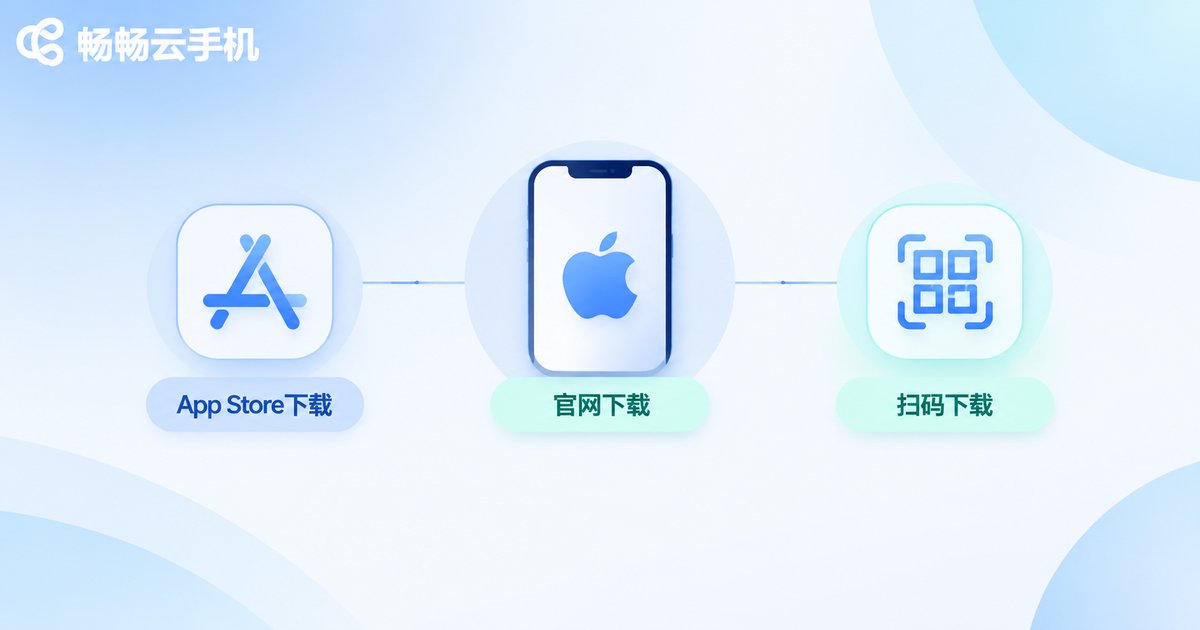
Route one: the App Store. Search for the cloud phone name in the App Store and install the official client. One caveat: listings for cloud phone apps change with each release cycle. If you cannot find it, the product is not necessarily gone — the current build may simply be under review. In that case use one of the options below.
Route two: the official website. Go to the ccloudphone site and check the latest iOS download entry and current support status. The official site stays in sync with each release, which makes it the most reliable channel, and you can read the feature notes and supported device information at the same time.
Route three: the Safari web version. If you would rather not install anything, open the web client in Safari, sign in, and drive your cloud device from there. It suits occasional use or a phone that is short on storage. The web version is lighter, but checking status and doing simple operations works fine.
The flow after that is the same everywhere: register and sign in, pick or activate a cloud instance, enter the cloud desktop, then install whatever apps you need inside it.
Feature limitations: iOS is not a carbon copy of Android
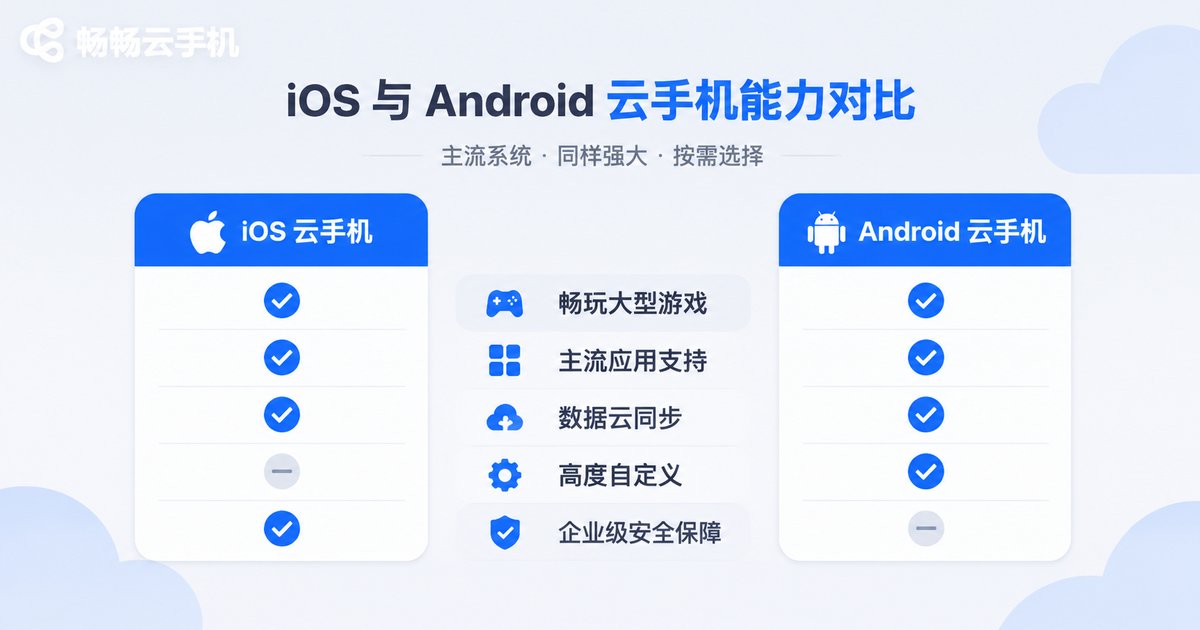
Let us be clear up front: these differences are not a flaw in any particular product — they come from how iOS works. Apple governs background execution, the file system and app installation sources far more strictly than Android does. The Android phone in the cloud is free; the glass in your hand still plays by iOS rules.
| Capability | On iOS | On Android |
|---|---|---|
| Installing third-party apps | Via the cloud app market or the cloud browser | Upload a package and install locally, more freedom |
| File transfer | Usually through cloud storage or the web uploader | Direct drag and drop, folder transfer |
| Background persistence | Connection may drop after a while in the background; reconnects on return | Stays online in the background far more easily |
| Multiple windows | Typically switch between instances inside one app | Split screen and multi-window at the same time |
| Keyboard, mouse, gamepad | Limited, mostly touch mapping | Fuller support for keyboard, mouse and controllers |
| Notifications | Relies on in-app alerts, system push is restricted | More flexible push and reminders |
The pattern is obvious once you look at it: the limits sit mostly at the local interaction layer, while the Android device in the cloud keeps its full capabilities. Idle farming, keeping multiple accounts online, long unattended runs — all of that works the same from iOS. What genuinely suffers is heavy file pushing into the cloud, or use cases that demand a connection that never drops in the background.
Hands-on experience: latency, image quality, heat
Real-world performance comes down to three variables: network quality, cloud configuration and encoding efficiency. The first two are the ones you control.
Network comes first. Use stable Wi-Fi or a strong 4G/5G signal, and avoid jittery public networks in transit hubs or malls for long sessions. When the network wobbles you feel it immediately: the picture blurs for a moment, and actions land half a beat late.
Image quality is adjustable. Most cloud phones let you trade sharpness for smoothness. If you are only checking on an idle session, smooth mode saves bandwidth; if you need to read fine detail, push the quality up. Keep an eye on data usage when you are on cellular.
Heat and battery are the biggest win. Rendering and computation happen in the cloud, so the iPhone only decodes and displays. After an hour of use the body is barely warm, nothing like the hot, draining feel of running a heavy game locally.
Controls need a short adjustment period. Touch mapping and virtual sticks feel odd at first and vary by app. Give it fifteen minutes and most actions flow normally. For precision-critical action games, local play still has the edge.
Who benefits most from an iOS cloud phone
- Players whose game account lives on an Android server: the local device cannot get in; a cloud phone is the shortest path.
- Anyone who needs long uptime: idle farming, resource runs and daily routines keep going in the cloud while your phone locks itself.
- People and teams running multiple accounts: several cloud instances in parallel, all managed from one iPhone.
- Developers and operators checking Android behaviour: if you only have an iPhone but need to see the Android side, a cloud phone fills the gap.
- Users on older or storage-cramped phones: skip the local install and put the load in the cloud.
Practical tips for the first session
1. Do the setup on Wi-Fi first — install apps and sign into accounts — then switch to cellular later.
2. Add a note to frequently used instances or pin them to the top so you do not tap the wrong one when juggling several.
3. Background connections can drop on iOS, so keep the app in the foreground during long idle sessions, or enable screen-keep-awake.
4. Route file transfers through cloud storage; it is faster than hunting for an entry point inside the app.
5. Do not max out image quality on day one. Run a while, see whether your network holds up, then decide.
Why ccloudphone is worth trying
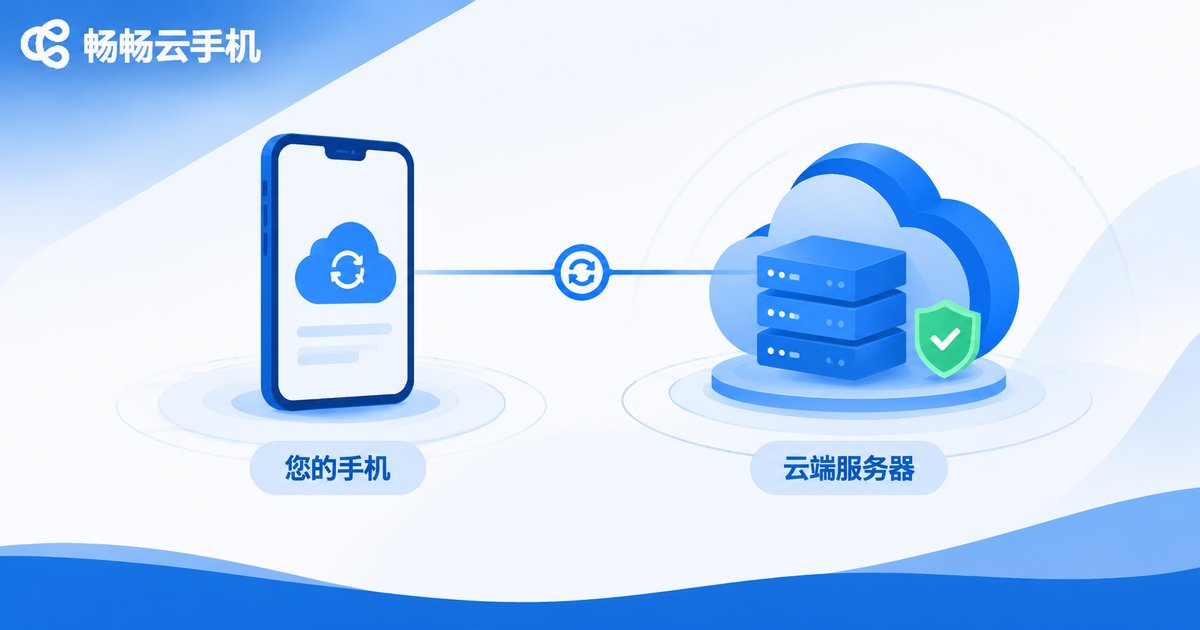
If you are looking for a cloud phone that feels comfortable on an iPhone, ccloudphone is a sensible place to start. The approach is straightforward: the Android device lives in the cloud, and the client only displays and controls it.
- Android instances running in the cloud: use Android apps and games on an iPhone without hitting local system restrictions.
- Instances stay online: close the app, lock the screen, drop the connection — the cloud device keeps running, and you pick up where you left off.
- Multiple instance management: handle several cloud devices from one account and switch between them easily.
- Transparent official information: download entries, support status and feature notes are all published on the official site, so nothing is guesswork.
For specific device configurations, available durations and feature details, please refer to what is shown on the ccloudphone official site; this article makes no additional promises.
FAQ
Q: Do I need to jailbreak my iPhone to use a cloud phone?
No. You sign in through the App Store client or the Safari web version, and no system modification is involved.
Q: Why can I not find it in the App Store?
Listings for cloud phone apps change with each release and may be under review. Check the ccloudphone official site for the current iOS download entry, or use the Safari web version in the meantime.
Q: Can I install any Android app on the iOS build?
The Android device in the cloud has no system-level restriction, but on the iOS side you install through the cloud app market or the cloud browser rather than dropping a package file in.
Q: Will the session disconnect if I switch apps?
Possibly. iOS is strict about background execution, so the connection may drop after a while; tap back in and it resumes. The cloud device itself never stopped. Keep the app in the foreground for long idle sessions.
Q: Does a cloud phone eat a lot of data?
It depends on image quality and session length. Smooth mode for status checks is light; long high-quality sessions are better on Wi-Fi.
Q: Will an older iPhone run it smoothly?
Computation happens in the cloud and the phone only decodes the stream, so device power matters less than a stable network.


