

How to Configure an Independent IP on Cloud Phones: A Practical Guide to Proxy Setup and Network Isolation
Why Do Cloud Phones Need an Independent IP?
If you run multiple accounts on cloud phones—e-commerce stores, social media matrices, multi-instance gaming, or app testing—your IP address is the most overlooked yet riskiest part of the whole setup.
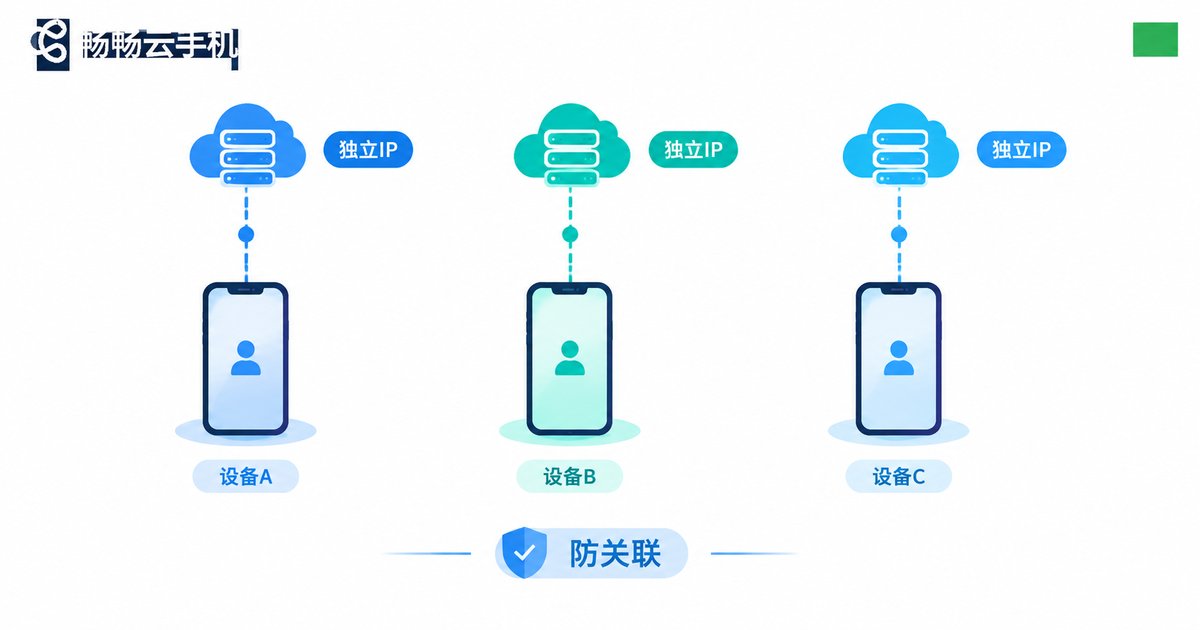
Here is the problem: when ten accounts log in from the same device on the same network, platforms can easily tell through the IP address that they belong to one person. Once one account is flagged, the rest may be linked and banned together. An independent IP gives every cloud phone its own network identity so accounts cannot be tied to each other.
Cloud phones run in cloud data centers, which makes their network environment fully configurable. You never need to touch your router or home broadband—configure a proxy inside the cloud phone and the device goes online with a brand-new IP.
Three Ways to Get an Independent IP: Which One Fits You?
There are three common paths to an independent IP on a cloud phone, each with its own cost and difficulty:
| Method | Difficulty | Cost | Best For |
|---|---|---|---|
| Built-in proxy settings | Low | Proxy fee only | Most multi-account scenarios |
| Proxy tools inside the cloud phone | Medium | Proxy plus tool cost | Users who need fine-grained traffic control |
| Datacenter-level IP binding | Low | Depends on provider | Long-term projects that demand stability |
For most users, the first option is enough: buy a proxy, fill it into the cloud phone's network settings, and it takes effect within minutes. The rest of this guide focuses on this method.
Proxy Setup in Practice: Four Steps to an Independent IP
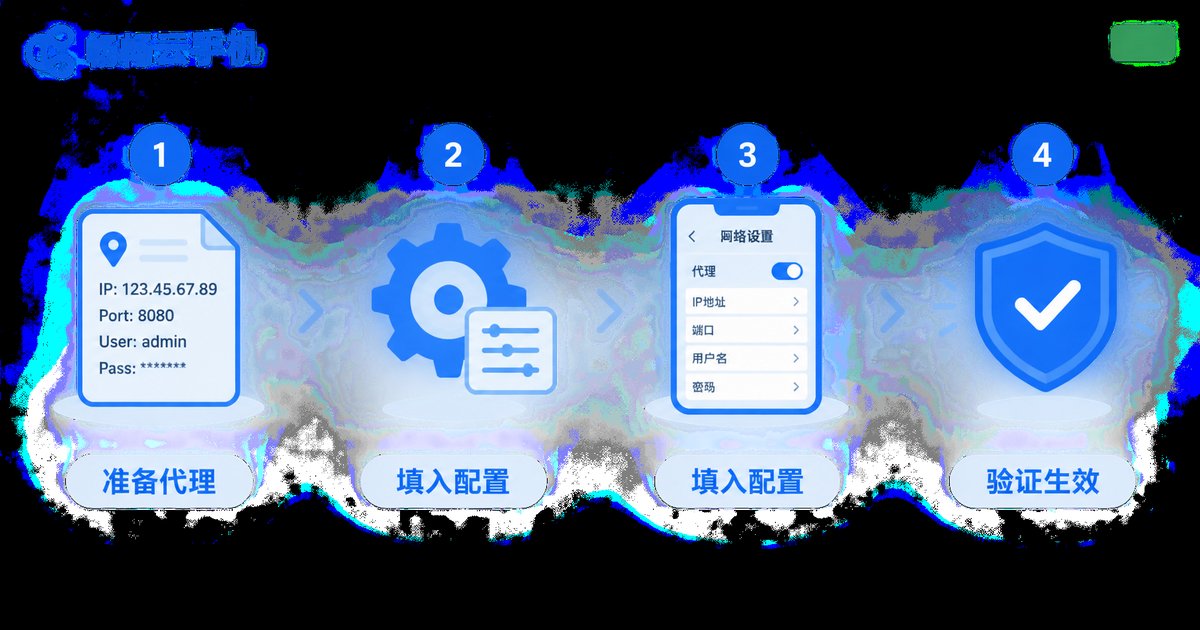
Step 1: Prepare the proxy resource. Buy from a reputable proxy provider. For multi-account anti-linking, choose static residential proxies—far more stable than rotating pools. Prefer the SOCKS5 protocol for better compatibility.
Step 2: Verify the proxy details. Proxy credentials usually follow the format below; the protocol, IP, port, and credentials are all required:
protocol://username:password@IP:port
Example format: socks5://user:pass@proxy-server-address:port
Step 3: Enter the proxy in the cloud phone. Open the cloud phone's system settings, locate the network or proxy options, fill in the details one by one, then save and restart the network service or the instance to apply the configuration.
Step 4: Verify that the new IP works. Open a browser inside the cloud phone and run an IP lookup to confirm that the location and carrier match the proxy you purchased. Then test latency: domestic proxies usually stay within tens of milliseconds, while overseas proxies depend on route quality.
If your cloud phone supports per-instance proxy configuration, assign a different IP to every instance—that is what one device, one IP really means.

Network Isolation and Anti-Linking: Details That Matter as Much as the IP
Configuring an independent IP is only step one. To keep multiple accounts running stably over the long term, also follow these practices:
1. One device, one IP—never share. Two cloud phones on the same proxy IP defeats the purpose. Keep an instance-to-IP mapping table and follow it strictly.
2. Keep time zone and language consistent with the IP. A U.S. IP paired with Chinese system language and a UTC+8 time zone is an obvious red flag for any risk-control system.
3. Do not switch IPs frequently. An account in New York today and Los Angeles tomorrow is far riskier than one on a fixed IP. Unless the proxy fails, leave it alone.
4. Isolate app data between instances. Accounts and cached data in different instances must never overlap. Cloud phones isolate environments by instance, which is exactly why they suit matrix operations better than physical multi-device setups.
5. Warm up new accounts before heavy operations. After getting an independent IP, do not start with high-frequency actions. Let the account build a few days of natural activity in the new environment first.
ChangChang Cloud Phone Makes Independent IP Setup Easier
The right tool removes half of the hassle. We recommend ChangChang Cloud Phone (ccloudphone): it runs multiple instances simultaneously with fully isolated environments, and paired with a proxy solution you can easily build a one-device-one-IP matrix. Android app multi-opening, social media account matrices, or idle gaming—all run stably in the cloud with zero burden on your local device. For more features, visit the ChangChang Cloud Phone official website.
FAQ
Q: After configuring an independent IP, can platforms still detect account linking?
A: An independent IP removes the biggest linking factor, but risk control is comprehensive—device parameters and behavior patterns are analyzed too. Besides the independent IP, keep time zones, languages, and behavior natural as described above.
Q: Static IP or dynamic IP?
A: Choose static IPs for long-term accounts—one account bound to one IP is the most stable. For short-term tasks with low stability requirements, dynamic IPs help control costs.
Q: The network became slow after setting the proxy. What should I do?
A: First check the proxy line quality and switch nodes or providers if needed. Then confirm protocol compatibility—SOCKS5 is usually more stable than HTTP. Finally, rule out lag caused by an under-provisioned instance.
Q: Can one cloud phone use multiple IPs?
A: A system-level proxy generally applies one IP at a time. If you truly need to switch, install a proxy management tool inside the cloud phone for per-app routing; but for multi-account scenarios, running multiple instances with one IP each is the better practice.


