

How to Install Third-Party Apps on Cloud Phones: APK Upload & Batch Deployment Guide
Why Install Third-Party Apps on a Cloud Phone?
A cloud phone is essentially an Android device running in the cloud. Just like your physical phone, it can install apps, log into accounts, and run games. However, many users find that the built-in app store does not include every app they need, or the app they want is only available as an installation package. In that case, manually uploading an APK file is the most direct solution.
Whether you run multiple game accounts, manage a social media matrix, or test applications, mastering APK upload and batch deployment will help you get the most out of your cloud phone. This tutorial uses CCloudPhone as an example and walks you through the whole process, from a single install to batch deployment.
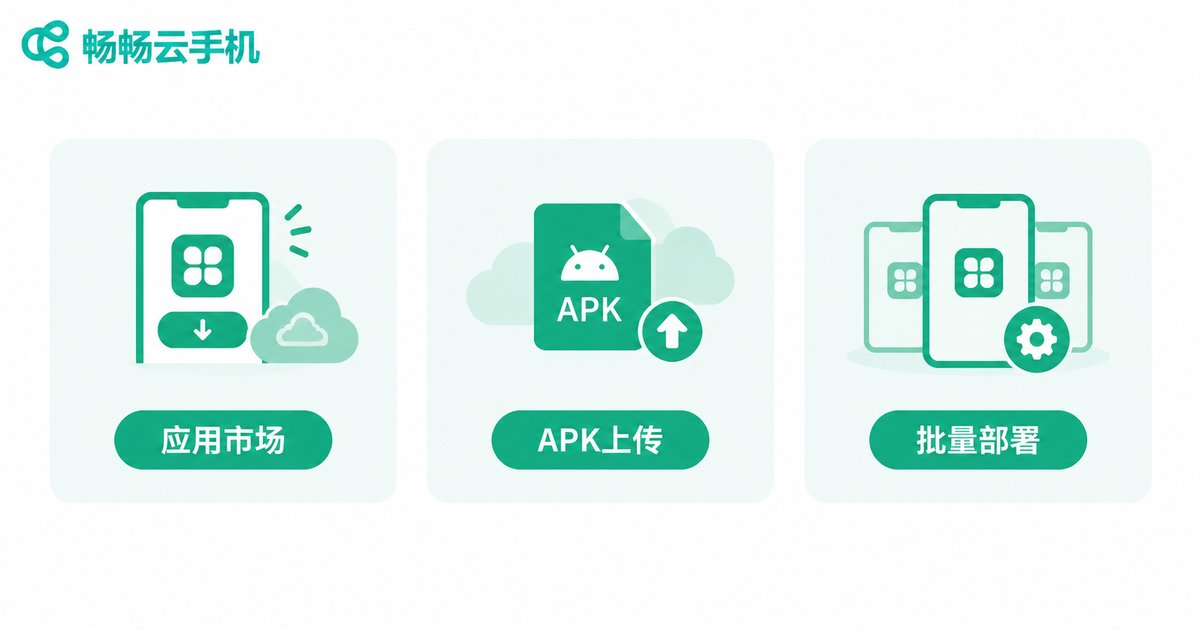
Three Ways to Install Apps on a Cloud Phone
Before you start, it helps to understand the common installation methods. Choosing the right one for your scenario saves a lot of time:
| Method | Best for | Difficulty |
|---|---|---|
| Built-in app store | Mainstream popular apps | Easiest |
| Single-device APK upload | Niche or beta apps not listed in the store | Easy |
| Batch APK deployment | Installing the same app on dozens or hundreds of devices | Set up once, syncs automatically |
If you just need a common social or video app, search the built-in app store first. If it is not there, use an APK upload. If you manage many devices, batch deployment is the right approach.
Preparations Before Installation
Checking the following points before you upload will prevent 90% of installation failures:
1. Get a reliable APK file. Download installation packages from the app's official website or a trusted app store, and avoid unknown APKs that may carry malicious code. Most files end with .apk, while some large games come as .xapk or split packages.
2. Check Android version compatibility. Compare the minimum Android version required by the APK with the Android image of your cloud phone; a mismatch usually causes a parse error.
3. Check storage space. Large games can take several gigabytes, so make sure the device has enough free space.
4. Log in to the CCloudPhone console. Make sure your target device is running and ready to receive installation tasks.
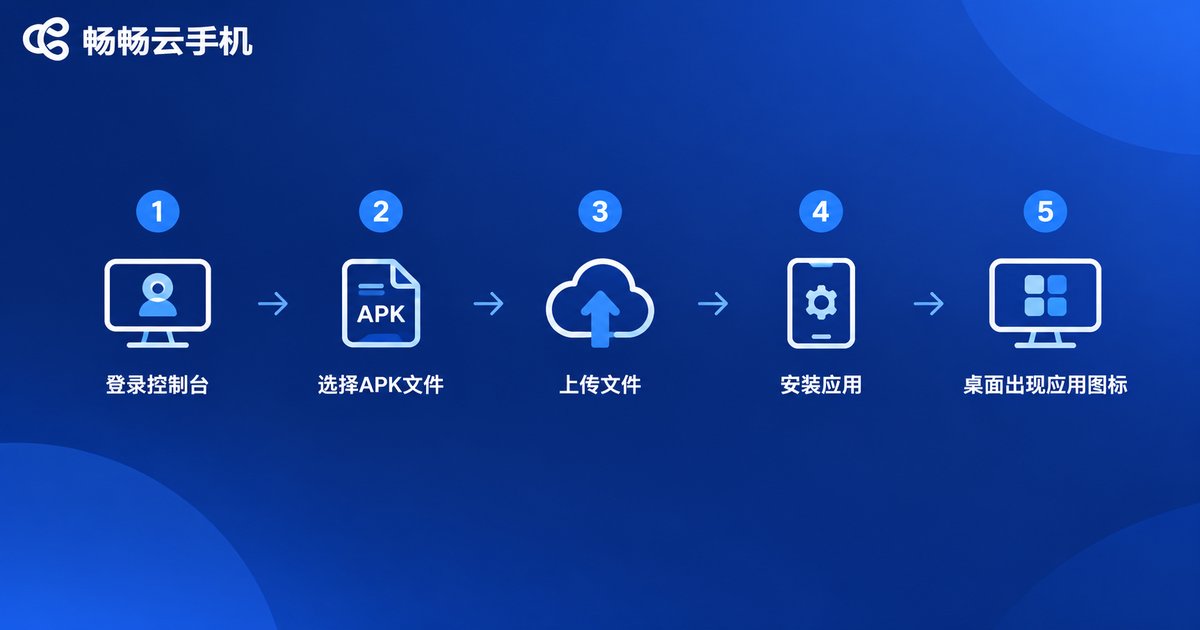
Single-Device Install: APK Upload Step by Step
When you only need to install an app on one or a few cloud phones, follow these five steps:
Step 1: Open the device management page. Log in to the CCloudPhone console, find the target device in the device list, and enter its control screen.
Step 2: Find the APK upload entry. Choose Upload APK (or Install App) in the device toolbar; in some versions you can simply drag and drop the APK file into the window.
Step 3: Select the local APK file. In the file picker, choose the package you downloaded earlier and confirm to start uploading. Upload speed depends on your bandwidth and the file size.
Step 4: Complete the installation inside the cloud phone. Once uploaded, the APK is pushed into the cloud phone. Tap Install just like on a regular Android phone and wait for the progress bar to finish.
Step 5: Confirm the app icon. After a successful install, the icon appears on the cloud phone's home screen. Tap it to start using the app; logging in and granting permissions work exactly like on a physical phone.
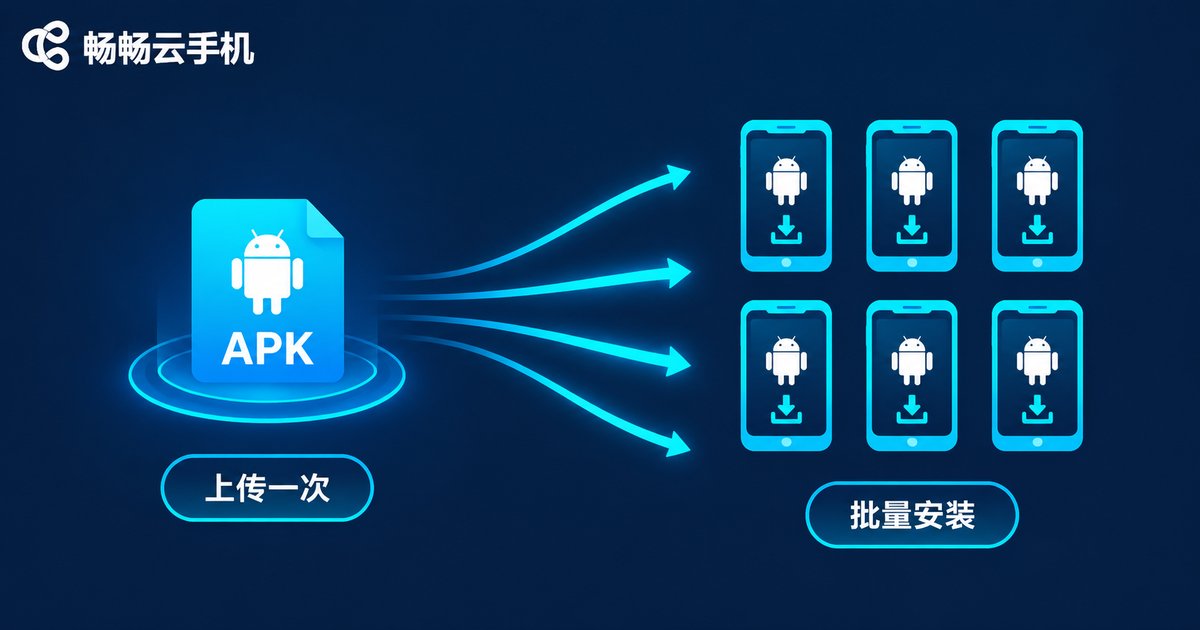
Batch Deployment: Install an App on Many Devices at Once
If you operate dozens or even hundreds of cloud phones — for game multi-account studios or social media matrix teams — installing apps one by one is unrealistic. CCloudPhone supports batch deployment, which pushes the same APK to many devices in one go:
Step 1: Upload the APK to the resource library. In the console's App Management or APK Management section, upload the package to the cloud library once, then reuse it anytime.
Step 2: Select the target devices. In the device list, filter by group and tick the devices that need the app, or select all.
Step 3: Launch the installation task with one click. Choose the APK from the resource library and click Batch Install. The system distributes the task to every selected cloud phone automatically.
Step 4: Monitor installation progress. The task center shows the real-time status of each device. Failed devices can be retried individually until every phone has the app.
During the whole process you never need to open each device manually — upload once, sync everywhere. This is the biggest time saver for batch operations.
Common Installation Failures and Fixes
| Symptom | Possible cause | Solution |
|---|---|---|
| Parse error message | APK incompatible with the Android version or file corrupted | Re-download the full package and check the Android version |
| Install button greyed out | Not enough storage space | Remove unused apps and files from the cloud phone |
| Very slow upload | Unstable local network or oversized file | Switch network or split the package |
| App crashes on launch | App incompatible with the cloud phone architecture | Contact CCloudPhone support to confirm image compatibility |
Why We Recommend CCloudPhone
CCloudPhone (ccloudphone) is built on a real ARM architecture, offering strong app compatibility and smooth performance for games and everyday apps. Its console supports device group control and batch operations, with a clear workflow for APK upload and batch deployment — very friendly for multi-account users and matrix operation teams. If you are looking for a cloud phone that can run almost any app, visit the official website ccloudphone to learn more.
FAQ
Q: Is it safe to install third-party APKs on a cloud phone?
As long as the APK comes from a reliable source (official website or official app store), it is as safe as installing on a physical phone. Avoid cracked packages from unknown sources.
Q: Is there a size limit for APK uploads?
Regular apps from tens of megabytes to a few gigabytes can be uploaded normally. For very large games, using the resource library with batch deployment is more stable.
Q: How many devices does batch deployment support?
You can push the installation task to the devices under your account; the exact number depends on the scale of devices you have purchased. Just tick them and install with one click.
Q: Will my apps remain if I switch devices?
Installed apps belong to the device itself. If you need to migrate, check whether the console offers backup and restore features, or contact support for advice.
Q: How do I install XAPK or split-package games?
Some cloud phones accept XAPK uploads directly. If not, unpack the XAPK into a standard APK first, or contact customer service for help.


