

Cloud Phone Beginner Tutorial: A Complete Walkthrough from Sign-Up to Idle Farming
What Is a Cloud Phone and Why Beginners Should Care
When newcomers first hear the term cloud phone, they often wonder: is it a real phone? In short, a cloud phone is a virtual Android phone running on servers in a data center. It has its own independent system, and you can install apps, log into accounts, and run games just like on a physical device. The only difference is that it sits in a data center rather than in your hand.
The benefits are very tangible: it drains no battery on your local phone, generates no heat, and takes up no storage. A cloud phone can stay online around the clock, so even when you shut down your computer and go to sleep, it keeps running in the cloud. For anyone who needs long idle sessions or multi-account management, that is a huge boost in efficiency.
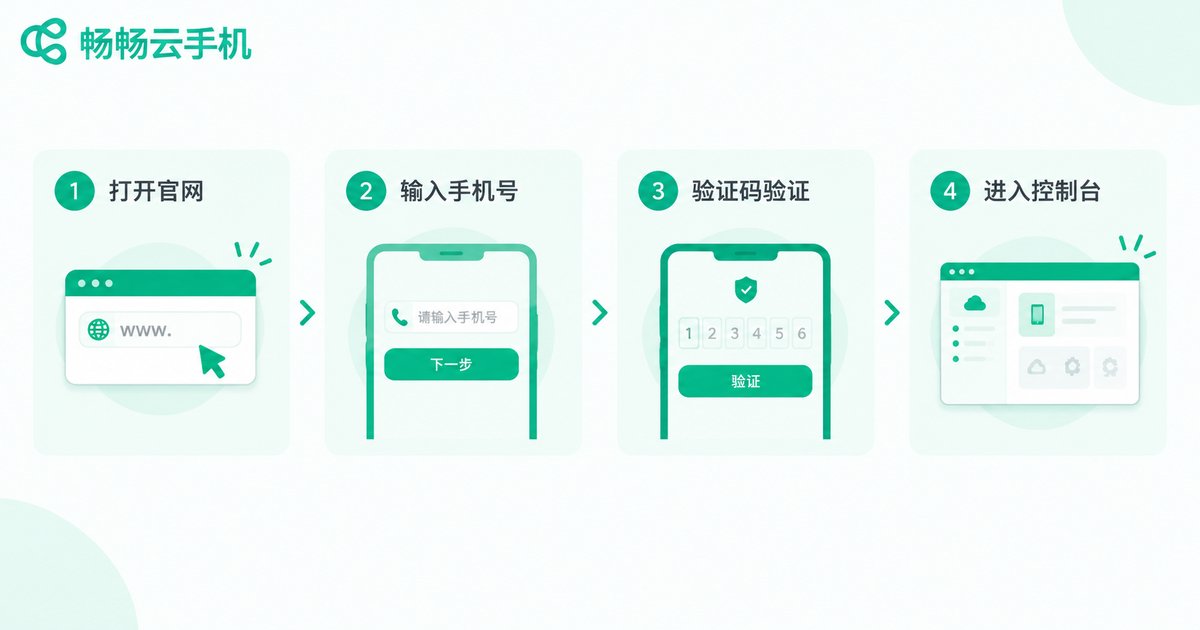
Step 1: Create an Account and Enter the Console
Take ChangChang Cloud Phone as an example. Getting started is simple: visit the official website at ccloudphone.com, click sign up, and register with your phone number and a verification code. The whole process takes less than a minute.
Once registered, you land in a clean device management console. The device list and function entries are laid out clearly, so beginners need no technical background. Just follow the on-screen guidance.
Tip: start with a single cloud phone to get familiar with the workflow, and only scale up to multiple devices once you feel confident. This keeps the learning curve as gentle as possible.
Step 2: Create Your First Cloud Phone
In the console, click to create a device and go with the default recommendation. Beginners do not need to obsess over specs, because daily idle farming is not demanding on hardware. Provisioning usually takes less than a minute, and a brand-new Android cloud phone appears in your device list.
Click the device to open it. It looks almost identical to a real Android phone: a home screen, an app store, and a settings menu, so you can get comfortable right away.
Step 3: Install Apps and Configure the Basics
After entering your cloud phone, the first task is to install the apps or games you want to run. Installation works just like on a regular Android phone: search in the app store or upload an installation package.
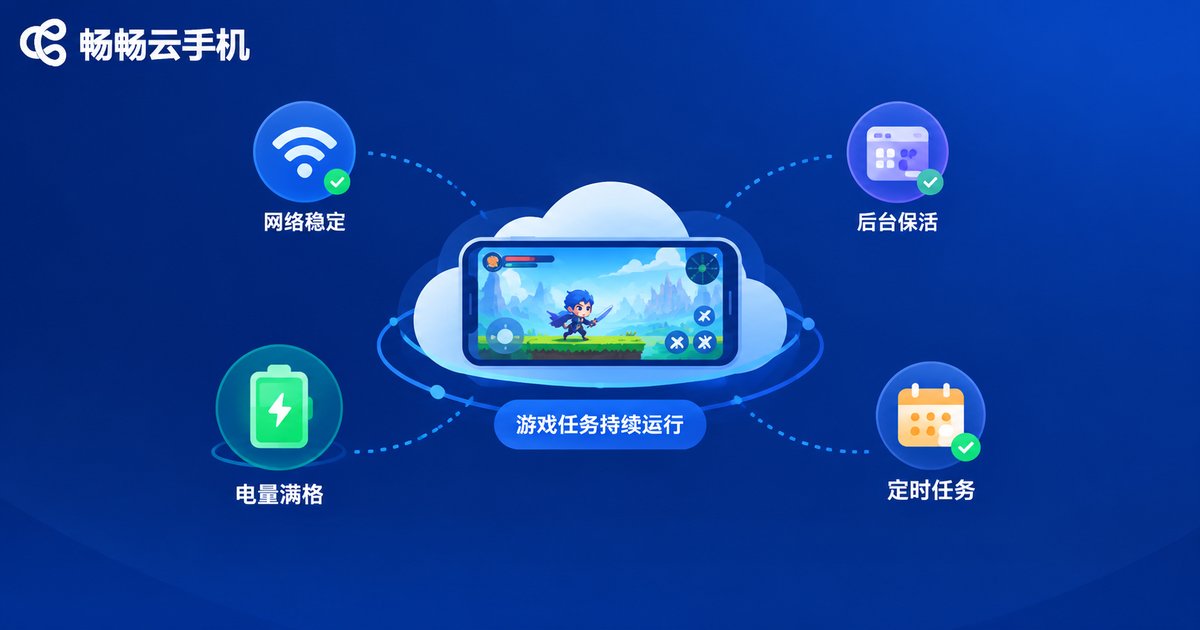
Once installed, two basic settings are recommended: first, allow the app to keep running in the background so the system does not kill your task; second, enable notifications so you can keep an eye on the farming status. Since a cloud phone has no battery constraints, you do not need to tweak power-saving modes the way you would on a physical device.
Step 4: Set Up Stable Idle Farming
Idle farming is the core use case of a cloud phone. It means letting a game or app keep running in the cloud while you step away completely. Keep three things in mind:
First, keep the network stable. Cloud phones run inside data centers with enterprise-grade networks, which is the key reason they stay connected far better than home broadband. Second, configure your task loop in advance. Set up in-game auto-battle, auto-reward collection, and similar features before you go idle. Third, check the running status regularly. The console lets you see whether each device is online at any time; if something goes wrong, simply reconnect.
| Comparison | Local Phone Farming | Cloud Phone Farming |
|---|---|---|
| Battery drain | Constant drain, wears the battery | No local battery used |
| Uptime | Limited by heat and battery | Supports 24/7 online |
| Network stability | Depends on home Wi-Fi | Data-center-grade network |
| Multi-account | One account per physical phone | Multiple devices at once |
Going Further: Managing Multiple Cloud Phones
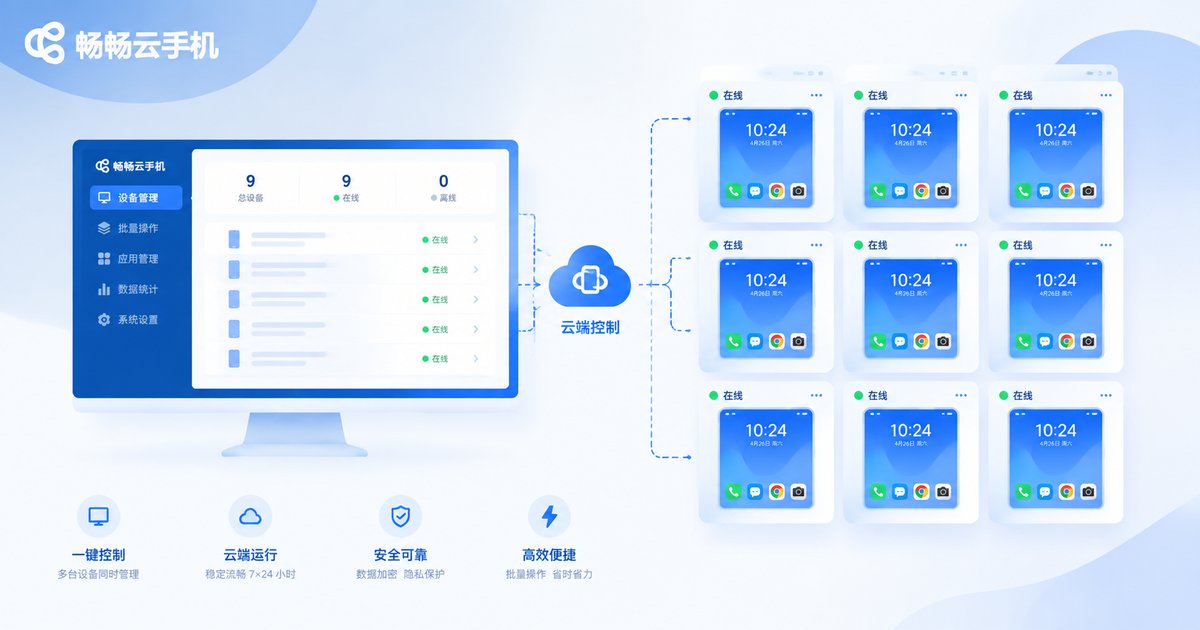
Once you are comfortable with a single device, try running several at once. ChangChang Cloud Phone lets you keep multiple cloud phones online simultaneously and check the status of each device from one console. Switching between devices takes a single click, which is ideal for users managing several accounts.
When running multiple devices, name and group them by game or purpose. Future maintenance becomes much easier that way.
Common Beginner Mistakes to Avoid
Mistake one: opening too many devices at once. Run the full workflow on a single device first, then scale up gradually. Mistake two: ignoring background permissions. Apps being killed by the system is the most common cause of interrupted farming, so always check background permissions after installing. Mistake three: resetting devices too often. Use the reset function with care, and back up important data beforehand.
FAQ
Q: How is a cloud phone different from an emulator?
A cloud phone runs on remote servers, consumes none of your local computer resources, and offers a more stable network environment with a genuine Android system. An emulator depends on your local PC performance and tends to struggle during long idle sessions.
Q: Will my cloud phone keep running after I shut down my computer or phone?
Yes. The cloud phone runs independently in the cloud; your local device is only a remote control, and tasks continue as usual after you log off.
Q: How many accounts can one cloud phone hold?
Generally, one cloud phone serves one app environment. For multiple accounts, it is safer and more stable to create separate cloud phones and log in individually.
Q: Why choose ChangChang Cloud Phone as a beginner?
ChangChang Cloud Phone (ccloudphone) offers a clean interface, a low learning curve, and impressive device stability, with a console that is easy to understand at a glance. It is a great fit for first-time cloud phone users.


