

How to Make Cloud Phone Image Quality Clearer: Balancing Resolution, Bandwidth and Smoothness
Why Does Your Cloud Phone Look Blurry?
Many users blame blurry output on weak hardware, but the truth is: a cloud phone renders everything in the data center, then streams the result to your screen as a live video feed. The pipeline has four stages — cloud rendering, video encoding, network transmission, and local decoding — and if any single stage stumbles, the picture turns soft, blocky, or stuttery.
Within this pipeline, three parameters decide what you actually see: resolution sets the ceiling for detail, bitrate determines how much picture information is delivered each second, and bandwidth is the width of your local network pipe. If the pipe is too narrow, even the highest resolution cannot get through.
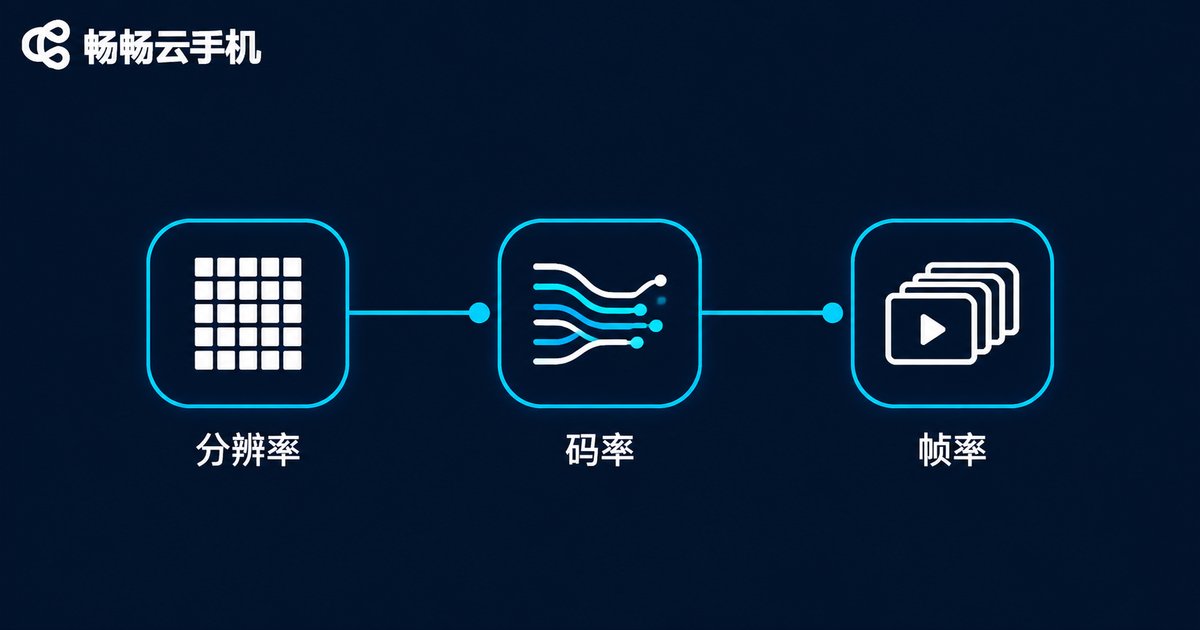
Three Parameters to Understand: Resolution, Bitrate, Frame Rate
Resolution: how many pixels form the picture — 720P, 1080P, 2K. Higher resolution means sharper text and skill icons, but also higher bandwidth demands.
Bitrate: video data transferred per second, measured in Mbps. At the same resolution, a higher bitrate yields a cleaner image; an insufficient bitrate produces color blocks, smearing, and ghosting. The fuzziness many users complain about is usually a bitrate problem, not a resolution one.
Frame rate: how many frames are refreshed per second — 30 fps is usable, 60 fps feels silky. Frame rate affects smoothness rather than sharpness, yet in gaming, smoothness often matters more than clarity.
Remember it in one sentence: resolution is the ceiling, bitrate is the guarantee, frame rate is the experience, and bandwidth is the precondition. Tuning picture quality means finding the best combination your current network can sustain.
Recommended Settings by Scenario: One Table, Direct Answers
Instead of agonizing over numbers, match your scenario. The table below lists recommended combinations (bandwidth values are per instance):
| Scenario | Resolution | Priority | Bandwidth |
|---|---|---|---|
| Chat, browsing, idle tasks | 720P | Smoothness first | ≥5 Mbps |
| Competitive mobile games | 720P–1080P | Frame rate first (60 fps) | ≥10 Mbps |
| Shows and live streaming | 1080P | Quality first | ≥15 Mbps |
| Multi-instance idle farming (each) | 720P | Smoothness first | ≥3 Mbps per instance |
Keep one principle in mind: dynamic content deserves frame rate, static content deserves resolution. A dropped frame ruins a boss fight, while slightly soft text is barely noticeable when scrolling feeds.

When Bandwidth Runs Short: Smoothness First, Sharpness Later
If a speed test shows tight bandwidth or evening peaks keep stuttering, do not cling to maximum quality. Downgrade in this order:
Step 1: lower the frame rate — sharpness untouched. Switching from 60 fps to 30 fps keeps the image equally sharp while instantly easing bandwidth pressure.
Step 2: drop one resolution tier. Going from 1080P to 720P softens text slightly but stays perfectly watchable — far better than constant stuttering.
Step 3: touch bitrate last. A lower bitrate brings color blocks and smearing, so treat it as the final resort.
The logic reverses on gigabit fiber or full-bar 5G: raise one tier at a time, observe for a few minutes after each change, and stop at the tipping point.
Five Practical Tips for a Stable, Sharp Picture
1. Speed test before tuning: set quality by measured bandwidth, not gut feeling.
2. Use 5GHz Wi-Fi or move closer to the router: the crowded 2.4GHz band is a notorious stutter zone.
3. Clear bandwidth competitors: family video streaming and device updates steal bandwidth — especially noticeable with multiple instances.
4. Control instance count: total bandwidth is fixed; every extra instance takes a share, so per-instance quality inevitably drops.
5. Downshift during peak hours: networks congest between 8 and 11 p.m.; proactively lowering one tier actually feels more stable.
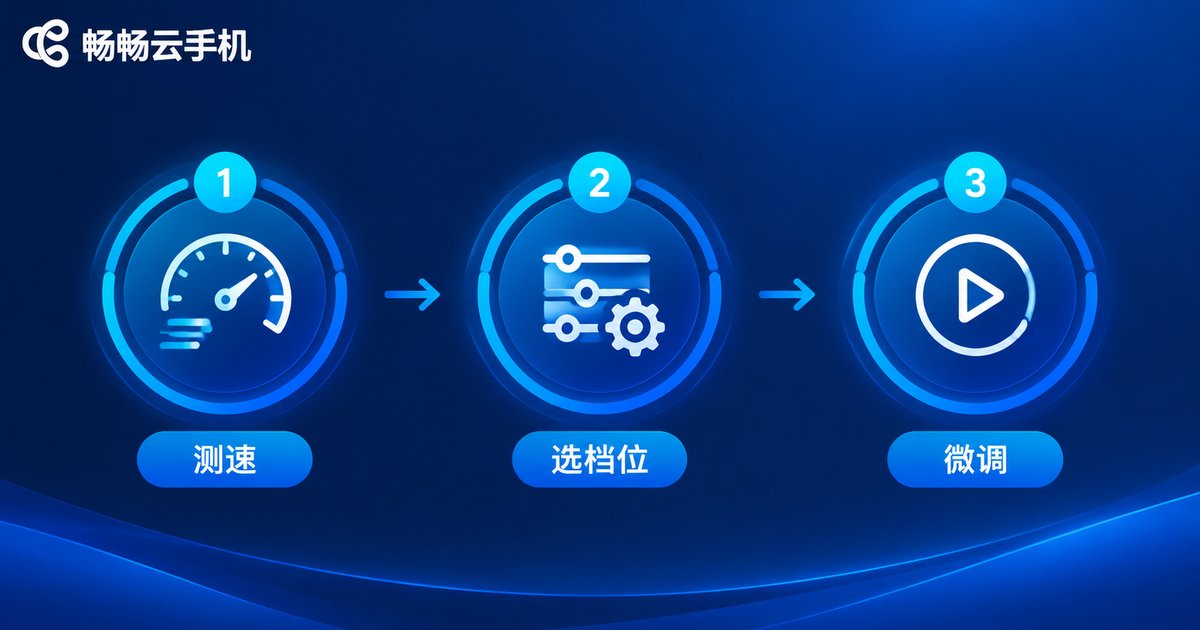
How to Adjust It in CCloudPhone
Take CCloudPhone (ccloudphone) as an example: open the app, enter your cloud phone, and look for the picture-quality or display options in Settings, where clarity tiers and frame-rate options are available. Choose a higher clarity tier when the network is stable; switch to smoothness-first when the network fluctuates or when playing high-frame-rate games. Menus may vary slightly between versions — if you cannot find an option, step through the tiers one by one, feel the difference, and lock in your favorite.
FAQ
Q: Why does the highest clarity setting feel laggier?
The top tier's bitrate exceeds your current bandwidth ceiling; congestion triggers stuttering and dynamic quality drops. Lower one tier or upgrade your network.
Q: Which matters more, resolution or frame rate?
It depends on the scenario. Competitive games favor frame rate — the fluidity of 60 fps outweighs 1080P. Videos and reading favor resolution; 30 fps is plenty.
Q: How should quality be split across multiple instances?
Divide total bandwidth by the number of instances, then pick a tier from the table. On a 100 Mbps line with four instances, each gets about 25 Mbps — enough for 1080P.
Q: Is the blur caused by my network or the cloud phone?
Run a comparison: switch networks (say, Wi-Fi to 5G) and view the same instance. Clear improvement means a local network issue. If it stays blurry, try another clarity tier or restart the instance; if the problem persists, contact CCloudPhone support.
Q: Any fix for constant evening-peak lag?
Carrier congestion is hard to avoid. Switch to a smoothness-first tier, prefer 5GHz Wi-Fi, and avoid bandwidth-heavy operations between 8 and 11 p.m.


