
How to Choose Cloud Phone Specs: RAM, Storage and Graphics Settings Explained
Why Cloud Phone Configuration Matters
In simple terms, a cloud phone is an Android system running in a remote data center, while your own phone acts only as a remote control and a display. Since the system runs in the cloud, the cloud phone configuration directly determines your real experience: how many apps you can run at once, whether games run smoothly, how much you can install, and how sharp the picture looks.
Many beginners pick the highest spec right away, only to find much of that power goes unused; others choose the cheapest option and end up fighting lag every day. This guide explains RAM, storage and graphics settings in plain language, once and for all.
RAM: How Much You Can Do at the Same Time
Think of RAM as your desk: the bigger the desk, the more files you can spread out and work on at once. The more RAM a cloud phone has, the more apps it can run simultaneously, without stuttering or crashing when you switch between them.
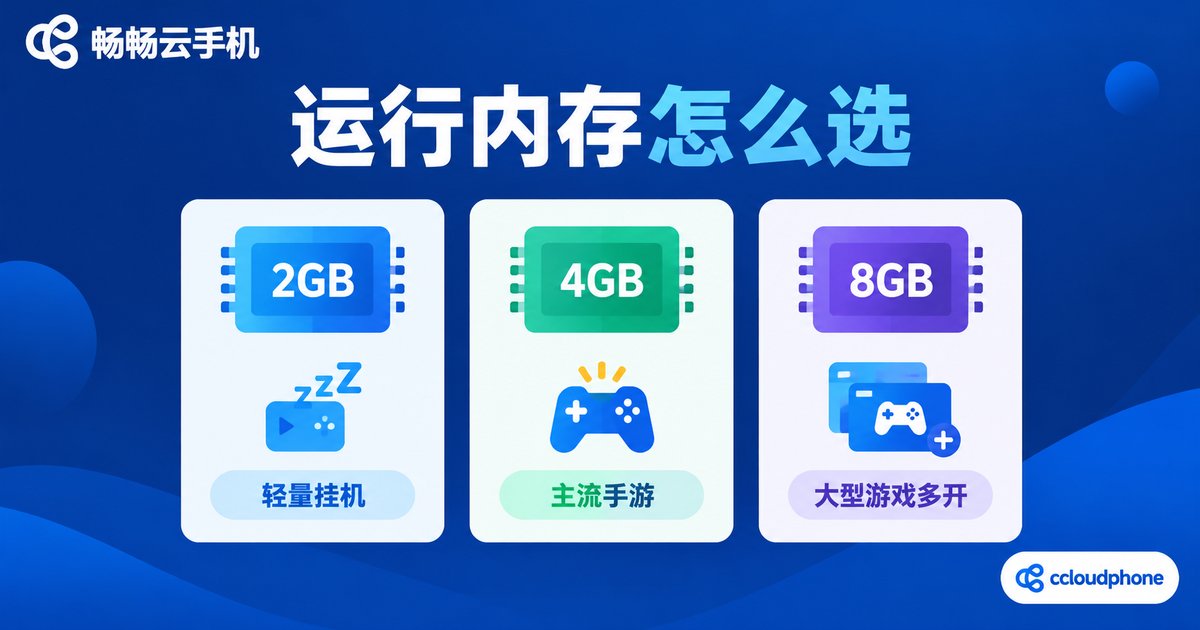
Different RAM sizes roughly match these usage levels:
Around 2GB: best for lightweight tasks such as keeping apps online, automatic check-ins and scheduled farming in casual games. Running one or two small apps at a time is no problem.
4GB: the mainstream choice today. Enough for popular mobile games plus one or two social or utility apps, at a reasonable price.
6GB to 8GB and above: for heavy scenarios such as large 3D games, parallel tasks and multi-instance use. If you are a serious gamer or tend to pile many tasks onto one cloud phone, go straight for large memory.
A simple rule: first decide what you will mainly use it for, then work backwards to the RAM size you need, instead of chasing the biggest number blindly.
Storage: How Much You Can Keep
If RAM is your desk, storage is the cabinet behind you for long-term keeping. On a cloud phone, storage is mainly eaten up by:
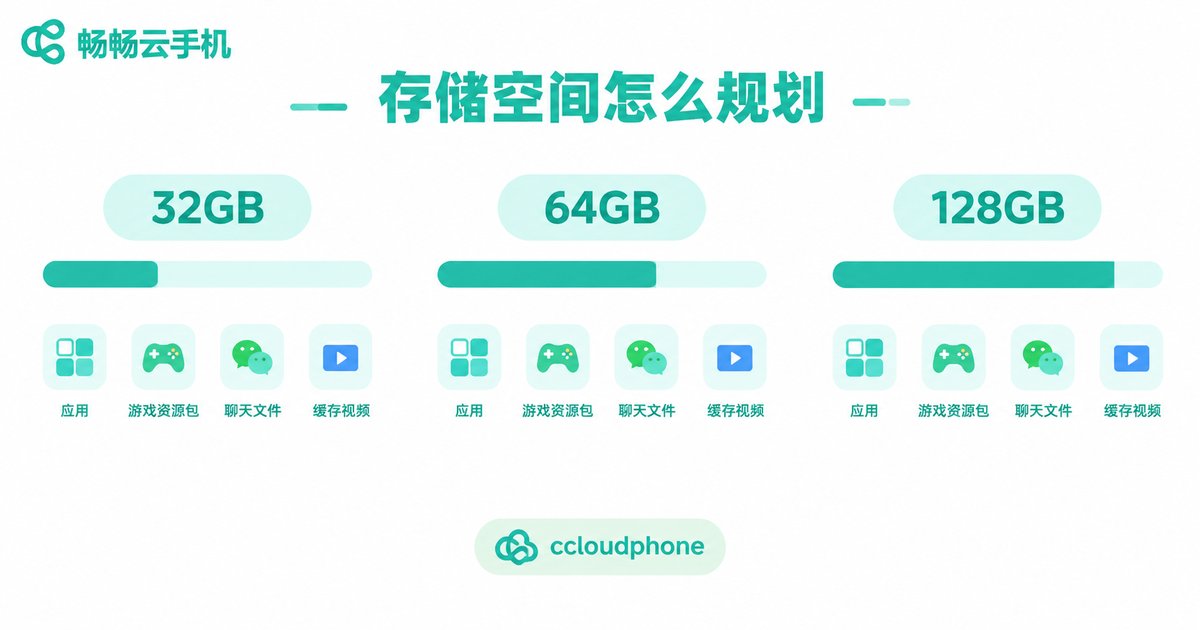
Apps and game resource packs: modern mobile games easily take several gigabytes, and a few updates of a large game can squeeze your space fast.
Chat history and files: if you keep social apps running, pictures, videos and documents pile up over time.
Cache and recordings: video cache, screen recordings and screenshots quietly consume space too.
Rough guidance: 32GB suits users who only run one or two light apps; 64GB is the sweet spot for most people, with plenty of room for several games and tools; 128GB and above fits heavy users who run multiple large games or hoard resources for long-term tasks.
In daily use, remember to clear cache regularly and uninstall apps you no longer need, so your cabinet does not fill up with junk.
Graphics Settings: Balancing Smoothness and Sharpness
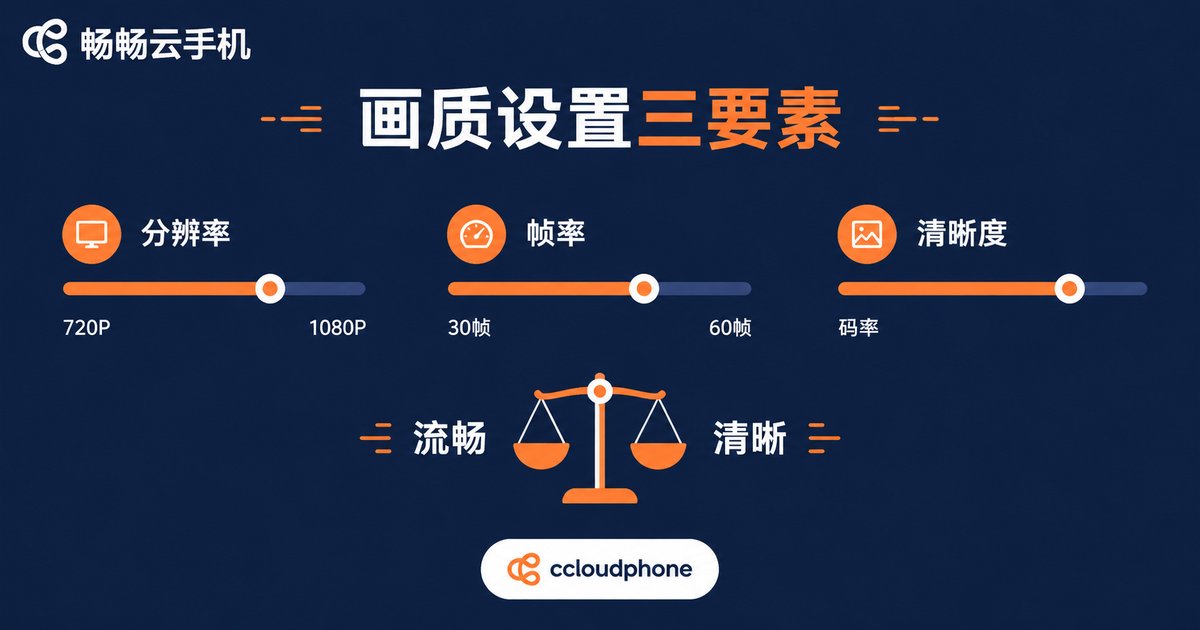
Cloud phone graphics settings revolve around three parameters. Once you understand them, you can quickly dial in the most comfortable picture for your network:
Resolution: determines how detailed the image looks. 720P saves data and is less demanding on the network; 1080P is the mainstream choice, balancing sharpness and smoothness.
Frame rate: determines how smooth motion feels. 30 frames is fine for video and idle tasks; 60 frames feels noticeably smoother, and action or competitive gamers should aim for high frame rates.
Sharpness (bitrate): at the same resolution, a higher bitrate means a more faithful picture but more data usage. Too low a bitrate causes blur and color blocks.
| Setting | Higher | Lower | Suggestion |
|---|---|---|---|
| Resolution | Finer details | Less data, smoother | 1080P on a stable network |
| Frame rate | Smoother control | Less data, less heat | 60 for gaming, 30 for idle tasks |
| Bitrate | More realistic image | Blurrier image | Medium on mobile data, max on Wi-Fi |
Practical rule of thumb: on a poor network, protect the frame rate first and lower the sharpness — dropped frames hurt the experience more than slight blur.
Configuration Cheat Sheet: Find Your Match
| Scenario | RAM | Storage | Graphics |
|---|---|---|---|
| Light idle tasks, auto check-ins | 2GB | 32GB | 720P / 30fps |
| Everyday mainstream mobile gaming | 4GB | 64GB | 1080P / 60fps |
| Large games, multi-tasking, multi-instance | 8GB | 128GB | 1080P / high frame rate |
One principle to remember: enough is enough — spend money only on what you will actually use. Start with a conservative configuration and upgrade when you truly need more; that beats paying upfront for power you never touch.
ccloudphone: Flexible Configurations for Every Need
If you would rather not agonize over spec sheets, take a look at ccloudphone (ChangChang Cloud Phone). It offers cloud phone devices in several configurations, covering everything from lightweight idle tasks to large games, so you can pick based on your real usage and pay only for what you need.
All the computing happens in the cloud, using none of your local phone memory or storage. Even an old, low-spec handset works fine as a window into the cloud. And if your needs change later, you can simply move up to a higher configuration instead of overpaying at the start. Visit the official ccloudphone website for details.
FAQ
Q: Is a higher configuration always better?
No. Higher specs usually mean higher prices. Choose by use case: low specs are fully enough for light idle tasks, while large games and multi-instance use justify high specs. Spend where it counts.
Q: What happens when RAM runs out?
Typical symptoms are app crashes, lag when switching apps and background apps being killed, especially with multiple tasks running. If this happens often, it is time to consider more RAM.
Q: What if storage fills up?
First clear app caches, uninstall unused apps and delete old files. If space is always tight, upgrade to a device with larger storage in your cloud phone dashboard.
Q: Do high graphics settings consume a lot of data?
Yes. The higher the resolution and bitrate, the more data is used per minute. On mobile data, 720P with a medium bitrate is a sensible choice; on Wi-Fi, feel free to max out quality and frame rate.
Q: Will I lose data when upgrading the configuration?
Policies vary between providers. To be safe, back up important data before upgrading or switching devices, or contact ccloudphone support to confirm the migration process.


