
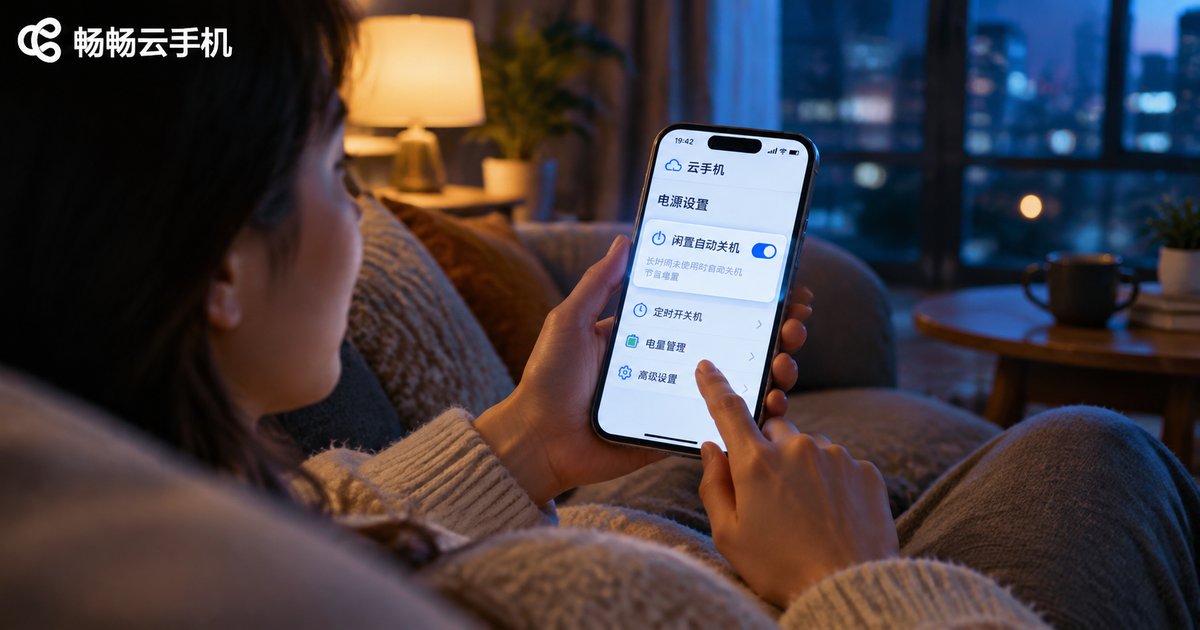
How to Set Auto Shutdown for Idle Cloud Phones? HarmonyOS Cloud Phone Idle Management Guide
What Is Idle Auto Shutdown on a Cloud Phone?
Many first-time cloud phone users ask the same question: does a cloud phone stay on all the time? Is that wasteful? Idle auto shutdown is designed exactly to solve this. In short, when a cloud phone has no activity for a set period of time, the system automatically shuts it down or takes it offline, and you can simply start it again whenever you need it.
A cloud phone runs on cloud servers and by default keeps consuming computing power and your plan time. With idle auto shutdown enabled, a cloud phone you forgot to close will not burn resources for nothing, making daily use far more worry-free.
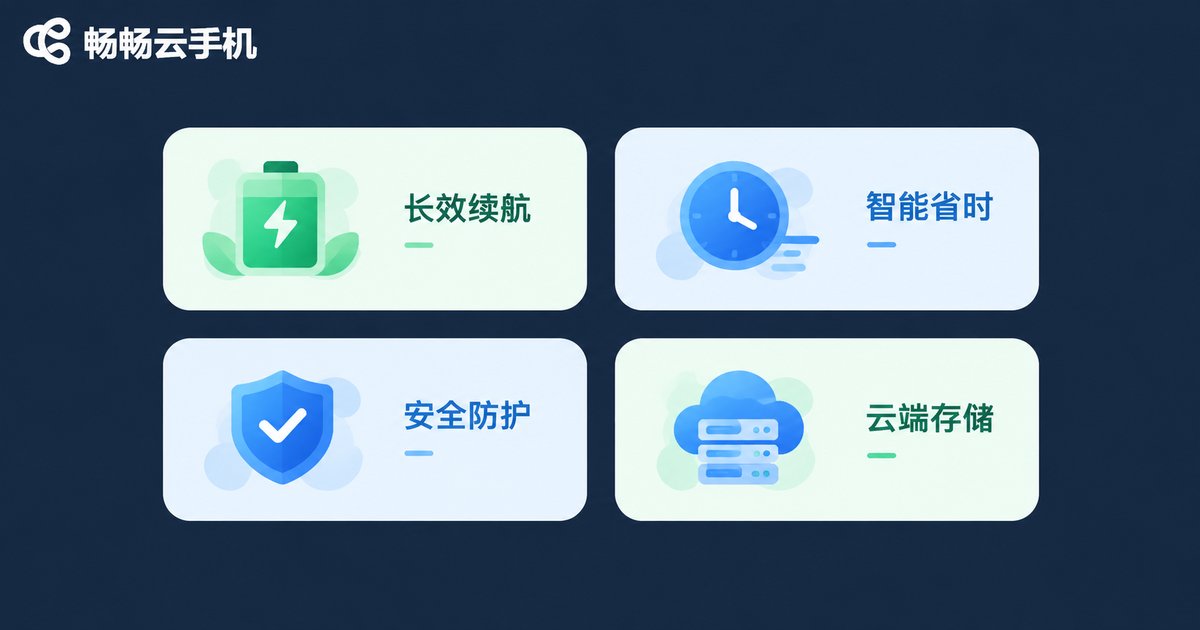
Why Enable Idle Auto Shutdown?
Once this feature is on, the benefits are easy to feel:
Save plan time: a cloud phone consumes resources based on how long it runs, so shutting it down when idle avoids unnecessary waste.
Reduce local load: after the cloud phone goes offline, the app on your phone no longer needs to hold a long connection, so heat and battery drain both drop noticeably.
Stronger account security: it stops your cloud phone from being accidentally touched or misused while unattended, keeping important accounts safer.
| Comparison | Idle Shutdown Off | Idle Shutdown On |
|---|---|---|
| Resource usage | Keeps running, easy to waste | Stops when idle, use as needed |
| Plan time | Drains quickly | Lasts longer |
| Local phone | Long background connections | Less heat and battery drain |
| Account safety | Unattended for long hours | Auto offline for peace of mind |
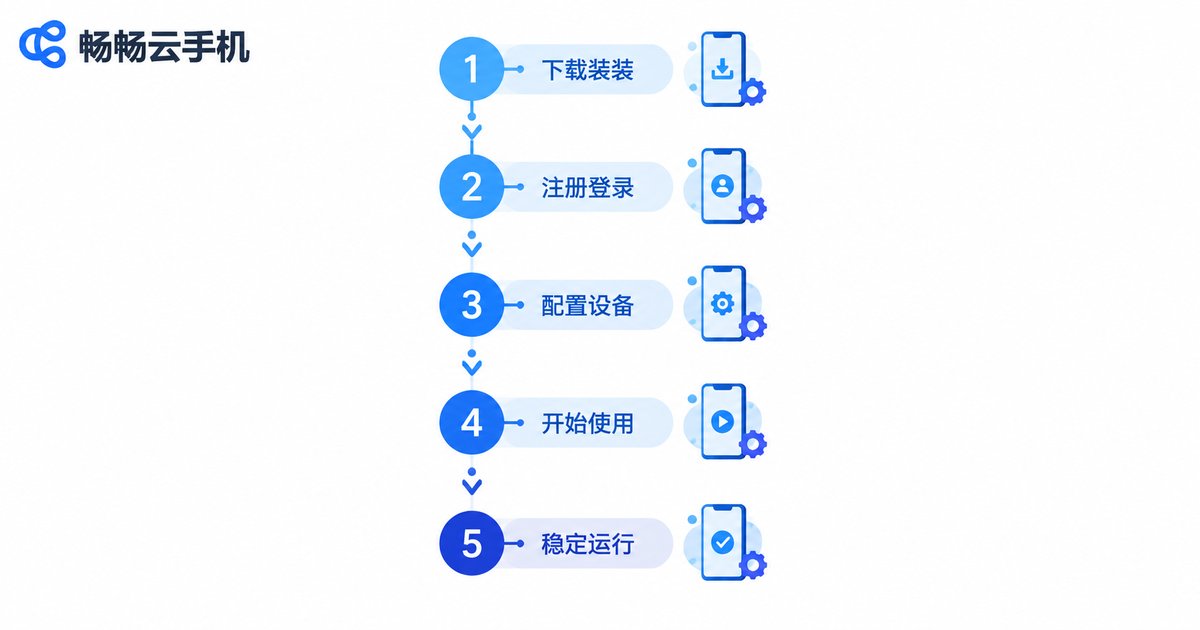
General Steps to Set Up Idle Auto Shutdown
Cloud phone apps differ slightly in layout, but the setup logic is basically the same. Just follow the steps below:
Step 1: Open the cloud phone app and enter the cloud phone instance you want to configure.
Step 2: Inside the cloud phone or on the instance management page, look for an entry named Settings, Toolbox, or Power Management.
Step 3: Find the Idle Auto Shutdown or Auto Offline When Idle switch and turn it on.
Step 4: Choose the idle threshold. Common options include 15 minutes, 30 minutes, and 1 hour. Set it longer for heavy multitasking, or shorter for light use.
Step 5: Save the settings and go back to the instance list to confirm the change has taken effect.
If you are using ChangChang Cloud Phone, look for a similar idle management option in the instance settings. The exact entry and available options depend on the app version, so treat the in-app interface as the standard.
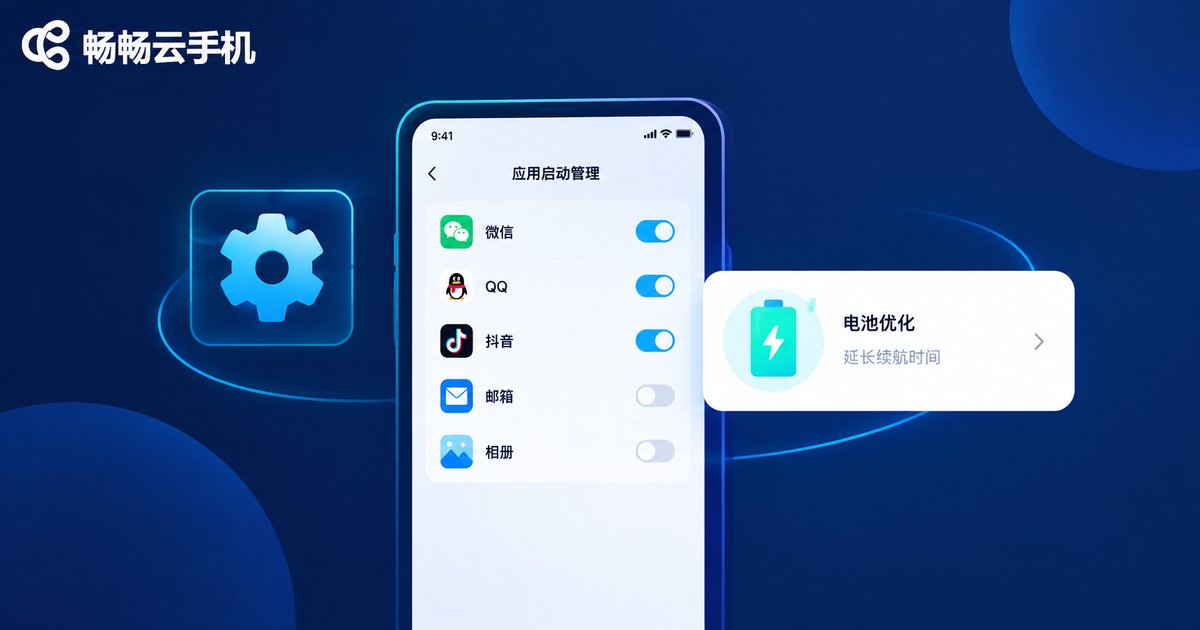
Idle Management Setup on HarmonyOS Phones
When running a cloud phone app on a HarmonyOS device, besides enabling idle auto shutdown inside the cloud phone, it is also worth configuring the system-level background policies, so the cloud phone is neither killed by mistake nor left sitting in the background draining power.
1. Configure app launch management: Go to Settings → Apps and services → App launch management, find your cloud phone app, turn off Automatic management, and manually allow Auto-launch, Associated launch, and Background activity. This way the cloud phone stays online reliably when needed and shuts down normally according to your settings.
2. Adjust battery policies: In Settings → Battery, avoid applying overly strict power limits to the cloud phone app. In low battery mode, the system may restrict background networking and cause the cloud phone status to fall out of sync.
3. Lock the background task card: Find the cloud phone app card in the recent tasks screen, swipe down (or long press) and choose Lock, so a one-tap cleanup will not close it by mistake.
4. Watch for system idle suspension: some HarmonyOS versions offer idle management features such as pausing rarely used apps. If you want the cloud phone app to stay available at all times, remember to exclude it from the idle suspension list.
Menu names vary slightly across HarmonyOS versions. If you cannot find an option, search for App launch management or Battery directly in Settings.
Not Working? Try These Fixes
Check the running state: some cloud phones do not count active games or tasks as idle, which is normal.
Confirm network stability: network fluctuations may delay status sync. Switch networks and observe again.
Update the app: outdated versions may have known issues, so upgrade to the latest version first.
Check system restrictions: HarmonyOS power policies may block the shutdown command. Add the cloud phone app to the background whitelist as described above.
Pick the Right Cloud Phone for Effortless Idle Management
Idle auto shutdown is only one of the many practical features a cloud phone offers. If you are still comparing options, take a look at ChangChang Cloud Phone (ccloudphone): it runs in the cloud without taking up local storage and makes multi-instance management easy for game farming, multi-account work, and other daily scenarios. Before you start, visit the ChangChang Cloud Phone official website for the latest feature notes and plan details, then choose based on your own needs.
FAQ
Q: Will my data be lost after idle auto shutdown?
No. Shutdown only stops the instance from running. All data stays in the cloud, and everything is still there the next time you boot it up.
Q: Can I customize the idle threshold?
Most cloud phones support it. Common options are 15 minutes, 30 minutes, and 1 hour. The available choices depend on the app.
Q: My cloud phone app keeps being killed in the background on HarmonyOS. What should I do?
Switch app launch management to manual mode, allow auto-launch and background activity, and lock the app card in recent tasks. This usually solves it.
Q: Will a running task be counted as idle?
Usually not, but idle detection rules differ between cloud phones. For important tasks, confirm the rules first or set a longer idle threshold.


