
How to Set Up Auto-Shutdown for Idle Cloud Phones? HarmonyOS Cloud Phone Configuration Guide
What Is Idle Auto-Shutdown for Cloud Phones?
A cloud phone is a virtual smartphone that runs on remote servers instead of your physical device. It uses none of your local storage or computing power and is widely used for running multiple apps, game automation and batch device management. Idle auto-shutdown means the cloud phone automatically powers off or releases its resources after a set period with no operation or task — no more wasted hours of an empty machine running nonstop.
For HarmonyOS users, a well-configured idle auto-shutdown reduces background battery drain and data usage on the local phone, while letting cloud devices run strictly on demand.
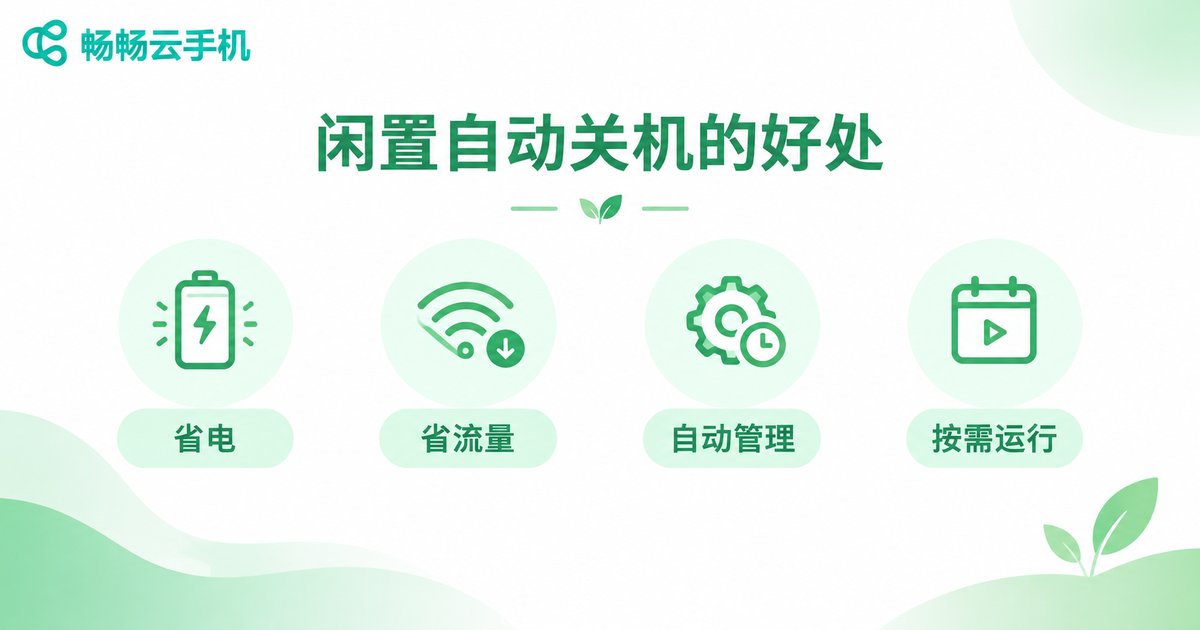
Why Enable Idle Auto-Shutdown?
Many users keep their cloud phones online around the clock, even though the device sits idle most of the time. Turning on idle auto-shutdown makes an immediate difference:
| Item | Without Auto-Shutdown | With Idle Auto-Shutdown |
|---|---|---|
| Cloud device status | Idle but online for hours | Runs on demand, shuts down when idle |
| Local battery | Constant background syncing | Noticeably lower drain |
| Data usage | Continuous background transfer | Greatly reduced |
| Daily management | Manual power on and off every time | Fully automatic, zero effort |
In short, idle auto-shutdown lets your cloud phone work when it should work and rest when it should rest.
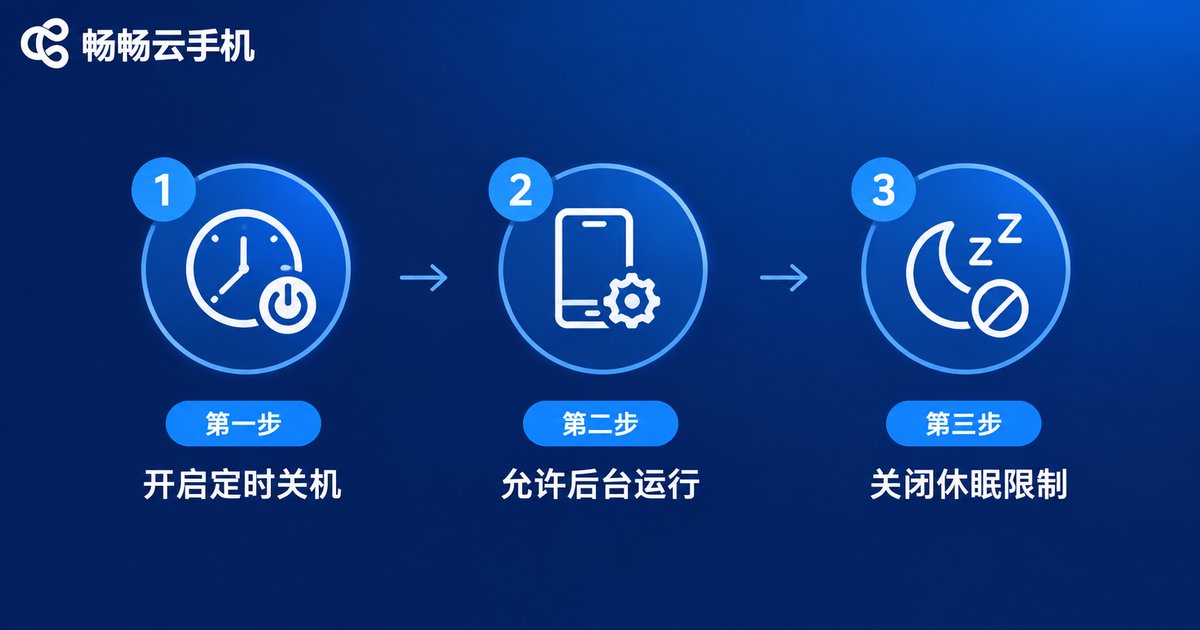
How to Set Up Idle Auto-Shutdown on a HarmonyOS Cloud Phone
Exact menu names vary between cloud phone products, but the approach is the same: first enable scheduled or idle shutdown inside the cloud phone app, then adjust HarmonyOS background permissions so everything runs smoothly.
Step 1: Enable scheduled or idle shutdown in the cloud phone app
Open the cloud phone app → Device list → Select your device → Device settings / Scheduled tasks → Turn on 'Scheduled shutdown' or 'Idle auto-shutdown' → Set the idle threshold (for example, 30 minutes with no operation) → SaveStep 2: Allow the cloud phone app to run in the background on HarmonyOS
HarmonyOS manages power aggressively. If the cloud phone app gets cleaned out of memory, status sync and shutdown alerts may be delayed. Recommended path:
Settings → Apps → App launch management → Find the cloud phone app → Turn off 'Automatic management' → Manually allow 'Auto-launch', 'Associated launch' and 'Background activity'Step 3: Remove sleep restrictions for the cloud phone app
Settings → Battery → App power usage management → Select the cloud phone app → Allow background runningWith these three steps done, your cloud phone will reliably follow the idle auto-shutdown policy on a HarmonyOS device.
Practical Tips for Using Cloud Phones on HarmonyOS
Beyond auto-shutdown, a few small habits make everyday use much smoother:
1. Whitelist the app from power saving: set the cloud phone app to unrestricted in battery settings so it is not cleaned up when the screen locks.
2. Set a sensible idle threshold: if you run automation tasks, make the idle time slightly longer than a single task so the device does not shut down mid-task.
3. Back up important data regularly: cloud phone data lives on the server, but regular backups give extra peace of mind.
4. Keep the network stable: brief connection drops when switching between Wi-Fi and mobile data are normal and usually recover on their own.

Choose a Worry-Free Cloud Phone Service
Auto-shutdown is just the basics — long-term satisfaction depends on the stability and smoothness of the cloud phone itself. If you are still comparing services, take a look at CCloud Phone (official site: ccloudphone). It offers a clean interface, a low learning curve and stable cloud devices, making it a solid choice for multi-device management and app automation. For the full feature list and plan details, please visit the official website and refer to what is actually displayed there.
FAQ
Q: Will my data and apps be lost after idle auto-shutdown?
No. Shutdown only stops the device from running. Apps and data stay in the cloud, and everything is exactly as you left it the next time you power on — just like rebooting a regular phone.
Q: The scheduled shutdown did not trigger. What should I check?
First, make sure the cloud phone app has not been cleaned by HarmonyOS — follow the steps above to keep it alive in the background. Then confirm the scheduled task is enabled and saved. Finally, check your network connection.
Q: How do I keep the cloud phone app running in the background on HarmonyOS?
Go to 'Settings → Apps → App launch management', find the cloud phone app, turn off 'Automatic management', and manually enable 'Auto-launch' and 'Background activity'.
Q: Will idle auto-shutdown interrupt my automation tasks?
Actively running tasks are normally not treated as idle. Set the idle threshold slightly longer than a single task so the device shuts down only after the task finishes.
Q: Where can I set scheduled power on and off in CCloud Phone?
Open the CCloud Phone app and look under device settings or scheduled tasks. Feature availability is subject to what is shown on the official website and in the app.


