

How to Get Cloud Phone Access Key and Secret Key: API Authentication Guide
What Are Access Key and Secret Key?
When you want to connect automation scripts, device management tools, or your own business backend to a cloud phone platform, the first step is access authentication — and at its core sits a key pair: the Access Key (Access Key ID) and the Secret Key (Access Key Secret).
In plain words, the Access Key acts like a username that tells the server who is calling, while the Secret Key acts like a password used to cryptographically sign every request, proving the request really came from you and was not tampered with in transit. Only together can they securely unlock the cloud phone API.
How Does Access Authentication Work?
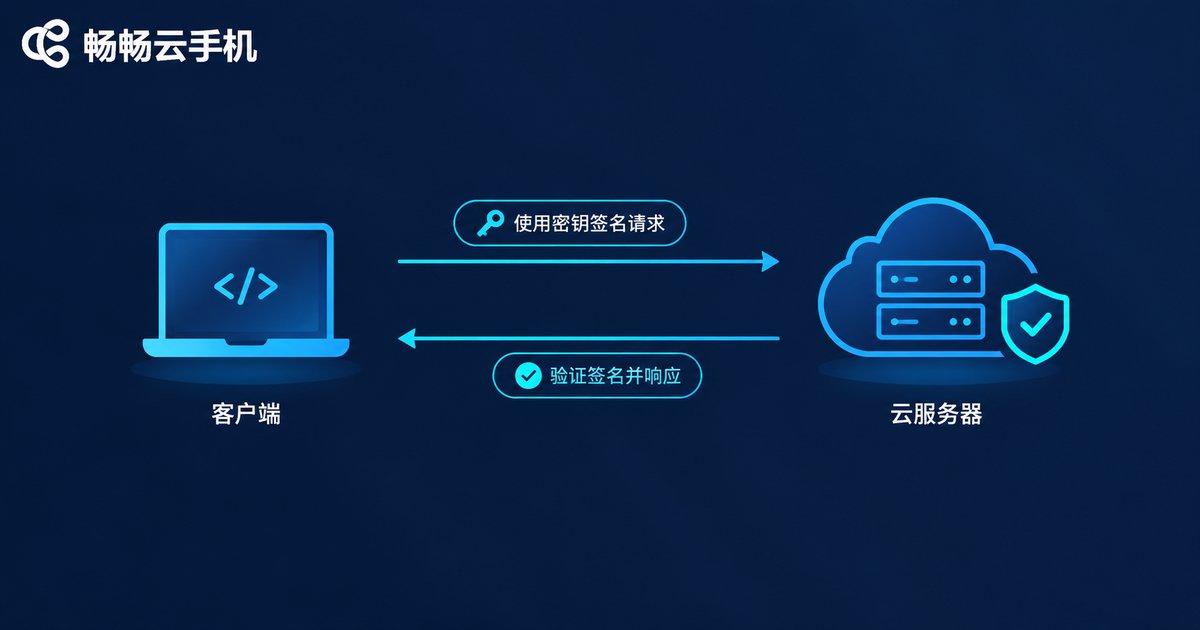
Cloud phone APIs typically rely on a signature-based authentication mechanism: you use the Secret Key to compute a signature from your request parameters and send it along with the request. The server runs the same algorithm on its side and compares the results — if they match, the request goes through. Because the Secret Key itself never travels over the network in plain text, this approach is far safer than sending a raw password.
| Item | Access Key | Secret Key |
|---|---|---|
| Role | Identity marker, like a username | Signing secret, like a password |
| Sent with request | Yes, visible in plain text | No, only used for local signing |
| Risk if leaked | Relatively low | High — full control of your account |
| Typical use | Identifying the caller | Generating and verifying signatures |
Step-by-Step: How to Get Your Access Key and Secret Key
Taking CCloudPhone as an example, the whole process takes only a few minutes:
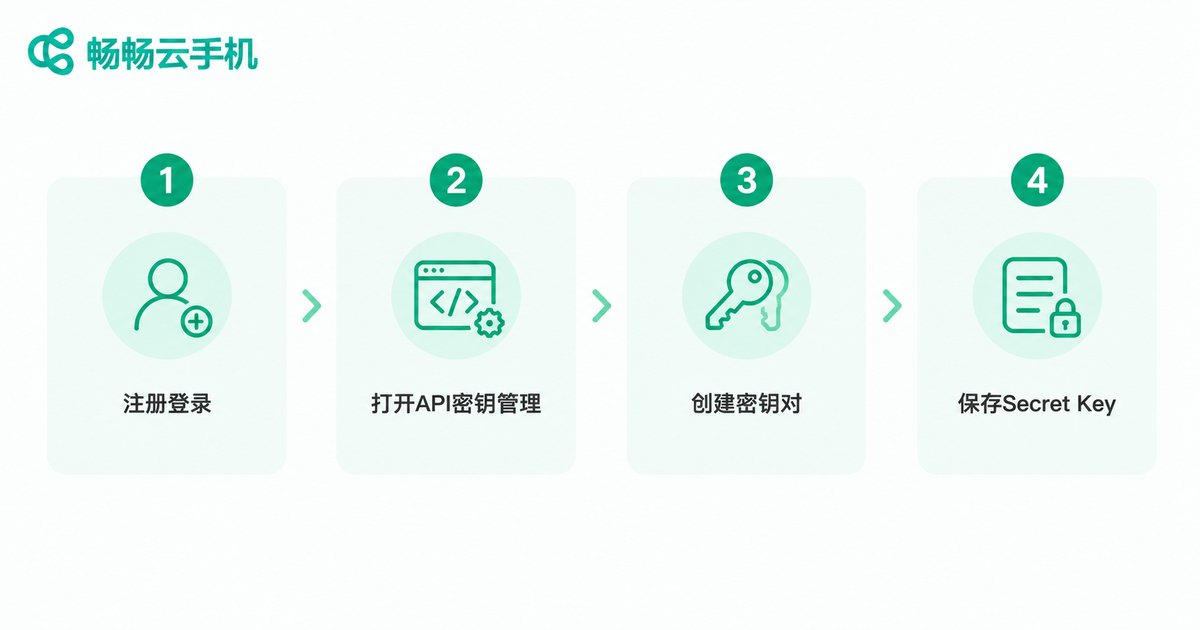
Step 1: Register and log in to the console. Open the CCloudPhone official website, sign up, log in, and enter the user console.
Step 2: Find the API key management page. In the console, look under personal center or account settings for a menu named API Keys, Access Key Management, or something similar.
Step 3: Create a key pair. Click the create button and the system will generate an Access Key and a Secret Key for you.
Step 4: Save the Secret Key immediately. Many platforms only display the full Secret Key once at creation, so copy it on the spot into a password manager or a secured local file.
Step 5: Enable API access and read the docs. If required, activate the API permission on the page, then download the official API documentation to confirm the signing algorithm and parameter rules.
Code Example: Signing a Request with Your Keys
Once you have the keys, signing a request in code is straightforward. Here is a simplified Python example to illustrate the idea (always follow the official CCloudPhone API documentation for exact parameters and algorithms):
import hmac
import hashlib

ACCESS_KEY = 'your-access-key'
SECRET_KEY = 'your-secret-key'

# 1. Prepare request parameters and sort them by key
params = {
    'Action': 'ListInstances',
    'AccessKey': ACCESS_KEY,
    'Timestamp': '2025-06-01T12:00:00Z',
}
query = '&'.join(f'{k}={v}' for k, v in sorted(params.items()))

# 2. Compute the HMAC-SHA256 signature with the Secret Key
signature = hmac.new(
    SECRET_KEY.encode('utf-8'),
    query.encode('utf-8'),
    hashlib.sha256
).hexdigest()

# 3. Attach the signature to the request and send it
params['Signature'] = signature
print('signature ok:', signature)
If the signature checks out, the server treats the request as legitimate and returns data such as your cloud phone instance list. Every other endpoint — creating instances, batch operations, group control commands — follows the same authentication logic.
5 Essential Tips for Keeping Your Keys Safe
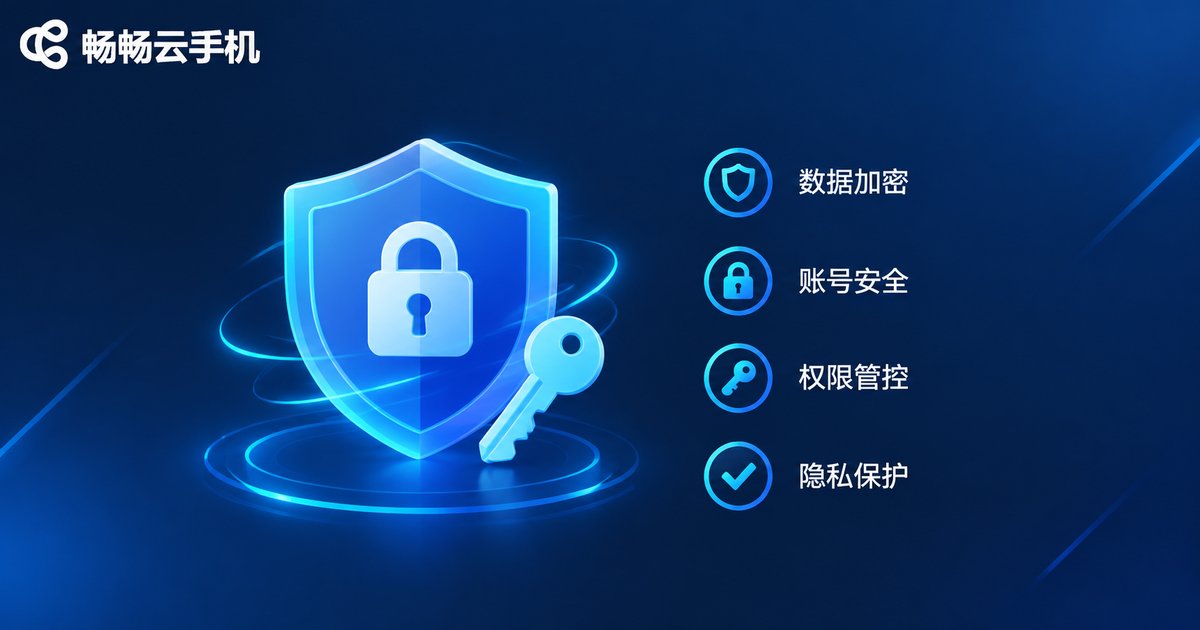
If your Secret Key leaks, someone else could control your cloud phone instances in your name, so never get careless:
1. Never hard-code keys in public code. Keep them out of open-source repositories, front-end pages, and client-side apps.
2. Use environment variables or config files. Store keys in server environment variables with proper file permissions.
3. Rotate keys regularly. Replace them every few months and disable the old pair promptly.
4. Separate keys by purpose. Use different key pairs for different projects and environments so issues stay isolated.
5. Act immediately on a leak. Disable the compromised key in the console and create a new pair right away.
Why Choose CCloudPhone for API Integration?
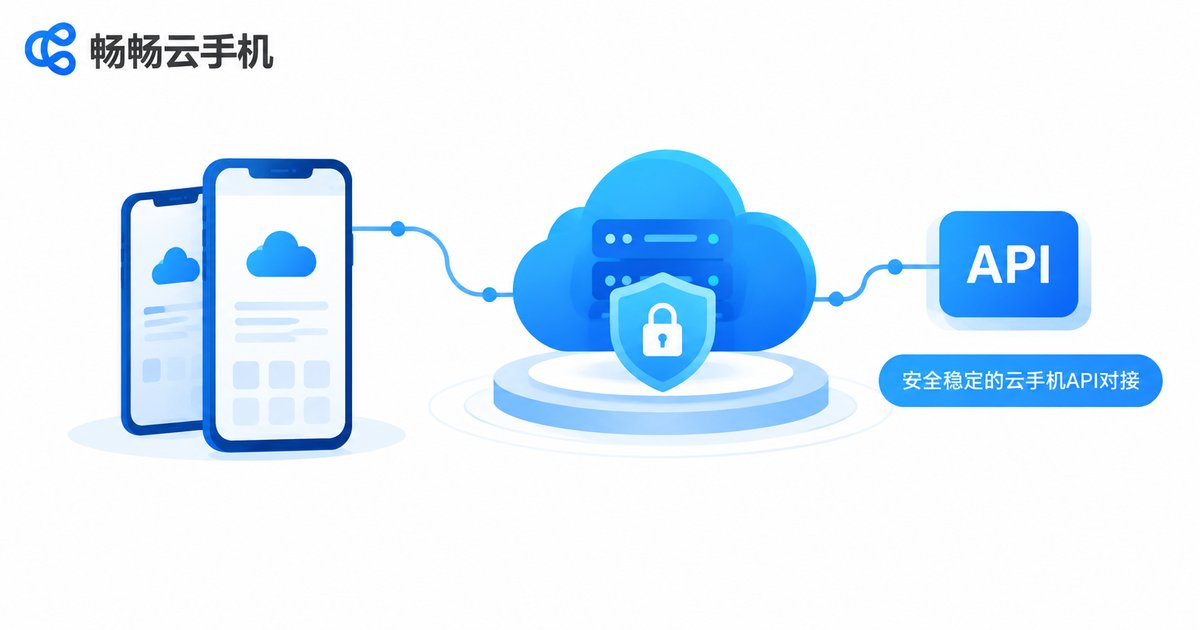
If you are looking for a stable, developer-friendly cloud phone service, CCloudPhone is worth a serious look. It provides cloud-based Android phone instances with support for multi-instance operation, group control, and automation, backed by complete API access capability so you can embed cloud phone features directly into your own systems. Whether it is multi-account game farming, app automation testing, or batch account operations, everything runs smoothly once you have authenticated with your Access Key.
Haven't created your keys yet? Log in to the CCloudPhone console now and follow the steps above — access authentication takes just a few minutes.
FAQ
Q: What is the difference between an Access Key and a Secret Key?
The Access Key is a public identity marker sent with every request, while the Secret Key is a confidential signing secret used only for local signature computation and must never be shared with anyone.
Q: What if I lose my Secret Key or forgot to save it?
Go back to the key management page in the console, delete the old key pair, and create a new one. The original Secret Key usually cannot be recovered, so regenerating is the safest fix.
Q: Can I create multiple Access Keys?
Generally yes. Creating separate keys for different projects or environments makes layered management and independent rotation easier; exact limits follow the console prompts.
Q: I keep getting a signature error — how do I fix it?
Check three things: whether parameters are sorted and concatenated per the rules, whether the encoding is consistently UTF-8, and whether you are using the currently valid key pair. A large server time offset can also break signature verification.
Q: Can individual developers access the cloud phone API?
Yes. As long as you register a CCloudPhone account and create keys in the console, you can complete authentication following the documentation — perfect for personal projects and small-to-medium workloads.


