
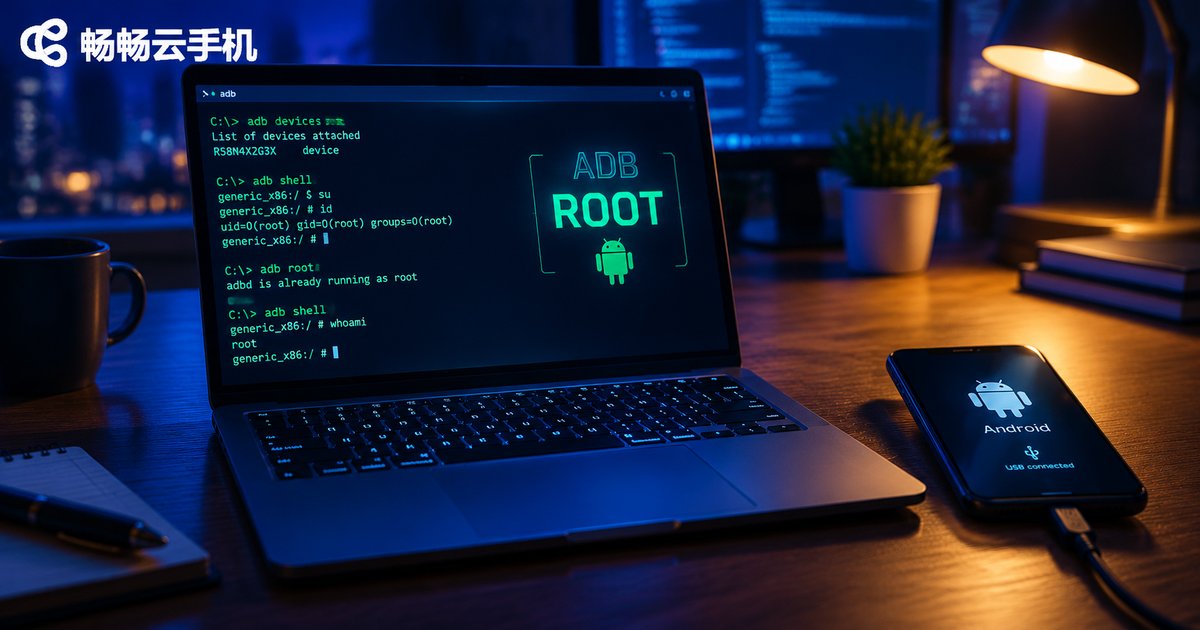
Does a Cloud Phone Have Root Access After ADB Connection? remount Explained
Bottom Line First: A Successful ADB Connection ≠ Root Access
Many developers run adb connect to a cloud phone and immediately try adb remount, only to be greeted by remount failed: Operation not permitted. Does that mean the device has no root? Not necessarily. A successful ADB connection only opens a debugging channel, and your default identity is the shell user (uid 2000). System-level operations like remount or modifying the /system partition require root (uid 0). These are two different things.
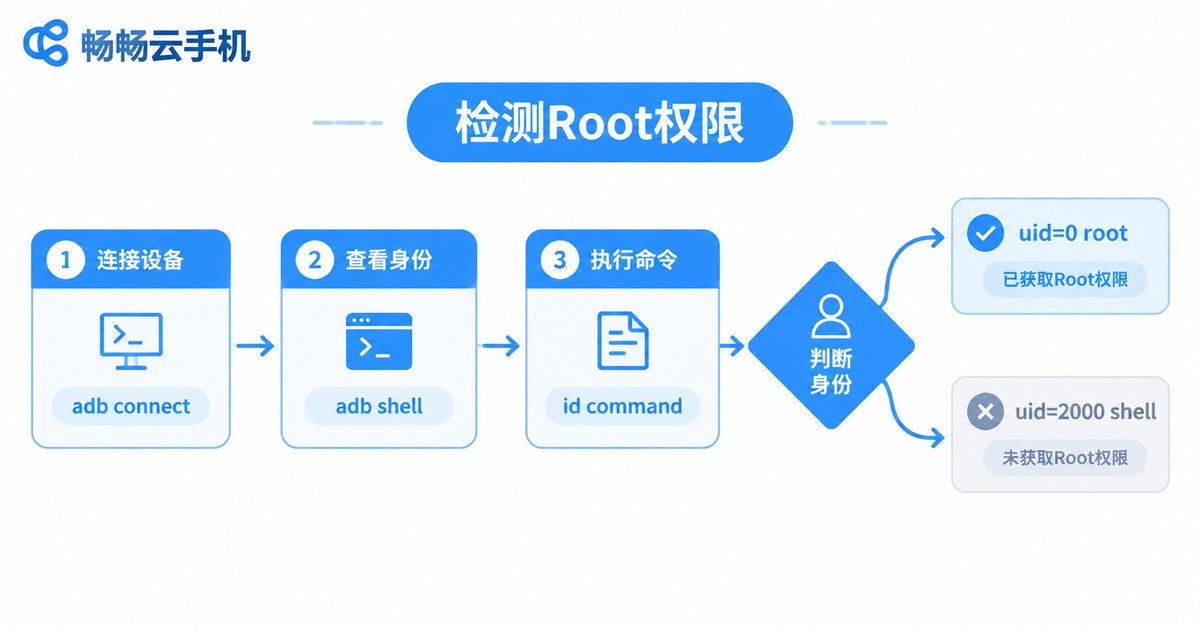
Three Steps to Check Whether Your Cloud Phone Has Root
Once connected, run the following commands in order:
adb connect 127.0.0.1:7555
adb shell
id
Check the output of id: uid=2000(shell) means you are a regular debugging user, while uid=0(root) means the ADB daemon is already running as root. You can also run adb root from your host machine: adbd is running as root confirms root mode, while adbd cannot run as root in production builds means the firmware is a production build with root disabled by default. Another quick test is typing su inside the shell — if it switches you to root, the device has a root environment.
What Does remount Actually Do?
For security reasons, Android mounts the /system partition as read-only out of the box. remount re-mounts these partitions as writable (rw). Replacing system apps, editing build.prop, or pushing files into /system all require a successful remount first — and remount itself requires root privileges. So when remount fails, the command is usually fine; the identity is not.
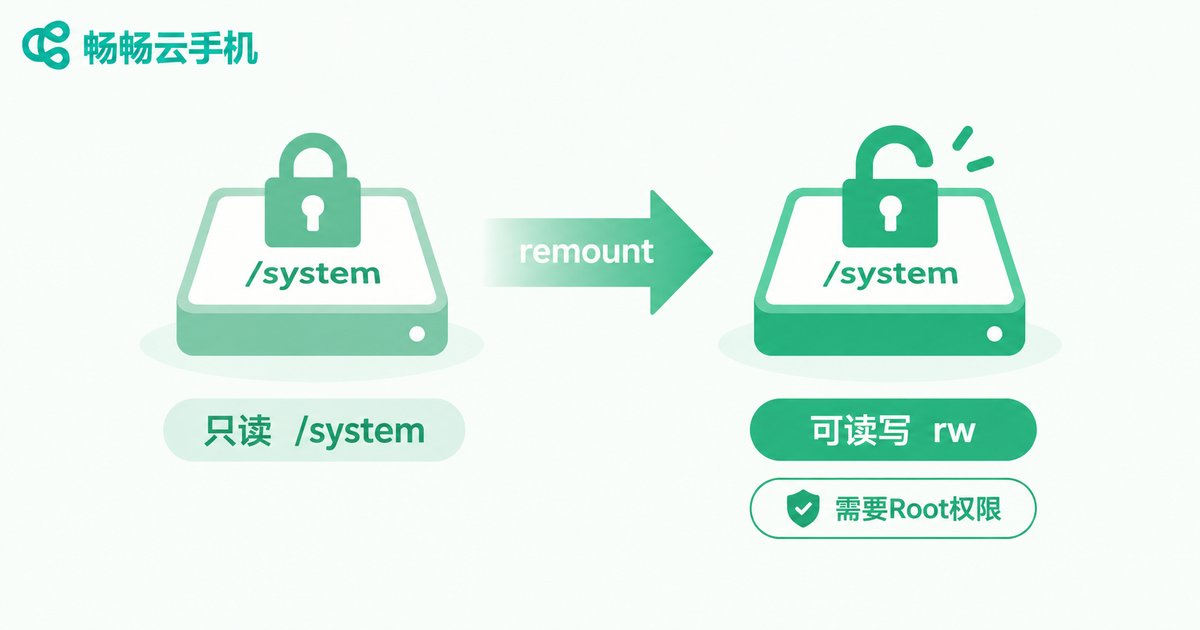
The standard workflow looks like this:
adb root
adb remount

# Or remount manually
adb shell mount -o rw,remount /
If adb root already fails, every remount attempt afterwards will return Operation not permitted. The order matters: get root first, then touch the system partition.
Common remount Errors and How to Fix Them
| Error Message | Cause | Solution |
|---|---|---|
| remount failed: Operation not permitted | No root privileges | Run adb root or su first, or switch to a root-enabled cloud phone |
| adbd cannot run as root in production builds | Production firmware blocks adb root | Use a rooted image or a cloud phone with built-in root |
| /system is read-only | Partition not re-mounted as rw | After gaining root, run mount -o rw,remount /system |
| device offline / unauthorized | Connection or authorization issue | Reconnect and re-authorize debugging, then retry |
When Do You Really Need Root + remount?
If you only need to install or uninstall apps, read logs, run automation scripts, or simulate taps, regular ADB is enough — no root required. But the following scenarios demand root and remount: removing or replacing pre-installed apps, editing system configuration files, injecting files into /system, security testing and reverse engineering, and deep device customization. Clarify your needs before touching system partitions; it saves a lot of detours.
The Easy Way: Use a Cloud Phone with Built-in Root
Rooting a physical phone means unlocking the bootloader and flashing, with real risks of bricking. Cloud phones deliver root at the image level, ready out of the box. ChangChang Cloud Phone (ccloudphone) natively supports ADB debugging and root access: once your device is provisioned, you can connect via ADB and run remount and other system-level operations immediately — no flashing, no bricking worries. For developers and studios, provisioning devices on demand and releasing them when done is simply the smarter play.
FAQ
Q: adb connect works, but adb root does nothing. Why?
Check the firmware type first — production builds do not support adb root. Some cloud phones require enabling a root switch for the device in the dashboard; check your device settings in the ccloudphone console or contact support.
Q: After a successful remount, the partition turns read-only again after reboot?
That is expected. remount only lasts for the current boot; partitions revert to read-only after a restart. For persistent changes, use a rooted cloud phone image and re-apply the mount script at initialization.
Q: What can ADB do without root?
Installing and uninstalling apps, capturing logcat output, simulating taps and swipes, port forwarding, and UI automation testing all work fine without root.
Q: Is root on a cloud phone the same as rooting a physical device?
The principle is identical — both grant uid 0, the highest privilege level. The difference is that cloud phone root is pre-configured by the provider in the cloud image, which is usually more stable than flashing a physical phone and carries no warranty or bricking risk.


