
How to Use Cloud Phone Custom Images: App and Whitelist Configuration Tutorial
What Is a Custom Cloud Phone Image?
If you are new to cloud phones, you may wonder: what is a custom image actually for? In short, an image is a complete backup template of a cloud phone. You set up one device with the apps you need, tune the settings, and pack that entire environment into a single image file. From then on, whenever you create a new device or reset an old one, you simply apply the image and get an identical cloud phone in seconds.
It works like a system backup on a PC: instead of installing the system and software on ten computers one by one, you prepare one machine and restore it to the other nine with a click. That is exactly what a custom cloud phone image does.
Who Benefits from Custom Images?
Custom images are not just for power users. The following scenarios see an immediate efficiency boost:
Multi-account users: running many cloud phones for idle farming or app testing means installing the same apps over and over. Deploy them all at once with an image.
Studio teams: team devices need identical environments. Images keep app lists and settings perfectly aligned across every device, cutting troubleshooting time.
Business rollout: issue employees cloud phones preloaded with work apps so they are ready out of the box, with no need for IT to guide installations one by one.
App testing: when you need to reset to a clean baseline again and again, an image is the most reliable time machine.
| Item | Manual setup per device | Image batch deployment |
|---|---|---|
| Time cost | Tens of minutes per device | Build once, apply to many |
| Consistency | Drifts easily | Perfectly identical |
| Error rate | High, easy to miss steps | Low, single template |
| Maintenance | Update device by device | Update master, redistribute |
How to Create a Custom Image Step by Step
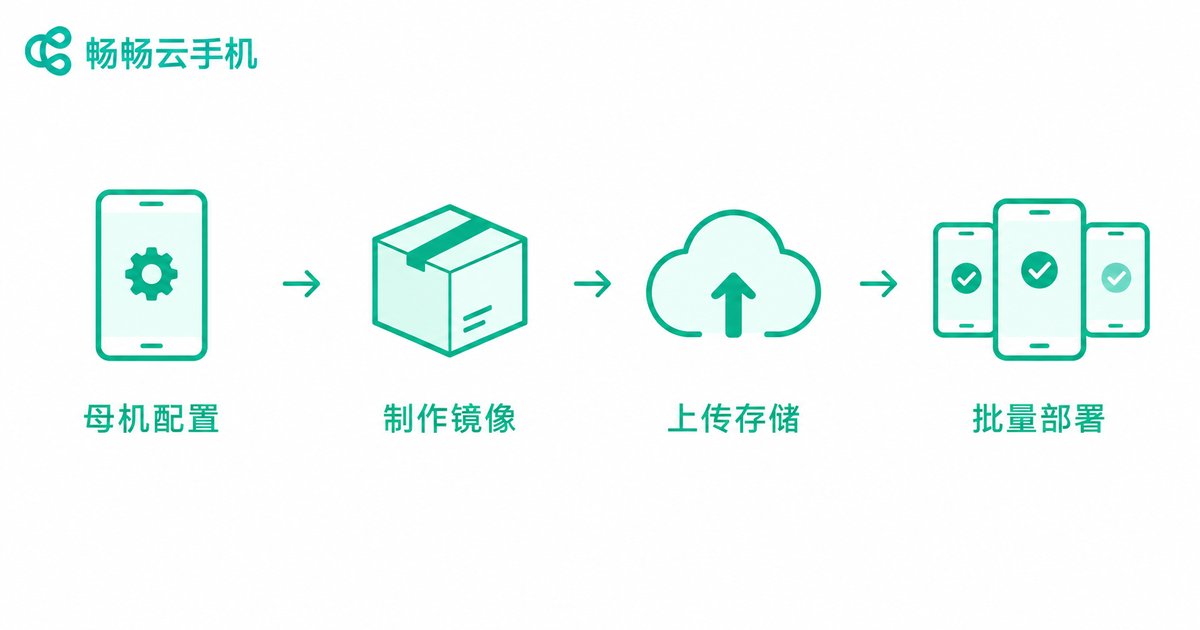
Entry points differ slightly across platforms, but the workflow is essentially the same, in four steps:
Step 1: Build the master device. Pick one cloud phone as the master, install every app you want to preload, sign in where needed, and adjust the settings. This step determines image quality, so take your time.
Step 2: Clean up and check. Before creating the image, clear app caches and junk files and remove temporary data. A cleaner image deploys faster and takes up less storage.
Step 3: Create the image in the console. Open the cloud phone management console, find the image management section, select the master device, and start the build. Give the image a clear name such as: farming-env-2024.
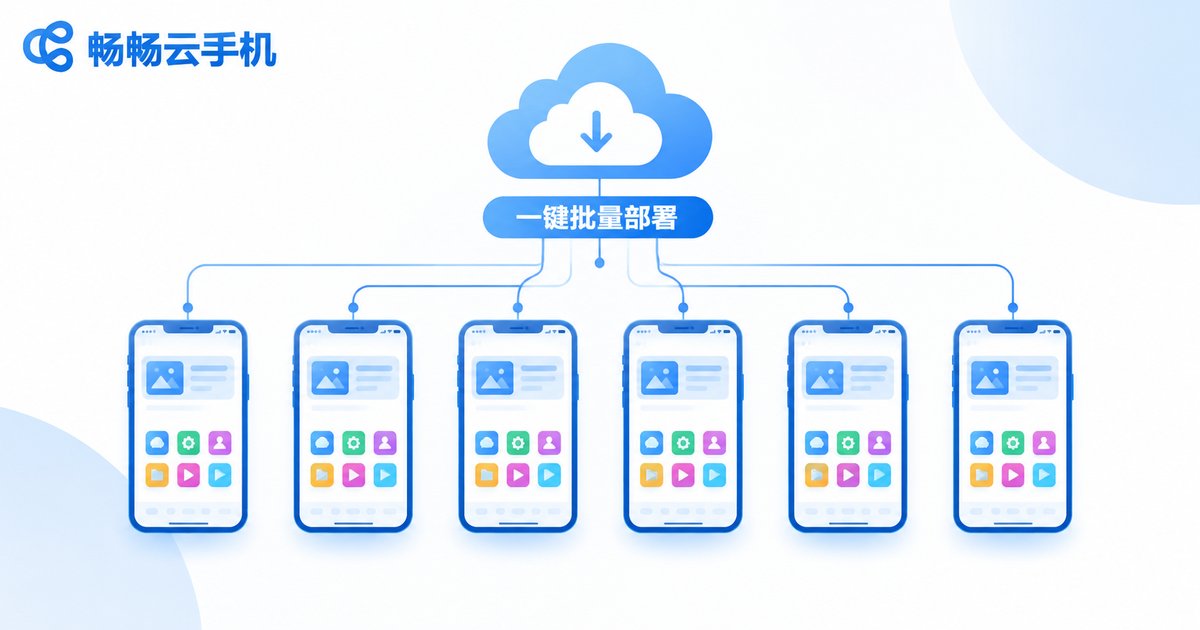
Step 4: Deploy devices from the image. Once the image is ready, choose it as the source when creating or resetting cloud phones. In a moment, an identically configured device is good to go.
App Whitelist Configuration Tutorial
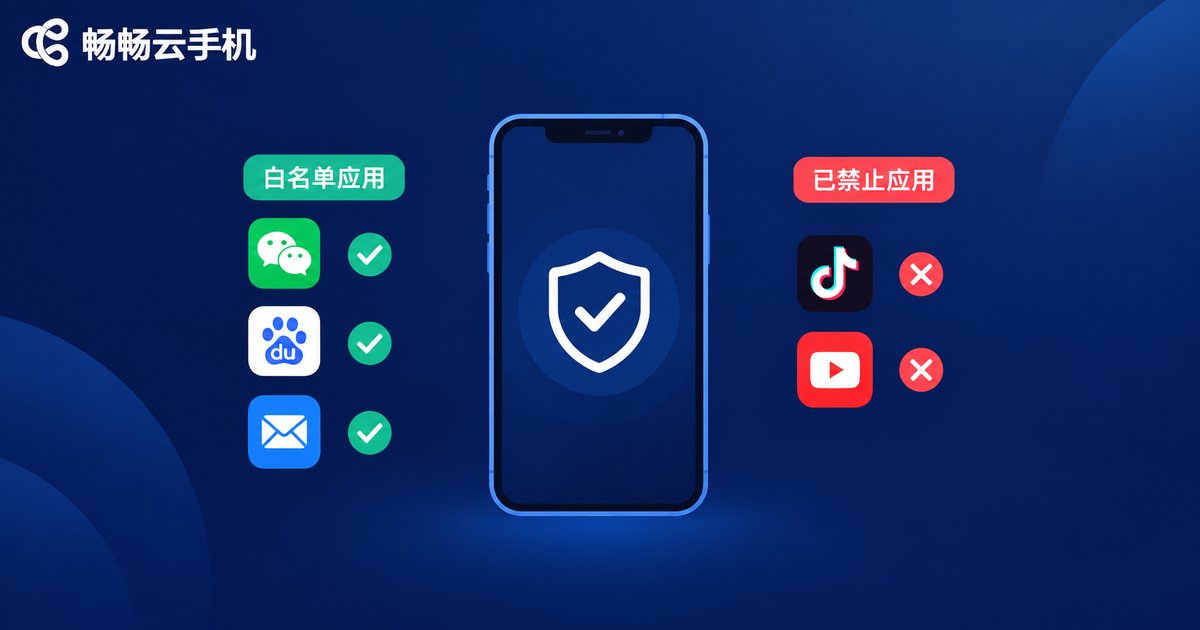
The whitelist is one of the most practical settings you can bake into a custom image. A whitelist means only the apps on the list are allowed to run, while everything else is blocked from launching. It is the opposite of a blacklist: a blacklist names the apps to ban, while a whitelist keeps only the essentials.
Common whitelist use cases include:
Focused farming: keep only the target app and its required components, so nothing else drains resources in the background.
Device control: restrict a cloud phone used by family or staff to approved apps only, preventing accidental installs.
Lean system: disable unneeded system-level apps to keep the device smooth and power efficient.
The logic is straightforward: configure the whitelist rules on the master device first, confirm which apps may run and which are blocked, then create the image. The rules travel with the image to every device, so you configure once and enforce everywhere.
| Mode | Logic | Best for |
|---|---|---|
| Whitelist | Block all by default, allow listed apps only | Dedicated farming, managed devices |
| Blacklist | Allow all by default, block listed apps only | Daily use, light management |
Updating and Maintaining Your Images
An image is not a one-and-done asset. Apps get updated and needs change, so build these three habits:
Refresh the master regularly: update app versions on the master device from time to time and build a new image to replace the old one.
Name images clearly: use dates or version numbers such as office-env-v3-0512 so you never deploy a stale version by mistake.
Ship small and often: rebuild the image after each small change so you can roll back quickly if something breaks.
Why We Recommend ChangChang Cloud Phone
If you are looking for a cloud phone service that supports custom images, take a look at ChangChang Cloud Phone (ccloudphone). It offers unified management for multiple devices, a clean and intuitive console, and a straightforward image creation and batch deployment workflow that is friendly for beginners. Whether you run multiple devices solo or manage a small team, it is easy to get started. For the latest feature details and plan information, visit the official ccloudphone website.
FAQ
Q: Does creating an image affect the cloud phone I am using?
Generally no. Creating an image only reads and packs the current device data without modifying the device itself. To be safe, run the operation while the device is idle.
Q: How many images can I create? Is there a limit?
Most platforms include a certain image storage quota with each plan. Check the official ccloudphone website for exact limits, and clean up unused old images regularly.
Q: An app will not open after I set the whitelist. What should I do?
Check whether the app is on the whitelist and whether its required components are also allowed. Adjust the rules, verify again, and only then update the image.
Q: After updating an app, do I have to redeploy every device?
No need to touch each device. Update the master device, rebuild the image, then batch deploy with the new image. That is the core value of image management.
Q: Should I keep my personal account inside the image?
It depends. For personal use, keeping the login state is convenient. If the image will be shared across a team, sign out first to avoid leaking account information.


