
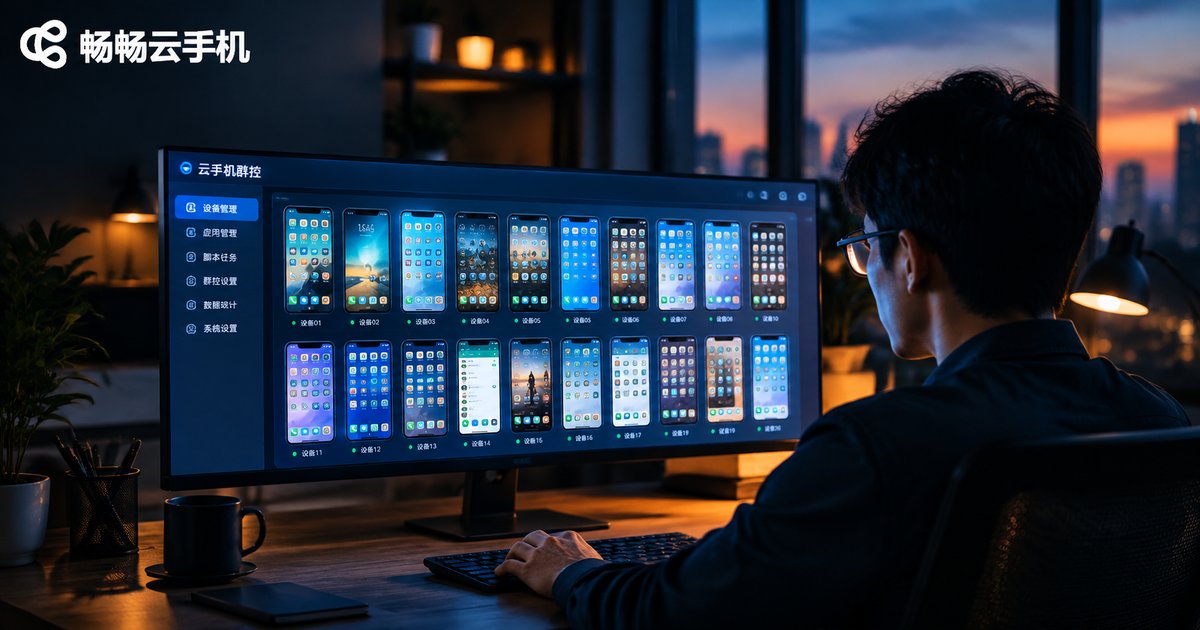
How to Use Cloud Phone Group Control: Batch Manage Multiple Devices from One Computer
What Is Cloud Phone Group Control?
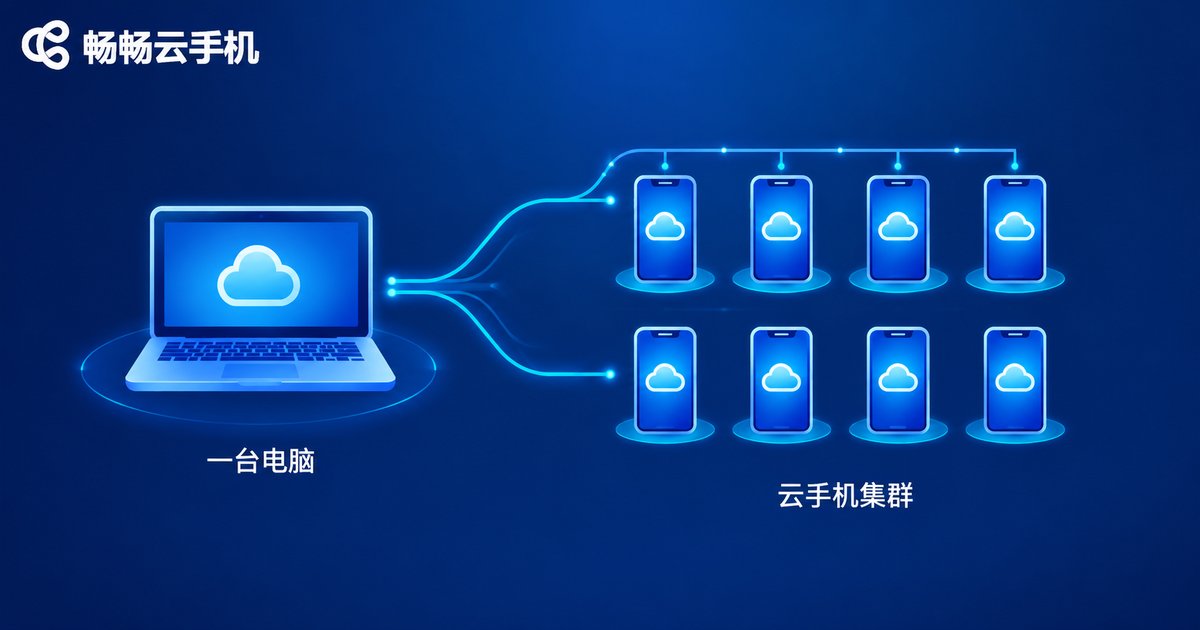
Cloud phone group control refers to controlling dozens or even hundreds of cloud phones at the same time from a single computer. Every cloud phone runs on cloud servers, so your computer only sends commands and displays screens. App installation, execution, and taps all happen in the cloud and consume almost none of your PC's own performance.
Unlike forcing multiple emulators onto one machine, group control with cloud phones demands very little from your hardware and never suffers from multi-instance lag. Just open a browser, log into the console, and operate all of your cloud phones in batch as easily as operating a single phone.
Who Needs Group Control?
Cloud phone group control serves a wide range of users. The following groups benefit the most:
| Use Case | Typical Need | Value of Group Control |
|---|---|---|
| Game studios | Multi-account idle farming and daily quests | Bring all devices online at once and run tasks in sync |
| Social media operators | Multi-account posting and engagement | Publish content in batch under unified management |
| E-commerce sellers | Daily maintenance of multiple store accounts | Group-based management that lowers operating costs |
| App promotion and testing | Compatibility checks across many devices | Batch install and uninstall for fast regression testing |
What to Prepare Before You Start
Three things are enough to get going:
First, a computer with internet access. An ordinary office PC works fine, because the computing load stays in the cloud while your computer acts as the remote control.
Second, a cloud phone account. Take ChangChang Cloud Phone (ccloudphone) as an example: register on the official website, then activate and manage cloud phone devices from the console, scaling the number of devices to match your business.
Third, a stable network. Group commands travel over the network to the cloud, so a stable connection means faster batch responses.
Step-by-Step Group Control Tutorial
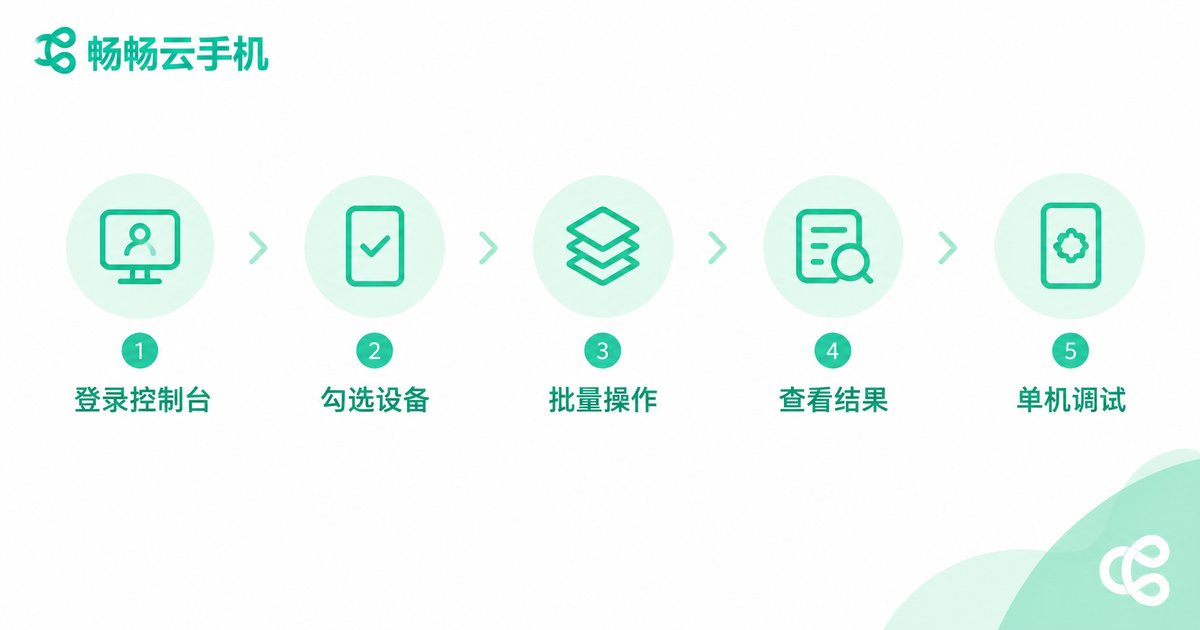
Using the console of ChangChang Cloud Phone as an example, here is the complete workflow from zero to batch management:
Step 1: Log in to the console. Open the official ChangChang Cloud Phone website in your browser, sign in, and enter the device management page where all activated cloud phones are listed.
Step 2: Select target devices. Tick the devices you want to control in the list. You can select one, many, or simply hit Select All. With a large fleet, group your devices by business first and then select by group for higher efficiency and safety.
Step 3: Run batch actions. With devices selected, pick an action from the toolbar, such as batch power-on, batch app installation, or batch launching a specific app. Once confirmed, the system delivers the command to every selected cloud phone simultaneously.
Step 4: Check the results. The console reports the execution status of each device, so any failed device can be retried or investigated individually.
Step 5: Fine-tune on a single device. When one device needs special attention, open its independent control window and tap, swipe, or type just like on a physical phone.
Efficient Batch Management Techniques
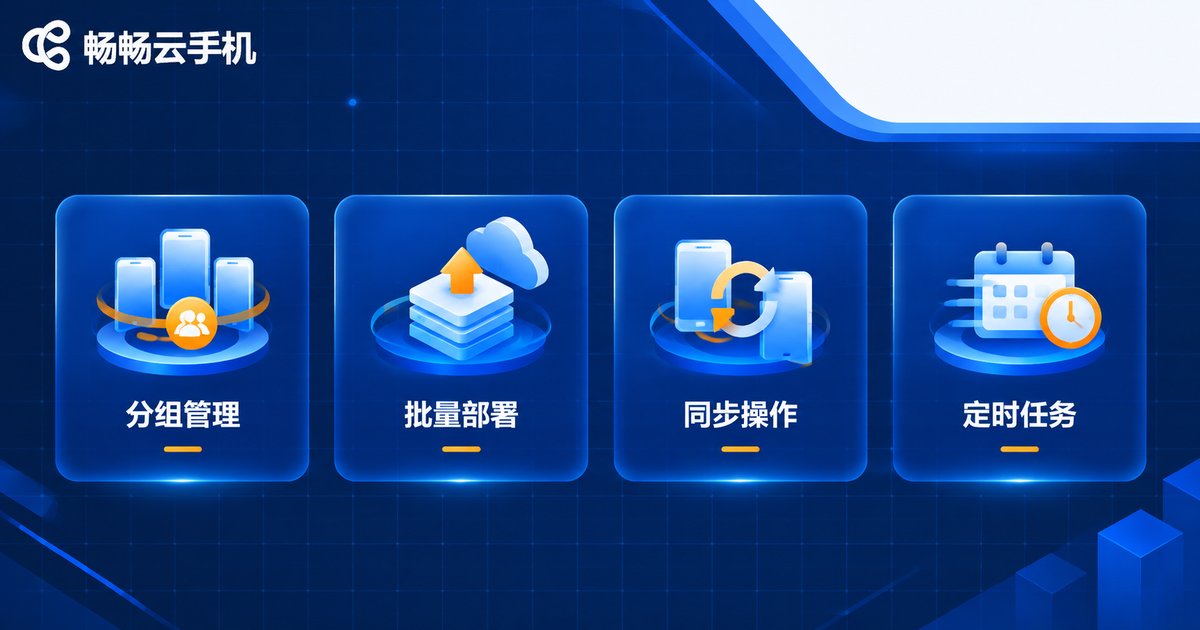
Once you master the basics, these techniques push efficiency even higher:
1. Group management: Organize cloud phones by project, platform, or account purpose, then select by group to avoid touching unrelated devices.
2. Batch app deployment: Prepare your common apps in advance, then install them on new devices in one click, setting up dozens of devices within minutes.
3. Synchronized operations: In sync mode, taps and swipes on one master device mirror across all others, perfect for scenarios where every device follows the same workflow.
4. Scheduled tasks: Turn check-ins and idle farming into scheduled jobs that run automatically in the cloud, even with your computer shut down.
Common Mistakes and Precautions
Do not select every device on day one. Run your workflow with two or three devices first, then scale up gradually once the actions and scripts prove reliable.
Mind your account nurturing rhythm. Batch operations are efficient, but each account should behave with natural variation instead of every device performing identical actions in the same second.
Release idle devices in time. Unsubscribe or shut down cloud phones you no longer use, because right-sizing your fleet noticeably reduces costs.
FAQ
Q: How many cloud phones can one computer control?
There is no hard limit on the PC side, since all computing happens in the cloud. The practical number depends on how many devices you have activated. The console supports multi-select and select-all, so even dozens of devices stay manageable.
Q: Can I use group control on a low-spec computer?
Yes. Cloud phones run on cloud servers while your computer only renders screens and sends commands, so even an ordinary or aging laptop works smoothly.
Q: Is each cloud phone environment independent during group control?
Absolutely. Every cloud phone has its own system environment, and app data plus login states are fully isolated, so one device failing never affects the others.
Q: Will tasks stop if I shut down my computer?
No. Cloud phones keep running in the cloud, and your computer is only the control terminal, so scheduled tasks and idle farming continue as usual after shutdown.


