
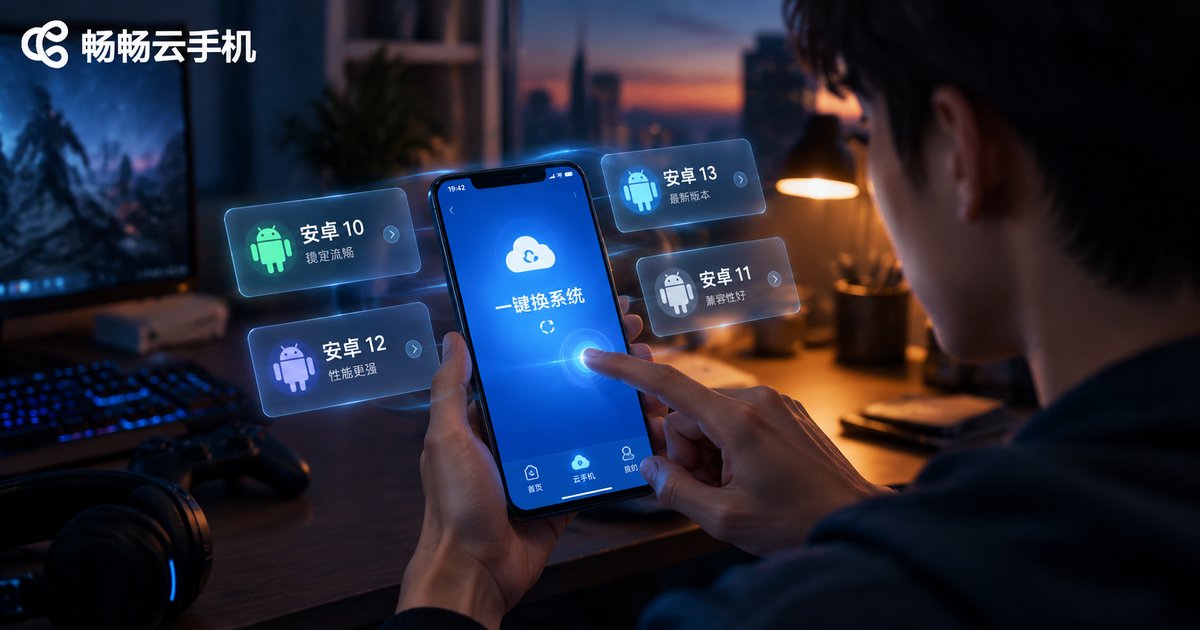
How to Switch Cloud Phone System Versions: Change Android Version Without Losing Data
Why Change the Android Version on a Cloud Phone?
If you use cloud phones for idle farming, multi-account setups, or older games, you have probably run into this: apps and system versions don't match. Some older games only run smoothly on lower Android versions, while newer apps demand a higher one; other players simply want different accounts living in different system environments for more flexibility.
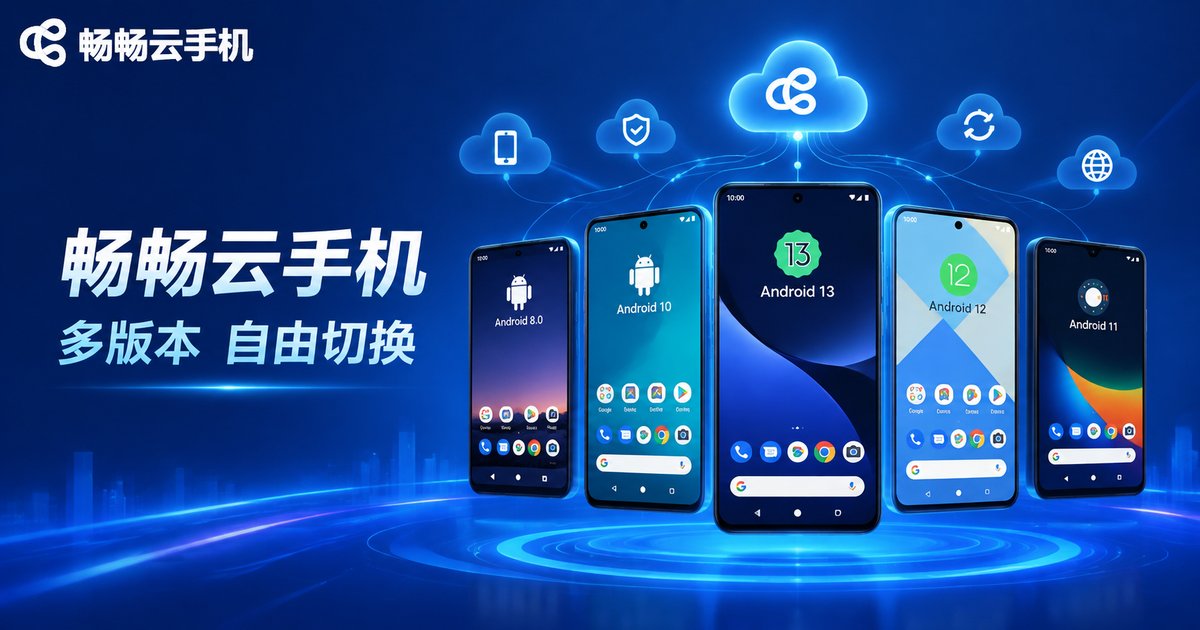
On a physical phone, changing the system means flashing, unlocking, and wiping data—an afternoon gone, with real risks of failure. On a cloud phone, switching the Android version simply replaces the cloud image while your data stays safely in the cloud, and the whole process takes only a few minutes. Here is how it works, step by step.
The Principle: Why Switching Versions Doesn't Delete Your Data
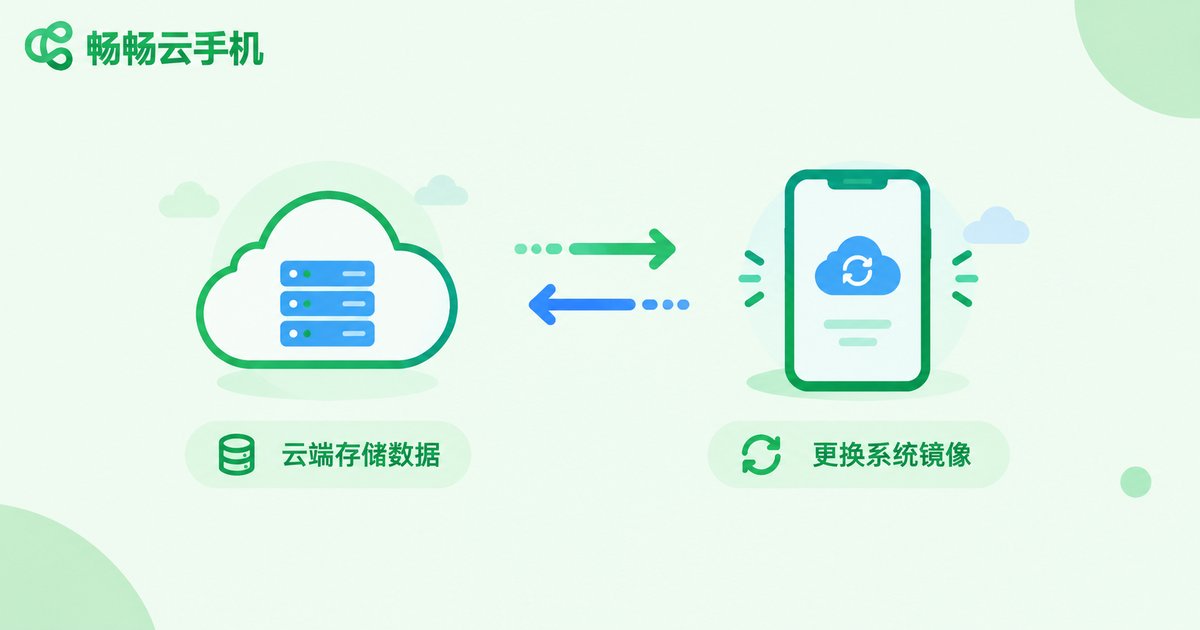
A cloud phone is essentially a virtual Android device running on a cloud server. The screen you see is a live video stream from the server, while your apps, accounts, and game progress are all stored in cloud storage.
That's exactly why switching versions only means replacing the system image of that virtual device, while your user data is kept separately. It is completely different from flashing a local phone, which wipes the entire disk first—this is the fundamental reason a cloud phone can change Android versions without deleting data.
| Item | Flashing a local phone | Switching on a cloud phone |
|---|---|---|
| Data retention | Manual backup needed, easy to lose | Automatically kept in the cloud |
| Difficulty | Unlock and flash firmware, complicated | A few taps in the dashboard |
| Time | 30 minutes to several hours | Usually a few minutes |
| Risk | Bricking, voided warranty | Low risk, easy to switch back |
Step-by-Step: Switch Android Versions Without Losing Data
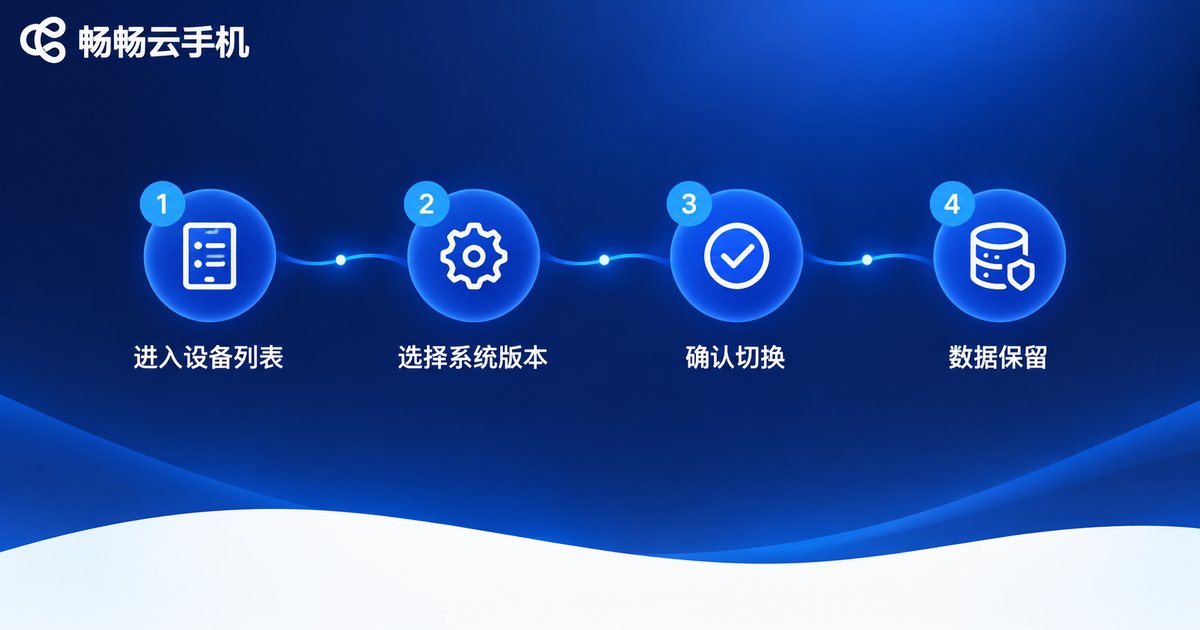
Taking ccloudphone as an example, the whole process looks like this (exact menu names may vary slightly in the app):
Step 1: Log in and open your device list. Open the ccloudphone app or web dashboard, sign in, and you will see all of your cloud phone devices.
Step 2: Select the target device and open its settings. Find the device you want to change, enter the device details or settings page, and locate the 'change system version / model' option.
Step 3: Choose the target Android version. Pick a lower version for older games, or a higher version for newer apps.
Step 4: Confirm the switch. The platform will show what changes after switching. Once confirmed, it rebuilds the system image in the cloud while your apps and data are kept.
Step 5: Wait for completion and verify. The switch usually finishes within a few minutes and the device boots into the new system automatically. Open a few apps and games to confirm your accounts, progress, and settings are intact.
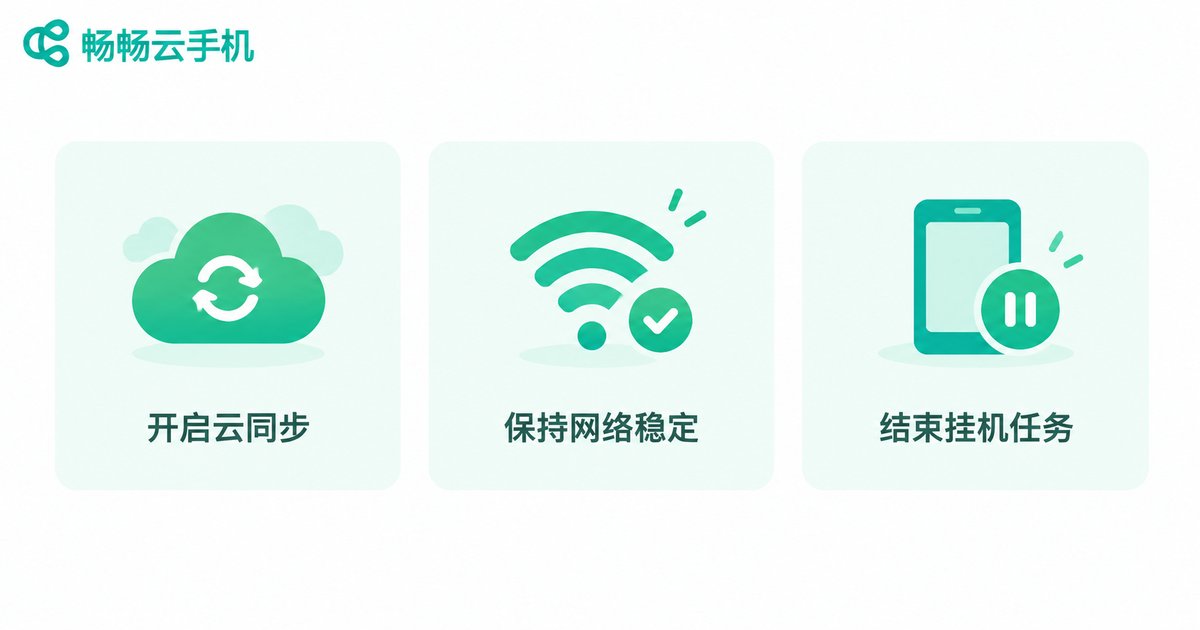
3 Things to Do Before Switching
Even though a cloud phone keeps your data when switching versions, these habits give you extra peace of mind:
1. Turn on cloud sync or backup. Enable cloud sync for important accounts and bind your games to third-party accounts for double protection.
2. Keep the network stable. The switch communicates with cloud servers, so operate over Wi-Fi or a strong connection to avoid interruptions.
3. Stop idle tasks first. If a device is running game idle-farming tasks, stop them before switching so nothing gets interrupted halfway.
Getting Back to Speed After the Switch
After entering the new system, a few apps may ask you to grant permissions again, such as storage or overlay access; some large games will reload resources on first launch, which is normal. A quick check of app permissions usually restores your setup within minutes.
If an app turns out to run worse on the new version, simply follow the same process to switch back to the previous Android version. This is the biggest advantage of a cloud phone over flashing a local phone: trial and error costs you almost nothing.
FAQ
Q: Will my game accounts and progress be lost after switching Android versions?
No. Cloud phone data lives in the cloud; switching versions only replaces the system image, so apps and data stay with the device. For extra safety, enable cloud sync and bind your accounts beforehand.
Q: How long does a switch take?
Usually just a few minutes, depending on server scheduling and image size. The device reboots briefly during the process—just wait patiently.
Q: Can I switch back to the previous version?
Yes. Repeat the same process and select the original version. Low-cost trial and error is one of the key advantages of a cloud phone.
Q: Do I need to reinstall apps after switching?
Most apps are kept with the device and need no reinstall. A few may require permissions to be granted again, or an update for compatibility.
Q: When is switching Android versions most useful?
Older games that need a lower version, newer apps that require a higher version, and unifying system environments across multi-account farms are the most common scenarios.


