
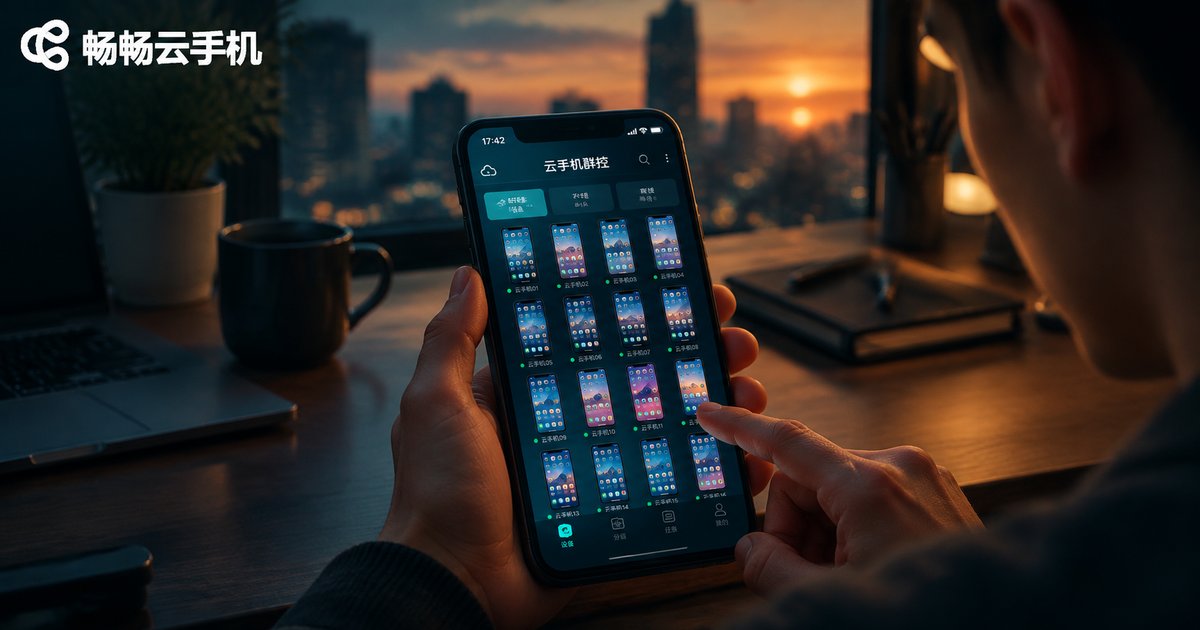
How to Use Cloud Phone Group Control: Remotely Batch-Control Multiple Devices from Your Phone
What Is Cloud Phone Group Control?
In simple terms, a cloud phone is a virtual smartphone running in a cloud data center. Like a real handset, it has its own system, apps, and data — but you never have to hold it. All the computing happens on cloud servers, while your phone or computer only sends commands and displays the screen.
Group control takes this further: it brings many cloud phones into a single management interface so one person can operate multiple devices at once — installing apps in batches, launching tasks simultaneously, syncing operations, and powering devices on or off together. Group control used to mean buying a rack of physical phones with cables and power supplies. With cloud phone group control, one phone can remotely batch-control dozens of devices, dramatically lowering both cost and barriers.

Which Scenarios Suit Cloud Phone Group Control?
The value of group control lies in handing repetitive operations over to batch commands. Whenever your business requires doing the same or similar things across many devices, it can help:
| Scenario | Typical Practice | Benefit |
|---|---|---|
| Short-video / social media matrix | Run different accounts on different devices | Publish in batches and manage centrally without switching devices |
| Multi-instance gaming and idle farming | Keep many cloud phones online at once | Bring devices online in one click and check progress remotely |
| Multi-account daily operations | Group devices by business purpose | Batch operations per group for multiplied efficiency |
| App testing | Install and run the same app on many devices | Batch installation and batch status monitoring |
How to Remotely Batch-Control Multiple Devices from One Phone: A 5-Step Tutorial
Using ccloudphone as an example, here is how to batch-control multiple devices with a single phone. No offline hardware is needed — you can start right after registering an account.

Step 1: Register and log in. Create an account on the ccloudphone website or app and log in to the device management console. Before moving on, decide how many devices you need and what each will do.
Step 2: Create cloud phones in batches. Create cloud phone devices as needed in the console — multiple devices can be created at once. Once created, they run in the cloud 24/7, regardless of whether your local phone is on.
Step 3: Install apps in batches. Upload or install the apps you need, then use batch installation to sync them to multiple devices in one go, eliminating repetitive one-by-one installs.
Step 4: Operate in the group control console. Select multiple devices and issue batch commands: launch apps simultaneously, perform the same operations across devices, clean up background tasks in unison, and more — turning “tapping one device at a time” into “moving a whole row at once.”
Step 5: Group management and daily maintenance. Organize devices into groups by purpose (such as “Account Group A” and “Game Group B”) and send commands to a whole group; remotely restart any device that misbehaves, and manage idle devices in the console to avoid wasted resources.
Tips and Best Practices for Group Control
To keep group control running smoothly and stably, keep these tips in mind:
1. Prefer a stable network environment. Only screen data and commands travel locally, but network fluctuations still affect the experience — perform batch operations over reliable Wi-Fi.
2. Group devices by business purpose. Avoid mixing all devices together; grouping makes batch commands more precise and troubleshooting easier.
3. Keep the rhythm of batch operations natural. Avoid issuing abnormally frequent, repetitive commands to large numbers of devices within a short time; keeping each device's behavior natural is safer for both accounts and devices.
4. Check device status regularly. Use the console's device list to review online status and running state, restarting or adjusting promptly when something looks off so overall task progress is not affected.
5. Back up important data periodically. Cloud phone data lives in the cloud and normally survives even if your local phone is lost, but regular backups of critical files are always a good habit.
Why We Recommend ccloudphone
Among cloud phone services, ccloudphone is particularly friendly to group control users: devices run on cloud servers and stay online around the clock without consuming your local phone's storage or performance; you can log in and manage from a phone, tablet, or computer and control devices remotely anytime; and commonly used group control features — batch creation, batch installation, and batch operation — are all available with a low learning curve.
Whether you are a beginner building a multi-account matrix or a player who needs long-term idle farming, start with a small number of devices, get the workflow running, and then scale up gradually. For the latest device specifications and plans, refer to the official ccloudphone website.

FAQ
Q: Do I need to buy many physical phones for group control?
No. The devices being controlled are virtual phones running in a cloud data center. Locally you only need one internet-connected phone or computer, saving the cost of buying, housing, and powering a rack of real devices.
Q: How many cloud phones can one phone control at the same time?
The number depends on your chosen plan and network conditions. Choose a device count that matches your workload and operate in batches by group for a smoother experience. For exact specifications, see the official ccloudphone website.
Q: Will the screen lag during group control?
All computing happens in the cloud, so control is generally smooth when the local network is stable. If lag occurs, check your local network first or reduce the number of devices controlled simultaneously.
Q: If I close a cloud phone, will its data and game progress be kept?
Under normal use, cloud phone data is stored in the cloud and remains available when you log back in. Still, back up important files regularly just in case.
Q: Can I do group control from a computer?
Yes. Cloud phones support multi-device login and management. A computer's larger screen makes batch management of many devices clearer, ideal as your main group control workstation, while your phone can take over anytime on the go.


