
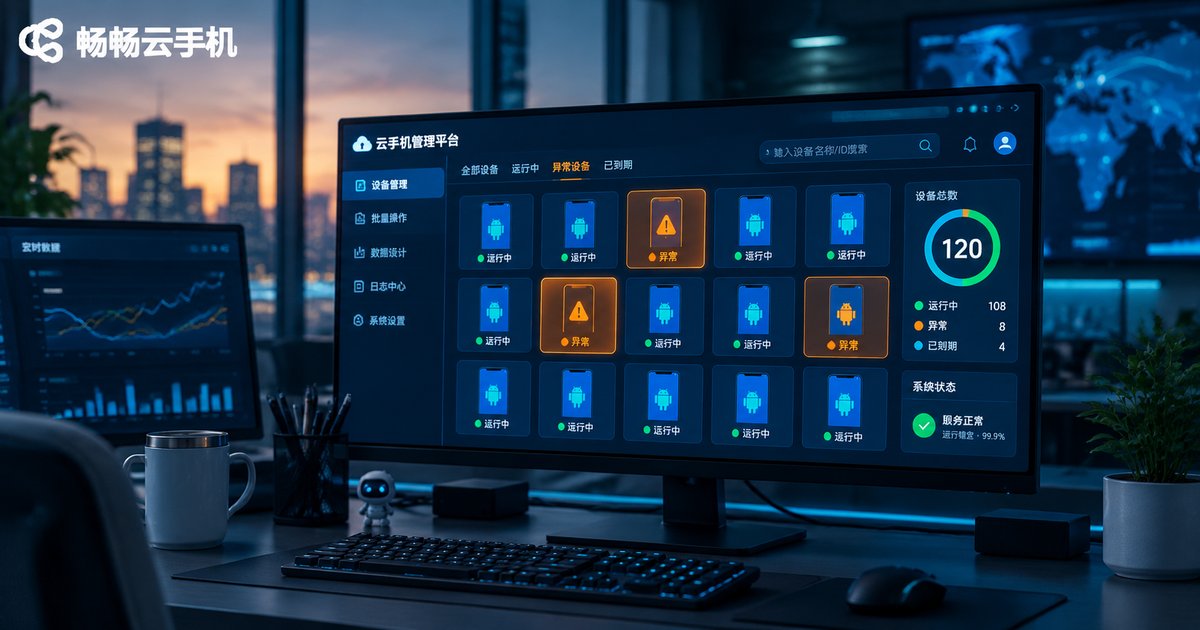
Troubleshooting Cloud Phone Group Control Failures: Commands, Network, and Instance Status
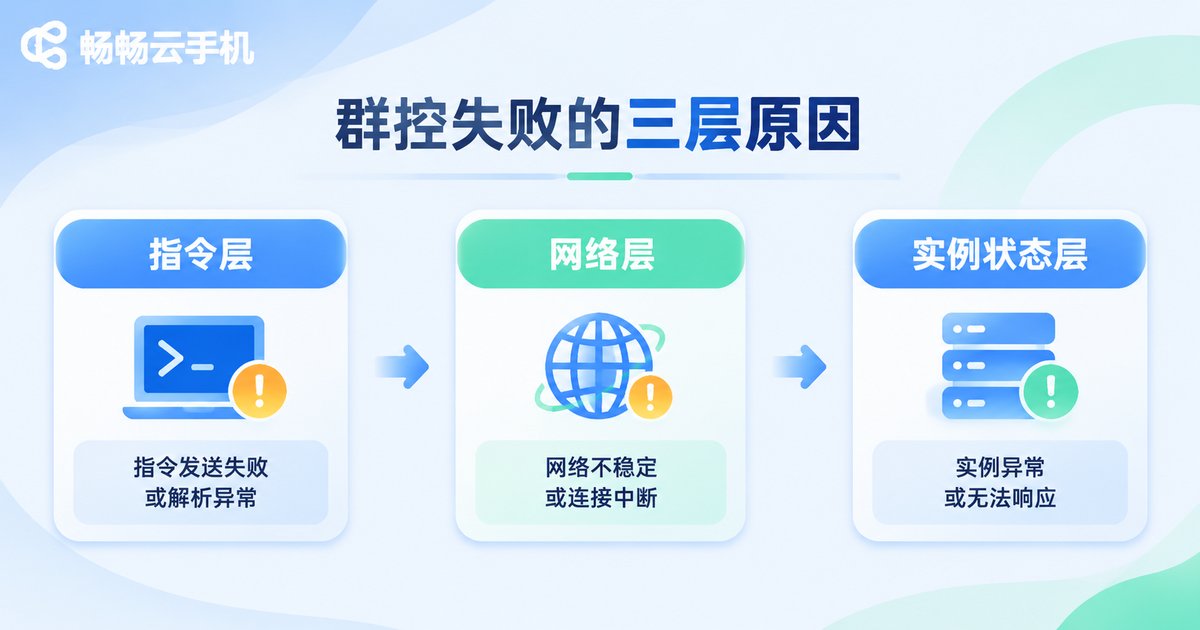
Your group control job is running fine, then suddenly a few cloud phones stop responding: the script says the command was sent, but the screen does not change. Or the first half of the batch works and the second half times out together. The first instinct is to blame the script, so you rewrite the code again and again, yet the problem remains. In reality, cloud phone group control failures usually come from a mix of three causes: commands that were not actually executed, unstable network links, and abnormal instance status.
Below is a step-by-step path that moves from the easiest checks to the deeper ones.
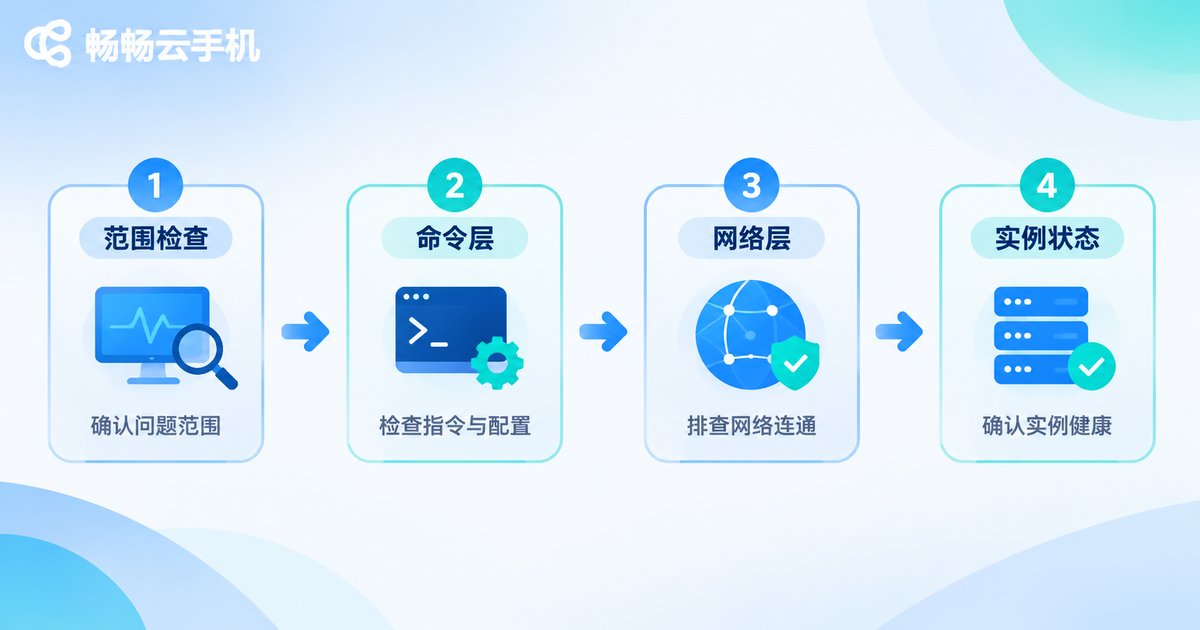
Step 1: Define the failure scope before you start digging
Before opening any logs, ask three questions. They will save you a lot of wasted effort:
Is every device failing, or only some? If all devices fail, check the control side, the network egress, and the script entry point first. If only some fail, check the status and system differences of those specific instances.
Do the same devices fail every time, or is it random? Fixed failures follow the device, which usually points to instance configuration, OS version, or app permissions. Random failures follow time and links, which usually points to network jitter or an excessive command rate.
Does the failure happen before or after the command is sent? A timeout returned by the control side is a link problem. A success returned by the control side with no visible change is an execution problem.
Once these three points are clear, half of the diagnosis is done.
Step 2: Check the command layer, sent does not mean executed
The most common mistake in group control is treating sent successfully as executed successfully. The control channel only guarantees delivery, not that the app inside the cloud phone actually responded. Check the following:
Do coordinates match the resolution? If devices in the same batch use different resolutions or display densities, fixed-coordinate taps will land in the wrong place. Use control recognition or accessibility services instead of hard-coded coordinates.
Are all permissions granted? Missing accessibility service, overlay permission, background running, or battery optimization whitelist can cause commands to be blocked by the system. This is especially easy to miss during batch deployment.
Is the input method working? Text input depends on an input method. If an instance has no usable input method, text commands fail silently.
Is the command rate too high? Taps that are too close together or too much concurrency can prevent apps from responding, which shows up as randomly dropped commands. Adding intervals and reducing concurrency is often more effective than rewriting the script.
Are script versions consistent? If different batches run different script versions, UI elements will not match, and some devices will succeed while others fail.
Step 3: Check the network layer, management channel and business network are different
A cloud phone actually has two network paths: the management channel from the control side to the instance, and the network inside the instance used to reach business servers. Problems on each path look completely different.
When the management channel fails, the console shows devices offline, commands timing out, or frozen screens. Focus on connection stability, heartbeat interruptions, and frequent reconnects.
When the business network fails, the device is online and the screen is fine, but the app fails to load, requests time out, or login does not work. Focus on in-instance connectivity, DNS resolution, and whether the target service is reachable.
In practice, three actions separate the two quickly: check device online status in the console; open a browser or business page inside one instance to test connectivity; then compare the failure ratio across other devices at the same time. If only a few devices fail, the overall link is probably fine.
Also, high latency is not the same as a disconnection. Under high latency, commands queue up and look like a freeze. Increasing timeouts and reducing concurrency usually improves the experience noticeably.
Step 4: Check instance status, a live device does not mean a live app
A cloud phone instance being online does not mean the app inside is running normally. These states are most often overlooked:
Is storage full? Logs, caches, and screenshots accumulate. When storage fills up, apps crash, and commands naturally get no response.
Are memory and CPU under pressure? With many apps running at once, background processes are easily reclaimed, which shows up as a reload every time you switch back.
Is the system time accurate? A large clock drift causes API authentication failures and certificate validation errors that look like network problems.
Is the device locked or the screen off? Some operations require the screen to be awake to execute.
Are the OS and app versions compatible? Different Android versions handle permissions and background policies very differently, so the same script can behave completely differently across instances.
A quick reference table for symptoms and troubleshooting order
| Symptom | Check first | Verification |
|---|---|---|
| All devices time out | Management channel, network egress | Check console online status and reconnect logs |
| Some devices do not respond to taps | Resolution, permissions, input method | Reproduce the same action manually on one instance |
| Random dropped commands | Command rate, concurrency, link jitter | Lower concurrency and watch the failure rate |
| Device online but app fails to load | In-instance network, DNS | Access a business page inside the instance |
| Mass disconnects after running a while | Storage, memory, background reclaim | Check storage usage and background process status |
Turn troubleshooting into a process: logs, batches, timeouts, retries
After fixing a single incident, the more important step is making the next one easier to find. Four practices help:
Keep execution logs. Record the command content, send time, return result, and screenshot for each device so you can pinpoint the exact step when something goes wrong.
Roll out in batches. Validate the script on a small batch first, then expand gradually, so a bad run does not affect every instance at once.
Set reasonable timeouts. Too short causes false failures; too long slows everything down. Base them on real business response times.
Make retries repeatable. Confirm whether the previous step already took effect before retrying, to avoid duplicate submissions and messy states.
Use ccloudphone as a stable foundation for group control
Troubleshooting solves the problem in front of you, but long-term stability depends on the underlying environment. ccloudphone provides cloud-based Android instances and lets you manage multiple devices from a console with batch operations, which suits group control scenarios that need long online hours and batch execution.
When choosing a cloud phone service, focus on three things: whether instances stay reliably online, whether batch operations are convenient, and whether you can quickly locate a specific device when something goes wrong. Once these are confirmed, your group control scripts can do their job. For specific specifications and features, refer to the official ccloudphone website.
FAQ
Q: The group control command shows as sent successfully, but the cloud phone does not respond. Why?
Check the execution layer first: whether resolution and coordinates match, whether accessibility and overlay permissions are enabled, whether an input method is available, and whether the app was reclaimed by the system. A success on the control side only means the command was delivered.
Q: Why do only some cloud phones fail to execute?
Partial failures usually relate to device differences such as OS version, resolution, permissions, and storage. Reproduce the issue manually on one failing device, then compare its configuration with a working device.
Q: Group control works intermittently and recovers after a restart. How should I troubleshoot?
Random failures often come from an excessive command rate, high concurrency, or link jitter. Lower concurrency, add intervals between commands, and increase timeouts, then watch whether the failure rate drops.
Q: The device is online but the app cannot load content. Is it a network issue?
It could be an in-instance business network problem, DNS resolution failure, or an unreachable target service. Test connectivity by opening a common page inside the instance, then decide whether it is a link issue or an app issue.
Q: How can I reduce recurring group control failures?
Build logging, batch rollouts, reasonable timeouts, and repeatable retries, and choose reliably online cloud phone instances as your foundation. This significantly lowers both the failure rate and the cost of troubleshooting.


