

Using the Cloud Phone Control Panel: Batch Operations, Status Monitoring, and Troubleshooting
Why a Control Panel Matters: The Line Between One Device and Many
Most people who use cloud phones go through the same phase. With one or two devices, logging in, installing apps, and tapping buttons is fine. Once the fleet grows to a dozen or several dozen devices, things change: the same action has to be repeated dozens of times, you have to scroll through a list to find out which device is online, and when something breaks you end up checking devices one by one.
The cloud phone control panel (also called the console or management dashboard) exists to solve exactly that. It brings three things onto a single screen: batch operations, status monitoring, and troubleshooting. Get comfortable with these three, and managing dozens of devices costs about the same effort as managing two or three.
Batch Operations: Select Once, Apply Everywhere
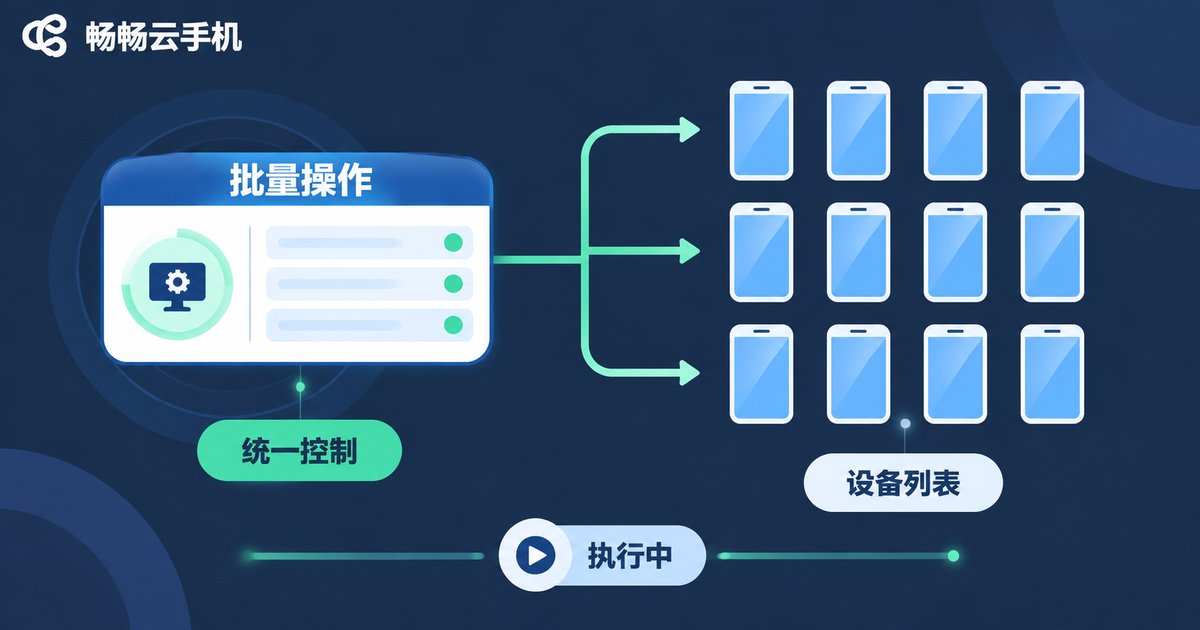
Batching simply means copying one action onto many devices. In a control panel you can usually do the following:
- Batch power on, power off, and restart: select multiple devices and act on all of them at once.
- Batch install and uninstall apps: upload a package, pick a device group, and install in one go.
- Batch change device settings: resolution, language, time zone, and similar parameters for a consistent environment.
- Batch push files and scripts: deliver configuration files, assets, and automation scripts to many devices at once.
- Group-based tasks: run a task against one group without touching the others.
Three habits that pay off:
Group first, operate second. Sort devices into groups such as testing, daily use, and spare, so any issue has a limited blast radius and is easy to roll back.
Test on a small batch, then scale. Validate a new script or app on one or two devices before pushing it to everything.
Schedule instead of clicking. Run batch installs overnight or restart in the early morning through scheduled tasks, and use the result the next day.
Status Monitoring: Read the Health of Every Device on One Screen
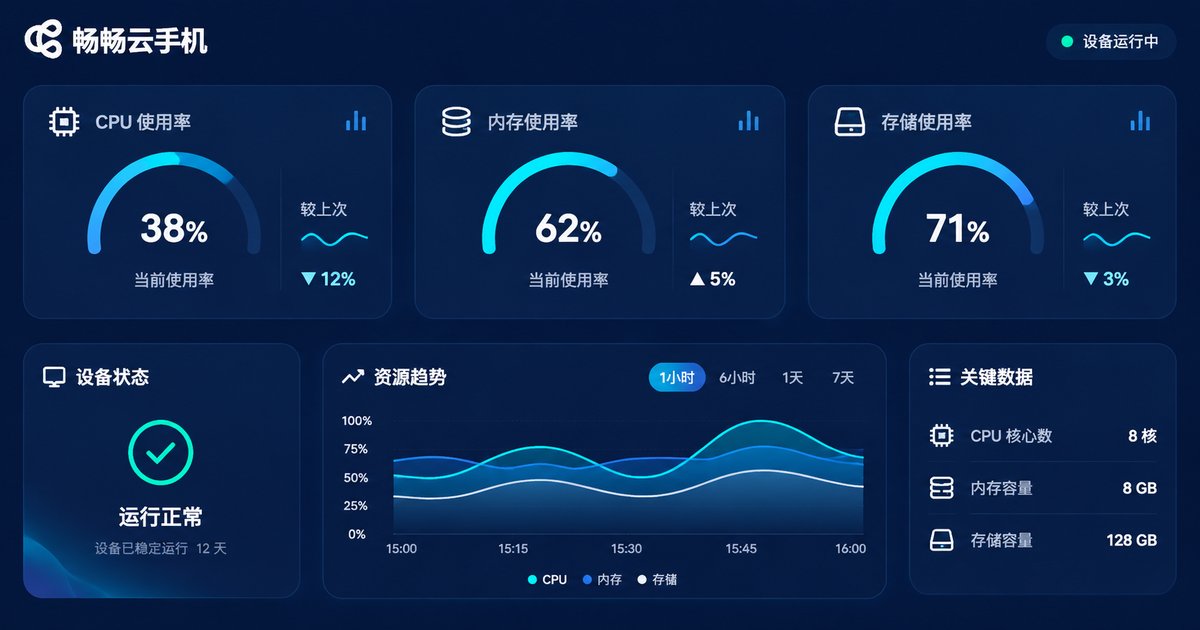
After a batch operation, the biggest worry is not knowing how the devices are doing. A good control panel surfaces the key signals directly instead of making you open each device:
| Signal | What it shows | When to pay attention |
|---|---|---|
| Online state | Whether a device is running or offline | A whole group drops offline at once |
| Resource usage | CPU, memory, and storage load | Consistently near full, storage almost exhausted |
| Network quality | Latency, packet loss, bandwidth | Noticeable input delay or stuttering video |
| App state | Whether the target app is running | App gets recycled or keeps crashing |
| Screen preview | Live view or thumbnails | Black screen, artifacts, stuck on a loading page |
One habit worth building: scan the overview page before you start work each day. Picking out problem devices up front is far cheaper than discovering them halfway through a task.
Troubleshooting: Classify First, Then Fix
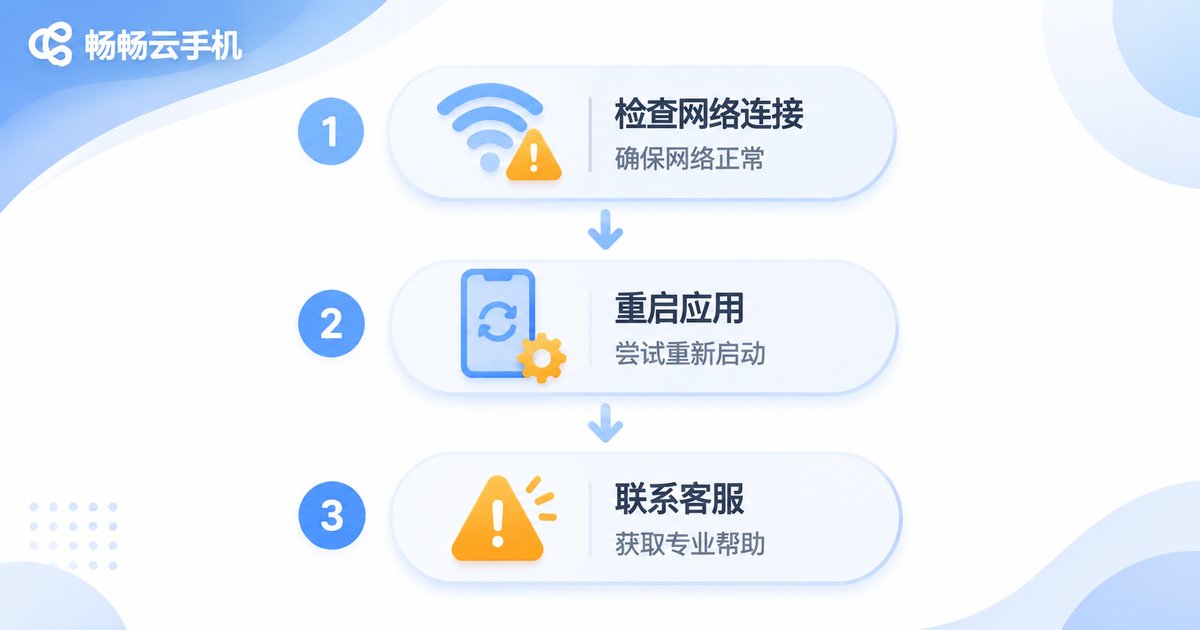
Most cloud phone issues fall into three buckets: cannot connect, runs poorly, or fails to execute. Identifying the bucket first and following the matching order beats random trial and error.
| Symptom | Likely cause | Check in this order |
|---|---|---|
| Device shows offline | Instance not started, network interruption, idle reclamation | Restart instance → check network → sign in to the console again |
| Lag or high latency | Quality set too high, limited local bandwidth, too many background apps | Lower quality → clear background apps → try another network |
| App keeps crashing | Version incompatibility, corrupted cache, low memory | Clear cache → reinstall → verify on another device |
| Batch task partially fails | A few devices offline, low storage, permission limits | Read the failure list → retry those devices → then decide on a full rerun |
| Storage full | Accumulated cache and logs, leftover installers | Clear cache → remove unused files → expand storage |
A general rule: reproduce on a single device first, then handle the batch. If only one device misbehaves, it is probably device-specific. If an entire group misbehaves at the same time, suspect the network or the task itself.
What a Well-Used Control Panel Actually Saves
Say you manage 50 devices and perform one unified boot, one app update, and one status check every day. The difference is easy to see:
| Approach | Time per device | Total for 50 devices | Error risk |
|---|---|---|---|
| Manual, device by device | About 30 seconds | About 25 minutes | High, easy to miss devices |
| Control panel batch | — | About 2–3 minutes | Low, results are traceable |
You save more than time. You also lose the uncertainty of relying on memory to remember which device was handled and which was not.
Why We Recommend ccloudphone
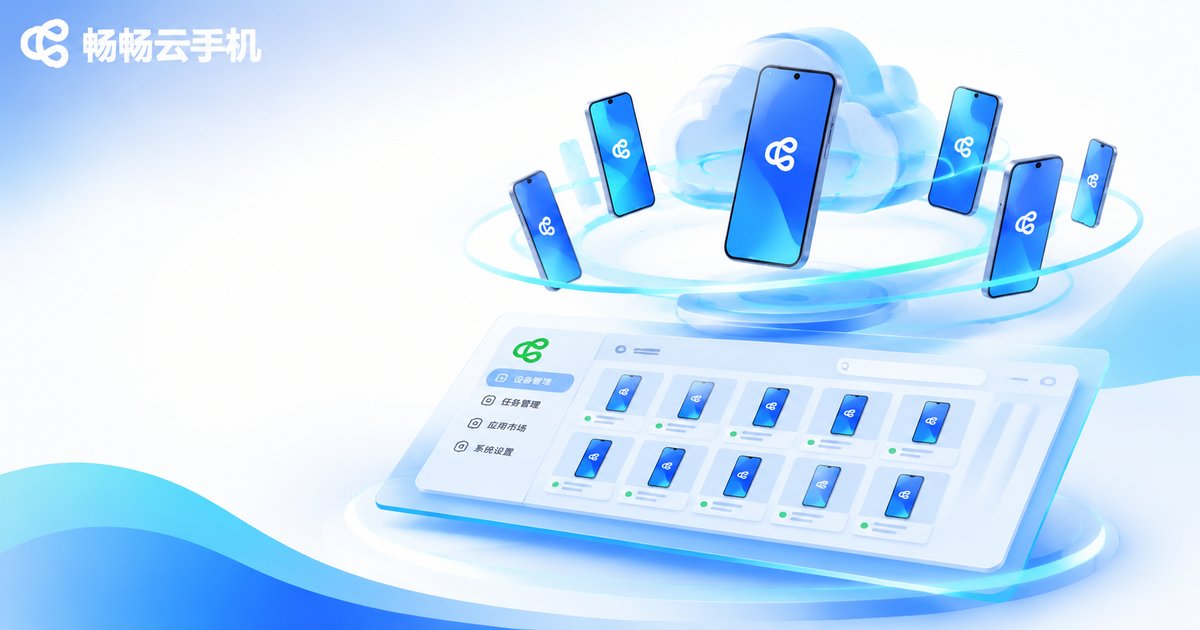
ccloudphone provides Android devices that run in the cloud. Paired with its console, it covers the everyday device management and batch operations that multi-device work actually demands: grouping devices, batch power control, batch app installation, and checking device status.
The steadier approach is to prove the workflow on a small number of devices first. Once batch tasks, status monitoring, and troubleshooting all feel natural, scale the fleet up step by step, so the blast radius of any issue stays under control.
Frequently Asked Questions
Q1: How many devices can a control panel operate at once?
A: It depends on your configuration and the task type. Start with a small batch to validate, then scale gradually, and always review the execution results when pushing to many devices.
Q2: What if only part of a batch operation fails?
A: Check the failure list in the results — usually only a few devices are affected. Retry just those devices instead of rerunning everything.
Q3: A device shows offline. Is it broken?
A: Usually not. Confirm the instance is running, check the network connection, and then try restarting the instance. Most cases are resolved at this step.
Q4: Why not run everything at full scale from the start?
A: A full-scale mistake is broad and hard to roll back. Testing on one or two devices is the cheapest form of risk control.
Q5: Do I need to check status every day?
A: Building a habit of scanning the overview before work is recommended. Resource, online-state, and network anomalies usually show up before a task begins.
Q6: Is a control panel beginner-friendly?
A: Yes. Daily use comes down to selecting, grouping, reading status, and retrying. Set up your groups first and everything after that gets easier.


