

Self-Healing for Cloud Phone Group Control: How to Configure Auto-Reconnect, Process Guard, and Freeze Restart
Why Self-Healing Becomes a Must Once Group Control Scales Up
With only three to five cloud phones, manually reconnecting after a dropout or reopening a crashed app is no big deal. But at dozens or hundreds of instances, network jitter, app crashes, and frozen screens — rare events on a single device — start happening in batches every single day. One instance quietly dropping offline overnight during a batch job, discovered only the next morning, means an entire night of computing power wasted.
A self-healing mechanism closes the loop of detect, recover, and verify without human intervention. It typically consists of three lines of defense: auto-reconnect for the network layer, process guard for the application layer, and freeze restart for the system layer. Here is how to configure each one.
Three Lines of Defense: Detect First, Recover Next, Verify Last
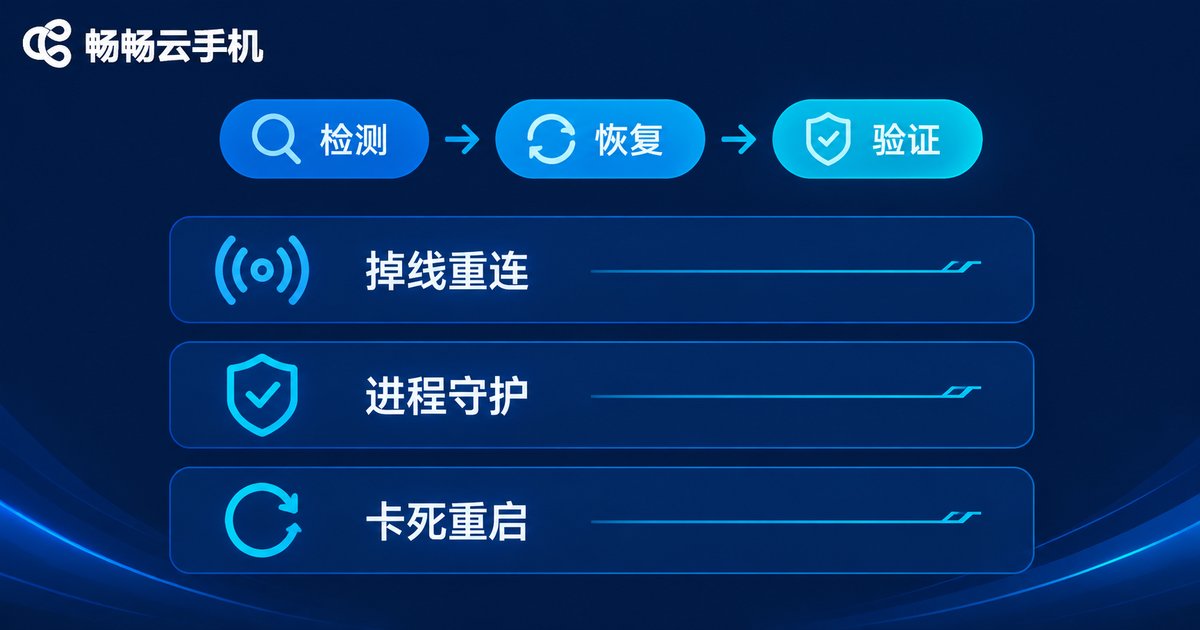
The core of a reliable self-healing flow is not the restart action itself but the detection before it and the verification after it: detection decides whether you catch the anomaly in time, and verification decides whether the recovery actually worked. Each line of defense has its own job:
| Defense line | Target anomaly | Typical recovery |
|---|---|---|
| Auto-reconnect | Network outage, connection timeout | Heartbeat probing + exponential backoff |
| Process guard | App crash, killed by the system | Watchdog check + auto relaunch |
| Freeze restart | Unresponsive UI, resource exhaustion | Tiered restart, soft reboot first |
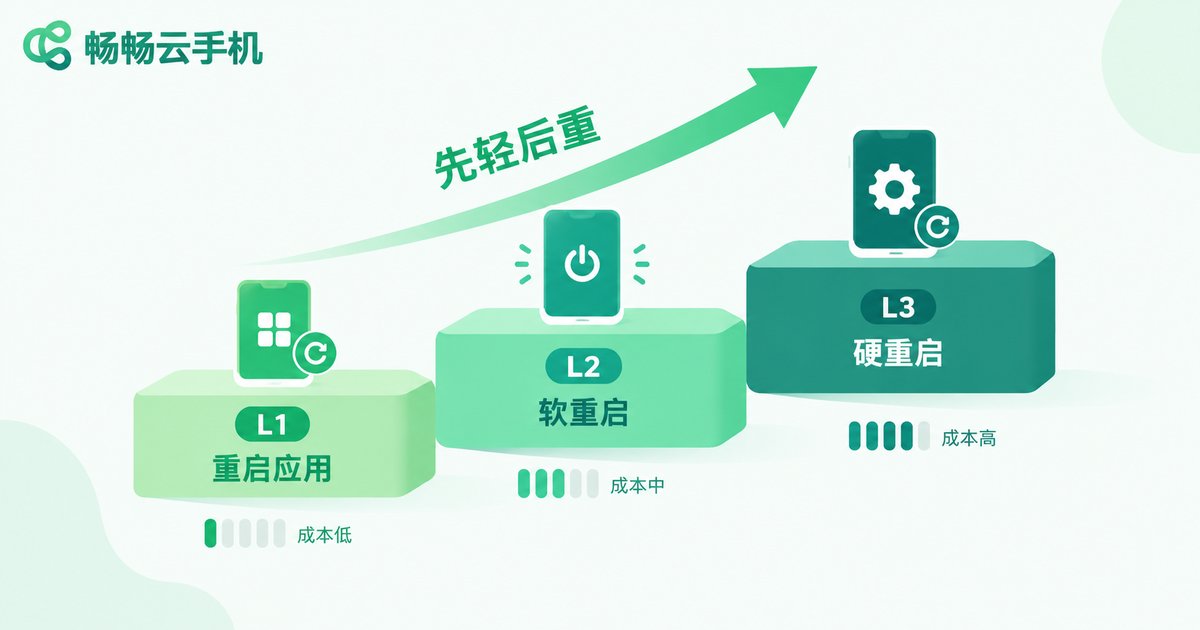
Follow a lightest-first principle: if a reconnect fixes it, do not relaunch the process; if a relaunch fixes it, do not reboot the instance; if a soft reboot works, never do a hard reboot. Every escalation means longer downtime and a higher risk of losing state.
Line One: Configuring Auto-Reconnect
Dropouts are the most frequent anomaly in group control. Focus on three parameters:
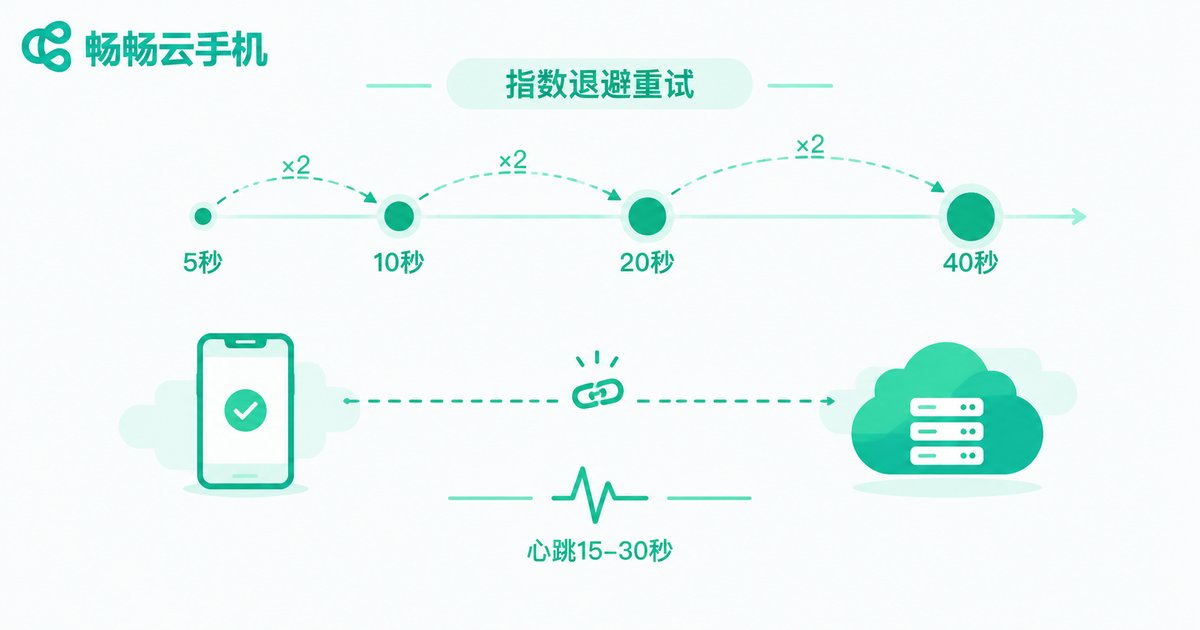
1. Heartbeat interval. Heartbeats actively probe whether the connection is alive; 15–30 seconds is a good range. Too short creates wasted traffic; too long delays detection. Pair it with a timeout rule: only declare a dropout after 2–3 consecutive missed heartbeats, so a single network hiccup does not trigger a false alarm.
2. Backoff strategy. Do not hammer retries at a fixed interval. Use exponential backoff: start at 5 seconds and double after each failure (5s → 10s → 20s → 40s), capped at around 5 minutes. You recover quickly from short blips without flooding the server during long outages.
3. Session resume. A successful reconnect is only step one — the instance must return to its pre-disconnect task state. Check whether task queues are persisted, whether breakpoints are recorded, and whether tasks resume or restart after reconnection. Task-level checkpoint resume is ideal; at minimum, keep instance-level state snapshots.
Line Two: Configuring Process Guard
Process guard handles the case where the app is simply gone — crashed, killed by memory management, or failed to start. Three key points:
1. Watchdog detection. Put critical apps on a guard list and check liveness on a fixed cycle (10–30 seconds). Use a package name + foreground state double check, so a normally backgrounded app is not misread as crashed.
2. Relaunch policy and limits. On a missing process, relaunch normally first. If it crashes repeatedly (say, more than 3 times within 10 minutes), the problem is not incidental — escalate step by step: clear cache → reset app data → reboot the instance. Always set a relaunch cap with an alert, otherwise you get an endless crash–relaunch–crash loop.
3. Post-launch verification. A relaunch command is not a recovery. Verify the app actually reached a usable state: not stuck on the login page, no update popup, not frozen on a loading screen. Recovery is complete only when verification passes.

Line Three: Configuring Freeze Restart
Freezes are the trickiest: the process is alive, but the UI does not respond and the task stops advancing — usually caused by ANR, memory exhaustion, or rendering failures. The approach is detection first, then tiered restarts:
1. Freeze detection. Do not rely on CPU usage alone — high usage may be legitimate work. A more reliable signal combination is no new rendered frames + unresponsive input + stalled task progress, all three present for 3–5 minutes before declaring a true freeze.
2. Tiered restart. Once a freeze is confirmed, escalate from cheapest to most expensive:
| Level | Action | Use case | Cost |
|---|---|---|---|
| L1 | Restart the target app | One app frozen | Low, other tasks unaffected |
| L2 | Soft reboot of the instance | Several apps misbehaving | Medium, partial state loss |
| L3 | Hard reboot of the instance | System-level freeze, soft reboot failed | High, longest downtime |
3. Save state before restarting, cap restart frequency after. Record task progress and key screen state before the restart and restore from it afterwards. Also cap restart frequency: an instance hitting L3 several times a day has a problem of its own (under-provisioned resources or a bad image) and should be flagged for human review, not rebooted forever.
Parameter Cheat Sheet: All Three Lines in One Table
The key parameters in one place — use it directly as a configuration checklist and fine-tune to your tolerance for downtime:
| Module | Parameter | Suggested value | Notes |
|---|---|---|---|
| Auto-reconnect | Heartbeat interval | 15–30 s | Declare dropout after 2–3 misses |
| Auto-reconnect | Retry backoff | From 5 s, exponential, cap 5 min | Avoid flooding the server during outages |
| Process guard | Check cycle | 10–30 s | Package name + foreground double check |
| Process guard | Relaunch cap | Max 3 per 10 minutes | Escalate and alert when exceeded |
| Freeze restart | Freeze criteria | 3 signals together, 3–5 min | No new frames + no input response + stalled progress |
| Freeze restart | Restart policy | L1 → L2 → L3 escalation | Lightest first, save state before restarting |
Rollout Tips to Make Self-Healing Actually Hold
Tuning parameters is only the start. Four habits make the difference in production:
1. Canary rollout. Run new settings on a small group of instances for a few days; compare trigger rates, recovery success rates, and mean time to recovery. Confirm there are no false positives (e.g., normal sleep misread as a freeze) before going fleet-wide.
2. Log everything. Record every detection and recovery action: when, which instance, what anomaly, what action, what result. Logs are both your troubleshooting evidence and your tuning dataset.
3. Escalation alerts. Self-healing is not omnipotent. Alert a human when reconnect attempts exceed the cap, relaunches loop, or restart frequency looks abnormal. Automation handles the routine 95%; people and process handle the rest.
4. Periodic drills. Inject failures on purpose — cut the network, force-stop an app — and confirm the whole chain still works, so you never discover a dead configuration during a real incident.
Why We Recommend ChangChang Cloud Phone for Group Control

Self-healing answers what to do after an anomaly; a stable cloud phone platform reduces how often anomalies happen in the first place. ChangChang Cloud Phone (ccloudphone) runs instances in cloud data centers whose network and power conditions are far more stable than local devices — a natural fit for long-running background tasks and batch jobs. Combined with group-control batch operations, the full strategy of auto-reconnect, process guard, and tiered freeze restart can be applied uniformly across every instance with no per-device manual maintenance. For up-to-date features and plans, please refer to the official ChangChang Cloud Phone website.
FAQ
Q: Is a shorter heartbeat interval always better, since dropouts get detected faster?
No. Overly frequent heartbeats add wasted traffic and server load, and normal jitter gets misread as a dropout, triggering needless reconnects. 15–30 seconds with a multi-miss confirmation rule is the safer choice.
Q: The app crashes again right after being relaunched, in an endless loop. What now?
The crash is not incidental. Set a relaunch cap (e.g., max 3 per 10 minutes); once exceeded, escalate: clear cache, reset app data, reboot the instance — and fire an alert so a human can find the root cause.
Q: How do I tell a real freeze from a task that is just slow?
CPU or progress alone will mislead you. Use combined signals: no new frames + unresponsive input + stalled progress, all present for several minutes before declaring a freeze — and watch the false-positive rate closely during the canary phase.
Q: Soft reboot or hard reboot — how to choose?
Default to soft reboot: cheaper and faster, and it resolves most UI-layer issues. Use a hard reboot only when soft reboot fails or the freeze is system-level. Every escalation means longer downtime, so keep the lightest-first rule.
Q: With self-healing configured, do I still need human oversight?
Yes, but the role changes. Focus on three things: watching alerts (the few cases automation cannot fix), reading logs (to spot false positives and tuning opportunities), and running periodic drills (to keep the whole chain alive).


