
Group Controlling 100+ Cloud Phones: How Much Bandwidth and Performance Does Your Console Need
Bottom Line First: Your Local PC Works Less Hard Than You Think
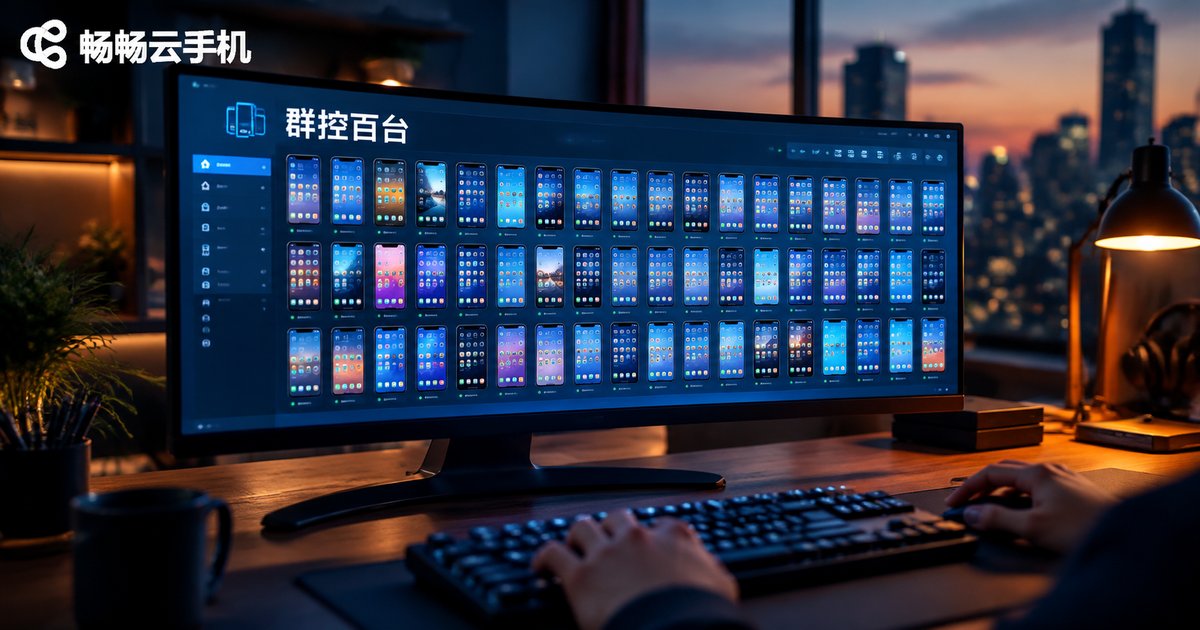
Everyone new to group control asks the same question: to manage a hundred phones at once, how powerful does my computer need to be? It is a common misconception. All the computing power of cloud phones runs in the cloud data center—your local computer is essentially a remote console that sends commands and receives screen streams. What really determines the experience is not local CPU power, but two things: bandwidth and the scheduling capability of the console software.
How Group Control Works: Computing in the Cloud, Local Does Only Two Things
Once you understand the principle, hardware requirements become obvious. When you control 100 cloud phones from one console, only two data flows are involved:
First, the command stream: your taps, swipes, and script commands are packed into tiny data packets sent to the cloud. Each command is only a few KB, and even 100 simultaneous commands complete in milliseconds—bandwidth usage is negligible.
Second, the video stream: the cloud compresses each phone screen into a video feed sent back to your monitor. This is where bandwidth actually gets consumed, and how much you need depends on how many screens you view at once, and how clearly.
How Much Bandwidth? Four Scenarios Explained
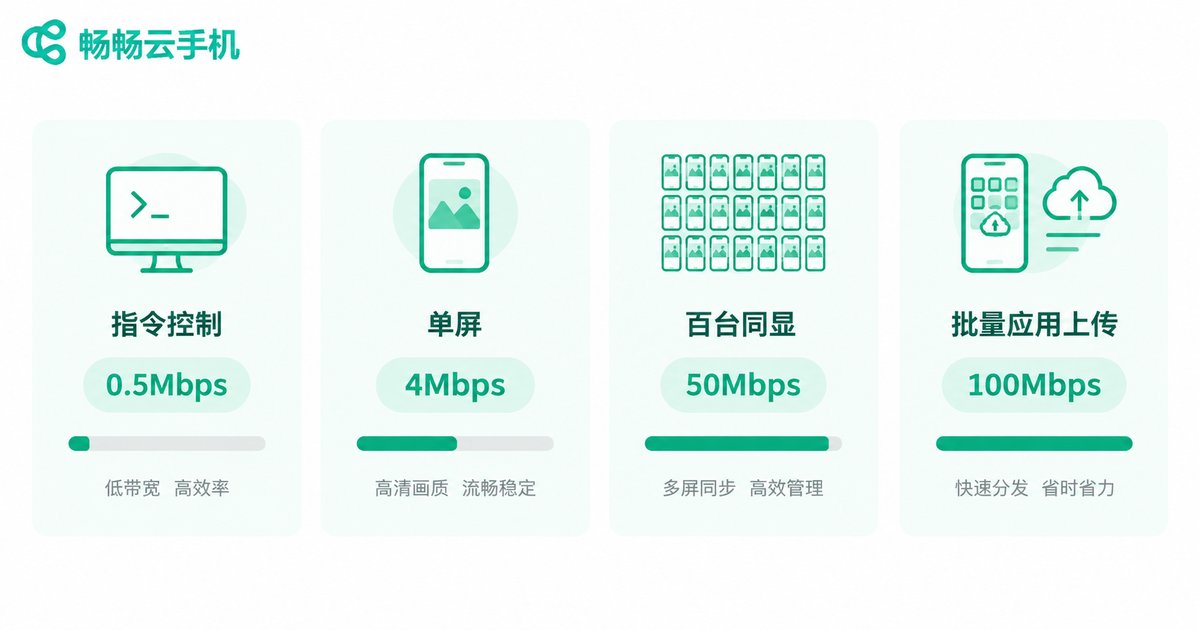
Different usage patterns demand wildly different bandwidth. Here is the breakdown for the four most common cases:
| Scenario | Bandwidth Usage (approx.) | Recommended Bandwidth |
|---|---|---|
| Command-only control (batch taps, scripts) | < 1 Mbps | 50M is plenty |
| Single-screen HD viewing (720p–1080p) | 3–10 Mbps per stream | 50M–100M |
| 100-screen thumbnail grid monitoring | 30–80 Mbps total | 100M–200M |
| Bulk app upload and installation | Depends on upload bandwidth | The higher the upload, the better |
Key numbers to remember: one 720p stream costs about 3–5 Mbps, and 1080p about 6–10 Mbps. In hundred-screen monitoring you normally use thumbnail mode, where each feed is only 0.3–0.8 Mbps—100 devices together need just 30–80 Mbps, easily covered by a single 200M broadband line.
Pay special attention to upload bandwidth: pushing a 100MB installer to 100 devices from your local machine means transferring 10GB of data. At 100M upload (about 12.5MB/s), that takes roughly 13 minutes. The smarter way is to upload the app to cloud storage once, then distribute it to all devices from the cloud—several times faster overall.
What Console PC Specs Do You Need?
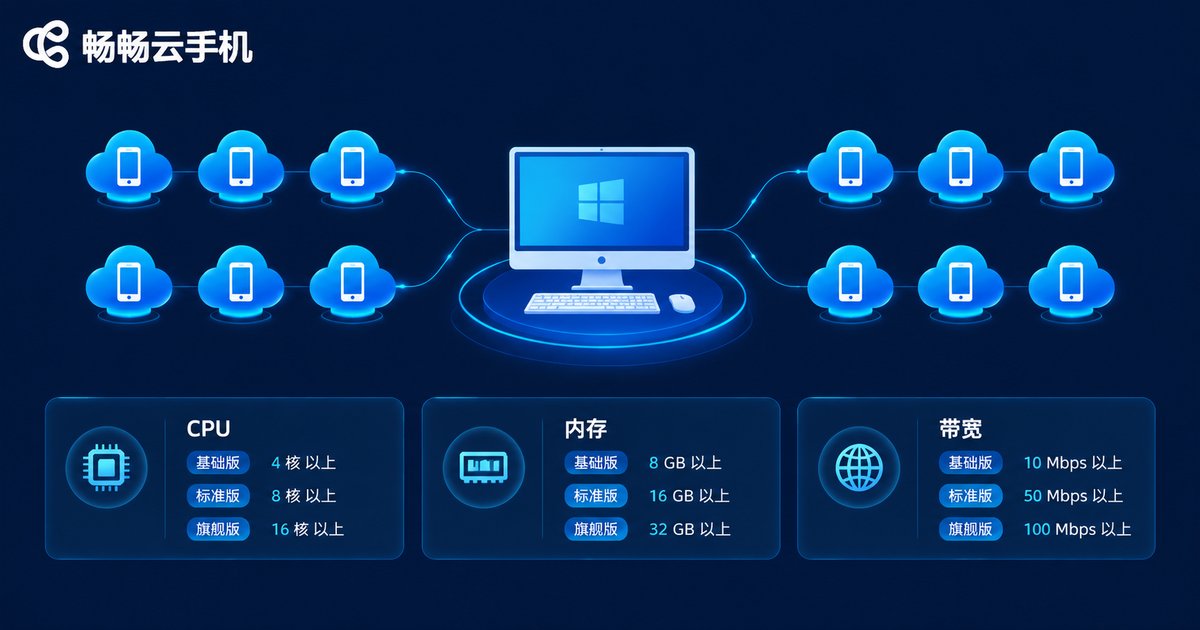
The local computer has only two jobs: decoding video streams and running the console software. Match your hardware to your fleet size:
| Fleet Size | CPU | RAM | GPU | Storage |
|---|---|---|---|---|
| Up to 20 devices | 4 cores | 8GB | Integrated graphics | 256GB SSD |
| Around 50 devices | 6 cores | 16GB | Integrated or entry-level dedicated | 512GB SSD |
| 100+ devices | 8+ cores | 32GB | Hardware decoding support | 1TB SSD |
Not a high bar, right? A mainstream office PC costs little yet handles a 100-device fleet with ease. Compare that with a physical phone rack costing tens of thousands—the cost advantage of cloud phone group control is obvious.
Five Practical Tips for Stable 100-Device Group Control
1. Monitor with thumbnails, inspect in full screen. Keep the grid view for overview, and open a single HD screen only when something looks wrong—you will save a huge chunk of bandwidth.
2. Distribute apps from the cloud. Upload the installer to cloud storage first, then batch-install to all devices, avoiding a hundred repeated uploads that saturate your upstream.
3. Use wired Ethernet, not Wi-Fi. Always connect the console PC by cable; Wi-Fi fluctuation is the number one cause of group-control lag.
4. Run tasks in batches. Split 100 devices into 4 batches of 25 with staggered schedules, and video stream pressure drops to a quarter.
5. Declutter your console. Close unused browser tabs and background apps, and save bandwidth and memory for the group control session.
Choosing the Right Platform Matters More Than Hardware
At the end of the day, your local machine is just a remote control—cloud-side stability and scheduling efficiency are the true foundation of the group control experience. Take Ccloudphone as an example: it runs full Android environments in cloud data centers with batch group control management, so your local PC does not need high-end hardware to get started; devices stay online in the cloud around the clock, and tasks keep running even when your computer is off. For studios and teams operating at scale, offloading computing to the cloud and reserving bandwidth for the screens that matter is the most economical approach.
FAQ
Q: Is a 100M home broadband enough to group control 100 cloud phones?
Yes for command control and single-screen viewing. A hundred full-HD screens at once will strain it—switch to thumbnail mode or upgrade to 200M or above.
Q: Does the console PC need a dedicated GPU?
Integrated graphics handle most cases. If you decode many HD streams simultaneously, a GPU with hardware decoding makes multi-screen viewing smoother.
Q: Which matters more, upload or download bandwidth?
Download affects how smoothly you receive screens; upload affects command sending and file uploading. When batch-installing apps, upload is usually the bottleneck.
Q: The cloud phone screen lags—is it my local network or the cloud?
Test your local bandwidth and latency first, and check whether you are on Wi-Fi. If local is fine, try switching cloud nodes. Most lag actually comes from the local network.
Q: How many cloud phones can one PC group control?
The theoretical limit is high, because computing happens in the cloud and the local side is limited only by how many streams you display at once. The keys to running several hundred devices are sufficient bandwidth and batch execution.


