
Cloud Phone Group Control Lag: The Real Cause Is Console Video Decoding, Not Commands
Group Control Lagging? Stop Blaming the Commands First
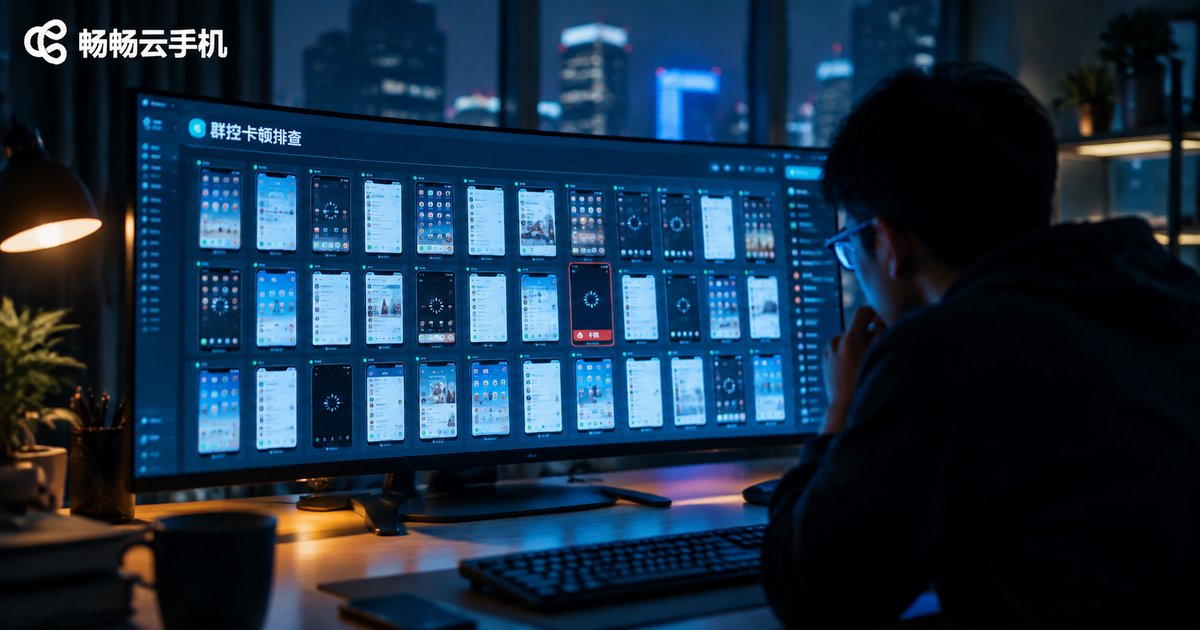
Anyone running cloud phones in group control mode has seen it: dozens of devices executing tasks together, and suddenly the console turns choppy—frames drop and clicks take seconds to show up on screen. The usual first reaction? Blame the network, suspect the command delivery, or rewrite the script.
So people switch networks, rewrite automation scripts and reboot routers—only to discover that the tasks on the phones have been running perfectly all along. Apps installed, check-ins done. Only the console view lags.
That is the classic video decoding bottleneck: the commands themselves are tiny; what actually overwhelms your computer is decoding dozens of live video streams in the console at the same time.
Why the Commands Are Not the Problem—the Frames Are
First, understand how group control works. When you click Start App in the console, what gets sent is a text command of a few kilobytes. Transmitting it costs almost nothing, and the cloud phone executes it locally. That step is extremely lightweight.
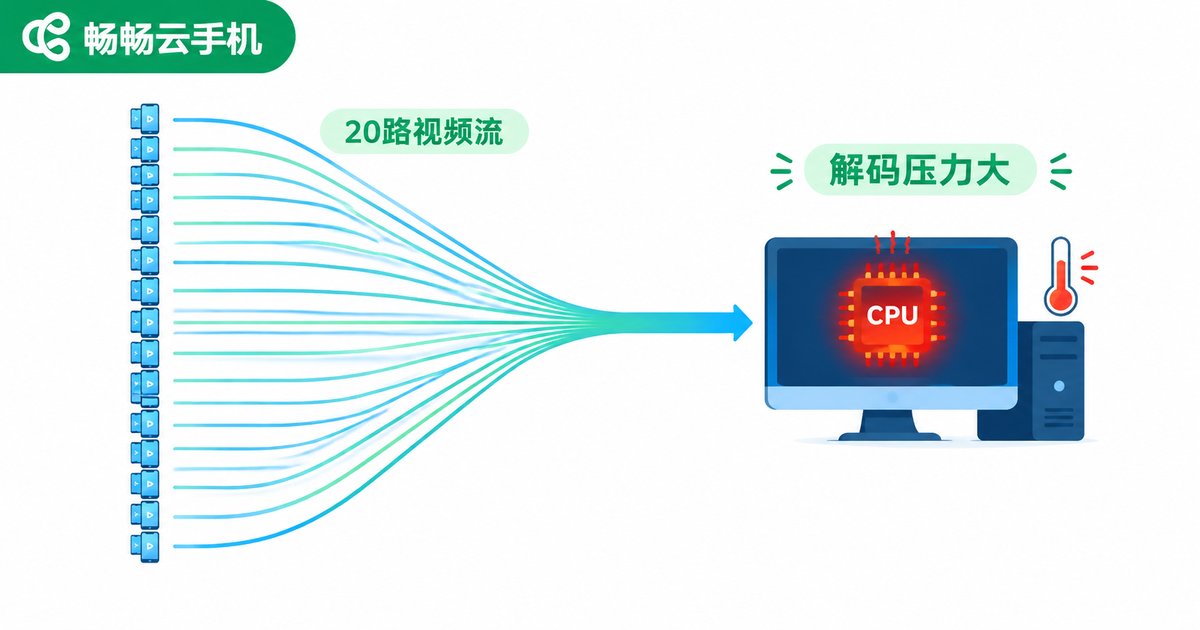
Meanwhile, the console streams each phone's live screen back to your computer. These frames arrive as H.264/H.265 video, and every cloud phone is one video stream that your PC must decode and render in real time.
Do the math: displaying 20 phones at 720P and 30 fps simultaneously means your computer is decoding 20 live HD streams at once. If that runs on the CPU instead of the GPU, cores saturate fast and the console stutters.
| Symptom | Command / network issue | Decoding bottleneck |
|---|---|---|
| Task execution on phones | Delayed or missed | Runs normally |
| Console picture | Lags in sync with tasks | Frame falls behind actual progress |
| CPU / GPU usage | Barely changes | One core or the whole machine spikes |
| After closing half the windows | Still lags | Immediately smoother |
Three Steps to Confirm a Decoding Bottleneck
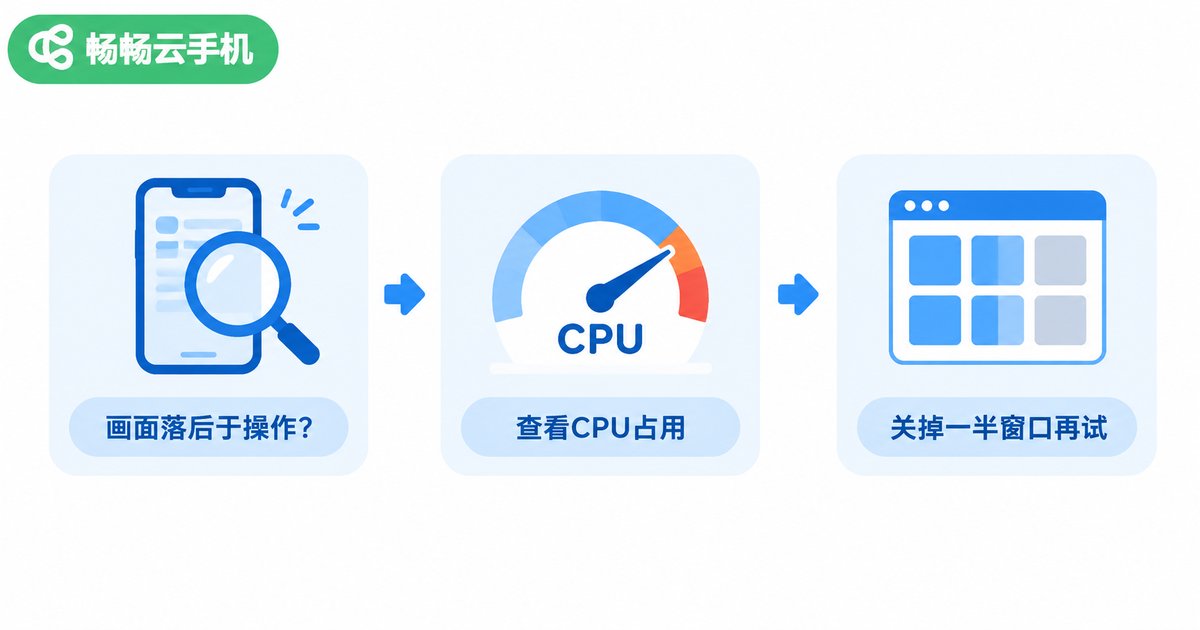
Step 1: Watch the tasks, not the picture. Pick a phone inside a lagging window and verify its task status another way—for example, opening that single device separately. If the task is already finished while the window still shows a frame from seconds ago, decoding is almost certainly the culprit.
Step 2: Watch the usage. Open Task Manager while the console lags. If one CPU core sits near 100%, or the GPU Video Decode engine is maxed out, your decoder is crying for help.
Step 3: Subtract. Close half of the console windows and keep about 10 devices visible. If everything turns smooth instantly, the bottleneck is 100% in video decoding—not commands, not the network.
How to Fix It Once Confirmed
Once decoding is confirmed as the bottleneck, the optimization logic is simple: reduce the number of streams your computer must decode at the same time.
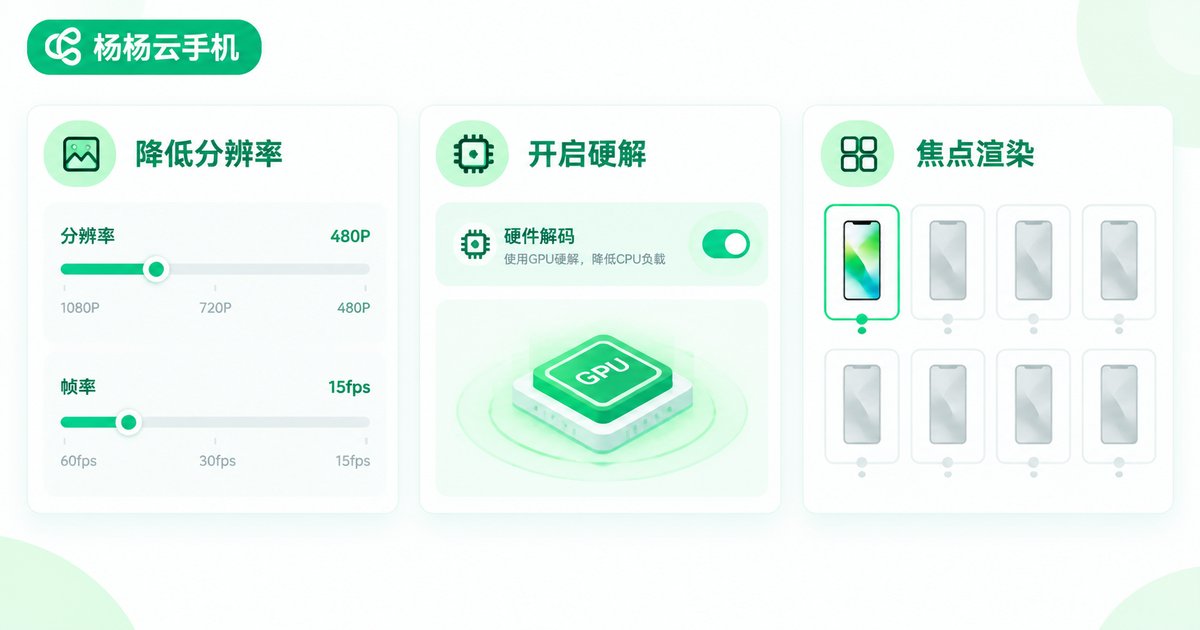
1. Lower preview resolution and frame rate. In group control you rarely need 1080P live view of every device. Dropping previews to 540P or lower and around 15 fps cuts decoding load by more than half while staying perfectly readable for task monitoring.
2. Render only the window you are operating. Many consoles offer focus rendering or paginated views: devices outside the current page keep running tasks without streaming full-quality video. This is the single most effective resource saver in group control.
3. Enable hardware decoding. Look for a Hardware Decoding or GPU Decode option in the console settings so the graphics card, not the CPU, handles the workload. Discrete GPU users benefit the most.
4. Batch your operations. With very large fleets, split group control into several waves instead of refreshing dozens of screens in the same second.
5. Upgrade decoding hardware. Older integrated graphics struggle with multi-stream scenarios. For group control, a discrete GPU with hardware decode—or a newer CPU—often helps more than adding RAM.
Choose a Platform That Keeps Decoding Light
Beyond tuning your own machine, the platform's streaming strategy matters too. Take Changchang Cloud Phone (ccloudphone) as an example: it provides group control and batch management, keeping many cloud phones online and controllable from a single console. Combined with the universal tips above—viewing device screens on demand, lowering preview quality and enabling hardware decoding—you can noticeably reduce local decoding load and keep the console smooth even with dozens of devices under control.
Bottom line: when group control lags, first check whether tasks still run normally on the phones, then check console CPU/GPU usage. Normal tasks plus spiking usage means a decoding bottleneck—apply the fixes above instead of wasting time on networks and scripts.
FAQ
Q: How do I quickly tell a network issue from a decoding issue?
Check the task status on the phone side. Tasks running fine while only the picture lags means a decoding problem; tasks themselves delayed or failing means checking network and commands.
Q: Where do I enable hardware decoding?
Usually in the console settings under display or performance options, labeled Hardware Decoding or GPU Decode. Restart the console after enabling; discrete GPU users should turn it on first.
Q: Does lowering preview quality affect task execution?
No. Preview quality only changes what you see on your monitor. Cloud phones run tasks independently in the cloud.
Q: At how many devices does decoding become a concern?
An ordinary office PC struggles beyond roughly 10 simultaneous 720P streams. Past that, lower the quality, use focus rendering, or batch your control sessions.


