

Cloud Phone Batch Provisioning with 'Golden Image' Restore: A Hands-On Workflow to Deploy 100 Devices in Minutes
First, Understand What a Cloud Phone 'Golden Image' Is
Anyone who has provisioned devices at scale knows the tedium: spinning up 100 cloud phones and configuring them one by one — installing apps, changing settings, tweaking parameters — even the fastest operator can only finish a few dozen per day, and subtle inconsistencies between devices make troubleshooting a nightmare later.
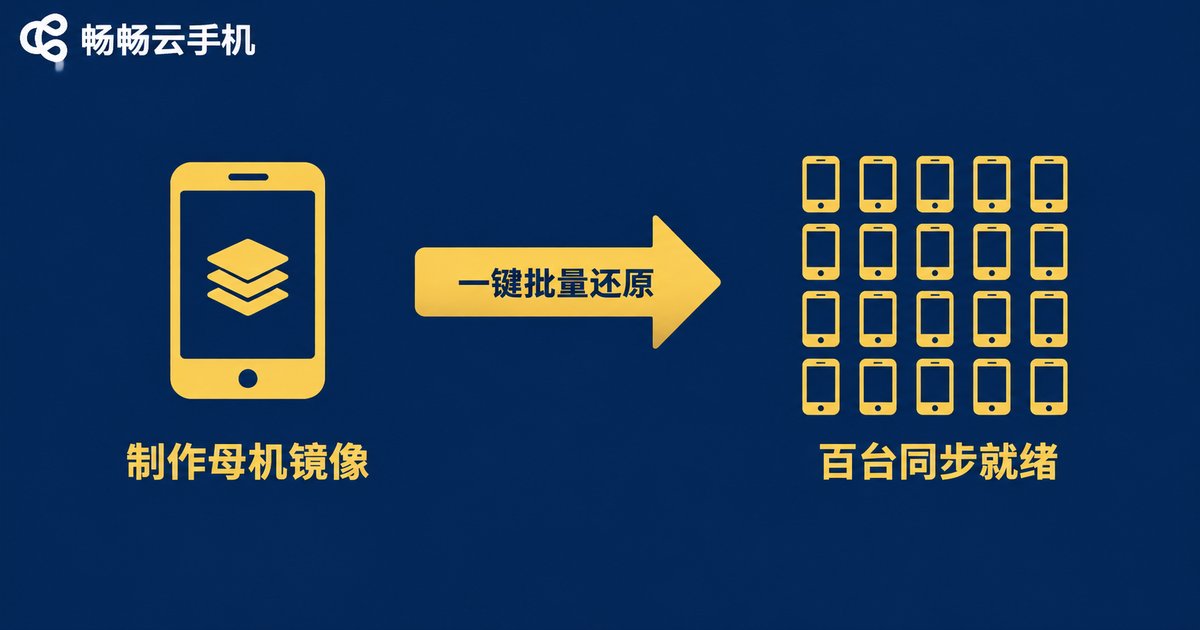
A 'golden image' is the answer: treat one cloud phone as the 'master device', fully configure its system settings, apps, permissions, and layout, then capture its complete state as an image template. Any newly created cloud phone can then be restored from this image in one click, ending up with an environment identical to the master within minutes.
Think of it as a mold in a factory: build the mold once, and whether you produce a hundred units or a thousand, every one meets the same standard.
Running the Numbers: Manual Setup vs. Image Restore
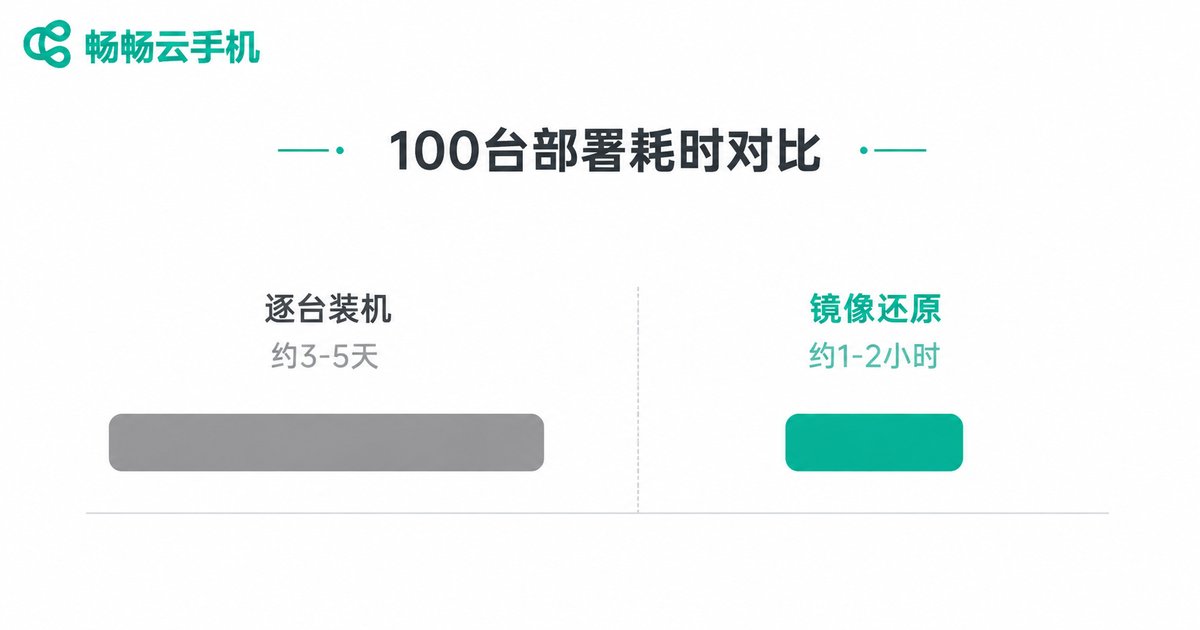
Many teams underestimate how long manual provisioning takes. Here is a rough comparison for deploying 100 cloud phones:
| Item | Manual Setup | Golden Image Restore |
|---|---|---|
| Time per device | 30-60 minutes | 3-5 minutes |
| Total for 100 devices | 3-5 business days | 1-2 hours |
| Consistency | Manual work, drifts easily | Template copy, highly uniform |
| Error rate | High; missed installs are common | Low; configure once, reuse forever |
| Maintenance | Redo changes device by device | Update image, re-flash in batch |
The gap is not 'a bit faster' — it is the difference between days and hours. The more your business depends on fast rollout, the more valuable a golden image becomes.
Step 1: Polish Your 'Master Device'
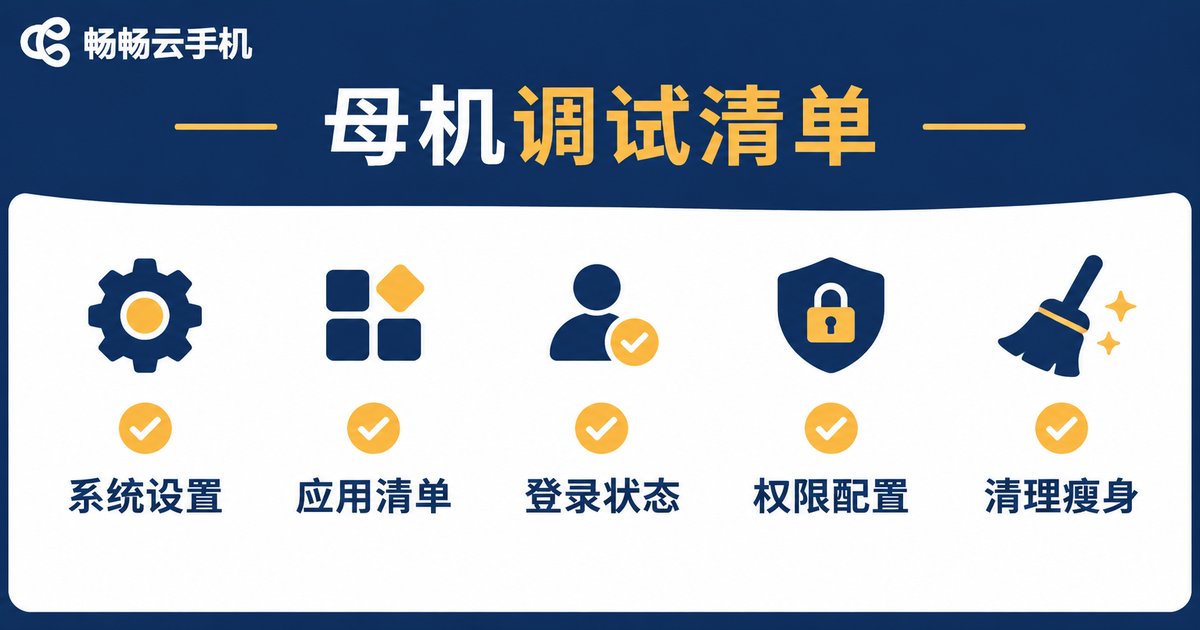
The quality of your image depends entirely on the quality of the master device. The cleaner and more complete it is, the less trouble you will have across a hundred devices. Before capturing the image, run through this checklist:
1. Base system settings: Language, time zone, resolution, font size — configure everything to your business standard.
2. App list: Install every required app and pin it to the target version; uninstall anything unnecessary so the image ships clean.
3. Login states: Pre-sign in to accounts that should be logged in; keep apps in a signed-out state if each device will use its own account.
4. Permissions: Grant storage, camera, and notification permissions up front so a hundred devices do not pop the same dialogs.
5. Clean-up: Clear caches and delete test files. The smaller the image, the faster the batch restore.
One reminder: spend an extra hour on the master device rather than skip any step. Once an image is rolled out at scale, fixing a mistake means re-flashing everything — rework is expensive.
Step 2: Create the Image and Restore in Batch
Once the master device is ready, the core workflow takes four steps:
Step 1 — Create the image: In the management console, select the configured master device and use the image creation feature to capture its full state. Avoid touching the device while the image is being generated.
Step 2 — Pilot first: Create 2-3 devices, restore them from the image, and verify app versions, login states, and settings item by item before rolling out to all 100.
Step 3 — Batch create and restore: When batch-creating cloud phones, choose 'restore from image', pick the golden image you just made, and the platform writes it into every new device automatically.
Step 4 — Batch launch and verify: Boot the devices in bulk, spot-check a few against the master device, and hand them over once everything checks out.
Across the whole workflow, human effort amounts to a few clicks; the actual installation and configuration happen in parallel in the cloud. That is how 100 devices get deployed in minutes.
Step 3: Differentiate After Deployment — Don't Ship a Hundred Clones
Image restore delivers consistency, but it creates a new issue: devices with perfectly identical parameters can look unnatural. After batch deployment, run a round of differentiation:
Device info: Assign each cloud phone a distinct model and parameter set so every device stands on its own.
Network and region: Distribute network exits and regions across devices instead of concentrating them on a single profile.
Accounts and data: Sign in with different business accounts and build independent usage data so the fleet behaves naturally.
Staged activation: Don't push all new devices into heavy use at once. Activate in batches and ramp up gradually to mimic real usage patterns.
Why We Recommend ccloudphone for Batch Provisioning
Choosing the right platform lowers the barrier to batch provisioning. ccloudphone is friendly to multi-device users in several ways:
First, solid batch management. The console supports batch creation, batch boot, and batch app installation; combined with image restore, initializing a hundred devices takes only a short while.
Second, fully cloud-based. All devices run in the cloud while your local computer just sends commands, so managing a hundred devices at once stays smooth.
Third, customizable device profiles. Each cloud phone's model and parameters can be set on demand, making post-restore differentiation quick and easy.
If you are planning a batch deployment, start with a small batch on ccloudphone to run through the full 'create image — batch restore — differentiate' loop, then scale up once everything checks out.
FAQ
Q: After creating the image, can I keep using the master device?
Yes. Creating an image simply archives the device's current state. The master device is unaffected and can keep running, and it also serves as the base for future image updates.
Q: Do apps need to be signed in again after a restore?
It depends on the state captured in the image. Apps that were signed in on the master device stay signed in after restore; if each device should use its own account, keep the image signed out and log in per device after deployment.
Q: How do I apply image updates to devices already deployed?
Update and re-test on one pilot device, create a new image version, then batch-restore the existing devices. No manual per-device changes needed.
Q: Will a hundred devices on the same image look like bulk registration?
The image only handles environment consistency; flags depend on device parameters, network environment, and behavior. That is exactly why the differentiation step matters — give every device its own profile.
Q: Is a golden image worth it for just a dozen devices?
Once you pass roughly ten devices, image restore pays for itself. The more devices you run, the more time you save — and the stability gained from consistent environments is often worth even more than the time.


