

How to Troubleshoot Cloud Phone Gaming Lag: Network, Configuration, and Settings
Where Does the Lag Come From? Identify the Type First
When you play large games on a cloud phone, the game actually runs on a cloud server. The video stream is compressed and sent to your screen over the network, while your touch controls travel back to the cloud in real time. The longer this chain, the more points where things can go wrong. Lag generally falls into three types: network lag (slideshow-like video, delayed input), cloud performance lag (in-game frame drops, slow loading), and local display lag (blurry image, hot local phone). Match your symptom to a type first, then check each item in the order below.
Network Check: Test Latency and Packet Loss First
The network is the lifeline of cloud gaming, and most lag issues originate here.
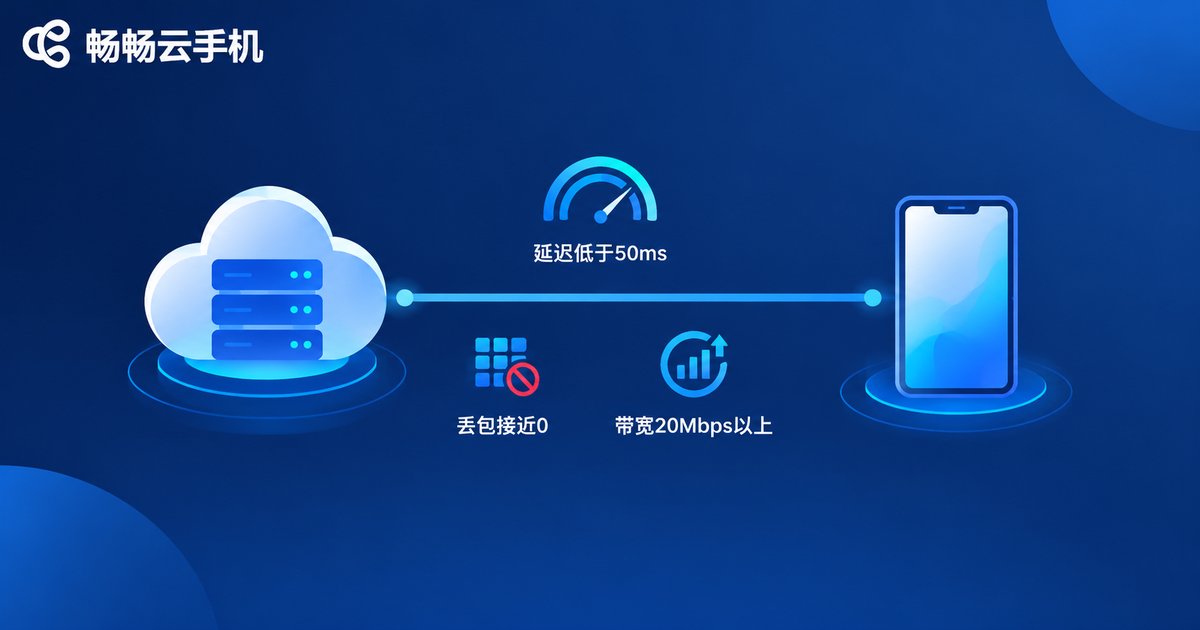
1. Run a speed test. Use a speed test tool or the network diagnostic built into your cloud phone app, and watch three numbers: download bandwidth of at least 20 Mbps, latency ideally below 50 ms, and packet loss as close to zero as possible. Any indicator falling short will show up directly as stuttering video.
2. Switch to a more stable connection. Wi-Fi degrades sharply through walls, so keep your phone in the same room as the router or connect to the 5 GHz band; a wired connection is the most reliable option when available. On mobile data, make sure your 5G signal is strong where you play.
3. Avoid peak hours. Residential broadband gets congested between 8 and 11 p.m. Run speed tests at different times and compare. If lag only appears during a fixed evening window, peak-hour congestion is almost certainly the cause.
4. Stop bandwidth-hungry tasks. If someone on the same network is downloading or streaming, or your local phone is updating apps and syncing photos in the background, your bandwidth gets squeezed. Pause all of these before you start playing.
Configuration Check: Is the Cloud Phone Powerful Enough?
If the network checks out and the game still stutters, look at whether the cloud phone itself can handle the game.
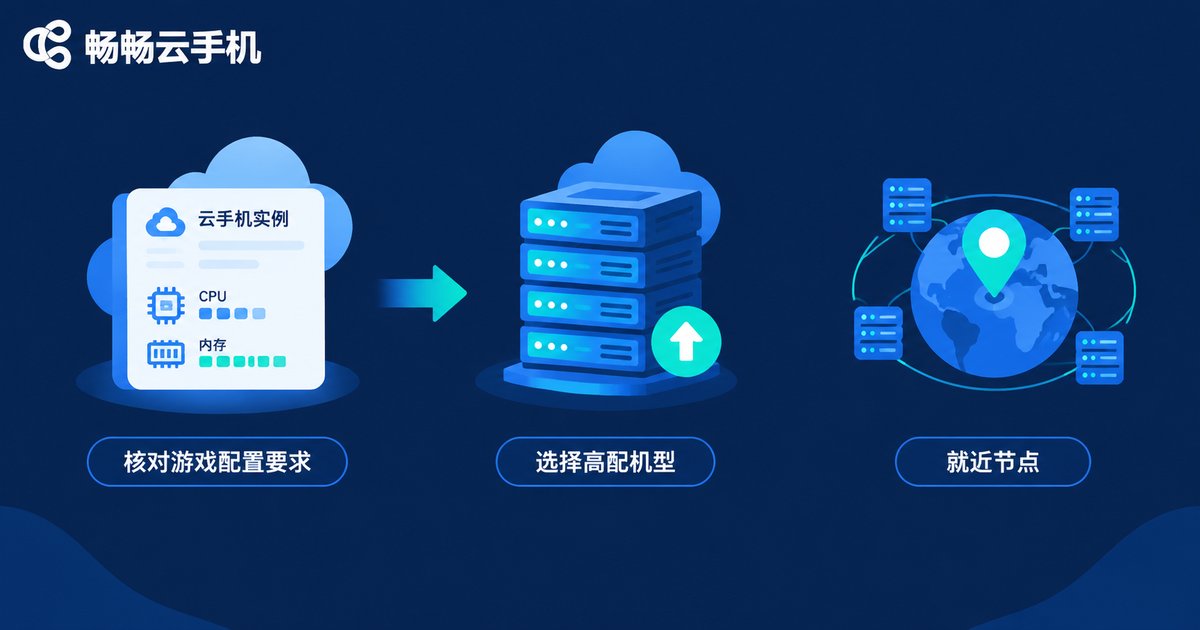
1. Compare against the game's official requirements. Look up the game's minimum and recommended specifications, then check your cloud phone instance's CPU cores and memory. Large 3D mobile games are demanding, so it is normal for entry-level instances to struggle.
2. Check your current instance tier. Cloud phone services usually offer several performance tiers. Running a large game on a basic tier almost guarantees lag. In the CCloudPhone dashboard you can view the specifications of your current instance, and for large games it is worth moving up to a higher tier — the difference is immediately noticeable.
3. Choose the nearest server node. The closer the cloud phone server is to you, the lower the latency. If the service lets you pick a data center or line, always choose the node closest to your city.
4. Rule out server-side load. If multiple apps lag at the same time, the provider's servers may be busy. Contact customer support to confirm, or try again at a different time.
Settings Check: Squeeze Out Every Bit of Performance
If both network and configuration are fine, the problem is usually hiding in the settings.
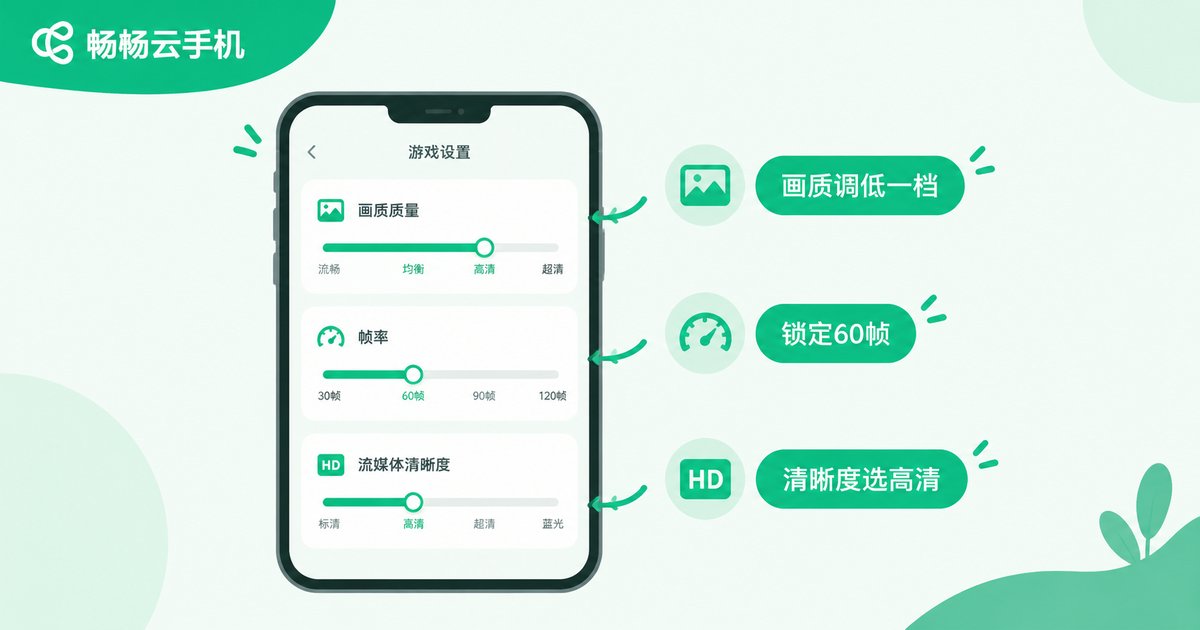
1. Lower the in-game graphics. Drop the quality preset from Ultra to High or Medium, turn off anti-aliasing, shadows, and water reflections, and prioritize a stable 60 fps frame rate. One notch down in graphics often brings a big jump in frame rate.
2. Adjust the streaming clarity. The cloud phone app usually offers a clarity or bitrate option. On an average connection choose HD instead of Ultra HD — you trade a little sharpness for much smoother playback — and raise it again when the network is strong.
3. Enable performance mode. Some cloud phone systems include a performance or game mode that reserves resources for the foreground game once turned on.
4. Clean up the cloud background. Other apps and extra multi-open instances inside the cloud phone all consume CPU and memory. Close unneeded background tasks before playing, and if you run many instances, dedicate one instance to the large game.
Symptom Table: Locate the Problem in 30 Seconds
| Typical symptom | Most likely cause | What to do |
|---|---|---|
| High input delay, ghosting video | High latency or packet loss | Re-test network, use 5 GHz, switch to a nearer node |
| Image frequently turns blocky | Insufficient or unstable bandwidth | Lower stream clarity, stop background downloads |
| In-game frame drops, slow loading | Cloud phone underpowered | Upgrade the instance tier, lower in-game graphics |
| Blurry image but smooth motion | Stream clarity set too low | Raise clarity when the network is good |
| Local phone gets noticeably hot | Heavy local decoding load | Lower local display resolution, improve cooling |
Reduce Lag at the Source: Pick a Reliable Cloud Phone
If your troubleshooting shows that the cloud phone itself is underpowered or the line is unstable, tweaking settings only treats the symptoms. Choosing the right provider treats the cause. CCloudPhone (畅畅云手机) offers cloud instances in different tiers so you can match the configuration to your game, with smooth HD streaming and responsive controls, manageable anytime from both the web dashboard and the app. Whether you play large games daily or keep tasks running for long sessions, visit the CCloudPhone official website to check instance specifications and pick a cloud phone that matches your needs — and you will avoid most lag problems before they start.
FAQ
Q: What network standard should I meet for large games on a cloud phone?
Aim for at least 20 Mbps download, latency below 50 ms, and near-zero packet loss. Stability matters more than raw bandwidth — a lossy connection will stutter even with plenty of bandwidth.
Q: Why is the same game smooth sometimes and laggy at other times?
Most likely network fluctuation or peak server load. Note when the lag occurs; if it clusters in a fixed evening window, it is peak congestion — play at another time or switch nodes.
Q: Does upgrading the cloud phone instance always fix lag?
Not necessarily. Troubleshoot in order: network, configuration, settings. If the bottleneck is the network, upgrading the instance will not help; upgrade only when performance is confirmed to be the issue.
Q: Does local phone performance affect lag?
Only slightly. The local phone just receives and decodes the video stream, so unless it is very old the impact is small. Overheating can throttle the device and cause stutter — lower local display settings and improve cooling in that case.


