
Cloud Phone Gaming in 2026: Smoothness, Latency and Graphics Recommendations
1. Why Cloud Phones Became a Gaming Essential in 2026
With 5G and gigabit broadband now mainstream, cloud phones have gone from concept to daily reality: games run directly on cloud servers, and the footage is streamed to your phone, tablet, or computer — the local device only handles display and input. That means even a years-old phone can run demanding mobile titles smoothly. In 2026, cloud phone gaming comes down to three use cases: multi-account AFK farming, high-quality play, and cross-device handoff. And what decides whether the experience feels great is exactly what this article covers — smoothness, latency, and graphics.
2. Smoothness: Stable Frame Rates Beat Peak Frame Rates
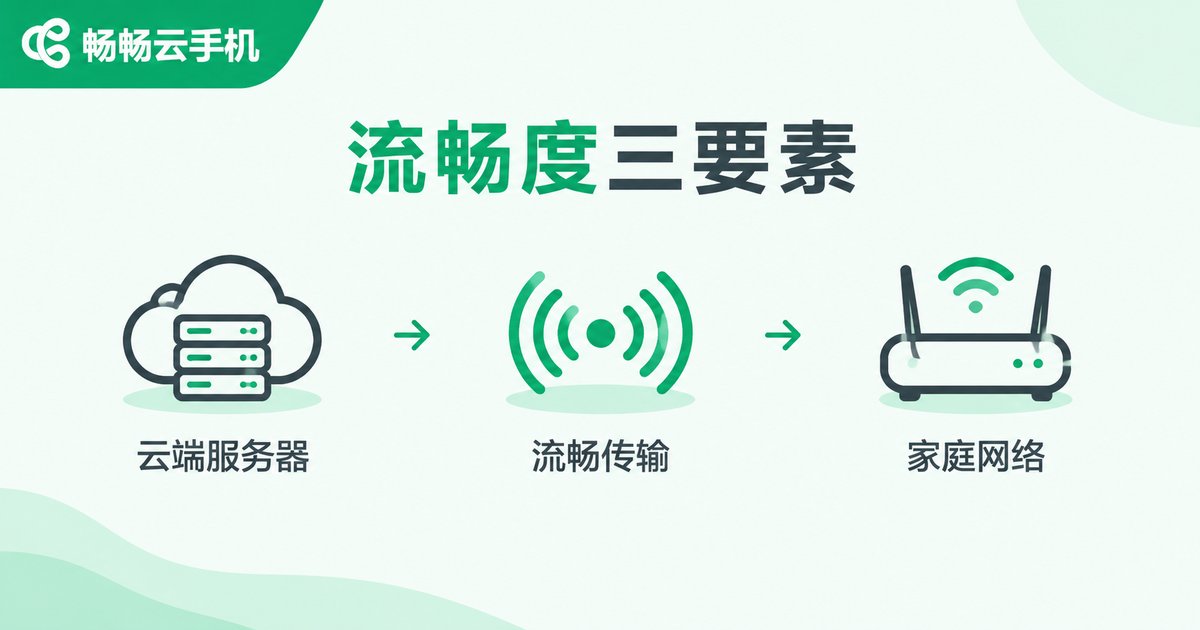
Many players chase the highest possible frame rate, but what truly defines game feel is frame rate stability. Cloud phone smoothness depends on three links in a chain: the rendering power of the cloud server, video encoding efficiency, and your local download bandwidth. If any link slips, you get dropped frames or blocky artifacts.
| Metric | Reference Target | Notes |
|---|---|---|
| Frame rate | 30 fps playable, 60 fps ideal | Lock 60 fps for competitive games |
| Frame pacing | Fluctuation under 10% | Erratic frames hurt more than a uniformly lower cap |
| Download bandwidth | 10 Mbps+ for 1080P | 20 Mbps+ for 2K or high frame rates |
| Network jitter | The lower the better | High jitter causes visible macro-blocking |
To improve smoothness, use 5GHz Wi-Fi or a wired connection, avoid shared broadband during evening peaks, and pause bandwidth-heavy tasks like cloud sync and downloads.
3. Input Latency: Optimize the Entire Pipeline
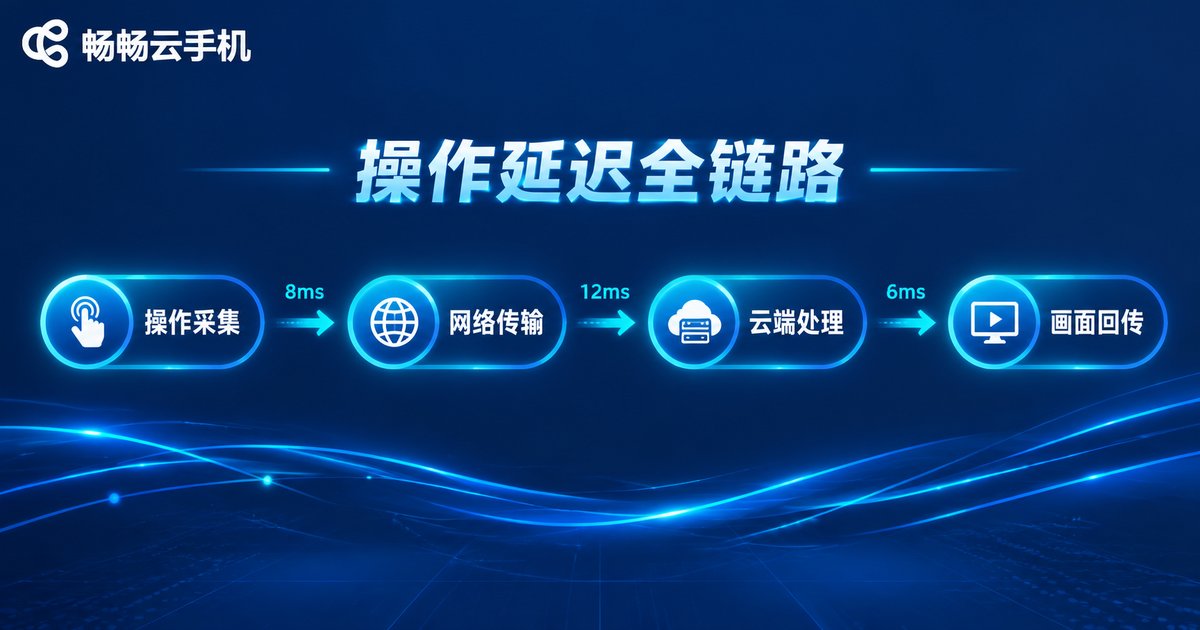
Cloud gaming latency is made of four stages: local capture and encoding + network transmission + cloud-side processing + video return. As a rule of thumb, end-to-end latency under 50 ms feels imperceptible, under 80 ms is comfortable for most games, and above 120 ms shooters and fighting games start to feel floaty.
Five practical ways to cut latency:
1. Pick a cloud phone node physically close to you — domestic nodes for domestic game servers;
2. Use 5GHz Wi-Fi or Ethernet, and avoid walls between you and the router;
3. Turn off unnecessary Bluetooth and wireless devices to reduce interference;
4. Lower in-game graphics moderately to ease cloud rendering load;
5. Prefer touchscreen controls — Bluetooth controllers add extra latency.
4. Graphics Recommendations: Pairing Resolution, Bitrate, and Presets
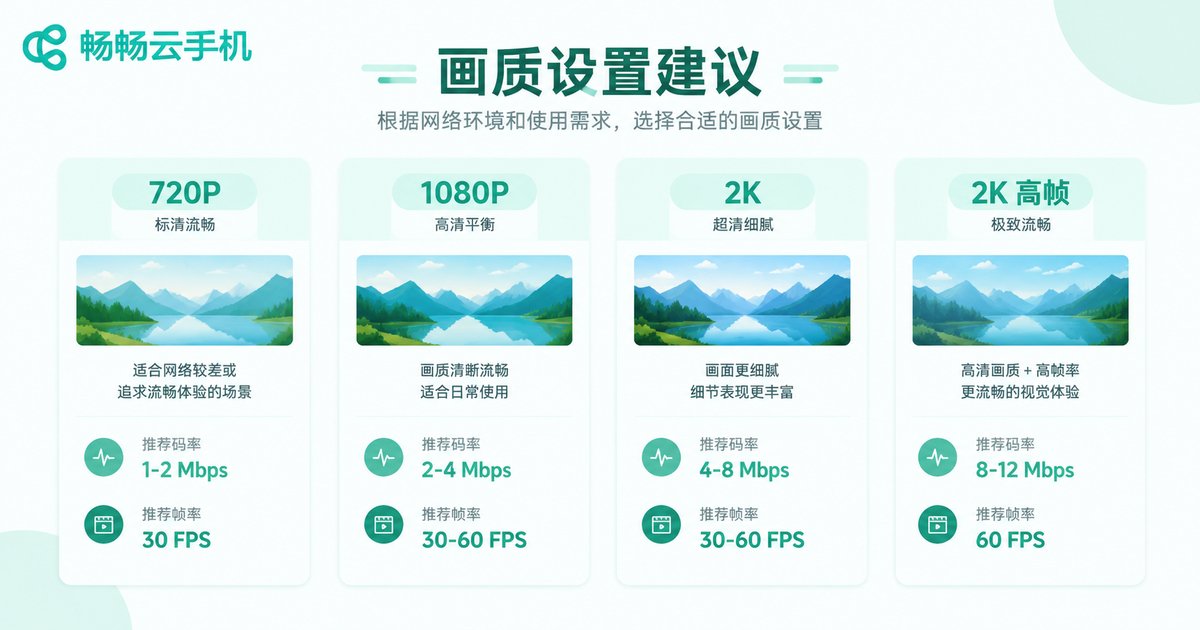
Graphics settings are fundamentally about balancing clarity, fluidity, and bandwidth. Cloud phone frames are compressed before streaming: with enough bitrate the image stays crisp; with too little, even a high resolution looks smeared.
| Scenario | Resolution | Bitrate | Frame Rate |
|---|---|---|---|
| AFK and idle games | 720P | 5-8 Mbps | 30 fps |
| RPG and card games | 1080P | 8-12 Mbps | 30-60 fps |
| Competitive and shooters | 1080P | 12-20 Mbps | 60 fps |
| Big-screen viewing | 2K | 20 Mbps+ | 60 fps |
One more thing: in-game graphics and streaming quality are two different dials. The former decides what the cloud renders; the latter decides how cleanly it reaches your screen. Tune both for the best-looking result.
5. CCloudPhone: Built for Gaming Scenarios
Among cloud phone services, CCloudPhone offers a complete cloud Android environment for gamers: cloud devices stay online around the clock, so AFK farming and daily quests never depend on your local hardware; multiple cloud phones can be managed in parallel for effortless multi-account switching; and accounts sync across devices, so a session started on your phone can continue on a tablet or PC. Combined with the smoothness and graphics settings above, even an aging device can deliver a near-flagship gaming experience. For the latest plans and configurations, visit the official CCloudPhone website.
6. Pre-Play Checklist
Before you start, run through this quick checklist:
1. Run a speed test to confirm your download bandwidth matches your target preset;
2. Choose the lowest-latency connection (wired first, then 5GHz Wi-Fi);
3. Play 10 minutes at medium settings, watch frame rate and latency, then step up gradually;
4. Lock 60 fps for competitive games — frame rate before eye candy;
5. Switch to a 720P low-bitrate preset for long AFK sessions to balance data usage and stability.
FAQ
Q: Will games lag on a cloud phone?
With sufficient bandwidth and a nearby node, everyday play is close to a mid-range local phone. Lag usually comes from network jitter or a bitrate set too low — troubleshoot with the steps above.
Q: How much bandwidth do I need?
At least 20 Mbps down for 1080P 60 fps, ideally dedicated — avoid family members streaming 4K video at the same time.
Q: Which game genres suit cloud phones best?
AFK, turn-based, and MMO titles are a perfect fit. Competitive shooters are latency-sensitive, so pick a nearby node and lock 60 fps.
Q: Can an old phone run a cloud phone?
Yes. Local hardware requirements are minimal — if the device can decode a video stream smoothly, it can deliver a near-flagship experience.
Q: When graphics and smoothness conflict, which wins?
Prioritize frame rate for competitive play, resolution for story-driven titles, and low presets for AFK sessions to save data.


