
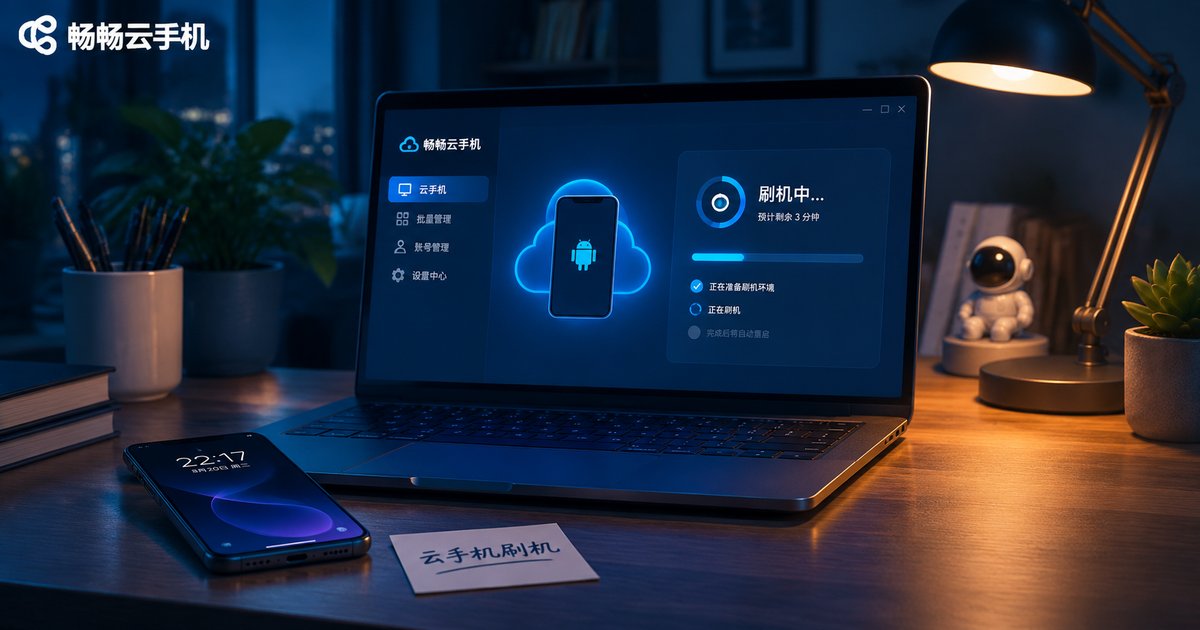
Cloud Phone Flashing Guide: System Versions, Data Backup and Failure Recovery
What Flashing Actually Means on a Cloud Phone
Many people hear cloud phone flashing and picture unlocking a bootloader and installing a custom ROM, exactly like on a physical handset. In reality a cloud phone runs as a virtualised Android instance in a data centre. The system image is maintained by the provider, so there is no ROM-flashing step on your side at all. What people usually mean by flashing a cloud phone comes down to a few operations:
- Resetting the instance back to the clean state it had on day one;
- Switching or reinstalling the system version between Android 7, 9, 10, 11, 12 and newer images;
- Factory resetting to clear apps, accounts and local files while keeping the system;
- Rebuilding the runtime environment by reinstalling apps, scripts and automation settings.
The key insight is simple: the hard part of cloud phone flashing is never whether you can do it. It is whether you backed up first and whether your workload can get back online right after.
Step One: Pick the Right Android Version First
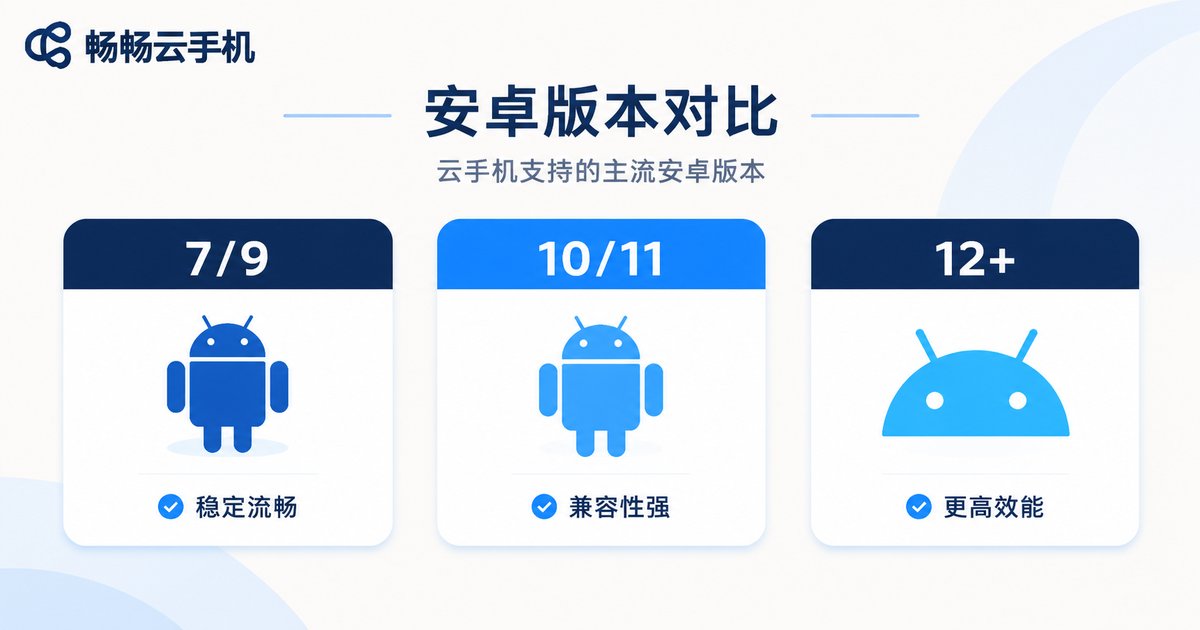
The versions available on a cloud phone depend on the platform virtualisation stack. Common choices include Android 7, 9, 10, 11, 12 and 13. Newer is not automatically better, because what matters is compatibility with your apps. Choosing the wrong version wastes more time than a failed flash.
| System version | Compatibility | Resource usage | Recommended for |
|---|---|---|---|
| Android 7 / 9 | Very high, legacy apps still run | Low | Older tools and lightweight always-on tasks |
| Android 10 / 11 | High, covers most mainstream apps | Medium | E-commerce, office and social multi-account work |
| Android 12 / 13 and above | Moderate, a few apps may break | High | New apps that depend on modern system features |
A practical rule: take the minimum version your app officially requires and go one step higher. If the app needs Android 8, choose Android 10 or 11, so you keep compatibility without eating extra memory.
Step Two: The Backup Checklist Before You Flash
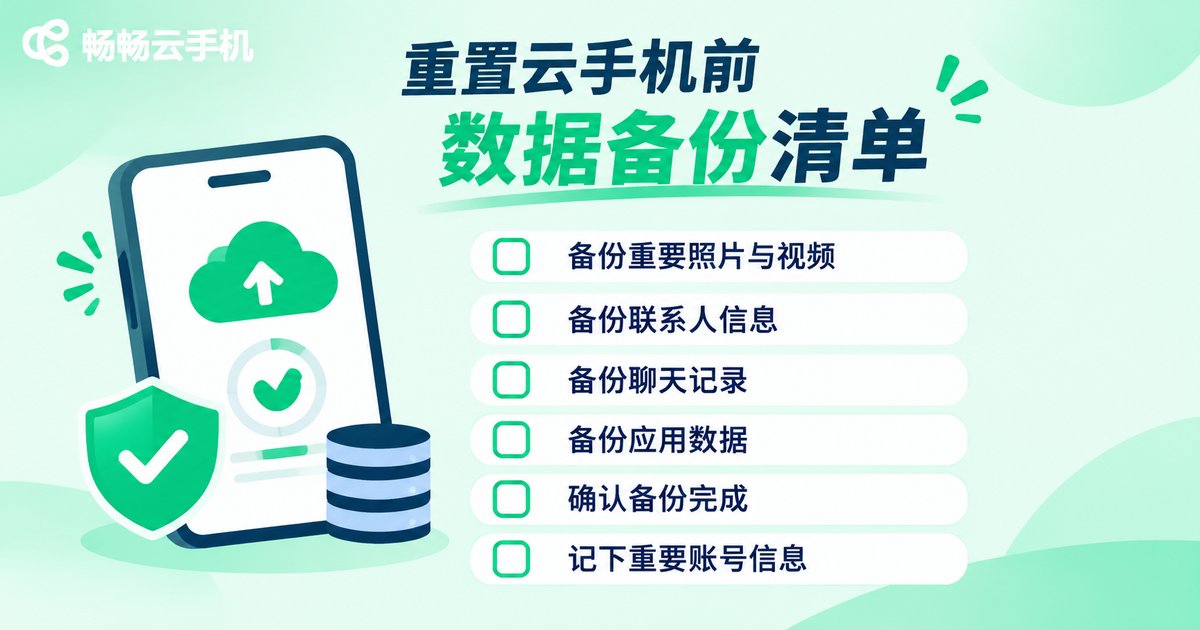
Resetting a cloud phone is irreversible. Once the data is wiped, the provider cannot recover it for you. Go through this checklist before you start:
- Accounts and login state: most apps will ask you to sign in again, so have the phone number for two-factor verification ready;
- In-app data: chat history, game saves, drafts and bookmarks, best exported with the app's own cloud backup;
- Local files: photo albums, the Download folder and documents, copied to your computer or a cloud drive;
- Automation settings: scripts, task schedules, shortcuts and account groups, saved as text or screenshots;
- Environment parameters: resolution, DPI, language, time zone and location settings, noted down for restoration.
# Connect over ADB and export the key directories (example)
adb connect <cloud-phone-ip>:5555
adb pull /sdcard/DCIM ./backup/DCIM
adb pull /sdcard/Download ./backup/Download
adb backup -apk -shared -all -f backup.ab
When the backup is done, run one restore drill: pick an idle instance, restore the backup there and confirm that files open and apps sign in. Ten minutes of testing here saves hours of rework later.
Step Three: The Standard Flashing Workflow
- Check the current system version, instance spec and free storage;
- Finish a full backup and keep the files outside the cloud phone;
- Stop running tasks and sign out of important accounts;
- In the console, choose reset or switch system and select the target version;
- Wait for initialisation to finish, usually a few minutes, without clicking repeatedly;
- Restore the data, sign in again and run your core workflow as a check.
Steps 3 and 5 cause the most trouble. Resetting while tasks are still running leads to locked files, and clicking around during initialisation makes the instance look frozen, which is exactly how a second failure happens.
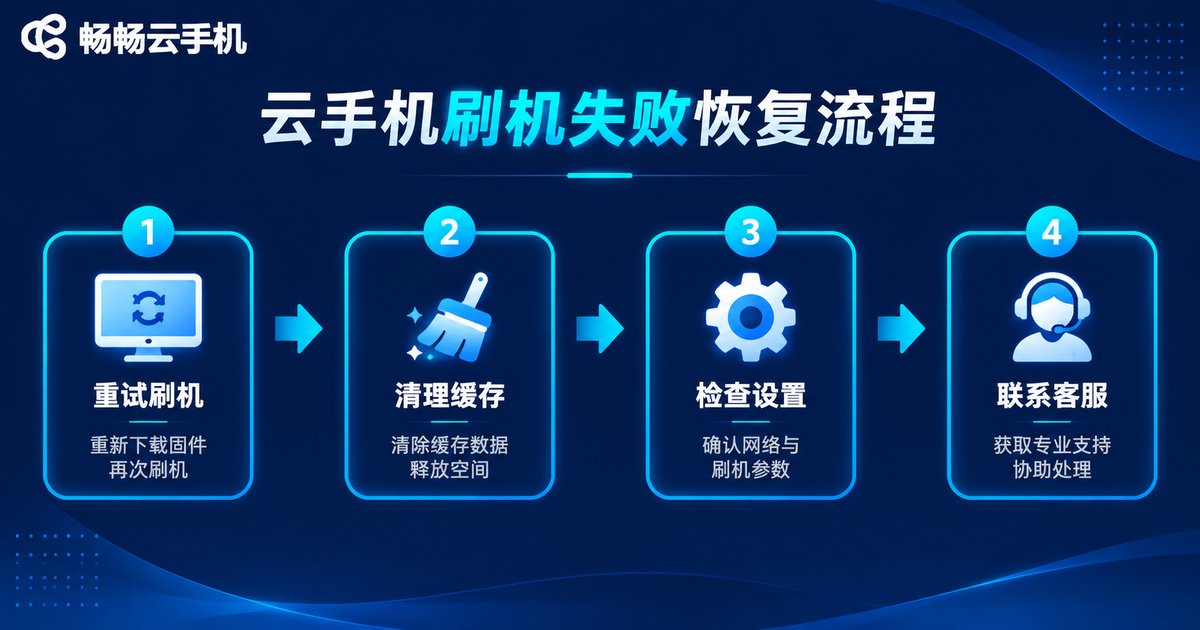
Step Four: Recovering From a Failed Flash
Failed flashes are not rare, but almost all of them are fixable on your own. Match the symptom to the table below first:
| Symptom | Likely cause | What to do |
|---|---|---|
| Stuck on the boot animation | Initialisation still running, or slow image loading | Wait up to 10 minutes, then reset once more |
| Black screen or cannot connect after reset | Instance state error, or an outdated client | Refresh the console status, update the client, contact support if needed |
| Apps keep crashing | System version incompatible with the app | Drop to a lower Android version and reinstall |
| Data is gone | No backup, or an incomplete one | Restore from your cloud drive or local copy, check auto-sync |
| Login flagged as unusual environment | Device or network environment changed | Sign in again, keep the network stable, avoid constant switching |
Recovery priority: if you can reinstall apps, do not reset the system; if you can reset, do not replace the instance. Every extra layer of operation adds risk and lengthens downtime.
Three Habits That Keep Flashing Risk Low
Flashing is not the difficult part. The difficult part is getting your workload back online immediately afterwards. That is why more teams run these tasks on ccloudphone, where instances live in the cloud and the system environment is maintained by the platform, so you never have to fight with low-level images yourself.
For long-running cloud phone tasks, stick to three habits:
- One instance, one task: do not pack conflicting apps into the same instance, so problems stay easy to isolate;
- Keep versions consistent: use the same Android version across a batch of tasks to reduce compatibility surprises;
- Back up on a schedule: take a full backup while the environment is cleanest and most stable, then roll back instead of rebuilding.
For the exact system versions, instance specs and features available, always check the official ccloudphone website and pick the configuration that matches your workload.

Frequently Asked Questions
Q: Do I need to unlock Root like on a real phone?
Normally no. The system environment is maintained by the platform, so you only reset or switch versions in the console without touching the underlying system.
Q: Can flashing get my accounts flagged?
Resetting itself will not, but frequent environment changes and constant signing in and out may trigger app risk controls. Stay stable for a while after flashing.
Q: How long does flashing take?
A plain reset takes only a few minutes. If you also reinstall apps, restore data and verify workflows, allow at least half an hour.
Q: Are my apps still there after flashing?
No. A reset clears apps and data, so everything must be reinstalled. That is exactly why backups belong outside the cloud phone.
Q: Can I switch system versions at any time?
Most platforms let you switch between the available versions, but each switch is effectively a reinstall, so always back up first.


