
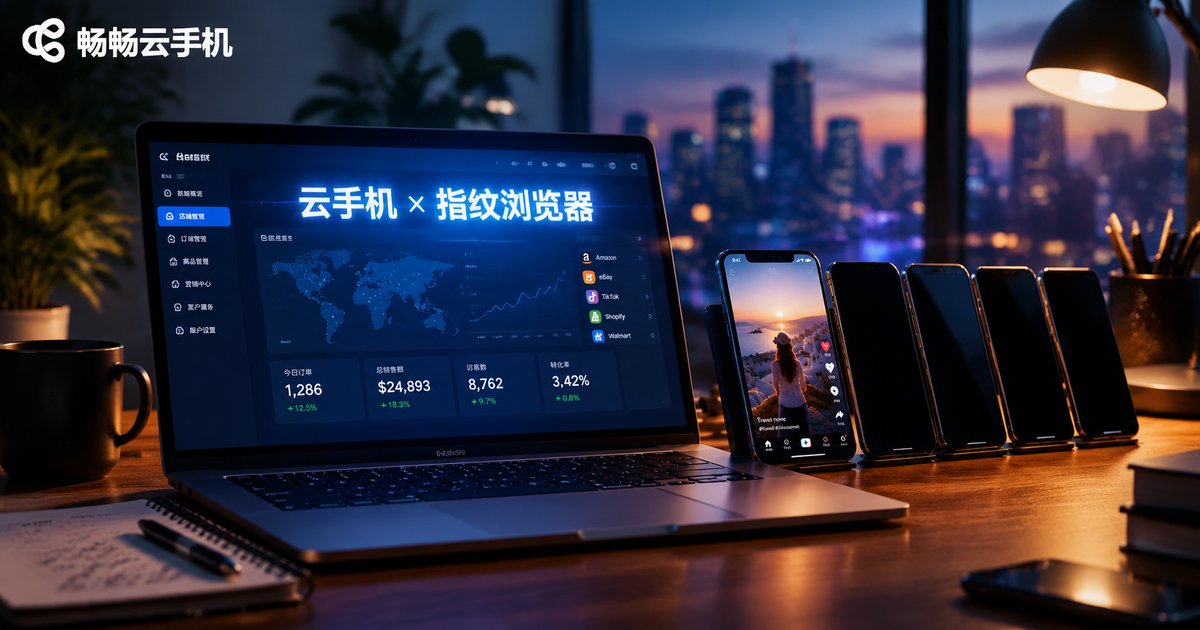
Cloud Phones with Fingerprint Browsers for Cross-Border E-Commerce: How to Build a Mobile + Desktop Combo Setup
Why Cross-Border Business Needs a Mobile + Desktop Setup
Anyone in cross-border e-commerce knows the traffic landscape has shifted. On platforms like Amazon, Shopee, and TikTok Shop, back offices are easier to run from a computer, yet buyers and content consumption keep moving to phones. In other words, you manage your store and ads on a desktop while your customers discover you, order, and leave reviews on mobile.
Desktop-only means you miss mobile issues—slow images, buttons out of thumb reach, broken layouts. Mobile-only makes bulk listing, reporting, and ad management painfully slow. That is why mature cross-border teams fight on two fronts: desktop for the back office, mobile for the front end.
Here is the catch: the desktop side is easy—one computer plus a fingerprint browser can spin up multiple isolated profiles. The mobile side? Nobody buys dozens of physical phones. That is exactly where cloud phones come in.
First, Tell Them Apart: What Each Tool Actually Handles
Many beginners lump the two together, but they solve problems on different layers.
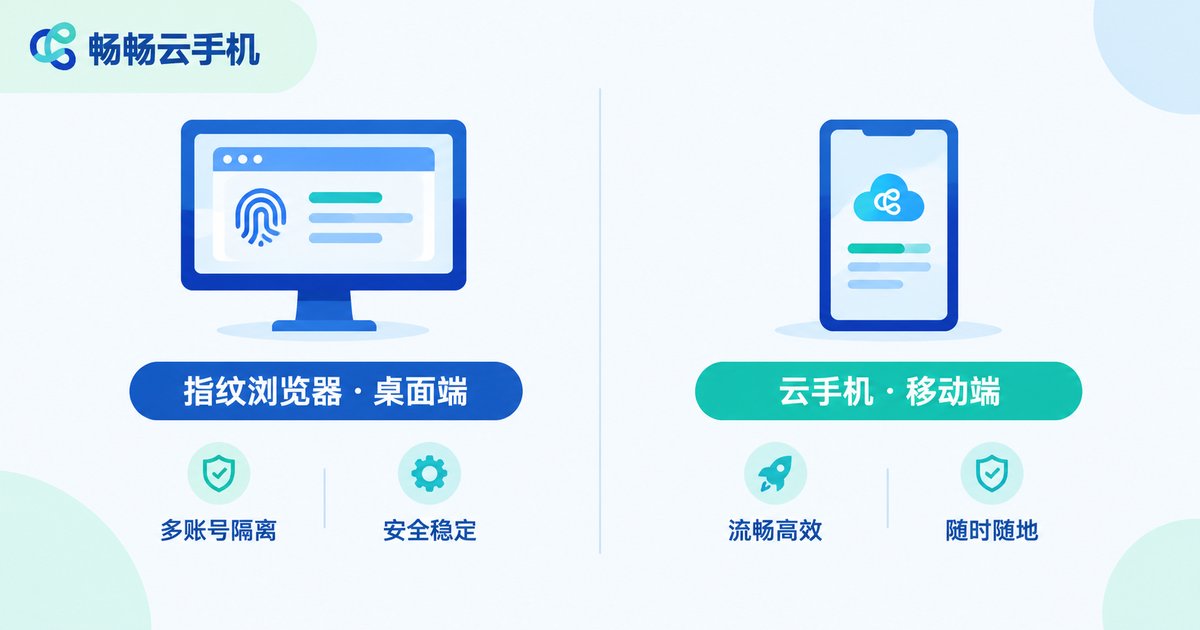
A fingerprint browser runs on your computer, and its core job is environment isolation: every account gets its own browser fingerprint (Canvas, WebGL, fonts, timezone, UA, and so on) plus an independent network environment, so platforms believe these accounts belong to different people on different computers. It covers the desktop web environment.
A cloud phone is a real Android system running in a cloud data center. It is not an emulator—it is an actual Android device in the cloud with its own device parameters. You can install apps, scroll feeds, nurture accounts, and keep tasks running; everything happens in the cloud, and shutting down your local computer changes nothing. It covers the mobile app environment.
| Dimension | Fingerprint Browser | Cloud Phone |
|---|---|---|
| Runs on | Your local computer | Cloud data center |
| Environment | Desktop browser profiles | Real Android mobile environment |
| Best at | Store dashboards, ads, web operations | In-app account nurturing, social media, mobile testing |
| Availability | Online only while your PC runs | Online 24/7 in the cloud |
| Scaling | More browser profiles | Add or remove cloud phones on demand |
In one sentence: the fingerprint browser makes you look like different people on computers; the cloud phone makes you look like different people on phones. Put the two pieces together and you have a complete device matrix.
Three Combo Architectures—Choose by Team Size
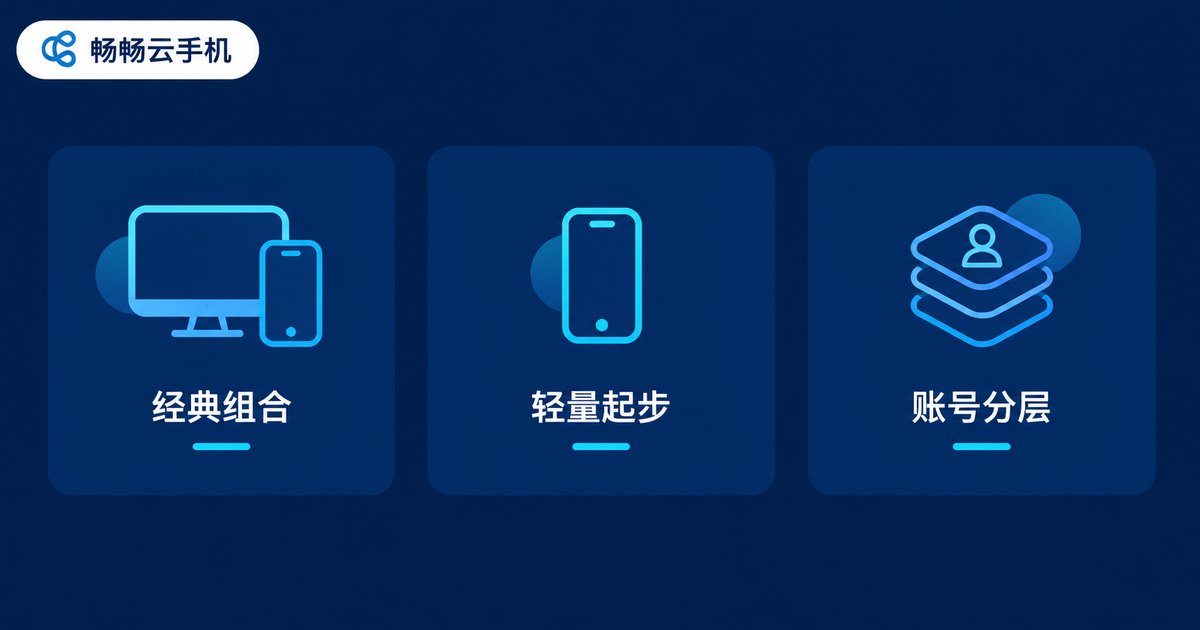
Setup 1: Fingerprint browser for desktop, cloud phone for mobile (the classic). Every business identity gets a pair: for example, with ten social accounts, each one has a desktop profile in the fingerprint browser for web operations and a matching cloud phone for in-app login. Keep login hours, language, and timezone consistent across both ends, and the platform sees one person who happens to use both a computer and a phone—which is exactly what real users look like.
Setup 2: Pure cloud phone (light start). If your business lives mostly inside apps—short video, social DMs, mobile gaming—run the whole flow on cloud phones first and keep a single main account on desktop for analytics. Add a fingerprint browser later as volume grows, scaling investment step by step.
Setup 3: Account tiering (best for teams). Split accounts into three tiers: core accounts run one-per-device and one-per-profile with a dedicated owner; growth accounts are batched into cloud phones under group control; test accounts run in the cheapest environments to trial content and plays, and get replaced when burned. The biggest benefit is risk isolation—trouble in the test tier never reaches your core assets.
Step by Step: Building the Combo in Five Moves
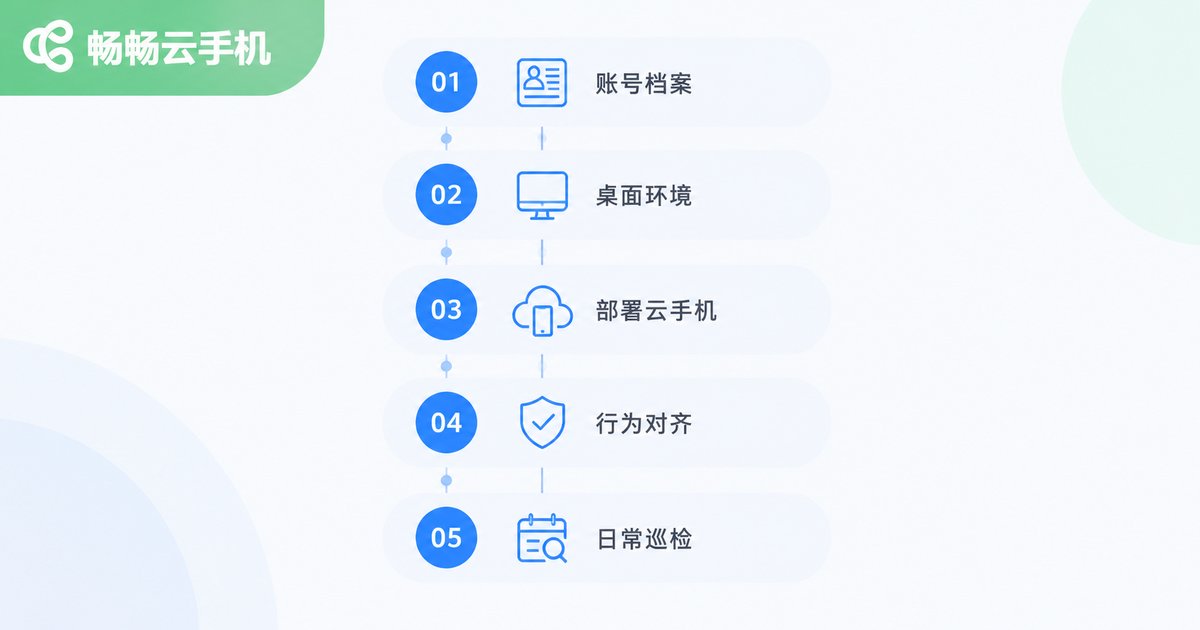
Step 1: Write account profiles. Do not create environments yet. Use a spreadsheet to define each account's persona: region, language, timezone, active hours, business type. Every environment parameter later must follow this profile, so desktop and mobile tell the same story.
Step 2: Build the desktop side. In your fingerprint browser, create profiles one by one per the sheet, configure fingerprint parameters and independent network environments, then log in on web to finish basic setup.
Step 3: Deploy cloud phones. Install the apps you need on each cloud phone and set system language, timezone, and keyboard to match the profile. One cloud phone should carry one main account—do not get greedy.
Step 4: Align behavior across both ends. The most overlooked step. Make the same account's active hours overlap on both ends: if the profile says a Southeast Asian user active from 8 to 11 p.m., operate the desktop profile and the cloud phone in that window. Split behavior across devices is a common reason environments get flagged.
Step 5: Set a daily check routine. Spend ten minutes a day scanning for logged-out accounts, environment alerts, and cloud phones offline. This is where cloud phones shine—your computer sleeps, but the phone in the cloud keeps nurturing accounts overnight.
Four Rules for Day-to-Day Operations
1. Nurture before you monetize. Whether desktop profile or cloud phone, a new account should spend its first week or two acting like a normal user: browsing, liking, completing the profile. Blasting ads and friend requests on day one is the classic beginner mistake.
2. One account, one environment. Do not rotate two accounts through one profile to save resources, and do not switch accounts constantly on the same cloud phone. An environment is an account's home; move the house too often and the platform gets suspicious.
3. Humanize batch operations. Group control is efficient, but do not let every account act in the same second. Stagger timing, randomize intervals, and mimic real hand speed—it is the basic etiquette of batch operations.
4. Back up regularly. Passwords, environment configs, cloud phone device details—document and back them up on a schedule. In cross-border business, the worst part of a ban is not losing the account; it is not remembering what that account was tied to.
Why We Recommend ChangChang Cloud Phone (ccloudphone) for the Mobile Side
For the mobile side, we recommend ChangChang Cloud Phone (ccloudphone). The idea is straightforward: put a real Android system in the cloud and let you use a cloud phone exactly like a real one.
Points that matter for cross-border users: cloud phones run in data centers and stay online 24/7, so shutting down your computer never interrupts account nurturing; batch management across many cloud phones makes group control fast; and every cloud phone is an independent Android environment that maps one-to-one to your account profiles. For current plans and pricing, check the official ccloudphone website—configure to your needs instead of overbuying on day one.
The combo itself is simple: keep the fingerprint browser you already like on desktop, run ChangChang Cloud Phone on mobile, configure both ends from the same account sheet, and your mobile-plus-desktop cross-border device matrix is live.

FAQ
Q: Cloud phone vs. emulator—what is the difference, and do cross-border sellers really need a cloud phone?
An emulator runs on your local computer, its device parameters are easier to detect, and any local failure takes every environment down with it. A cloud phone is a real Android system in the cloud—independent devices, online around the clock, immune to local power or network cuts. For cross-border operations that must stay online long-term, cloud phones are clearly the calmer choice.
Q: Should the desktop and mobile ends of one account share the same network environment?
They should read as the same person—both ends pointing to the same home region, not one in Asia and one in Europe. Different accounts, meanwhile, must stay independent of each other to avoid linkage.
Q: How many accounts per cloud phone?
One main account per cloud phone is the safe rule. Technically you can switch logins, but frequent switching raises environment risk—core accounts should not gamble to save a little.
Q: Limited budget—cloud phone or fingerprint browser first?
Follow your main battlefield: app-centric businesses (short video, social, gaming) should start with cloud phones; dashboard-centric businesses (store management, ads) should start with the fingerprint browser. Ideally you end up with both, forming a full matrix.
Q: Does the cloud phone stop when I shut down my computer?
No. Cloud phones run in the data center; your computer is just the remote control. Apps keep running and accounts keep nurturing with your PC off—reconnect anytime to take over.


