
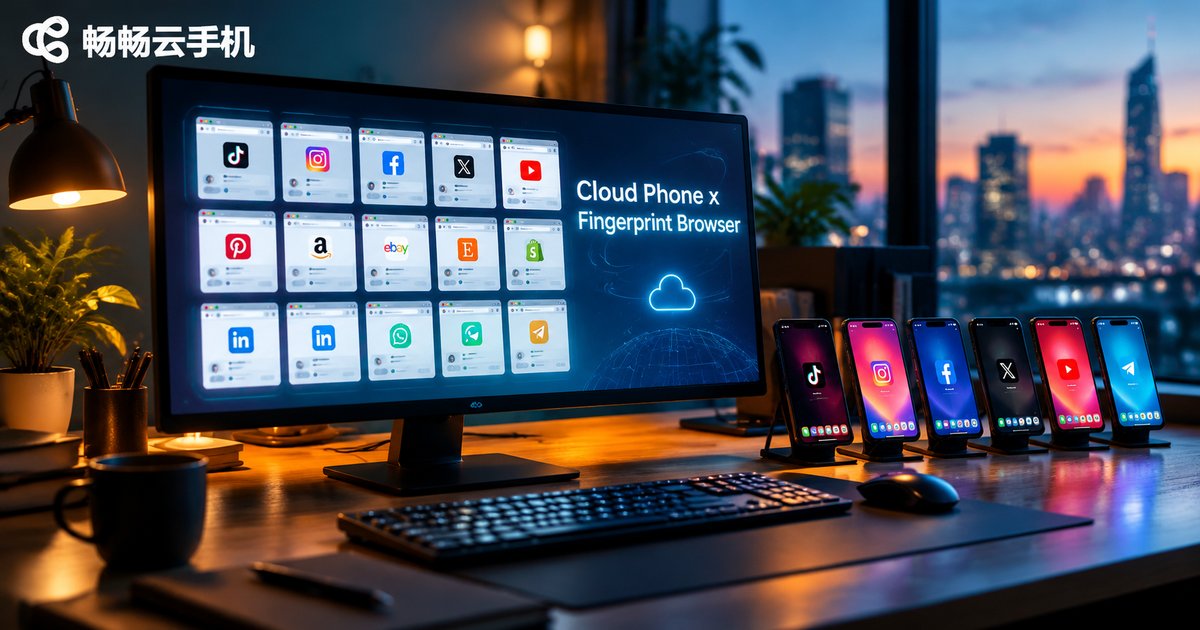
How to Combine Cloud Phones with Fingerprint Browsers: Mobile + Desktop Setup Guide
Why Combine a Cloud Phone with a Fingerprint Browser
Teams running cross-border e-commerce, social media operations, or account matrices inevitably face two scenarios: managing multiple web accounts on a computer and nurturing accounts inside real mobile app environments. A fingerprint browser solves environment isolation for desktop accounts, but it is still fundamentally a PC browser. Once a platform requires mobile app login, or the workflow must happen inside an app, a fingerprint browser alone falls short.
That is where the cloud phone comes in. A cloud phone is a real Android device running in the cloud, with its own device parameters and network environment, letting you install apps, browse feeds, and send messages just like on a physical handset. Pairing a fingerprint browser (desktop) with a cloud phone (mobile) creates a complete account operation system covering both PC web and mobile apps.
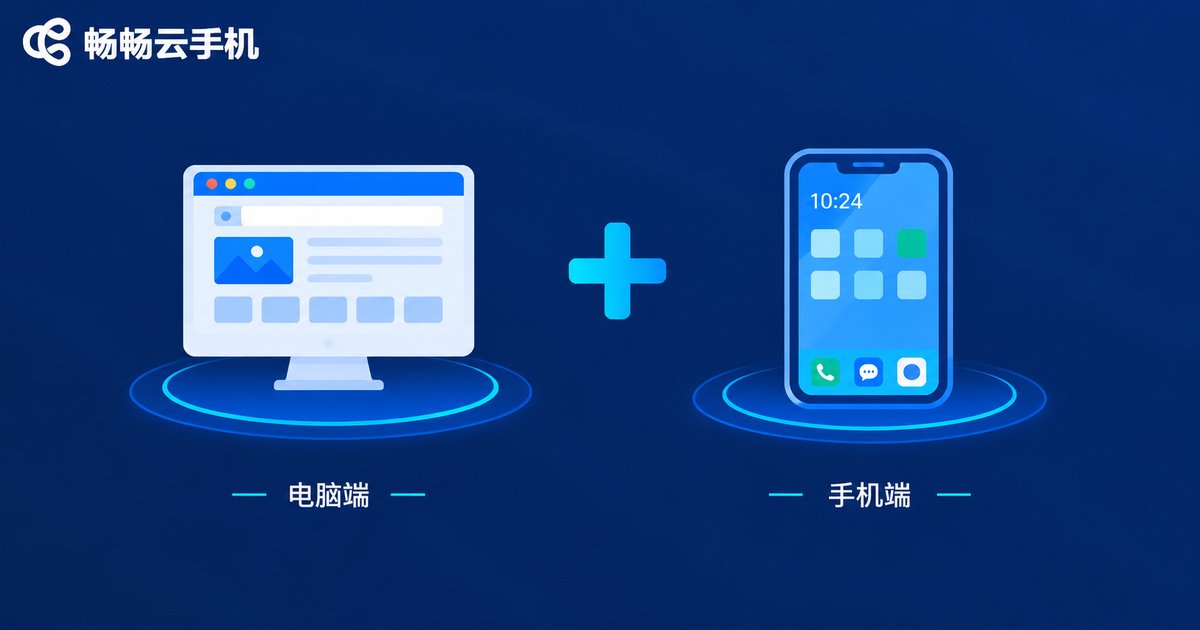
Divide the Work: One Handles Web, the Other Handles Apps
Many beginners confuse cloud phones with fingerprint browsers, but their roles are entirely different. In short: the fingerprint browser covers the web, the cloud phone covers mobile.
| Dimension | Fingerprint Browser | Cloud Phone |
|---|---|---|
| Environment | Browser profile on a computer | Real Android system in the cloud |
| Fingerprint layer | Canvas, WebGL, fonts and other browser fingerprints | Device model and system-level parameters of a real handset |
| Best for | Store backends, independent sites, web versions of social platforms | App account nurturing, short video, messaging, mobile games |
| Online state | Web session, offline when the window closes | Apps stay online, like a real phone in hand |
| Scale | Multiple windows for web accounts | Batch control of many cloud phones |
The two tools are complementary, not interchangeable. Only when both desktop and mobile terminals are covered does an account behavior chain look complete and natural to platform risk-control systems.
Three Proven Combination Workflows
Workflow 1: Dual-terminal nurturing. The same account handles orders and replies through the web version in a fingerprint browser during working hours, while staying active inside the app on a cloud phone the rest of the day. Activity on both ends reinforces the profile of a real user who uses both PC and phone.
Workflow 2: Split by business line. Web-heavy operations such as store backends and independent sites live entirely in fingerprint browsers; app-heavy operations such as short video and messaging live entirely in cloud phones. Each line stays fully isolated, so problems are easy to trace.
Workflow 3: Cloud phone as the mobile springboard. Complete app registration and device verification on a cloud phone first, then hand the account over to a fingerprint browser for daily web operations. Separating the registration environment from the operating environment is a common way teams reduce linking risk.
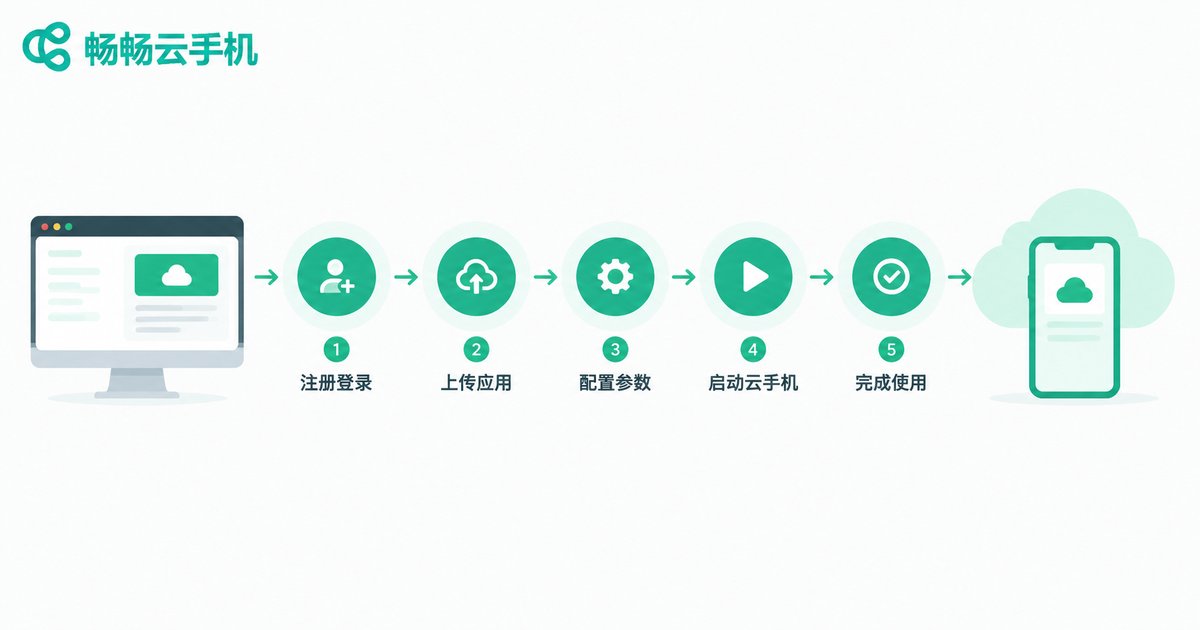
Five Steps to Build Your Combined Setup
Step 1: Map your account matrix. List every account and mark whether it needs web, app, or dual-terminal operation, then size your environments accordingly.
Step 2: Configure fingerprint browser profiles. Build one isolated profile per web account, fix cookies, timezone and language settings, and avoid changing them casually.
Step 3: Set up cloud phones. Match the number of cloud phones to your app workload and give key accounts a dedicated device. Services such as Changchang Cloud Phone (ccloudphone) let you create independent Android environments in the cloud and manage them in batches, making a solid mobile foundation for an account matrix.
Step 4: Keep both ends consistent. For any account used on two terminals, align IP region, language and timezone, so you never send contradictory signals such as logging in from two different countries on the same day.
Step 5: Build a daily SOP. Fix the operating hours and behavior patterns of every cloud phone and browser profile, publish consistently, and let each account persona grow more believable over time.
Three Pitfalls to Avoid
Pitfall 1: Conflicting parameters. When one account runs on two terminals, the settings must match each other; otherwise you create the anomalies yourself.
Pitfall 2: Overpacking a single environment. Control account density in every browser profile and cloud phone, and always give important accounts a dedicated environment.
Pitfall 3: Tools without process. Tools are only the foundation. Account survival is decided by a stable SOP and consistent content quality.
FAQ
Q: Do I have to use a cloud phone and a fingerprint browser together?
Not necessarily. Pure web operations can rely on a fingerprint browser alone; as soon as app-based actions are involved, adding a cloud phone is recommended.
Q: How many accounts can one cloud phone hold?
One core account per cloud phone is the safe rule. Some apps support cloning, but the more valuable the account, the more it deserves a dedicated environment.
Q: Should the IPs on both ends be identical?
For the same account, keep the IP region and carrier consistent or at least in the same area on both ends; the goal is avoiding conflicting environment signals.
Q: Which one should a beginner start with?
Follow your business: web-first projects start with a fingerprint browser, app-first projects start with a cloud phone, and matrix teams should build both from day one.


