
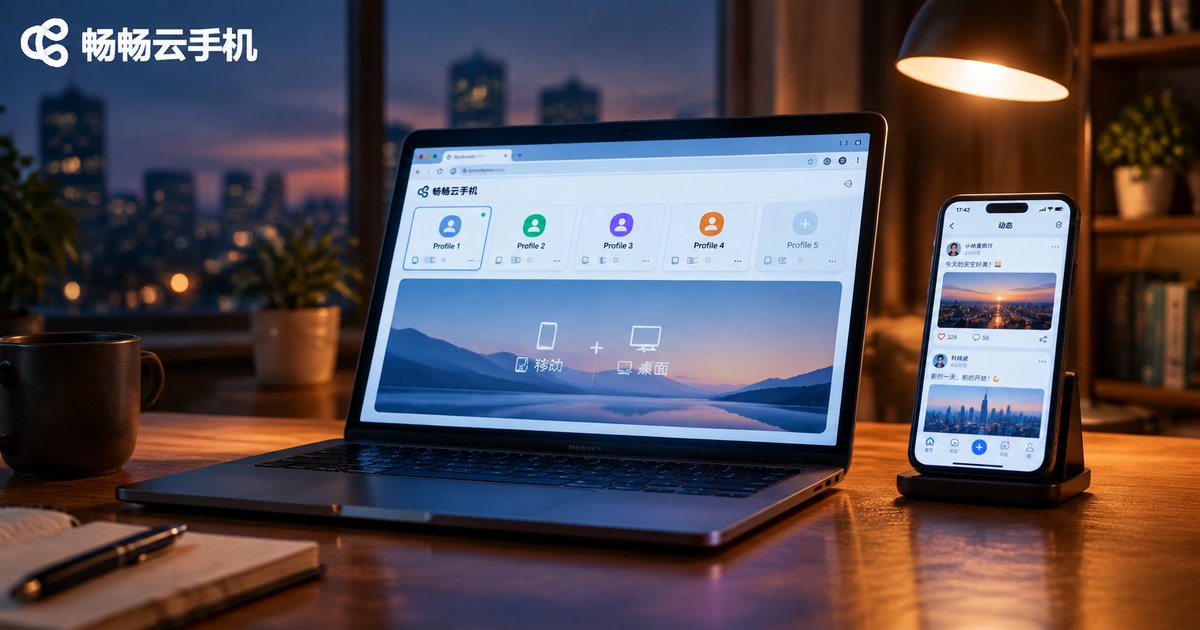
How to Combine Cloud Phones with Fingerprint Browsers: A Mobile + Desktop Solution
Why You Need a Mobile + Desktop Combo
If you run cross-border operations, manage social media matrices, or handle multiple accounts, you have probably run into this problem: your fingerprint browser keeps the web environment clean, but the moment you switch to the mobile app, something feels off. A fingerprint browser is great at simulating desktop browser environments, while a cloud phone provides a real Android mobile environment. Only by combining the two can you cover an account's complete usage scenario.
Major platforms today evaluate behavior on both web and app. When an account posts from a computer during the day and interacts from a phone at night, any mismatch between the two environments attracts risk control. The core idea of the combo is simple: give every account a stable, independent, and mutually consistent environment on both desktop and mobile.

Clear Division of Labor: What Does Each Tool Handle?
Before combining them, define each tool's responsibilities:
| Dimension | Cloud Phone | Fingerprint Browser |
|---|---|---|
| Environment | A full Android phone system | A desktop browser fingerprint profile |
| Best at | App login, swipe interactions, photo uploads | Web operations, dashboards, batch tasks |
| Hardware | Runs in the cloud, uses no local resources | Runs on your local computer |
| Typical use | Social app nurturing, game AFK, app testing | E-commerce backends, ad campaigns, web matrices |
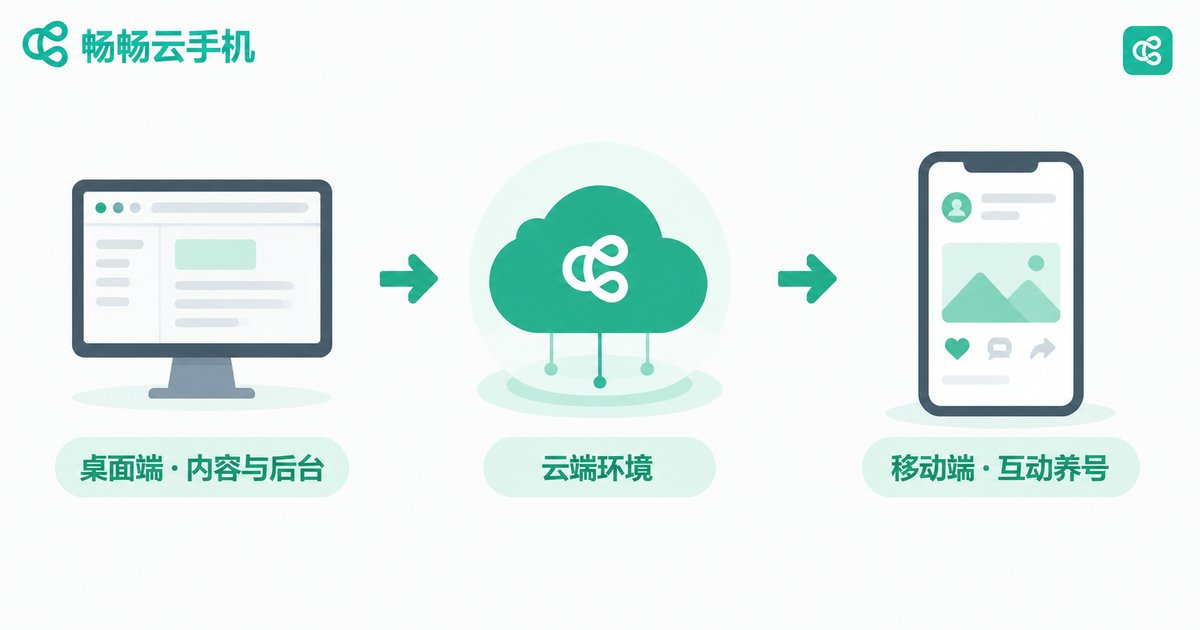
In short: the fingerprint browser handles the web, the cloud phone handles the app. They complement rather than replace each other.
Three Common Combo Setups
Setup 1: Split by platform.
Keep all web operations in the fingerprint browser and all app operations in the cloud phone. Fix both environments for each account separately. This is the simplest and safest way to start.
Setup 2: Split by task.
Do heavy work — content creation, data analysis — on desktop; run light interactions such as likes, comments, and DMs on the cloud phone. Mobile acts human, desktop acts efficient.
Setup 3: Unified environment pools.
Once your account matrix grows, manage a desktop environment pool in the fingerprint browser and a mobile environment pool with cloud phones. Track which environment, IP region, and login schedule each account uses in a shared spreadsheet.
Five Steps to Build Your Combo Environment
Step one, plan the account matrix: list each account's purpose, target platform, and posting frequency, and avoid squeezing multiple accounts into one environment.
Step two, build the desktop side: create an independent profile for each account in the fingerprint browser and lock in the UA, resolution, timezone, and other parameters.
Step three, set up the mobile side: install the apps on a cloud phone and bind one group of accounts to each device, keeping logins stable.
Step four, align both ends: keep language, timezone, and IP region consistent for the same account across desktop and mobile to avoid contradictions.
Step five, set operating rules: fix each account's active hours and devices, never switch environments casually, and keep the rhythm human-like.

Why Choose ccloudphone for the Mobile Side?
In a combo setup, the stability and manageability of the mobile environment matter most. ccloudphone provides independent Android phone environments in the cloud. Your apps stay online around the clock without depending on any physical phone you own — no battery drain, no hardware wear, no shutting down at night.
For multi-account operators, it offers several practical advantages: you can log in and manage your cloud phones from either a computer or a phone, which pairs naturally with a desktop fingerprint browser workflow; each cloud phone is an isolated environment, ideal for binding accounts by group; and scaling up no longer means stacking physical phones on your desk. For the latest plans and features, always refer to the official ccloudphone website.
Pitfalls to Avoid When Combining the Two
Keep environments consistent: align timezone, language, and IP region for the same account on both ends; never let the profile say one country while the phone number region says another.
Keep environments fixed: once an account is bound to an environment, avoid migrating it. Frequent moves are riskier than an imperfect environment.
Keep behavior natural: nurture new accounts gently before scaling up activity, and stagger sign-ups across the two ends instead of doing them simultaneously.
Stay compliant: the combo is an efficiency tool. Always follow each platform's rules and local laws and regulations.
FAQ
Q: Do I have to use a cloud phone and a fingerprint browser together?
No. If your business is web-only, a fingerprint browser is enough; if it is app-only, a cloud phone works fine. But once an account is active on both web and app, the combo is noticeably more stable.
Q: How many accounts can one cloud phone hold?
Bind one small group of similar accounts per cloud phone — fewer is better. The more accounts you squeeze in, the more diluted each environment becomes and the harder issues are to trace.
Q: Who is this combo for?
Cross-border sellers, social media matrix operators, app promotion and QA teams, and solo founders who manage both web dashboards and mobile apps every day.
Q: How does ccloudphone work with a fingerprint browser?
Keep it simple: run the fingerprint browser on your computer for web-side work while logging into ccloudphone on the same computer or your phone for app-side work. Fix both environments, record them per account, and operate by account groups.


