
3 Must-Do Things Before Your Cloud Phone Expires: Account Backup, Data Export, Environment Migration
Are You Ready Before Your Cloud Phone Expires?
Many users suddenly realize when their cloud phone is about to expire: What about my game accounts? Is my app data still there? Can my work environment be preserved? Actually, cloud phone expiration doesn't necessarily mean data loss - the key is whether you've prepared in advance. This article will detail the 3 must-do things before your cloud phone expires, helping you easily complete data transfer and avoid unnecessary losses.
First: Account Backup — Protect Your Digital Assets
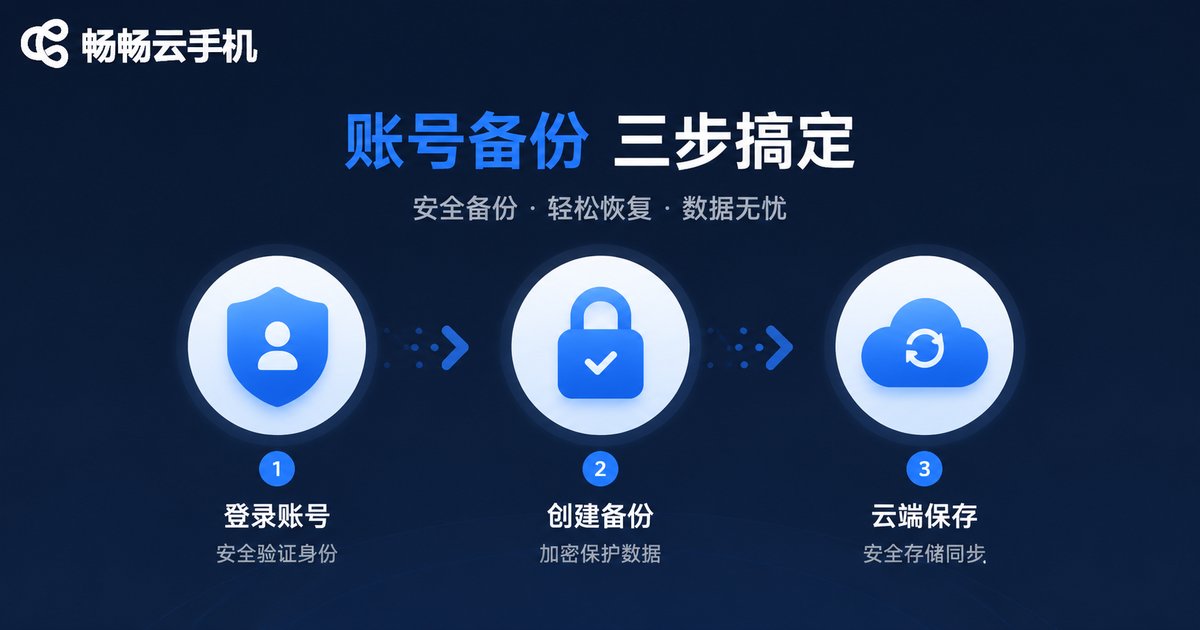
Account backup is the most important operation before your cloud phone expires. Whether it's game accounts, social media accounts, or work accounts, you need to back them up in advance to ensure smooth login when migrating to a new device or cloud phone.
Key Steps for Account Backup:
1. Bind Third-Party Accounts: Ensure your game and app accounts are bound to email, phone number, or third-party platforms for quick login on new devices.
2. Record Account Information: Keep important account credentials, passwords, and binding information in a secure place to avoid forgetting during migration.
3. Screenshot Key Data: For game character info, levels, equipment, etc., take screenshots as backup evidence.
Second: Data Export — Keep Your Important Files
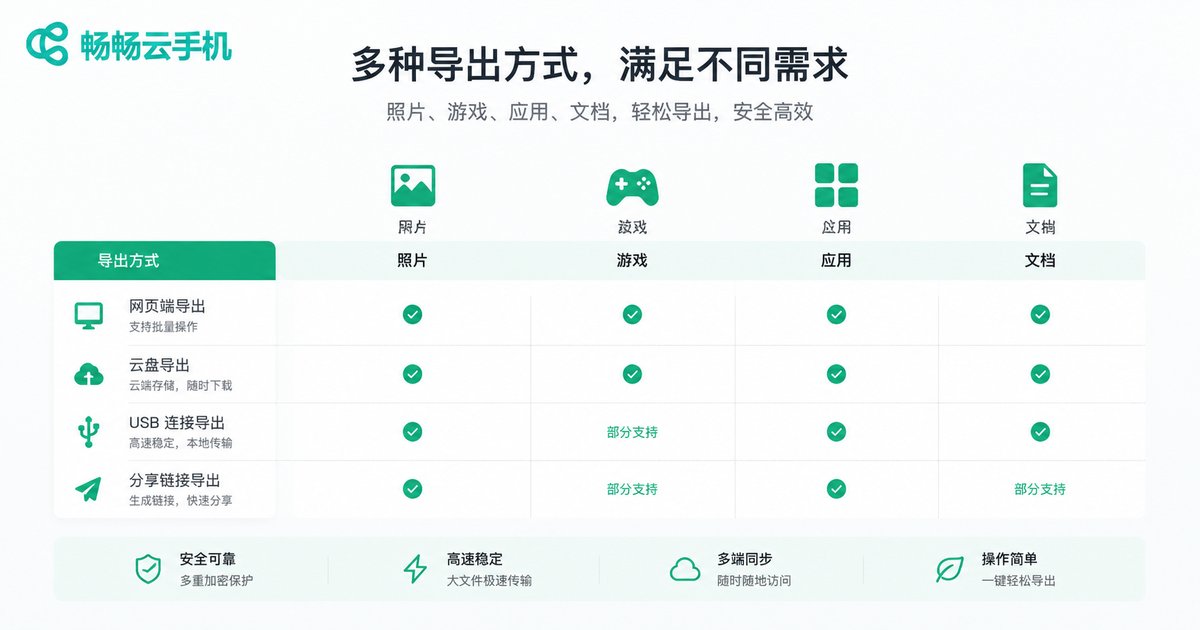
Data export is the critical step to ensure that files, photos, videos, and other important data stored in your cloud phone are not lost. Many users overlook this, resulting in inability to recover precious data after expiration.
Correct Methods for Data Export:
1. Use Cloud Storage Services: Upload important files to cloud storage services to ensure data safety.
2. Export App Data: Some apps support data export features, allowing you to export chat records, notes, and other important data.
3. Download to Local Device: Download photos, videos, and documents to your computer or phone's local storage.
| Data Type | Recommended Export Method | Notes |
|---|---|---|
| Photos & Videos | Download locally or upload to cloud | Check file integrity |
| Game Data | Bind account for cloud sync | Confirm cross-device support |
| App Data | Use in-app export feature | Some apps don't support export |
| Documents | Download to local storage | Organize by folders |
Third: Environment Migration — Seamless Switch to New Device
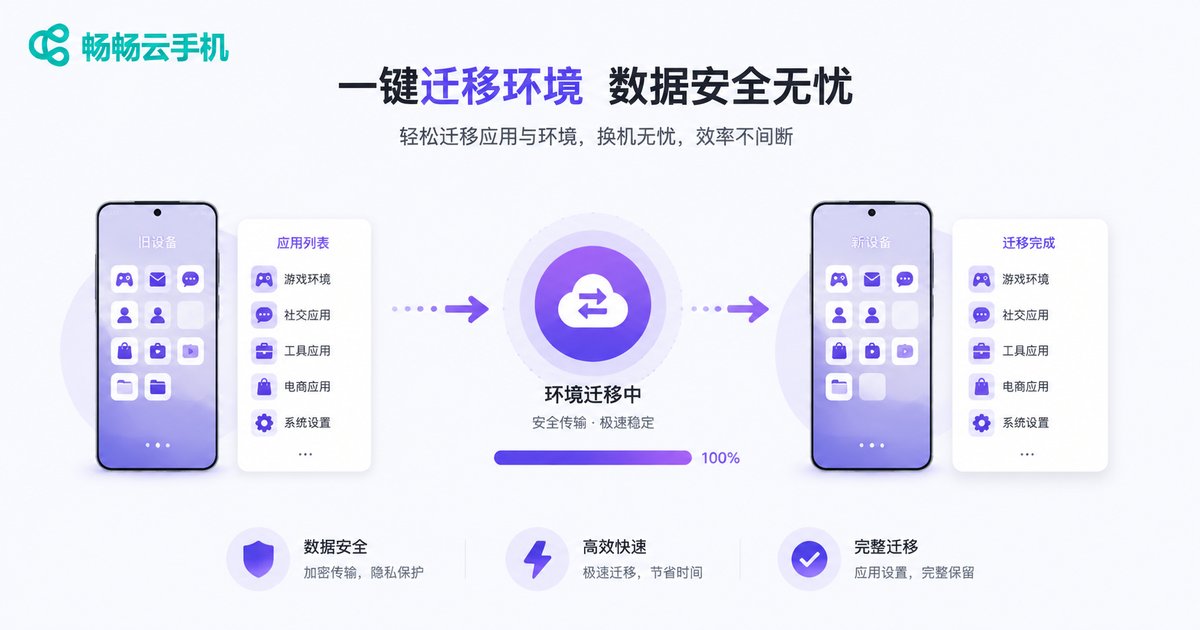
Environment migration is the most easily overlooked step before cloud phone expiration. If you plan to switch to a new cloud phone service, you need to ensure that app environments and system settings can be smoothly migrated to avoid the hassle of reconfiguration.
Key Points for Environment Migration:
1. Record App List: Screenshot or list all currently installed apps for easy reinstallation on new devices.
2. Backup System Settings: Record important system settings like wallpapers, ringtones, input methods, etc.
3. Choose Migration-Supported Service: Choose a professional cloud phone service like ccloudphone that supports environment migration to greatly simplify the process.
Why Choose ccloudphone?
After completing account backup, data export, and environment migration, choosing a reliable cloud phone service is crucial. ccloudphone provides professional data management tools with one-click backup and restore, making your data migration easier.
ccloudphone advantages:
- Stable & Reliable: Advanced cloud computing technology ensures stable service operation
- Data Security: Multi-layer encryption protection for user data privacy
- Easy Operation: Intuitive interface design, beginner-friendly
- Multi-Device Support: Access from phones, computers, and other devices
FAQ
Q: Will data be deleted immediately after cloud phone expiration?
A: Most cloud phone services have a grace period after expiration, but the specific time varies by provider. It's recommended to complete all data backup and export operations before expiration to avoid data loss.
Q: How can I tell if my account has been successfully backed up?
A: You can try logging into your account on a new device. If you can log in smoothly and see the original data, the backup is successful. Testing login on multiple devices is recommended.
Q: What data migration methods does ccloudphone support?
A: ccloudphone supports various data migration methods including account binding sync and file download export. For specific operations, refer to the official help documentation.
Q: How long does environment migration take?
A: Migration time depends on the number of installed apps and data volume. Generally, using ccloudphone's migration tools can complete the process in a relatively short time.
Q: What if I forgot to backup?
A: If your cloud phone has expired without backup, contact customer service immediately to inquire about data recovery possibilities. However, the best approach is to backup in advance to avoid regrets.


