
2026 Cloud Phone Configuration Guide for Education Labs: Classroom Demos and Hands-on Environments
Why Education Labs Are Moving Phones into the Cloud
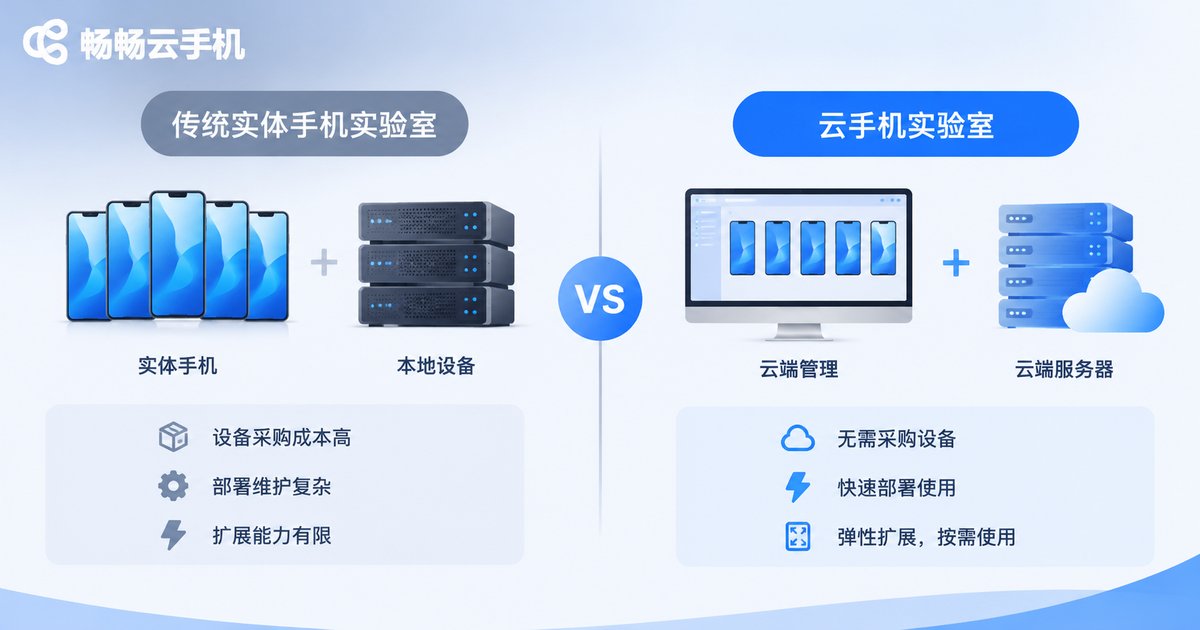
When teaching mobile app development, software testing or automation scripting, the hardest part is usually not the lesson itself but preparing the devices. A class of forty students needs dozens of physical phones: same model, same OS version. Students install ten apps and change a pile of settings in one session, and every device has to be restored afterwards. The hardware starts depreciating the day it arrives, and two or three years later it can no longer run newer apps, so another procurement round begins.
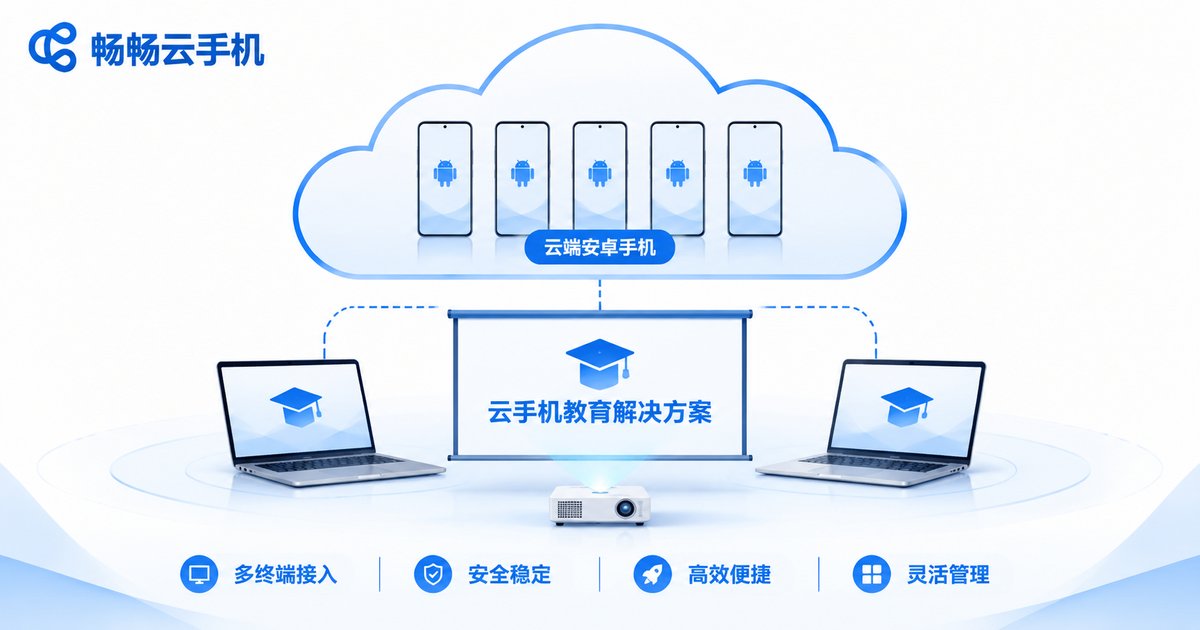
Cloud phones take a different approach: the Android system runs on cloud servers, and students open a browser or client to see a complete phone screen. They tap, swipe, install apps and check logs exactly as they would on a phone in their hand. Devices are no longer hardware sitting on a desk, but resources that can be allocated and reclaimed by class and by course. For schools with limited budgets and lab space, that elasticity is often more practical than a one-off purchase.
Classroom Demos: Dozens of Devices on a Single Screen
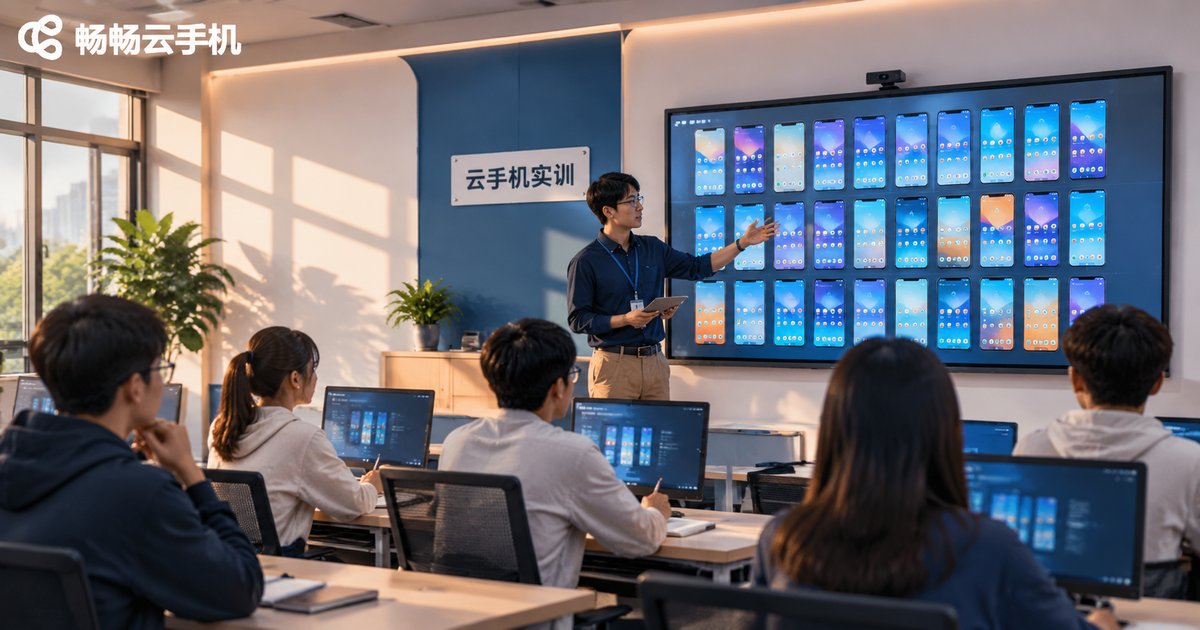
When teaching compatibility testing, batch installation or multi-account operations, what instructors want most is the effect of one action seen by the whole class. Cloud phones offer three practical advantages in the demo phase:
Many devices from one computer. The instructor console can arrange the instances of a group into a grid and operate them in sync. Wherever the lesson goes, students see the same thing, and the instructor no longer walks from desk to desk repeating the same demonstration.
Demos can be kept. Key operations in class can be recorded and sent to students who were absent, or kept as review material for the next session.
Mistakes are cheap. Delete an app or break a setting during a demo, and resetting the instance brings it back to its initial state. No reinstall, no disruption to the lesson.
Building the Lab Environment: Five Steps from Zero to Class-Ready
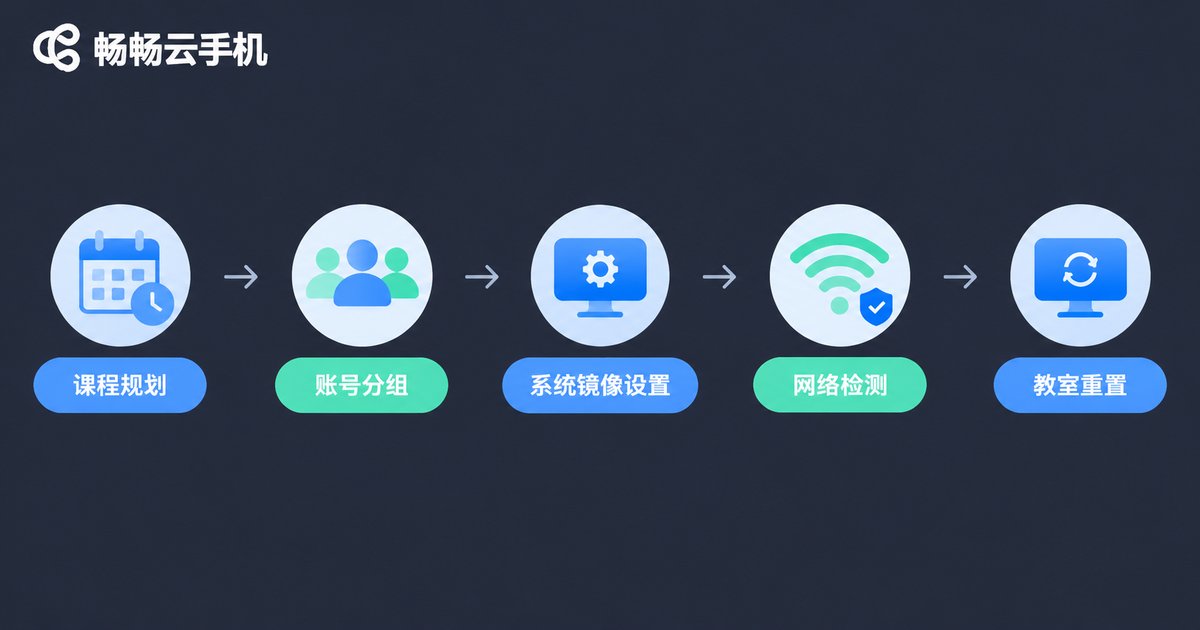
If this is your first cloud phone lab, work through the following steps in order:
Step 1: define the course load. Decide what the course actually does: build UI in code, run automation scripts, or experiment with multi-account operations. Different loads place very different demands on instance specifications, concurrency and online hours. Set the load first, then the quantity.
Step 2: plan accounts and groups. A three-tier permission model of instructor, teaching assistant and student works well. Use a consistent naming rule for groups, such as class plus group number, and later batch operations become much easier.
Step 3: unify the system image. Give the whole class the same Android version and the same set of preinstalled apps, so the interface the instructor describes matches what students see. Confirm the image before term starts and avoid changing it mid-semester.
Step 4: check the network and access method. Cloud phone screens are streamed in real time, so the campus egress bandwidth needs headroom. Run a load test in the actual classroom before term begins, and confirm browser versions and client installation permissions, so nothing breaks on the first day.
Step 5: design the class flow and reclaim mechanism. When instances start, when assignments are submitted and how everything is reset before class ends should be written into the course notes in advance. It saves far more time than handling it on the fly.
Configuration Guidance: Choose by Course Type
The table below offers directional guidance only. For specific instance specifications and features, refer to the official ccloudphone documentation.
| Course type | Main pressure point | What to focus on |
|---|---|---|
| Mobile app development, UI debugging | Startup speed, screenshots and screen recording | Instance stability, single-device responsiveness |
| Automation testing, script execution | Long online hours, batch control | Concurrency, batch operation capability, group management |
| Short video and live streaming labs | Graphics rendering and screen streaming | Image quality settings, network bandwidth headroom |
| Compatibility testing | Multiple versions running in parallel | Many instances online at once, version label management |
For concurrency, a simple rule of thumb is to provision for the actual number of students plus ten to twenty percent redundancy, to absorb device swaps and instance reinstalls. Start slightly smaller in the first term and scale up once the flow is smooth.
A Few Easily Overlooked Details
Naming conventions. Include class and student ID in instance names. When something goes wrong later, you can locate the person at a glance instead of digging through lists.
Permission tiers. Students should only operate their own instances. Deleting instances and changing images stay with instructors or administrators, so a single mistake never affects the whole class.
Separate materials from instances. Keep installation packages and test data in a fixed directory or snapshot. Students can then experiment freely without destroying the original material.
Release idle resources. Shut down after class and start on demand. It costs less than leaving every instance running, and it is easier to manage, with no forgotten instances idling away.
One Environment, Reusable for Years
Much of the value of cloud phones in a training lab comes from reusability: the same image serves one class this term and another class next term with a different grouping. Launching a new course means adjusting instance counts and preinstalled apps rather than repeating the whole procurement and acceptance process. Instructor time shifts from device maintenance back to teaching design.
ccloudphone provides Android instances that run in the cloud, accessible through a web browser or client, with batch management, device grouping and group control capabilities. That fits the shape of education labs well: many people, many devices, and a need for centralised management. For deployment, we recommend piloting one class first, locking down the image and grouping rules, and then expanding to the whole department once the flow is stable.
FAQ
Q: Our campus network is average. Can we still run cloud phone classes?
Cloud phone screens are streamed in real time, so they are sensitive to bandwidth and stability. Run a test in the actual classroom before term starts, and tell the network administrator the class size and the number of concurrent instances so bandwidth headroom can be reserved in advance.
Q: Do students need a desktop computer?
Not necessarily. Access through a browser is enough, so students can join from their own laptops or tablets, which suits blended online and offline teaching well.
Q: Does student activity leave data on local machines?
Instances run in the cloud, and the local device only handles display and input. Combined with permission tiers and a standard reset at the end of class, the next group of students always starts from a clean environment.
Q: How many instances do we need for a class of forty?
Provision for the number of students plus ten to twenty percent redundancy. If the class works in groups, plan additional instances per group size.
Q: What is the difference between a cloud phone and an Android emulator on a PC?
An emulator runs locally and consumes local performance, so a few instances slow the machine down. A cloud phone is a real Android environment running in the cloud, with the local device only handling display, which suits teaching scenarios that need dozens of devices online and centrally managed.
Q: How long does it take to set up the environment?
If images, accounts and groups are ready, most of the time goes into trial teaching and verification. We suggest completing the configuration a week ahead and leaving time for one full classroom rehearsal, so network and process issues are resolved before the real class.


