
Changed the Model but DPI and GPU String Didn't Follow! Cloud Phone Parameter Consistency Checklist
Why Does Your Cloud Phone Still Get Exposed After Changing the Model?
Many users change the device model to a popular flagship in their cloud phone and think the job is done, only to be exposed the moment an app runs a detection: the model shows a certain Snapdragon flagship, but the GPU renderer string is a Mali series; the resolution claims 2K while the DPI is still stuck at the default. This half-changed parameter combination is an obvious red flag for professional risk-control systems.
The logic behind parameter consistency is simple: on a real phone, the model, screen parameters, and GPU chip are bound together at the factory. If you only change the model name in a cloud phone without syncing the DPI, resolution, and GPU string, it is like changing the coat but not what is underneath. Apps can easily identify it as a simulated environment, which at best limits some functions and at worst gets your account flagged.
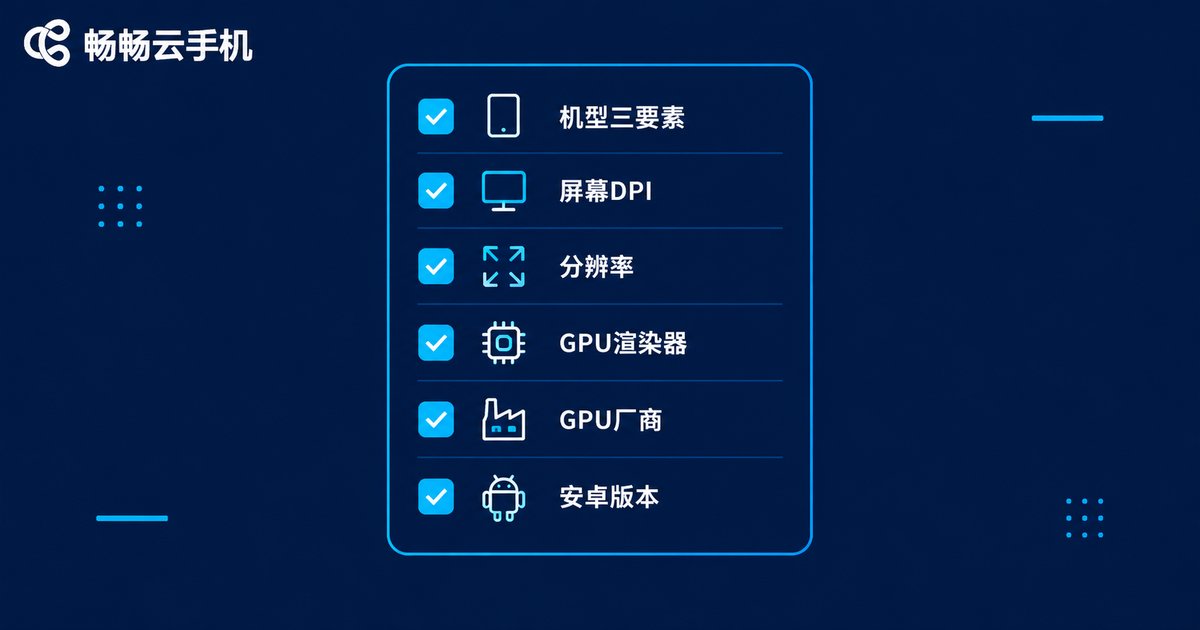
Parameter Consistency Checklist: Verify Every Item
Save this checklist and go through it every time you change the model:
| Item | How to Check | Common Mismatch |
|---|---|---|
| Model trio | Build.MODEL / BRAND / MANUFACTURER | Brand and model do not match |
| Screen DPI | wm density | Flagship paired with 240 low density |
| Resolution | wm size | Claims 2K but actually 1080P |
| GPU renderer | GPU detection tool | Snapdragon model showing Mali |
| GPU vendor | GPU detection tool | Vendor string mismatched with chipset |
| Android version | System info page | Old model with an overly new OS |
The two most commonly missed items are the DPI and GPU renderer string: many cloud phone model changes only cover the model name, and these two need separate confirmation.
Three-Step Self-Check: Verify Cloud Phone Parameters Fast
Step 1: Check the model info. Install a hardware detection tool such as DevCheck or AIDA64 in the cloud phone, and focus on whether the brand, model, and board info on the device and system pages match each other.
Step 2: Check the screen parameters. Compare the resolution and DPI against common combinations of real devices in the same tier. For example, a 1080×2400 screen usually has a DPI between 400 and 440; 160 or 240 is clearly too low.
Step 3: Check the GPU string. The GPU renderer must match the chipset of the model: Snapdragon pairs with Adreno, while Dimensity and Kirin pair with Mali. These two items are exactly the ones most often missed when changing models.
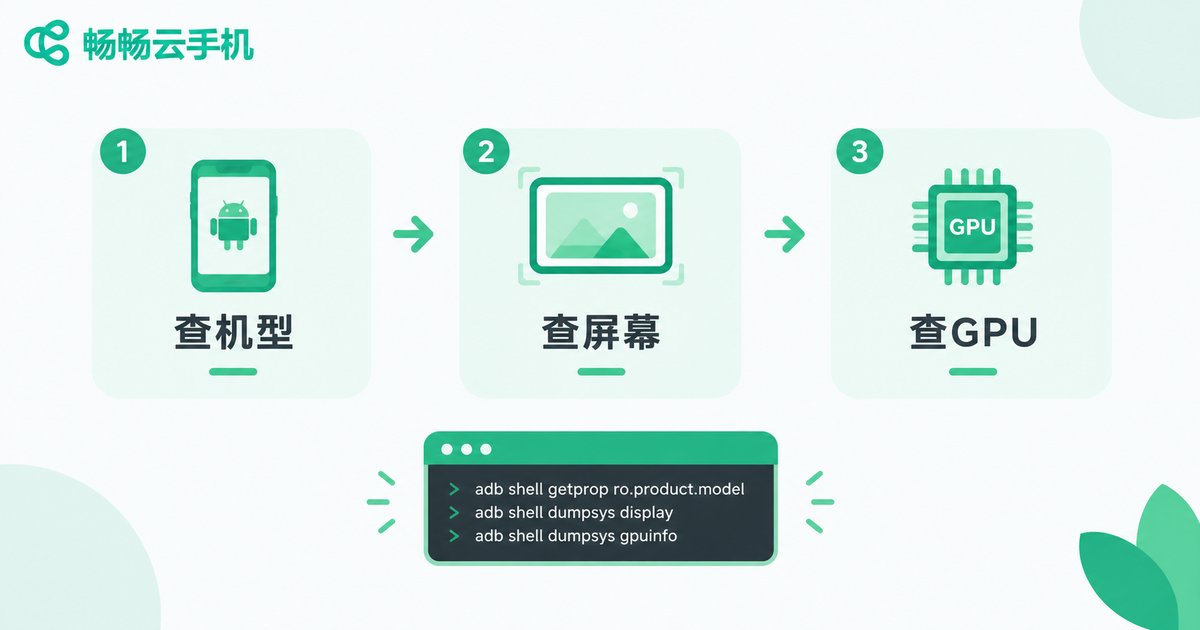
If you prefer the command line, you can also read the key properties directly via adb:
adb shell getprop ro.product.model
adb shell getprop ro.product.brand
adb shell wm size
adb shell wm density
How to Get It Right in One Go with ChangChang Cloud Phone
ChangChang Cloud Phone (ccloudphone) supports device model modification. After selecting the target model in the device settings, the system synchronously adjusts the corresponding screen parameters and hardware info strings, avoiding the half-way change where only the model name is updated while the DPI and GPU are left behind. Follow this order:
1. After changing the model, restart the cloud phone instance so all parameters take full effect;
2. Re-verify every item on the checklist with a detection tool;
3. Use the same model template for all devices in the same batch to avoid inconsistent parameters across a group in multi-instance scenarios.

Common Failure Cases and Fixes
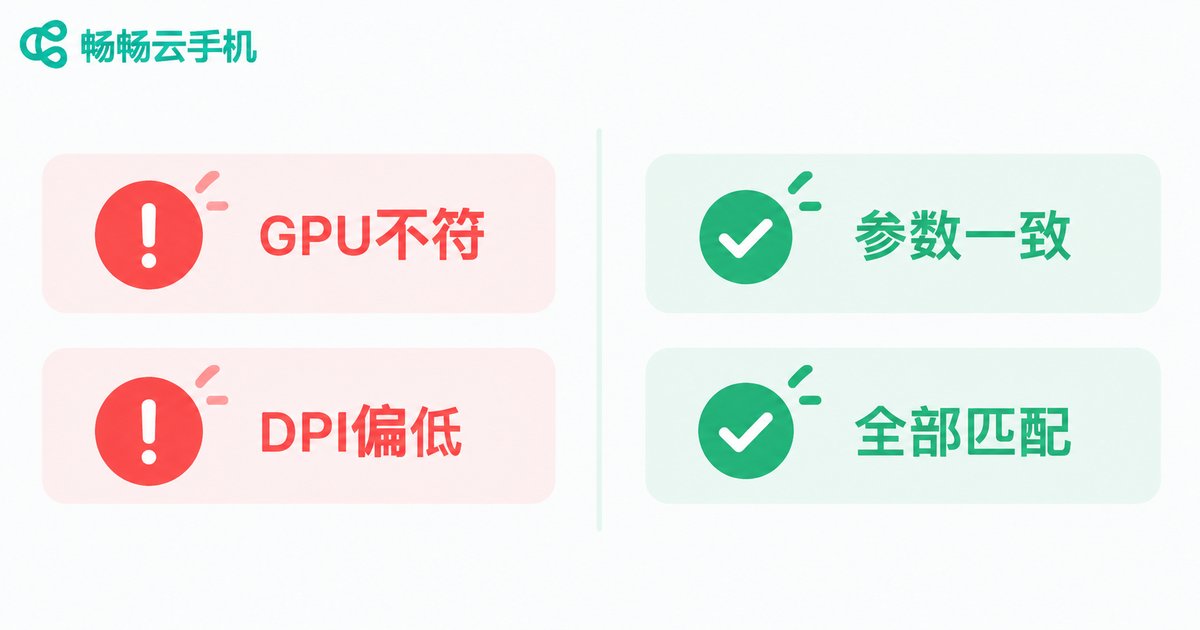
Case 1: Model changed to a Snapdragon flagship but the GPU string still shows Mali-G78. Fix: re-select a model matching the chipset, or update the GPU info in the model settings.
Case 2: Resolution changed to 2K but the DPI is still 320. Fix: adjust the DPI according to real-device ratios; 2K screens usually correspond to 480-560.
Case 3: Multiple instances with wildly different parameters. Fix: unify the model template, apply it in batch, then re-check each instance against the checklist.
FAQ
Q: Why can apps still detect the change after I modified the model?
In most cases only half the parameters were changed: the model name was updated, but the DPI, resolution, or GPU string did not follow, and risk-control systems spot the contradiction immediately. Verify each item with the checklist above.
Q: What DPI should I set?
There is no universal answer; it must match the resolution and model tier. 1080P screens usually use 400-440 and 2K screens 480-560. The key is staying close to the real parameters of the selected model.
Q: Where can I view the GPU string?
Use hardware detection tools such as DevCheck or AIDA64. The GPU info page shows the renderer and vendor strings, which you can check against the chipset of the selected model.
Q: Does ChangChang Cloud Phone automatically sync parameters after a model change?
ChangChang Cloud Phone synchronously adjusts the corresponding screen parameters and hardware info strings in the model settings. After changing, restart the instance and re-check key items such as DPI and the GPU string with a detection tool to confirm everything took effect.


