

Complete Guide to Downloading and Installing a Cloud Phone: Android and iOS Setup Steps
What Is a Cloud Phone and Why Install One
A cloud phone is essentially a second phone that runs in the cloud. Its system, apps and games live on servers in a data center, while the device in your hand only displays the picture and passes along your taps and swipes. That means even a three-year-old phone, an old tablet or a thin office laptop can run heavy games smoothly or keep several apps running at the same time.
To use the service, the first step is downloading and installing the cloud phone client. The whole process is fairly simple, and most users get from download to the cloud desktop in just a few minutes. Below we cover the Android and iOS paths separately and explain every step.
Three Things to Prepare Before Downloading
1. Have your account ready. A cloud phone is an account-based service, and the client is just the entry point. Register with your phone number in advance and note down your password so you do not get stuck at the login screen after installing.
2. Check your network. The cloud phone screen is streamed in real time, so network quality directly affects the experience. Use Wi-Fi or a stable 4G/5G connection, and avoid completing your first login in an elevator or an underground garage where the signal is weak.
3. Leave some storage space. The client itself is not large, but installation needs temporary space. Clearing a few unused cache files will make the install smoother.
Android Cloud Phone Download and Installation Steps
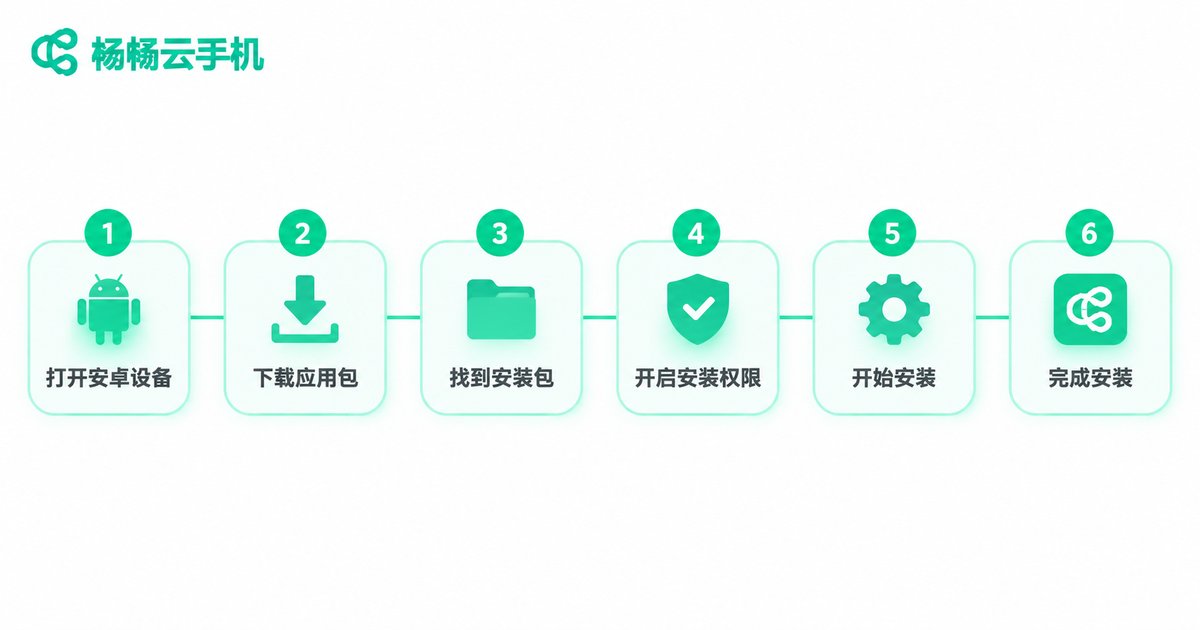
Step 1: Open the official channel. Visit the ccloudphone website in your mobile browser, or search for it in your usual app store. The official site is usually the best choice because it carries the latest version.
Step 2: Download the package. Tap the download button and wait for the installation file to be saved locally. If the browser warns that this type of file may be harmful, that is a standard Android reminder for packages from sources other than the app store. Continue once you have confirmed the source is trustworthy.
Step 3: Allow installation from unknown sources. When installing from a browser for the first time, the system jumps to a settings page. Find “Allow from this source”, turn on the switch, then return and continue the installation.
Step 4: Finish installing and open the app. Tap “Install” and wait for the progress bar to finish. The cloud phone icon then appears on your home screen. On first launch, grant the basic storage, network and notification permissions as prompted.
Step 5: Log in. Enter your registered phone number and verification code to reach the cloud phone management screen.
Step 6: Choose and start a cloud phone. Pick a device from the list, tap power on, and wait a few seconds for the cloud desktop to appear.
iOS Cloud Phone Download and Installation Steps
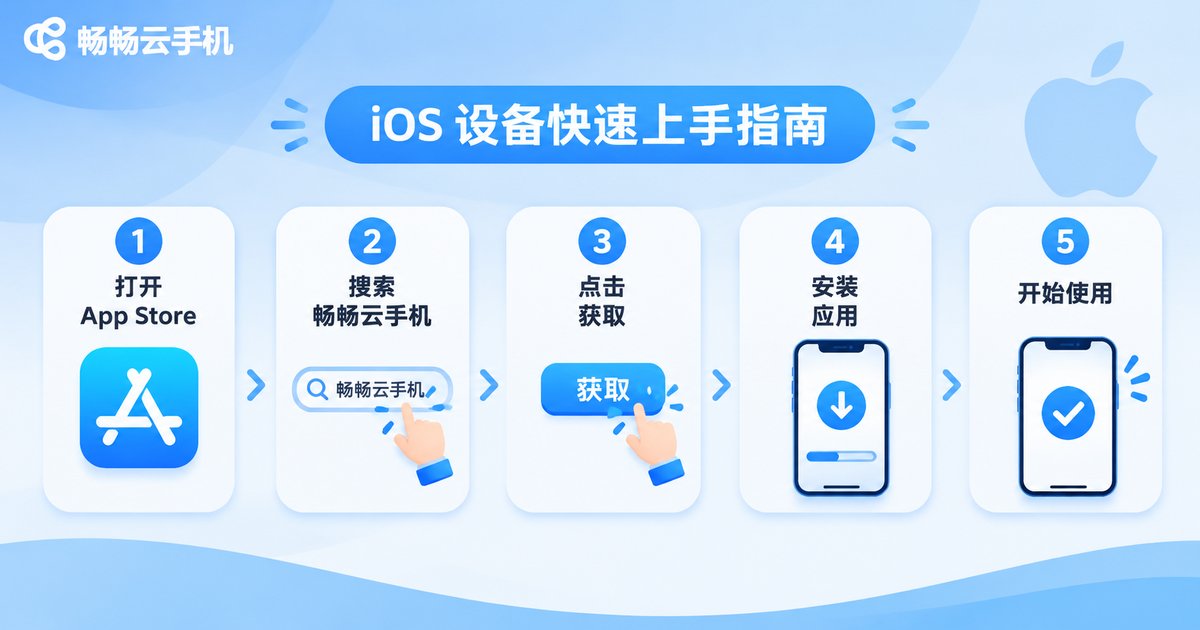
Step 1: Open the App Store. On your iPhone or iPad, go to the App Store, search for cloud phone keywords and find the ccloudphone client.
Step 2: Get and install. Tap “Get” and confirm with Face ID, Touch ID or your Apple ID password. The app downloads and installs to your home screen automatically.
Step 3: Allow network access. On first launch, iOS asks whether to allow wireless data and local network access. Choose “Allow”, otherwise the screen may fail to load.
Step 4: Log in and power on. Sign in with the same account, select your cloud phone device and tap power on to enter the cloud desktop.
Step 5: Turn on notifications if needed. If you want alerts when apps inside the cloud phone receive messages, enable notification permission in system settings.
Note that due to system restrictions, the iOS version cannot install external packages manually the way Android can, and all updates go through the App Store. This is a platform rule rather than a missing feature.
Android vs iOS: Operation Differences at a Glance
| Item | Android | iOS |
|---|---|---|
| Download channel | Official site or major app stores | App Store |
| Installation method | Direct package install or one-tap store install | One-tap App Store install |
| First-time permissions | Storage, network, notifications, install source | Network, notifications |
| Task switching | Floating window for quick switching | Mainly background switching |
| Background keep-alive | Can be set to stay resident | More limited by system rules |
| Version updates | Store update or manual update | Automatic App Store updates |
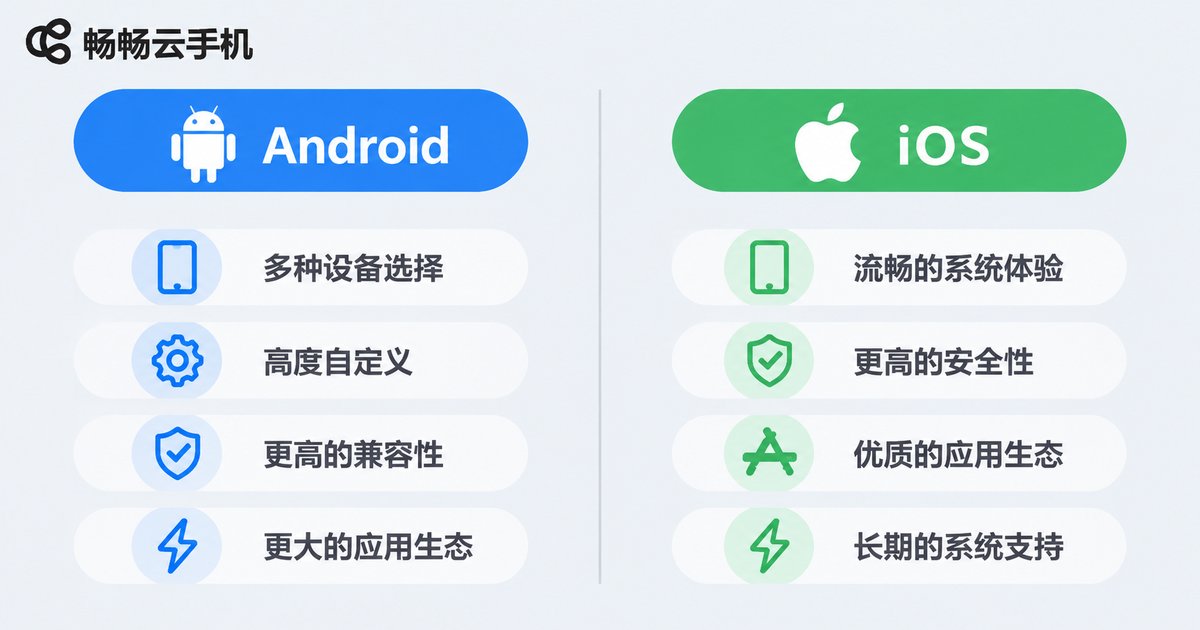
Overall, Android offers more freedom: you can install packages manually and enable a floating window. iOS is more hands-off, with updates managed by the system. Once you are inside the cloud desktop, the actual experience is basically the same.
What to Do First After Entering the Cloud Phone
Adjust resolution and frame rate. Open the settings panel and start with “Smooth” or “Balanced”, then raise it once you confirm the network is stable. Jumping straight to the highest quality often causes stutter.
Turn on adaptive bitrate. Most cloud phone clients offer an adaptive bitrate switch. When enabled, the client adjusts clarity based on current network speed, which noticeably reduces blurry frames and dropped frames.
Get familiar with the floating toolbar. The floating ball usually contains shortcuts such as back to desktop, screen rotation, volume and screenshots. A minute spent learning it makes everything else easier.
Install your usual apps. After entering the cloud phone, open the built-in app store and install everything you need in one go to avoid repeated switching.
Troubleshooting Common Issues After Installation
The app opens to a black screen. What should I do? First check that network permission was granted, then try switching to Wi-Fi. If the black screen persists, close the client in the background and reopen it; in most cases this resolves the issue.
It says the package cannot be parsed. This usually means the download was interrupted and the file is incomplete. Delete the old file and download it again from the official site.
The picture stutters or audio is out of sync. Set the quality to “Smooth” in settings and close other high-demand apps running at the same time. Streaming stability will improve noticeably.
I do not receive the verification code at login. Check that the phone number is correct and look in your spam folder in case a filter blocked the message. Wait a minute and try again.
Why Many Users Choose ccloudphone
ccloudphone turns cloud devices into something you can use the moment you open it: a lightweight client that lets you manage multiple cloud phones from a list once you log in, with 24-hour online operation so that shutting down your local device or losing your connection does not stop tasks running in the cloud. For users who need to run heavy apps on older hardware or manage several accounts at once, this approach saves a considerable amount of hardware spending.
The official site ccloudphone.com provides download entries for each platform along with help documentation, so you can look things up directly if you run into problems during installation, or reach out through the customer service channel.
Frequently Asked Questions
Q: Does downloading and installing the cloud phone client cost money?
The client itself can be downloaded and installed for free. Using cloud devices is billed according to the service plan you choose; refer to the official site for details.
Q: Does a cloud phone require a high-spec local device?
No. Because the computing happens in the cloud, your local device mainly decodes the picture, so mid-range and entry-level phones work fine.
Q: Are the Android and iOS versions functionally the same?
The core experience inside the cloud desktop is the same. Differences are mainly at the system level, such as installation method, permissions and task switching.
Q: Will installing a cloud phone take up a lot of storage?
No. The client is small, and apps and games are installed in the cloud, so it barely uses local space.
Q: How many cloud phones can I manage from one device?
The client supports multi-device management from a list. The exact number you can activate depends on the plan purchased for your account.
Q: If I switch to a new phone, will my cloud phone content still be there?
Yes. Cloud data is tied to your account, so logging in on a new device gives you the same environment.


