

Cloud Phone Docker Deployment: Environment Prep, Configuration Management, and Usage Notes
Why cloud phone Docker deployment is worth discussing
Running Android inside containers and operating it remotely through streaming and APIs has become common among small teams: a well-specced server can host a dozen Android instances for automated testing, multi-account operations, content monitoring and demo scenarios. Deploying cloud phones with Docker essentially means packaging Android instances as reproducible, rebuildable services instead of installing emulators by hand, one machine at a time.
That said, it is far from a two-command job. If environment, configuration and operations are not thought through, you end up with instances that fail to boot, freeze after two days, or expose ports that get scanned. Here is the whole process, in the order you would actually do it.
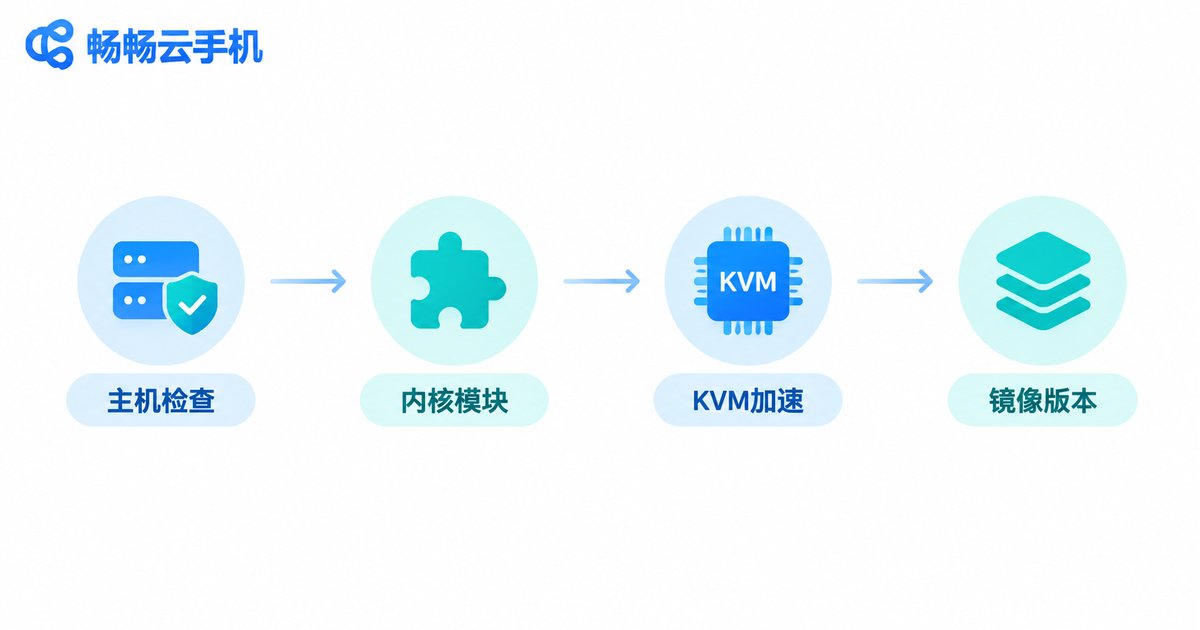
Environment preparation: is your host good enough?
Containerized Android demands much more from a host than a typical web service, because Android is a complete system that also expects phone-grade hardware interfaces. Check the table below before going live:
| Item | Minimum | Recommended | Notes |
|---|---|---|---|
| CPU | 8 cores | 16+ cores | 2–4 dedicated cores per instance |
| Memory | 16 GB | 32 GB+ | 2–4 GB per instance plus host overhead |
| Storage | 100 GB SSD | 500 GB NVMe | Images and instance data both consume space |
| Virtualization | KVM enabled | KVM enabled | Without acceleration it will lag badly |
| Architecture | ARM preferred | ARM servers | x86 needs instruction translation and loses compatibility |
On the kernel side, Android containers rely on modules such as binder and ashmem, which must be loaded on the host in advance. The container also needs access to /dev/kvm, otherwise the screen will crawl.
# 1. Check virtualization and the KVM device
lscpu | grep -i virtual
ls -l /dev/kvm

# 2. Load the kernel modules Android needs
sudo modprobe binder_linux
sudo modprobe ashmem_linux

# 3. Confirm the cgroup version (v2 is easier to live with)
mount | grep cgroup

# 4. Install Docker and add your user to the group
sudo apt install -y docker.io docker-compose-plugin
sudo usermod -aG docker $USER
One easily overlooked point: confirm that the Android image you plan to use has an ARM build. Many teams get containers running on x86 only to find low frame rates and apps that crash outright, and end up rebuilding the whole environment.
Configuration management: put parameters in files, not in your head
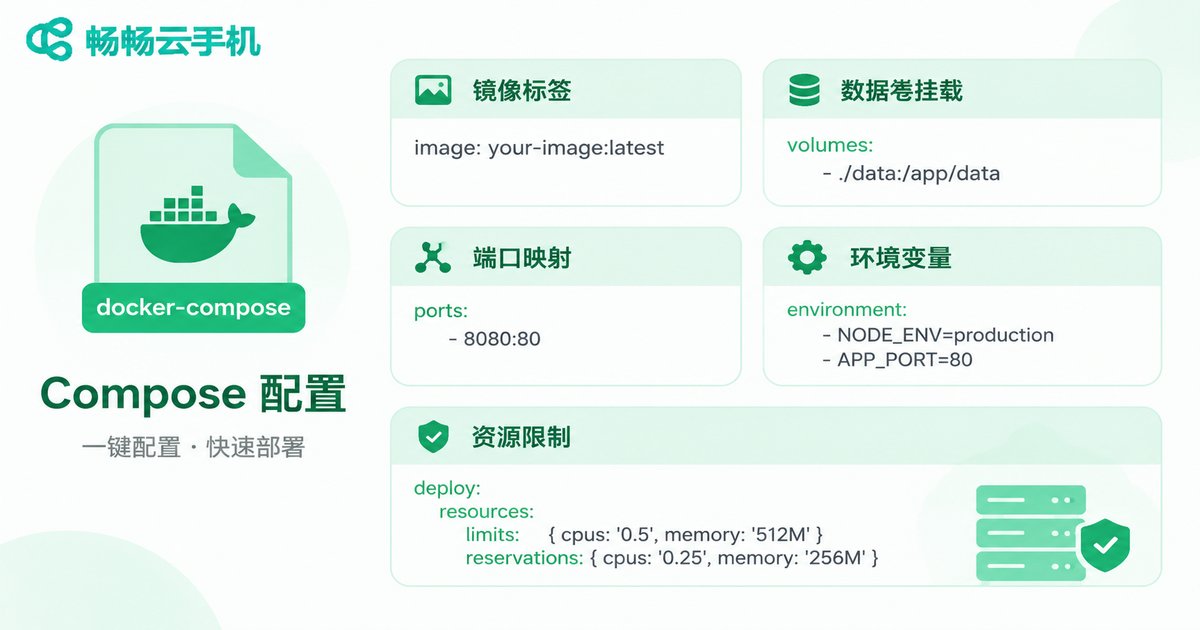
Once you have more than a couple of instances, launching from the command line becomes unmanageable: nobody remembers who changed a port, a resolution, or which instance runs an outdated image. Pinning configuration in a compose file is the least painful approach.
services:
  cloud-phone:
    image: your-registry/android-instance:1.2.0   # pin the version, avoid latest
    privileged: true
    restart: unless-stopped
    ports:
      - '127.0.0.1:5555:5555'   # bind to localhost only
    volumes:
      - ./instance-data:/data
      - ./logs:/var/log/android
    environment:
      - MEMORY_MB=4096
      - CPU_CORES=4
      - RESOLUTION=1080x1920
    deploy:
      resources:
        limits:
          memory: 5g
Four decisions matter in this template:
Pin the image tag. Using latest means behaviour can change after any restart, and debugging becomes expensive. Mount data volumes separately. Instance data and logs live on the host, so rebuilding the container is painless. Bind ports to localhost. An Android debug port exposed to the public internet is effectively handing over the device. Set hard resource limits. Cap container memory so one runaway instance cannot take down the whole machine.
It also helps to keep per-instance differences — resolution, device parameters, startup flags — in a single environment file, so a fleet of instances boots from one compose template and configuration changes happen in one place.
Usage notes: the five most common self-hosting pitfalls
1. Exposed ports. Android debug interfaces have no strong authentication; if scanned, someone else can control your device. Always bind to 127.0.0.1 and reach it through an internal network or jump host.
2. Memory oversubscription. Starting three more instances because “10 GB looks free” pushes the host into swap and slows everything down. Size for peak usage, not averages.
3. No snapshot strategy. Deleting a container wipes its data — the hardest lesson in self-hosting. Back up data volumes on a schedule and take manual snapshots at key milestones.
4. Identical device environments. Cloned instances share the same parameters, making them easy to group together on the application side and triggering functional limits. Vary device identity parameters instance by instance.
5. Logs that vanish. Container logs disappear with the container, leaving nothing to investigate. Always mount a log directory from the host.
When to skip self-hosting entirely
Self-hosted containerized Android suits two groups: technical teams with clear customization needs, and teams treating it as long-term infrastructure. If all you need is a batch of stable Android instances available on demand, the hidden costs will exceed expectations — kernel modules, ARM compatibility, device environment differences and round-the-clock stability each demand attention.
In that case, using CCloudPhone (ccloudphone) directly is far simpler: instances run in real Android environments in the cloud, are operated remotely through a browser or client, support multiple instances and batch management, and free you from hosts, kernel modules, port security and duplicate device environments. Spending effort on your actual business usually pays off more than maintaining a container platform.
FAQ
Q: Can cloud phone Docker deployment replace real-device compatibility testing?
It covers most functional verification, but results diverge from real handsets for sensors, cameras and radio-related capabilities. Re-check critical scenarios on real devices.
Q: How many instances can a 16-core, 32 GB server host?
With a conservative 4 cores and 4 GB per instance, running 3–4 stably is realistic. Higher density requires squeezing per-instance resources and accepting a worse experience.
Q: Will data inside the container be lost?
Not if the data directory is mounted from the host and backed up regularly. Data written inside the container disappears with it.
Q: Why are self-hosted instances always slower than commercial cloud phones?
Usually missing hardware acceleration, an x86 host that needs instruction translation, or oversubscribed memory. Cloud phone providers typically run on real ARM servers with optimized screen streaming.
Q: Should I self-host or use CCloudPhone?
Choose self-hosting if you need deep low-level customization and have dedicated operations staff; choose a managed option like CCloudPhone if you want stable Android instances and fast time to market.


