

How to Back Up Cloud Phone Data: A Complete Local-to-Cloud Migration Guide
Why Backing Up Cloud Phone Data Matters
One of the first questions new cloud phone users ask is: where does my data actually live, and will I lose it when I switch devices? While a cloud phone runs its system and apps on remote servers, the content you generate — chat histories, game progress, login sessions, and downloaded files — still needs a proper backup strategy. This guide walks you through a complete migration from your local phone to the cloud, plus the daily habits that keep your data safe long-term.
Step 1: Know Exactly What Needs Backing Up
Before touching anything, make a checklist. Data on a cloud phone generally falls into five categories:
| Data Type | Examples | Priority |
|---|---|---|
| Chat history | Messages and files from messaging apps | Critical |
| Game data | Saves, account binding, purchase records | Critical |
| App data | Login states, settings, caches | High |
| Media files | Photos, videos, downloaded documents | Medium |
| Account info | Passwords, verification methods | Critical |
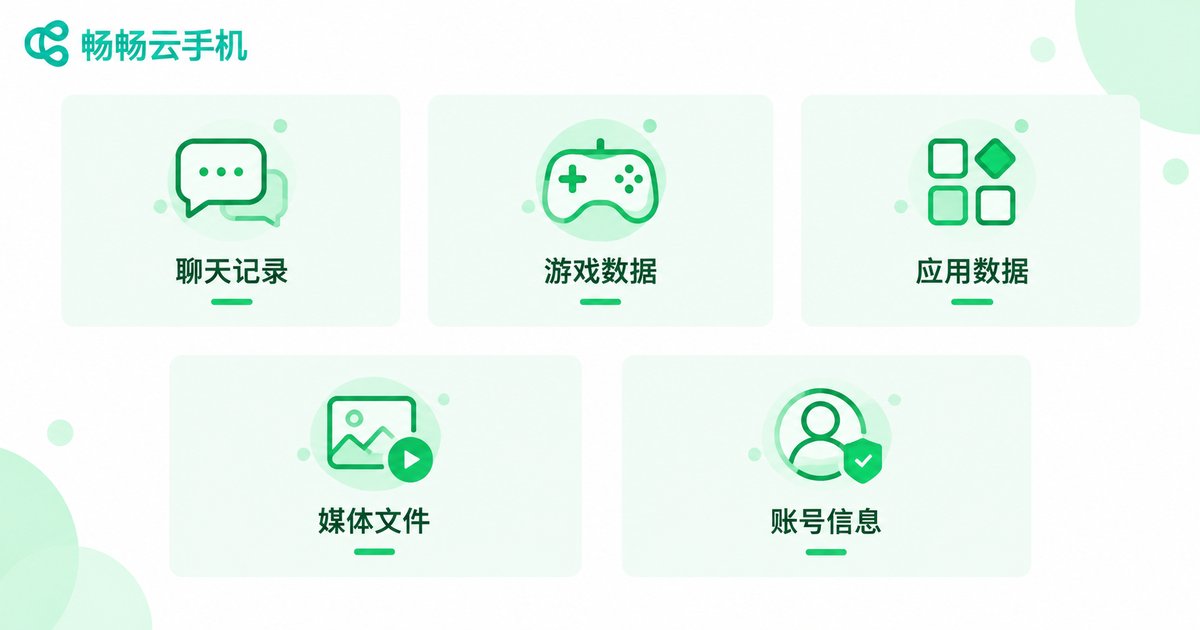
Tip: each type travels differently — chats move through in-app migration tools, game data relies on account binding, and media files can simply be packaged and transferred.
Step 2: Prepare Before You Migrate
Five minutes of preparation prevents 90% of migration headaches:
1. Verify every account: write down the passwords for all apps in your cloud phone and confirm your phone number and email can still receive verification codes.
2. Secure a stable network: use reliable Wi-Fi for large transfers so nothing is corrupted mid-way.
3. Clean out the junk: delete unneeded caches and files first — less data means faster migration.
4. Free up local storage: your physical phone acts as the transit station, so make sure it has enough room.
Method 1: Use Built-in Cloud Sync (Recommended)
Most critical data can be backed up by the apps themselves:
Messaging apps: WeChat, for example, offers 'Chat History Migration & Backup' under Me → Settings → Chats. Set your cloud phone as the target device, scan the QR code, and the transfer completes over the same network. Most chat apps provide similar roaming or export features.
Games: bind your game account to a phone number, email, or third-party login. Sign in on any new device and your progress syncs automatically — this is the safest backup for game data.
Cloud drives: upload photos, videos, and documents to a cloud storage service, then log in with the same account on your cloud phone to download everything.
The upside is simplicity and reliability; the limitation is that it only covers data each app explicitly supports.
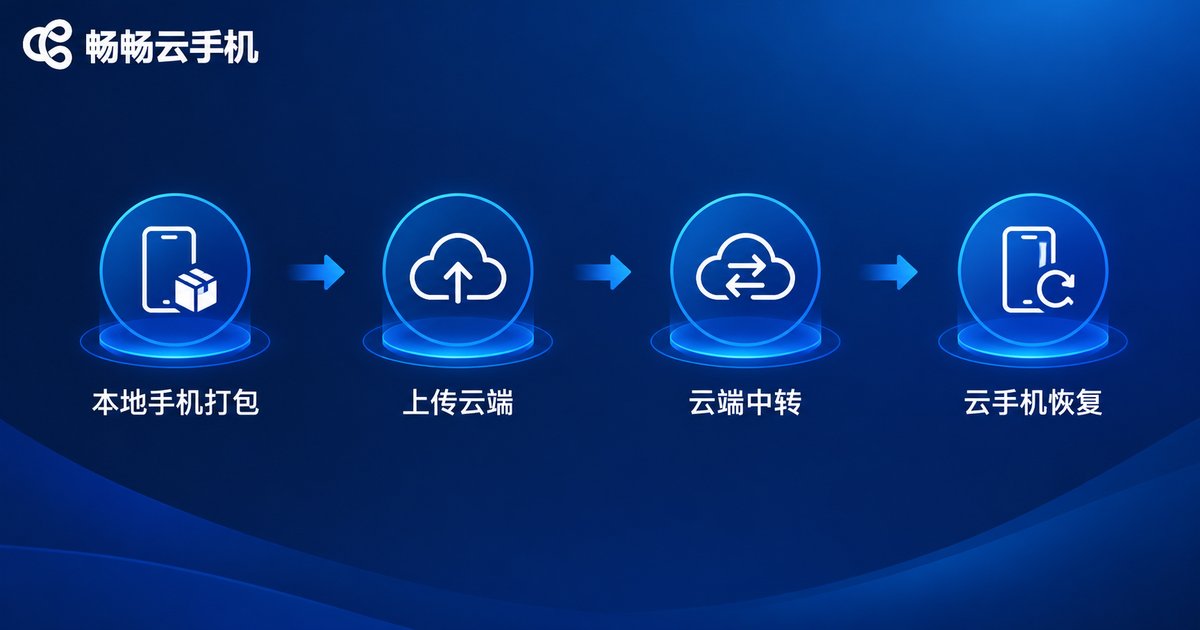
Method 2: Package Locally, Upload Manually
For files that apps will not sync, use the local transit approach:
1. On your physical phone, gather everything you want to move — photos, videos, APK installers, documents — into one folder;
2. Upload the folder to a cloud drive or file-transfer service;
3. Log into the same drive from your cloud phone and download the files into its storage;
4. Install apps by opening the APK inside the cloud phone, then sign in.
Think of it as moving house: pack the boxes, ship them, then unpack in the new place.
Method 3: Migrating Between Cloud Phones
Switching to a new cloud phone instance or upgrading your setup? Follow this sequence:
1. On the old cloud phone: export chat history to your local device or a cloud drive, and confirm game accounts are bound;
2. On the new cloud phone: install the same app versions and sign in with the same accounts;
3. Use the device-to-device migration feature to pull chat history through your local phone;
4. Verify logins and files one by one.
Pro tip: keep app versions identical on both ends — large version gaps often cause compatibility issues.
Post-Migration Checklist
Do not wipe the old device yet. Run through this list first:
✅ Chat history: open a few old conversations and confirm images and files load;
✅ Game progress: check that levels, items, and purchase records match;
✅ Login states: revisit each app to see whether re-verification is needed;
✅ File integrity: compare file counts and sizes against the original.
Only after everything checks out should you clean up the old device — keep that safety net until the very last moment.
Make Backup a Habit: Three Daily Practices
1. Dual-bind important accounts: link both a phone number and an email so you always have a recovery path;
2. Sync key data weekly: push new chats and files to cloud storage on a regular schedule;
3. Back up before big changes: always run a full backup before reinstalling apps or switching cloud phone instances.
Why We Recommend ChangChang Cloud Phone
If you are still choosing a provider, consider ChangChang Cloud Phone (ccloudphone). It delivers a stable cloud Android environment with smooth multi-instance app running and reliable background tasks, and because your data lives on cloud servers, switching devices is as simple as signing in again. Combined with the backup methods in this guide, managing your data becomes effortless — ideal for multi-account gaming, app automation, and everyday account operations.

FAQ
Q: Does a cloud phone back up my data automatically?
The system and apps live on cloud servers, but in-app chat histories and game progress should still be backed up proactively. Binding your accounts and enabling cloud sync is the most reliable approach.
Q: Will my chat history be lost when migrating to a cloud phone?
No, as long as you use the official 'Chat History Migration & Backup' feature step by step and spot-check old conversations afterward. Keep the network stable and do not interrupt the transfer.
Q: Will my game progress reset on a cloud phone?
No. As long as your game account is bound to a phone number or email, signing in on the new device syncs your progress automatically. Always confirm the binding before switching.
Q: What if the internet drops during migration?
Stay calm — reconnect and restart the transfer. Most migration tools resume from where they stopped. Delete incomplete files first to avoid duplicates.
Q: Can multiple cloud phones share one set of data?
Yes — use a cloud drive as a hub or in-app migration between devices. However, manage app login sessions separately on each device to avoid constant account conflicts.


