
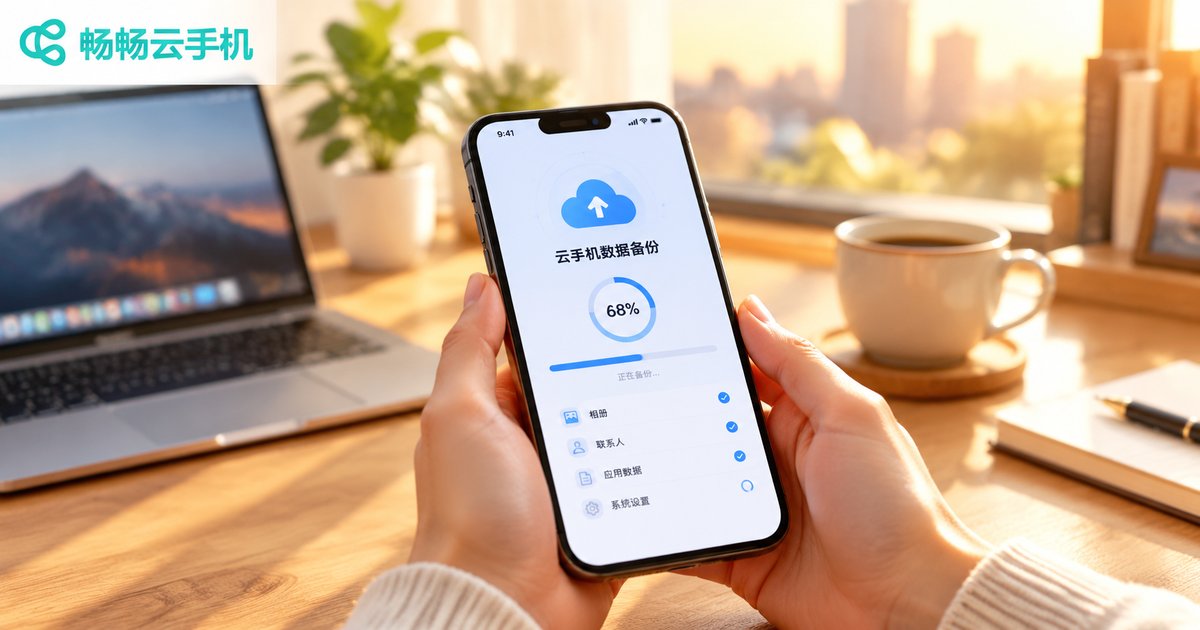
How to Back Up Cloud Phone Data: Saving and Exporting Methods
Why Does Cloud Phone Data Need Backing Up?
Many people assume that because cloud phone data lives on remote servers, it is automatically safe and needs no backup. That is not quite true. A cloud phone is essentially an Android device running on a remote server. Your photos, chat records, game accounts, and app data are stored in the cloud, but device migrations, plan expirations, accidental deletions, or device resets can still wipe them out. Building a regular backup habit is the only way to stay truly worry-free.
First, Know Which Data Needs Backing Up
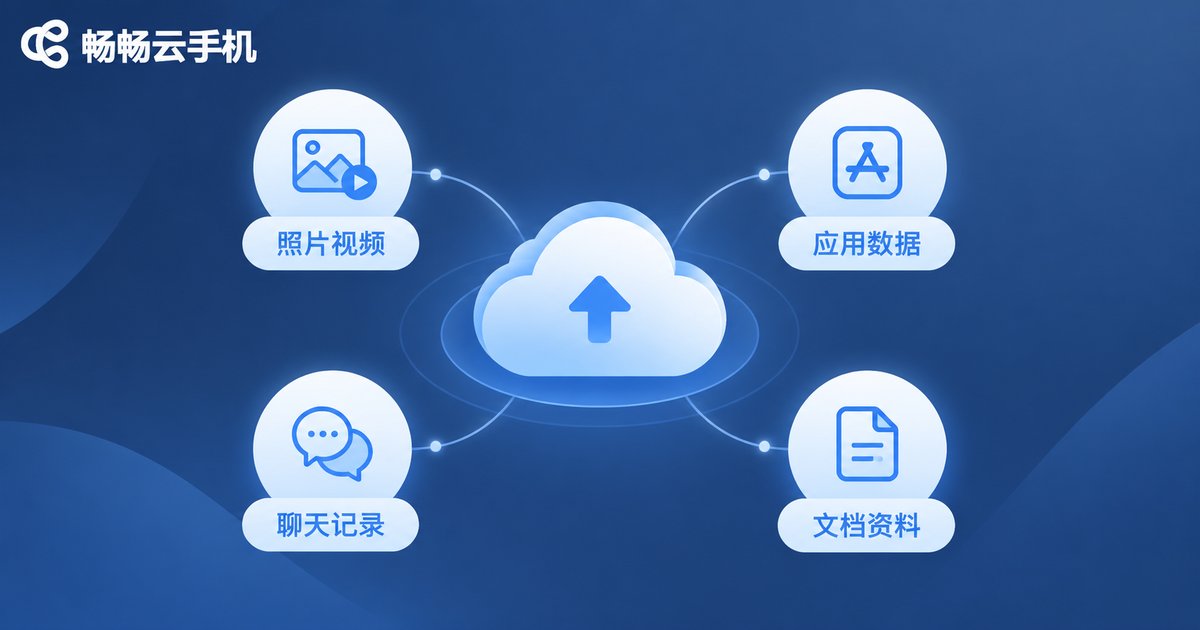
Before you start, take stock of what is worth saving in your cloud phone. It usually falls into these categories:
- Photos and videos: screenshots, screen recordings, downloaded media;
- App data: game progress, login states, in-app settings;
- Chat and contact records: messaging history, contacts;
- Documents and installers: downloaded files, APK packages.
Different data types call for different backup methods, which we cover one by one below.
Method 1: Use Built-in Snapshots and Full-Device Backup
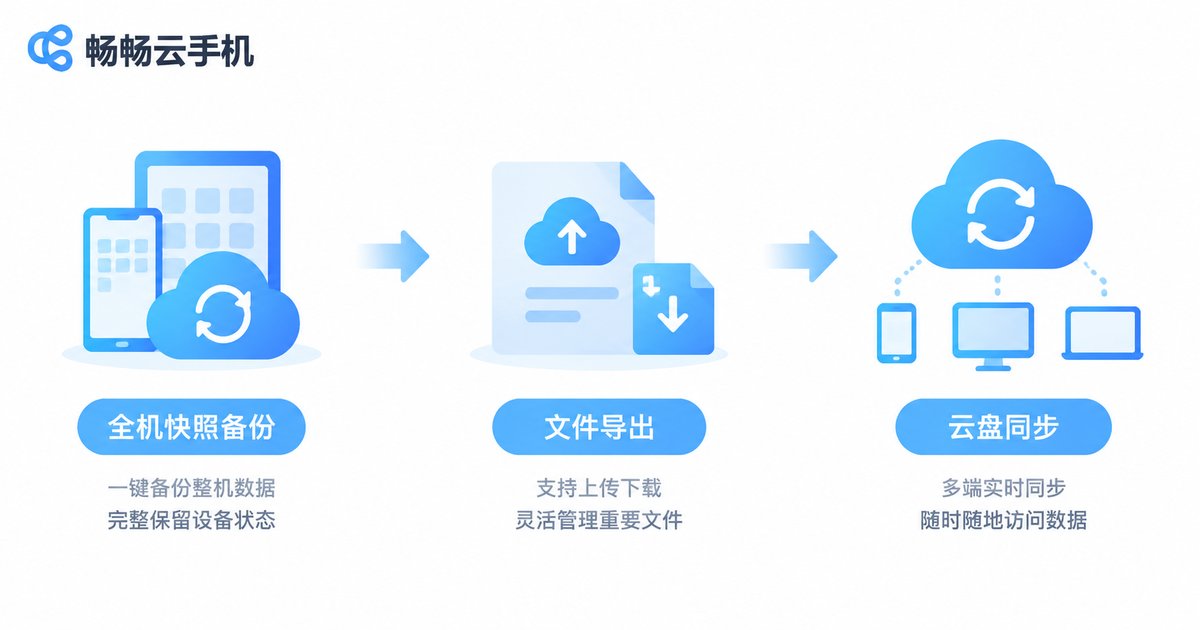
This is the easiest approach. ccloudphone, for example, provides full-device data preservation: when you need to switch devices, adjust configurations, or pause usage, you can back up your current cloud phone first, saving the entire system environment along with all app data. Restoring later returns the device to the exact state at backup time—game progress and login states intact.
Best practices:
- Create a backup before major operations such as resets or device changes;
- Gamers should back up weekly to protect progress;
- Name backups with dates so they are easy to find later.
Method 2: Export Files via Upload and Download
If you only need to save specific files—photos, videos, documents—use the cloud phone's file transfer feature. In ccloudphone, you can use the file management entry in the console to download files from the cloud phone to your local computer or phone, and upload local files to the cloud phone. This works well for:
- Exporting screenshots and screen recordings from the cloud phone;
- Backing up important documents and spreadsheets;
- Transferring installers between local and cloud devices.
Method 3: Sync with Cloud Drives
You can also install a cloud drive app inside the cloud phone and sync important files to your personal account. Even if something happens to the cloud phone, your drive keeps a copy. Common approaches include:
- Logging into a cloud drive app on the cloud phone and enabling auto-sync;
- Uploading photos and videos to the drive regularly;
- Saving critical documents to the drive as a second layer of protection.
Comparing the Three Backup Methods
| Method | Best For | Pros | Notes |
|---|---|---|---|
| Snapshot / full backup | Saving everything before migration or reset | One-click, complete restore | Uses cloud storage space |
| File upload/download | Exporting scattered photos and documents | Flexible, on-demand | Manual operation |
| Cloud drive sync | Long-term storage of key files | Independent of the cloud phone | Depends on drive account |
Three Habits That Make Backups Effortless
Back up regularly: Add backups to your weekly routine, with extra ones before major events such as big game updates.
Keep multiple copies: Store critical files in at least two places—one in the cloud, one locally or on a drive.
Use clear naming: Name backups with 'date + content' so restores are straightforward.
FAQ
Q: Isn't cloud phone data already in the cloud? Why back it up?
Although the data sits on servers, device changes, resets, or accidental app deletions can still cause loss. Regular backups are the safest approach.
Q: Does ccloudphone support full-device backup?
Yes. You can back up your cloud phone from the console, saving the system environment and app data together, and restore it whenever needed.
Q: Do backups take up my phone's local storage?
Full-device backups are stored in the cloud and do not use local space. Only files you download to your device occupy local storage.
Q: How do I export photos from my cloud phone to my computer?
Use the file management feature in the console to select and download photos, or log into a cloud drive app on the cloud phone and download from your computer.
Q: After backing up, can I restore data on a new cloud phone?
Yes. Back up on the original device first, then restore on the new one—apps, accounts, and data will return to the state at backup time.


