

Does Using a Cloud Phone for Downloads and Videos Eat Your Mobile Data? How Data Attribution Works
More and more people use cloud phones to download movies and cache videos in the background, but one question troubles many newcomers: do these operations consume the data in your own SIM plan? This article explains, in plain language, exactly how data attribution works on a cloud phone.
Quick Answer: Downloads Don't Touch Your Data — Watching the Screen Does
First-time cloud phone users often ask: when you download a movie or binge videos inside a cloud phone, whose data is being used? The answer: downloads and playback happen inside a remote data center and run on the cloud phone's network; what your screen shows is a live stream of the cloud phone's display sent back in real time — and only that stream consumes your own data.
In other words, when you tap download on a 2GB movie inside your cloud phone, those 2GB travel over the server's network, not your SIM card. Your local data only starts flowing when you open the cloud phone screen and watch, because at that point your phone is receiving a continuous video feed.
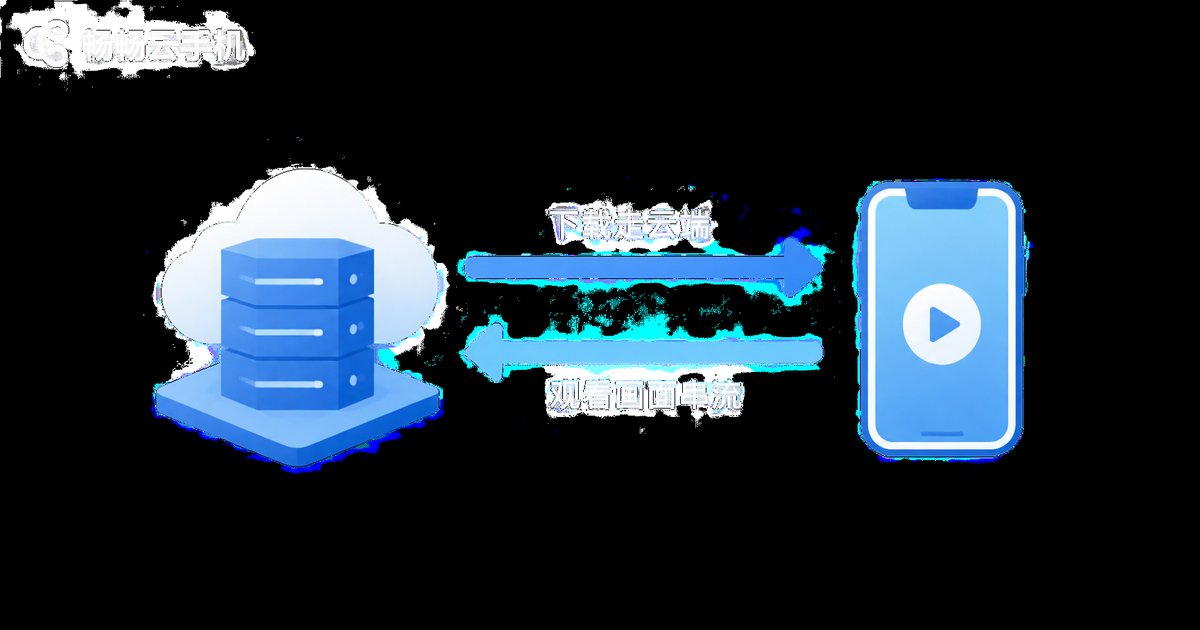
How Data Attribution Actually Works
To understand where your data goes, you need to separate two channels:
Channel one: the cloud side. A cloud phone is not an app installed on your device — it is a virtual Android phone running in a data center. Opening a video app, tapping download, playing a file: all of it happens on the cloud server, and downloaded files are stored in cloud storage. This traffic rides on the data center's bandwidth and is covered by the cloud phone provider.
Channel two: the streaming side. Your local app does only one job — live-streaming the cloud phone's screen to you while sending your taps back to the cloud. This channel carries a compressed video feed, and this is what draws from your own data plan. Consumption depends on streaming quality and duration, not on what you download or watch inside the cloud phone.
Think of it like hosting a computer in a data center and controlling it remotely: its downloads use the data center's network, while watching its screen remotely uses your home broadband.
What Uses Your Data — and What Doesn't
| Scenario | Uses local data? | Notes |
|---|---|---|
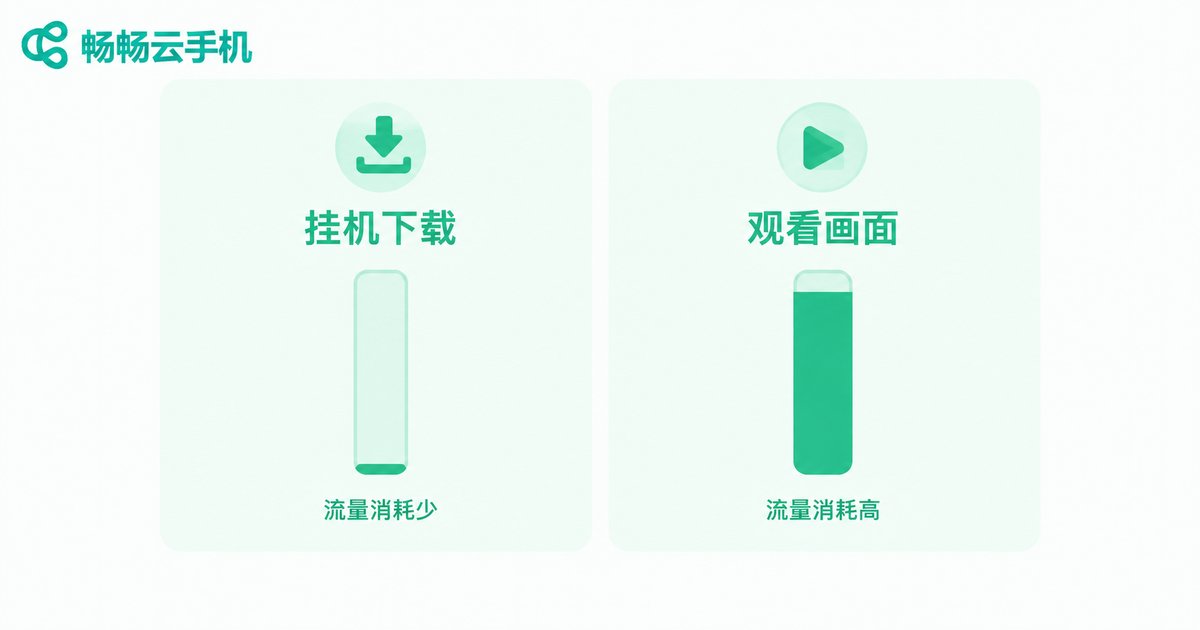
| Background downloads inside the cloud phone | Almost none | Downloads finish in the cloud; only tiny keep-alive data locally |
| Caching tasks with the local app closed | Nearly zero | The cloud side keeps running even when you disconnect |
| Watching the cloud phone's screen | Yes | Like watching one video stream; higher quality means more data |
| Transferring files back to your phone | Yes | Files travel from cloud to local; use WiFi for large files |
As you can see, background downloading is the most data-friendly way to use a cloud phone: let the cloud do the heavy lifting with near-zero local consumption, then connect and watch when you're ready.
How Much Data Does an Hour of Cloud Phone Video Use?
Local consumption depends mainly on streaming quality. Here are rough reference ranges (actual usage varies by platform and settings):
| Streaming quality | Approximate data usage |
|---|---|
| Smooth / SD | About 200–400MB per hour |
| HD 720P | About 500MB–1GB per hour |
| FHD 1080P | About 1–2GB per hour |
If you only run background downloads without watching the screen, local data usage is negligible. That's why many users run tasks during the day and watch over WiFi in the evening.
Practical Tips to Save Data
1. Lower the streaming quality when possible. Choose SD or smooth mode in the app's streaming settings to cut consumption noticeably, especially when browsing text-heavy pages.
2. Leave background tasks to the cloud. Run downloads, updates, and caching inside the cloud phone, then close or background the local app — local data usage stays near zero.
3. Use WiFi for long viewing sessions. HD streaming bitrates add up quickly, so WiFi is the safest choice.
4. Time your file transfers. When moving videos from the cloud phone back to your local device, do it over WiFi.
A Reliable Pick: ChangChang Cloud Phone (ccloudphone)
If you regularly run background downloads or multi-app tasks, a stable cloud phone matters. ChangChang Cloud Phone (ccloudphone) provides cloud-based Android phones where apps keep running in the cloud — background downloads and offline caching execute reliably while your local phone handles only lightweight screen streaming. Visit the official website at ccloudphone.com to learn more.
FAQ
Q: If I download a 2GB movie inside a cloud phone, does my local plan lose 2GB?
No. The download happens in the data center over the cloud phone's network; locally, you only consume streaming data while watching the screen.
Q: Do I need to keep the local app open during background downloads?
No. The cloud phone keeps running in the data center. Downloads continue even if you close the local app — just reconnect to check progress.
Q: Which uses more data: watching video on a cloud phone or directly on my phone?
Watching directly consumes the video's own bitrate; watching through a cloud phone consumes the screen-streaming bitrate — similar in scale. But a cloud phone lets you separate downloading from watching, which makes background downloading more flexible overall.
Q: Can I transfer videos from the cloud phone to my local phone?
Yes, but the transfer consumes local data, so move large files over WiFi.
Q: How is the cloud side's data handled with ChangChang Cloud Phone?
The cloud phone's operating network is part of the service, so you don't need to worry about cloud-side downloads separately; locally you only use screen streaming while watching. See the official website for details.


