
How to Configure Cron Expressions for Cloud Phone Scheduled Tasks: An Automation Solution for Time-Based App Operations
Why Cloud Phones Need Scheduled Tasks
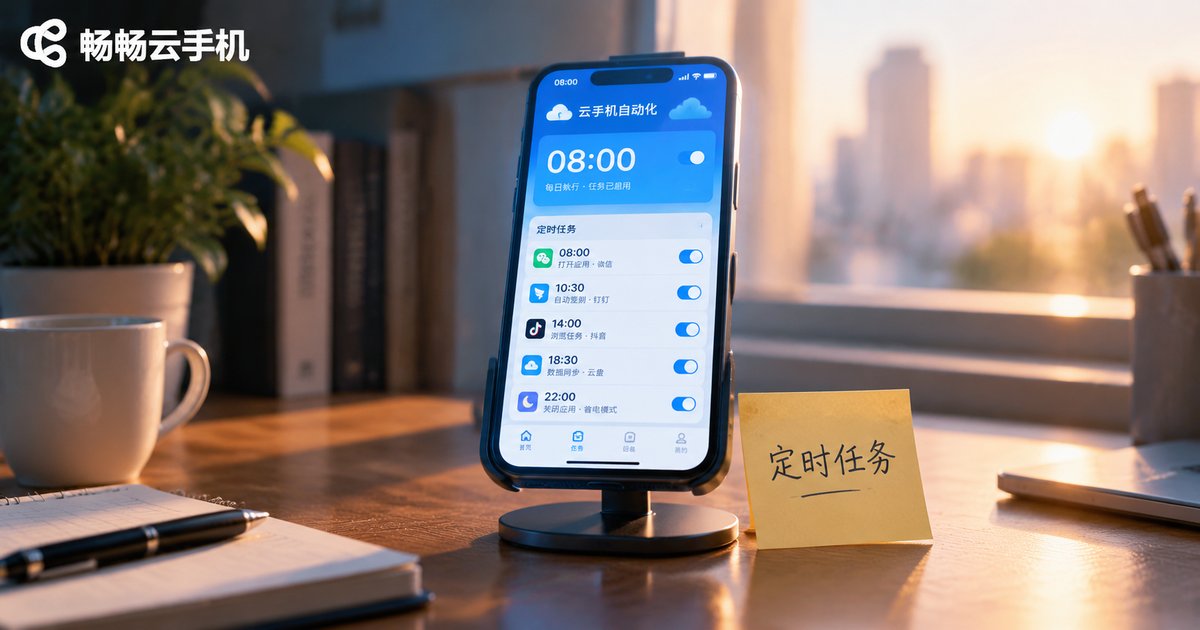
Daily game check-ins, keeping a live session warm, updating your store on time... these chores are repetitive, easy to forget, and impossible to skip. Cloud phone scheduled tasks exist precisely for this: you define once what should happen and when, and the cloud phone executes it automatically in the cloud — whether you are asleep, at work, or with your computer powered off.
To make time-based execution truly precise, you cannot avoid one key concept: the Cron expression. It is the time instruction sheet of a scheduled task. Written correctly, the task fires on the dot; written wrong, it either never runs or runs at the wrong moment. This guide explains Cron expressions from scratch and provides a ready-to-use setup on ccloudphone.
Understand Cron Expressions in 3 Minutes: The 5 Fields
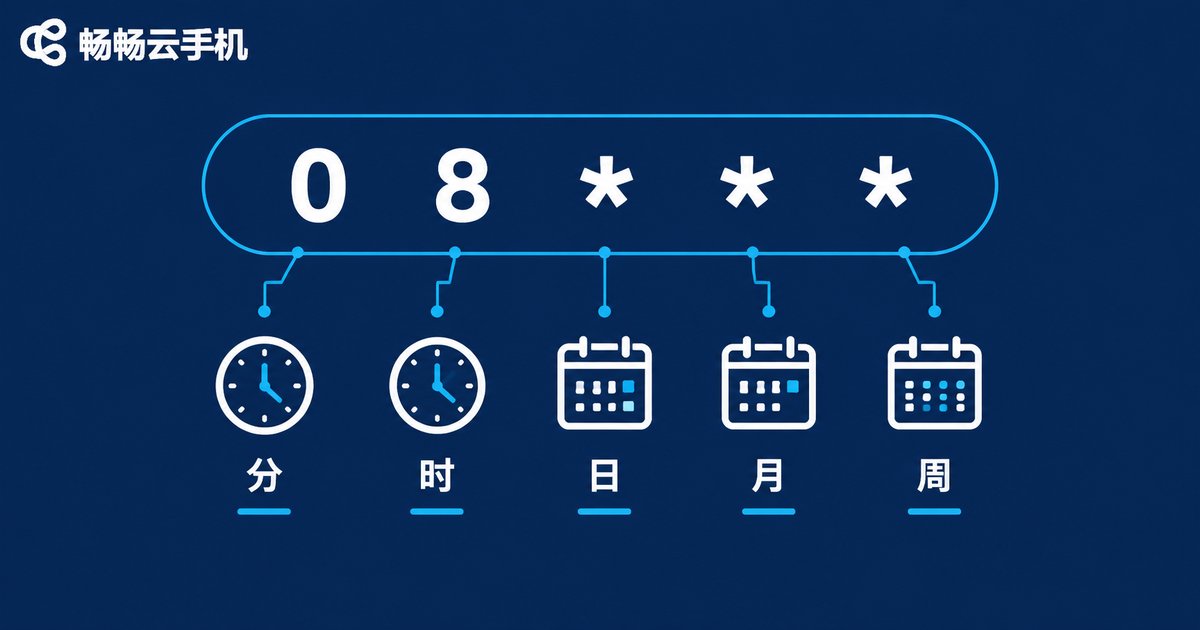
A Cron expression consists of 5 fields separated by spaces: minute, hour, day of month, month, and day of week:
Minute   Hour   Day   Month   Weekday
  0        8     *      *       *      → runs once at 8:00 every day
Each field accepts a concrete number, or special characters for flexible rules:
| Character | Meaning | Example |
|---|---|---|
| * | Any value (every) | * * * * * (every minute) |
| , | List of values | 0 8,12,20 * * * (8:00, 12:00, 20:00 daily) |
| - | Range | 0 9 * * 1-5 (Mon to Fri) |
| / | Step interval | */30 * * * * (every 30 minutes) |
| ? | No specific value | 0 9 1 * ? (1st of every month) |
| L | Last | 0 10 L * * (last day of month) |
The most common beginner mistake: the day-of-month and day-of-week fields conflict with each other. If you specify the 1st of the month, set the weekday field to ? instead of *, otherwise you may get odd logic such as running only when the 1st falls on a Wednesday.
8 Ready-to-Use Cron Expression Templates
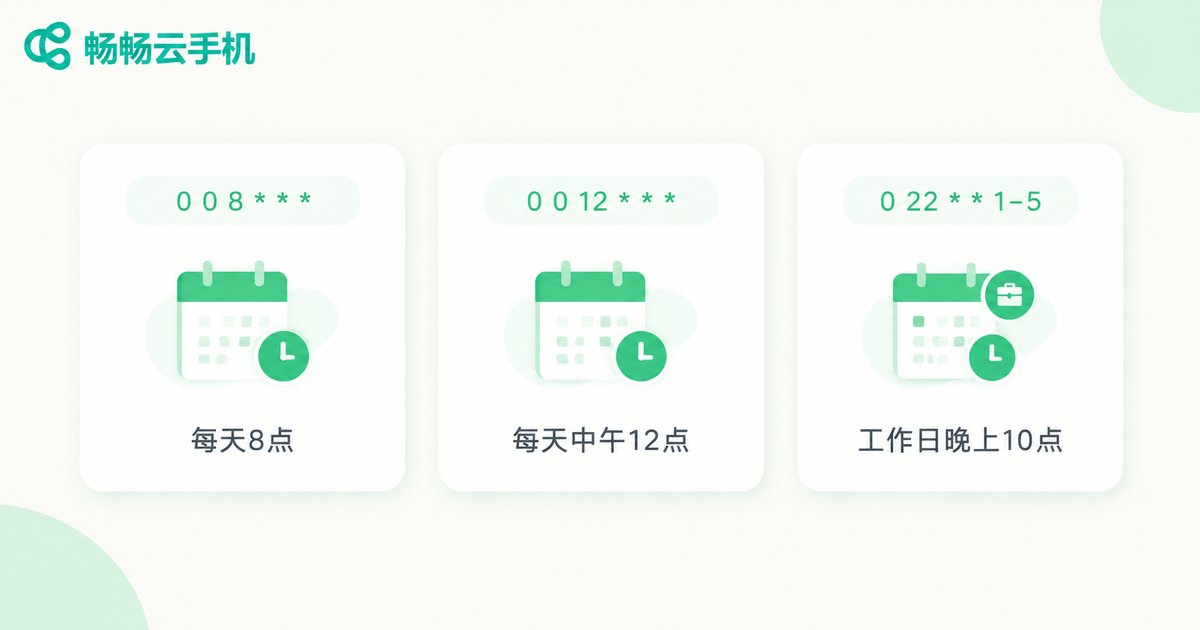
These templates cover most scheduling scenarios — just tweak the numbers:
| Cron Expression | Execution Time |
|---|---|
| 0 8 * * * | Every day at 8:00 AM |
| 30 21 * * * | Every day at 9:30 PM |
| 0 9 * * 1-5 | Weekdays (Mon–Fri) at 9:00 AM |
| 0 8,12,20 * * * | Daily at 8:00, 12:00 and 20:00 |
| */30 * * * * | Every 30 minutes |
| 0 0 1 * * | Midnight on the 1st of every month |
| 0 10 ? * MON | Every Monday at 10:00 AM |
| 0 22 L * * | 10:00 PM on the last day of the month |
Tip: let the task run empty once or twice first to confirm the trigger time, then attach the real App operation.
Set Up a Scheduled Task on ccloudphone, Step by Step
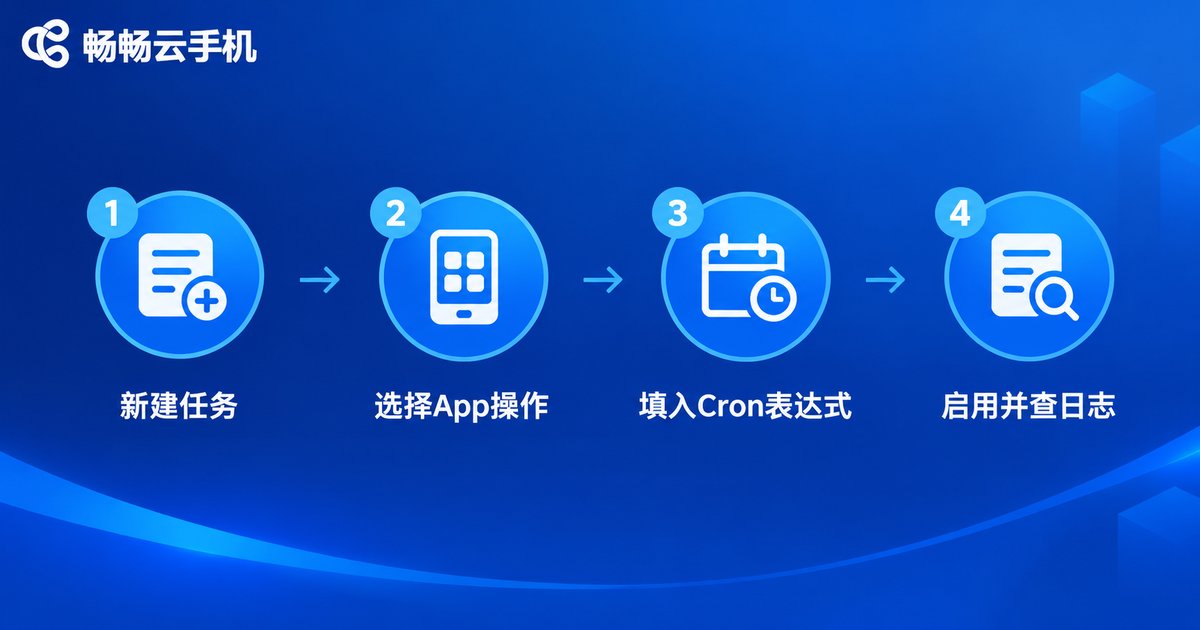
On ccloudphone, configuring a scheduled App operation takes about four steps:
Step 1: Open the scheduled task feature. Log in to ccloudphone, select the cloud phone instance you want to automate, and find the Scheduled Tasks entry in the instance menu.
Step 2: Create a task and choose the action. Create a new task and pick the task type — for example launching a specific App on schedule, running an automation script, or rebooting the cloud phone — then configure the target App and its parameters.
Step 3: Enter the Cron expression. Choose Cron expression as the trigger, and adapt one of the templates above to your target time. For a daily 8:00 AM game check-in, simply enter 0 8 * * *.
Step 4: Save, enable and verify. After saving, make sure the task is enabled, watch whether it fires on time, and check the execution logs for each run to make troubleshooting easy.
Running the same operation on many cloud phones? Configure it once on ccloudphone and apply the same Cron strategy to all instances in batch — no need to tap through devices one by one.
Typical Use Cases for Time-Based App Operations
Cron scheduled tasks plus a cloud phone can take over many must-do daily routines:
Gamers: log in automatically every day to check in and claim daily rewards — no more broken streaks — and enter events right on time to grab limited perks.
E-commerce and social media operators: open store management Apps on schedule to list products, start streaming tools on time, and rotate multiple accounts automatically by timetable.
Account warming: give idle accounts a scheduled daily activity session to maintain a natural usage pattern and keep accounts active.
Device maintenance: clear caches and reboot the cloud phone during off-peak night hours so every instance stays smooth during the day.
Troubleshooting: 4 Common Reasons Scheduled Tasks Fail to Run
If a task misses its trigger, check in this order and you will usually find the cause:
1. The expression is wrong. All 5 fields are required and separated by spaces; specifying both day-of-month and day-of-week causes conflicts — replace one of them with ?.
2. Time zone mismatch. Make sure the instance system time zone matches the time you expect, especially for cross-border use: 8:00 AM Beijing time may be a different hour inside the instance.
3. The instance is not available. Scheduled tasks need a running, available cloud phone instance. If the instance is stopped or in an abnormal state, restore it first and observe again.
4. Tasks pile up at the same moment. Multiple heavy tasks at the same minute may queue up or fail — stagger intensive tasks across the day.
Why Run Automation on ccloudphone?
Compared with tapping a physical phone by hand every day or keeping a PC emulator running, ccloudphone makes scheduled automation far easier:
Always on in the cloud: tasks run on cloud servers, so shutting down your computer or losing your connection does not affect execution — true unattended operation.
Batch management of many instances: run multiple cloud phones side by side and apply one scheduled strategy to all of them — the more devices, the more time you save.
Isolated environments and clear logs: each cloud phone is an independent environment; scheduled launches and long-running sessions do not interfere with each other, and execution records are easy to audit.
If you want your Apps to run themselves, try ccloudphone: hand repetitive operations to Cron scheduled tasks and keep your time for yourself.
FAQ
Q: What is the shortest interval a Cron expression supports?
A: The finest Cron granularity is one minute — * * * * * runs every minute. For most App automation scenarios, minute-level precision is more than enough.
Q: Why should day-of-month and day-of-week not both be specified?
A: In standard Cron rules, specifying both can create ambiguous behavior that differs between systems. The safe practice: if you set the date, write ? in the weekday field, and vice versa.
Q: A task did not fire on time — what should I check first?
A: Verify the expression first, then confirm the cloud phone instance is online and its time zone is correct, and finally review the task execution logs for the exact cause.
Q: Will scheduled tasks still run when my local computer is off?
A: Yes. Cloud phones run on cloud servers and tasks are triggered in the cloud, independent of your local devices — the core advantage of cloud phone automation.
Q: Can multiple cloud phones share one scheduled task?
A: Yes. Once a task and its Cron expression are configured on ccloudphone, you can apply the same schedule to many instances through batch management for large-scale automated operations.


