

Exception Handling in Cloud Phone Automation: App Crash Detection and Instance Auto-Restart Configuration
Why Exception Handling Matters in Cloud Phone Automation
When you hand tasks like 24/7 app running or batch operations to cloud phones, the biggest risk is not complexity but silent failure while nobody is watching. If a script crashes an app at 3 a.m. and nothing detects or recovers it, you may not find out until the next morning that the entire night's work was wasted.
The core of exception handling is just two steps: detect the failure immediately, then recover automatically according to a plan. This guide walks you through building a complete 'detect — restart — alert' loop so your cloud phone automation truly runs stably 24/7.
Common Exception Types in Cloud Phone Environments
Before configuring anything, get clear on what usually goes wrong in automated tasks:
App crash: the process disappears, often caused by low memory, code defects, or compatibility issues. ANR (Application Not Responding): the process is alive but the UI is frozen and untappable. Task stall: the screen looks normal but progress stops changing. Network errors: timeouts leave the task stuck at one step. Instance-level failure: the whole cloud phone instance hangs and even ADB commands stop responding.
Different failures call for different detection methods and recovery actions. Let's go through them one by one.
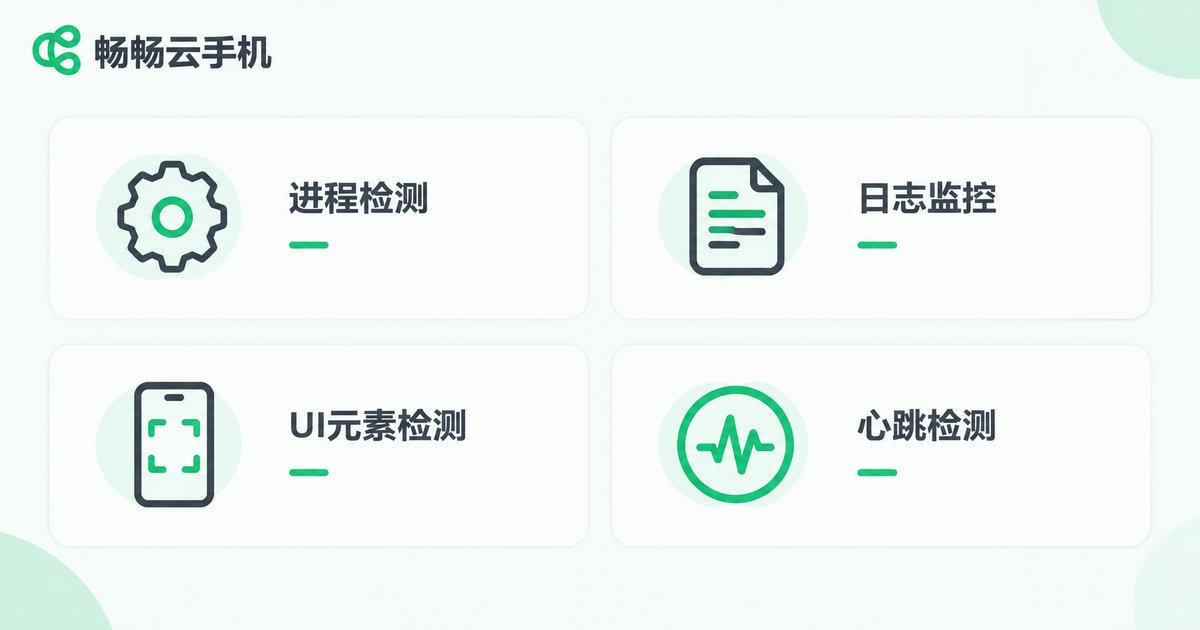
Four Practical Crash Detection Methods
1. Process check: the most direct method. Run adb shell pidof your.package.name to see whether the app process exists; a missing process means a crash. Simple and cheap, it works as the baseline monitor for every task.
2. Log monitoring: keep listening to logcat and capture keywords such as FATAL EXCEPTION. It not only detects crashes but also grabs the stack trace for root-cause analysis, ideal for high-stability scenarios.
3. UI element check: periodically take a screenshot or use a UI automation framework to verify that key elements are still in place. White screens, frozen UIs, and popup overlays can only be caught this way, because the process is still alive.
4. Heartbeat check: have the task script report a progress counter at fixed intervals; if the counter stops changing for too long, the task is stalled. It measures whether the task is progressing rather than whether the app is alive, and often catches failures the other three methods miss.
| Method | Failures caught | Difficulty | Best for |
|---|---|---|---|
| Process check | Crashes, killed processes | Low | Baseline monitor for all tasks |
| Log monitoring | Crash stack traces, ANR | Medium | Root-cause analysis |
| UI element check | White screens, frozen UI, popups | Medium | Tasks with clear UI landmarks |
| Heartbeat check | Stalled tasks, frozen progress | Low | Long batch jobs |
In practice, combine at least two methods — for example 'process check + heartbeat check' — to cover most failures at minimal cost.
A Layered Auto-Restart Strategy for Instances
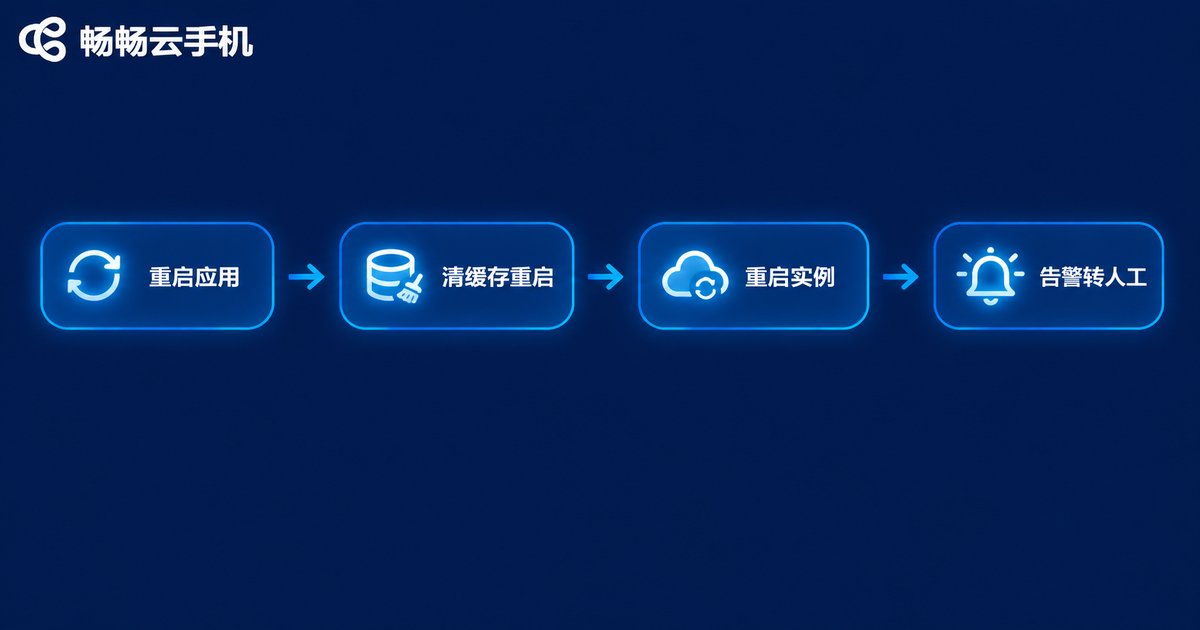
Once a failure is detected, do not reboot the whole instance right away. Escalate from the smallest to the largest blast radius, level by level:
Level 1: restart the app. Force-stop and relaunch — the fastest recovery with the fewest side effects, suitable for occasional crashes. Level 2: clear the cache, then restart. Repeated crashes usually mean corrupted cache or local data, and clearing the cache often fixes it. Level 3: reboot the cloud phone instance. When nothing works and even ADB stops responding, the system itself is hung — reboot the instance. Level 4: alert and escalate to a human. After reaching the maximum retries, stop automatic actions and notify a person, avoiding an endless 'crash — restart — crash again' loop.
| Level | Action | When to use |
|---|---|---|
| Level 1 | Restart the app | Occasional crashes |
| Level 2 | Clear cache, then restart | Repeated crashes, suspected cache corruption |
| Level 3 | Reboot the cloud phone instance | System-level hang, ADB unresponsive |
| Level 4 | Alert and escalate | Max retries reached |
Three parameters are critical: the max retry count (around 3), backoff intervals (e.g., 1, 5, then 15 minutes), and a cool-down period (pause and alert when the same app crashes repeatedly within a short time). They are your main defense against crash loops.
A Watchdog Script Example
The following minimal Python watchdog combines process checking with layered restarting, and works in any cloud phone environment that supports ADB debugging:
import subprocess
import time

PACKAGE = 'com.example.app'   # target app package name
MAX_RETRY = 3                 # max consecutive retries
BACKOFF = [60, 300, 900]      # backoff intervals: 1, 5, 15 minutes

def is_alive():
    r = subprocess.run(['adb', 'shell', 'pidof', PACKAGE],
                       capture_output=True, text=True)
    return r.stdout.strip() != ''

def restart_app():
    subprocess.run(['adb', 'shell', 'am', 'force-stop', PACKAGE])
    time.sleep(3)
    subprocess.run(['adb', 'shell', 'monkey', '-p', PACKAGE,
                    '-c', 'android.intent.category.LAUNCHER', '1'])

retry = 0
while True:
    if is_alive():
        retry = 0
    else:
        if retry >= MAX_RETRY:
            print('[ALERT] Repeated restart failures, escalate to human')
            break
        restart_app()
        time.sleep(BACKOFF[retry])
        retry += 1
    time.sleep(30)
The script checks the process every 30 seconds, retries with growing backoff intervals after a crash, and raises an alert after 3 consecutive failures. In production, replace print with real notifications such as email or IM, and add heartbeat and UI checks for fuller coverage.
Run Automation with Peace of Mind on ChangChang Cloud Phone
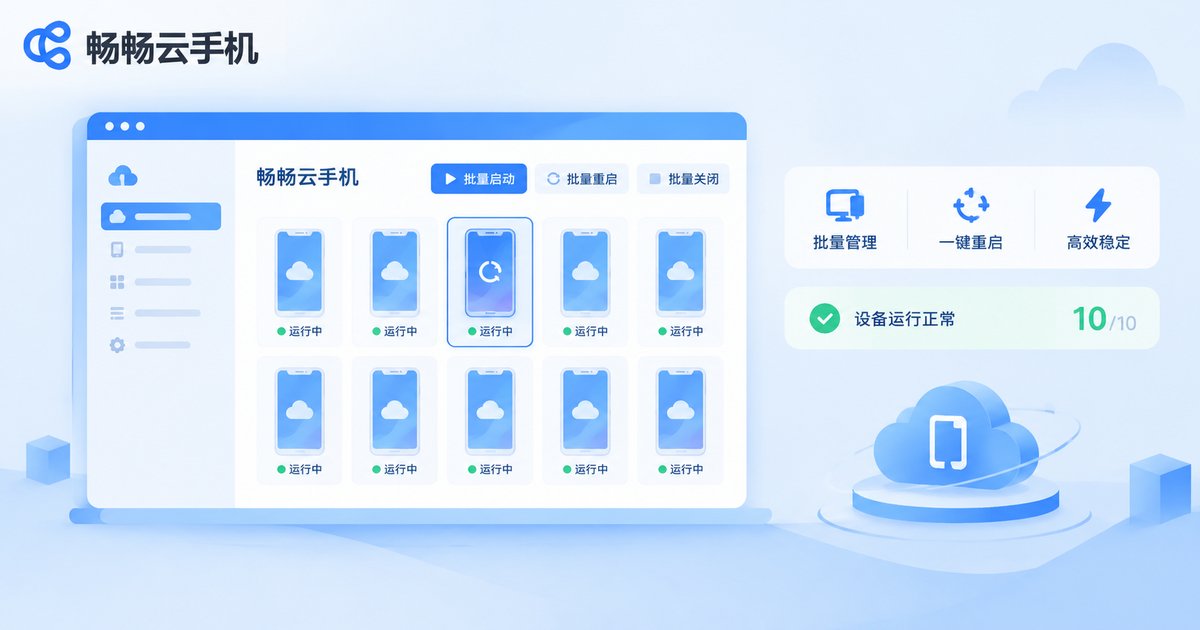
Beyond fixing failures after they happen, a stable runtime environment prevents exceptions at the source. ChangChang Cloud Phone (ccloudphone) provides dedicated cloud Android instances that stay online around the clock, with batch instance management available in its console. Combined with the watchdog script above, long-running unattended tasks can stay stable day after day.
One more important tip: deploy the monitoring script separately from the cloud phone instances — for example on your local machine or a server, connecting to the cloud phones remotely to run checks and restarts. That way, even if an instance hangs completely, the monitor stays alive and can still detect the failure and trigger recovery, so the referee never falls together with the player.
FAQ
Q: The process is alive but the task stops moving — how do I detect that?
A living process does not mean a working app. Use a UI element check or a heartbeat check: verify that key UI elements are still present, or watch whether the progress counter has stalled.
Q: Will auto-restart lose my task data?
Not if you persist state properly. Write task progress and key states to a file or report them to a server in real time, then resume from the breakpoint after a restart instead of keeping state only in memory.
Q: How many retries are appropriate?
About 3, with progressively longer backoff intervals. Too many retries waste resources and can make things worse; too few mistake occasional glitches for fatal failures.
Q: How do I avoid an infinite 'crash — restart' loop?
Set a maximum retry limit and a cool-down period: when the same app crashes repeatedly within a short time, stop auto-restarting and alert a human before resuming the task.


