
What Is the Cloud Phone Console Workflow? A Step-by-Step Guide from Registration to Allocation
What Is a Cloud Phone Console?
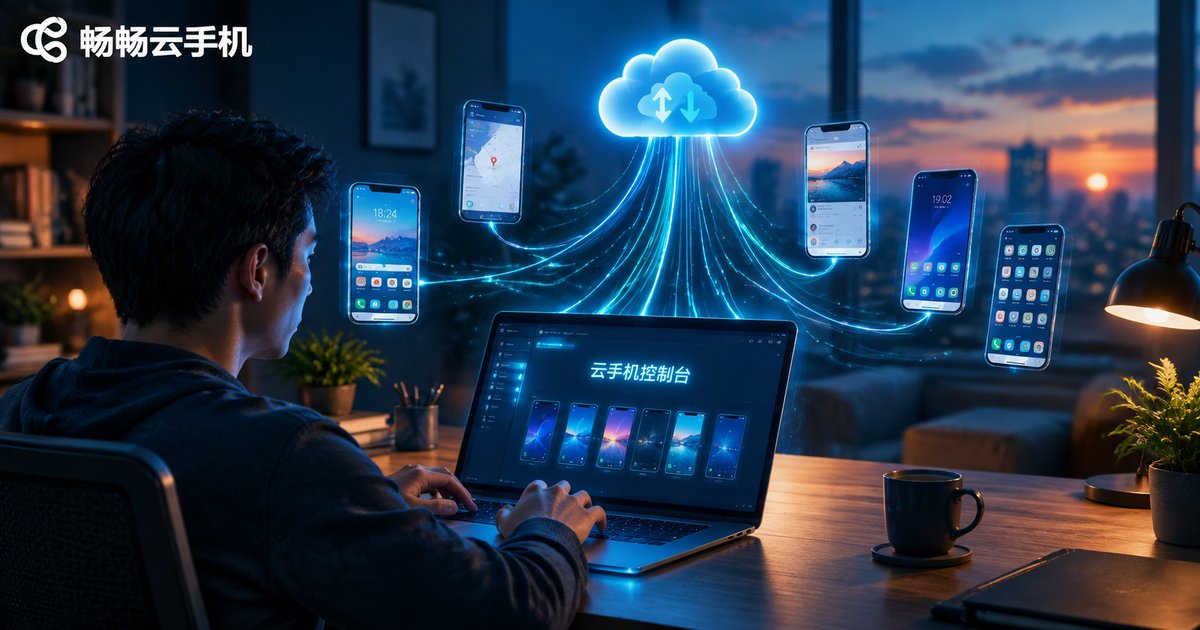
In simple terms, the cloud phone console is the 'command center' for all your cloud phones. Cloud phones run on remote servers instead of your local device, and the console is the bridge between you and them — account registration, purchasing, device allocation, and batch operations all happen here.
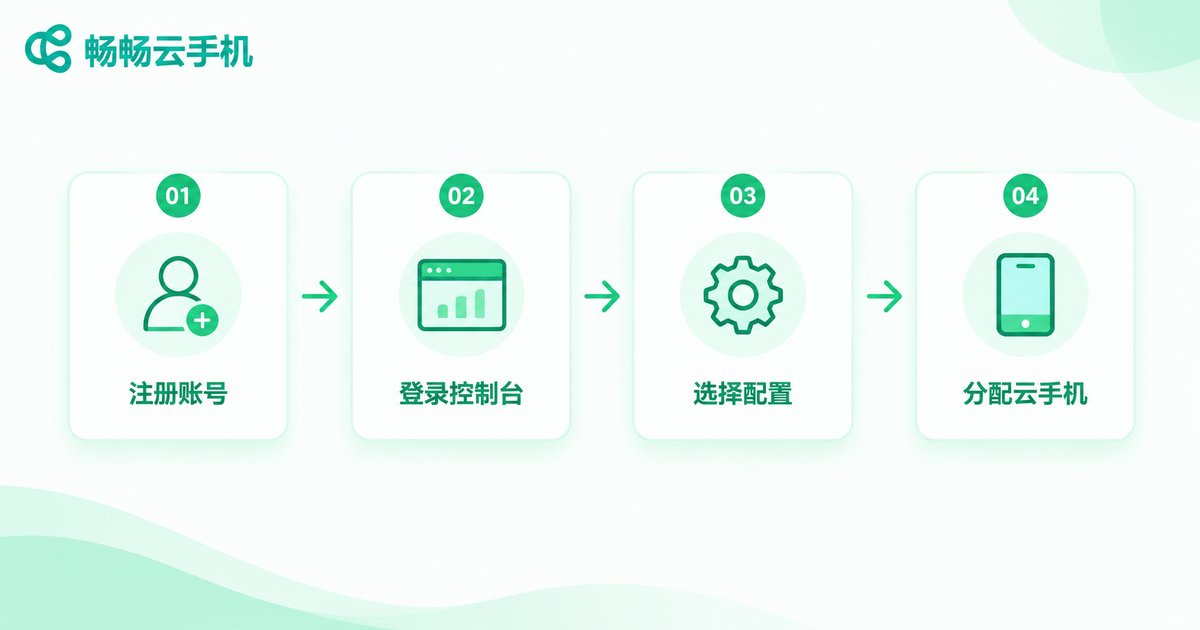
First-time users often worry the process is complicated. In reality, the whole workflow comes down to five steps: register an account → log in to the console → choose a configuration → allocate devices → start controlling. Follow the on-screen prompts and you will be done in minutes. Let's break down each step.
Step 1: Register an Account
Open the ChangChang Cloud Phone (ccloudphone) website and click 'Sign Up'. It works just like registering for any ordinary app:
1. Use your mobile number to receive a verification code;
2. Set a login password (a mix of letters and numbers is recommended);
3. Agree to the terms of service and confirm.
Tip: Registration itself is free — you only pay when you actually allocate (purchase) cloud phone devices, so feel free to sign up first and explore the console.
Step 2: Log In to the Console
After registering, log in with your phone number and password to enter the console. Spend a minute familiarizing yourself with the layout:
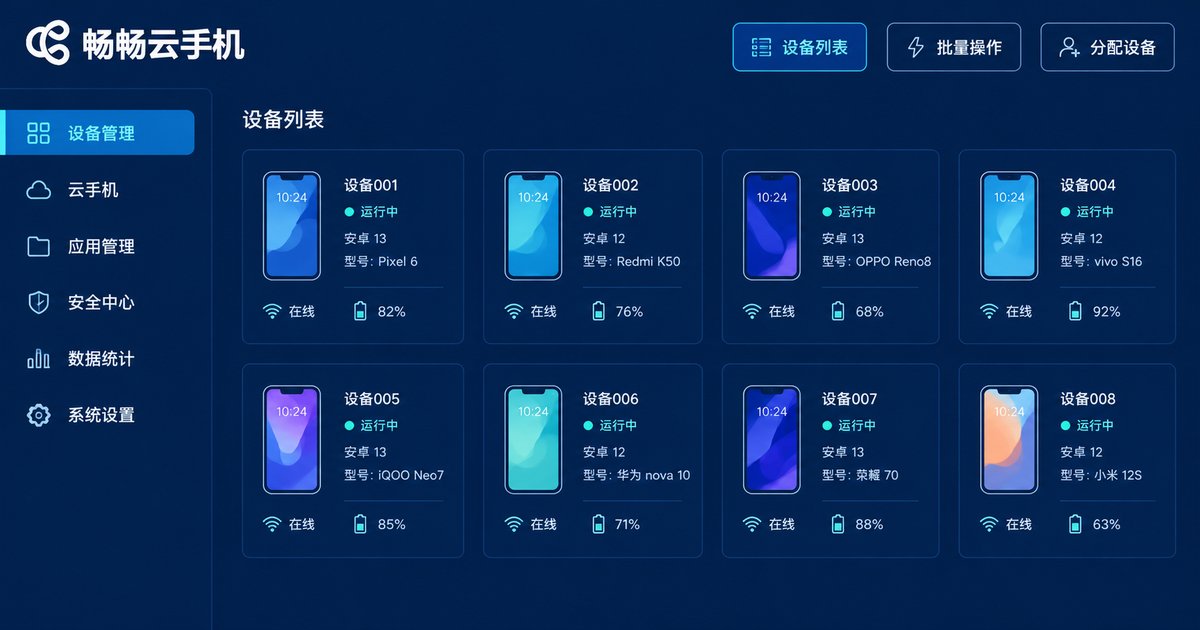
· Device list: shows the running status of all your cloud phones;
· Function menu: includes device allocation, batch operations, app management, and billing;
· Account area: check your balance, plan, and expiry dates.
Step 3: Choose a Configuration and Top Up
Before allocating devices, think about what you will use the cloud phones for, because different scenarios call for different configurations:
| Use Case | What to Focus On |
|---|---|
| Running multiple everyday accounts | Basic configuration, value for money |
| Gaming AFK, multi-account operation | CPU, memory, and stability |
| Batch group control | Batch operation features and device limits |
ChangChang Cloud Phone offers several device types. You can review the details of each configuration on the billing or allocation page of the console, buy only what you need, and avoid waste.
Step 4: Allocate Cloud Phones (The Key Step)
This is the heart of the whole workflow. Click 'Allocate Devices' in the console and confirm three things:
1. Quantity: choose how many devices you need — batch allocation is supported;
2. Configuration: pick the device type based on the previous section;
3. Order confirmation: check the quantity and duration, then submit.
Once submitted, the system provisions the devices on the cloud automatically. Usually within a few seconds the new devices appear in your device list with a 'Running' status. No downloads or installations are required, and nothing depends on your local computer's performance.
Step 5: Enter the Cloud Phone Control Screen
After allocation, click 'Enter' on a device card to open its control window. It looks and feels almost exactly like a real Android phone: swipe the screen, install apps, log in to accounts, watch videos, or play games.
Better still, cloud phones run in the cloud 24/7 — even if you shut down your computer or the app, tasks on the cloud phone keep running. That is exactly why cloud phones are better suited to AFK tasks and multi-account work than physical handsets.
Quick Reference: Common Console Features
| Feature | What It Does |
|---|---|
| Batch group control | Operate one master device and sync the same actions across many cloud phones |
| App management | Upload an installation package once and distribute it to all devices |
| Renew / release devices | Renew devices anytime, or release the ones you no longer use |
| File transfer | Move images, APK files, and more between local devices and cloud phones |

Why We Recommend ChangChang Cloud Phone
There are plenty of cloud phone services out there, but if you are a beginner, ChangChang Cloud Phone (ccloudphone) is worth considering first:
· Clean, beginner-friendly console: the path from registration to allocation is obvious at a glance — no tutorial needed;
· Strong multi-instance and group control: batch device management suits users running many accounts at once;
· Stable cloud uptime: devices run on data-center-grade servers, so a dropped connection or shut-down PC never interrupts your tasks.
If you are ready to try a cloud phone, sign up and click around the console yourself — it is more intuitive than reading ten tutorials. Visit the ChangChang Cloud Phone official website to get started.
FAQ
Q: Does registering a cloud phone account cost anything?
No. Registration is free; you only pay when you actually allocate (purchase) cloud phone devices.
Q: How long does it take to allocate a cloud phone?
Provisioning is automatic after you submit the order — devices usually appear in your list within seconds.
Q: Can I allocate multiple cloud phones at once?
Yes. The console supports batch allocation — just choose the quantity on the allocation page, ideal for multi-account and group-control users.
Q: Will my cloud phone keep running after I close my computer?
Yes. Cloud phones run on cloud servers; your local device is just a remote control, and cloud tasks continue as usual.
Q: What if I forget my password?
Click 'Forgot Password' on the login page and reset it after verifying your registered phone number.
Q: Will I lose data if I log in from a different device?
No. Data is stored in the cloud, not on your login device, so any device signed in to the same account picks up right where you left off.


