
Cloud Phone Beginner's Guide: Basic Features, Common Uses, and How to Get Started
What Is a Cloud Phone? One Simple Explanation
First time hearing about a cloud phone? The idea is easy to grasp: a cloud phone is a full Android phone running on servers in the cloud. It has its own independent system, storage, and app environment — but none of that lives on the device in your hand. It lives in a remote data center.
Your local phone or computer only needs a lightweight client that streams the screen to you and sends your taps back, acting as a remote control plus display. All the computing, battery drain, and heat happen in the cloud, so your local device stays cool and burden-free.
The Basic Features Every Beginner Should Know
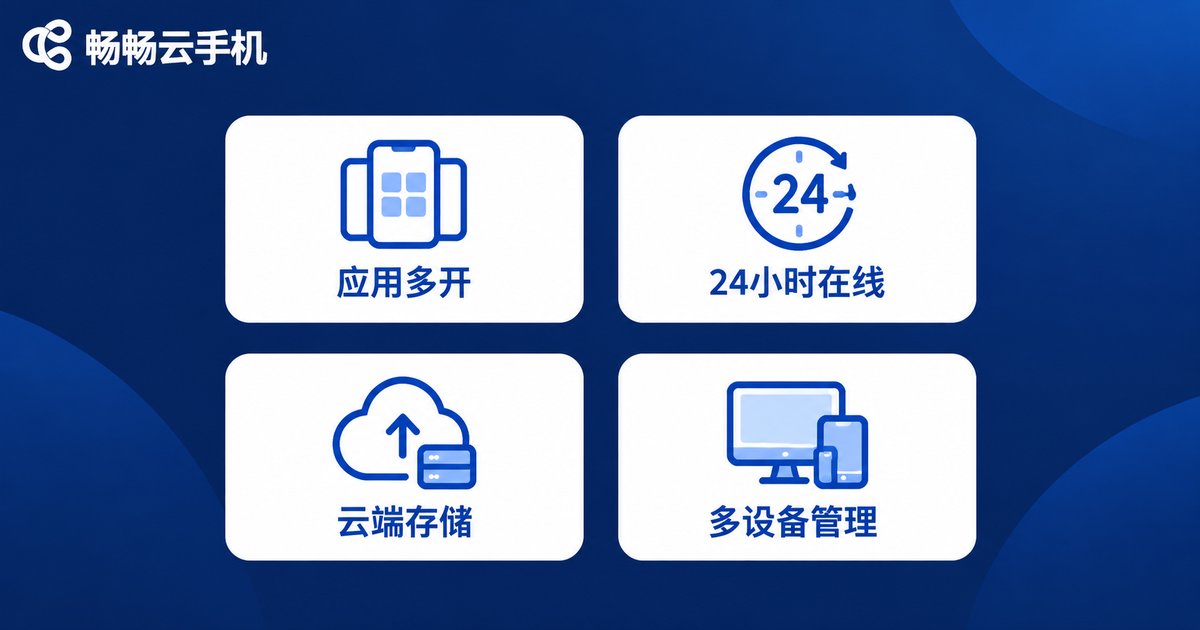
For newcomers, the core capabilities of a cloud phone come down to four things:
1. Apps keep running around the clock. Once a game or app is inside your cloud phone, it keeps running even when your local device is off, locked, or offline. This is the biggest difference from a regular phone.
2. One person, many phones, many apps. Each cloud phone is an independent Android environment. You can own several at once, each with different apps and accounts, without any interference.
3. Data lives in the cloud. App data and account information are stored in the cloud. Switching or losing your physical phone changes nothing — just log in and continue.
4. Control it from phone or PC. Most cloud phone services offer both mobile and desktop clients, so you can manage the same cloud phone from whichever device is handy.
Who Is It For? Common Use Cases
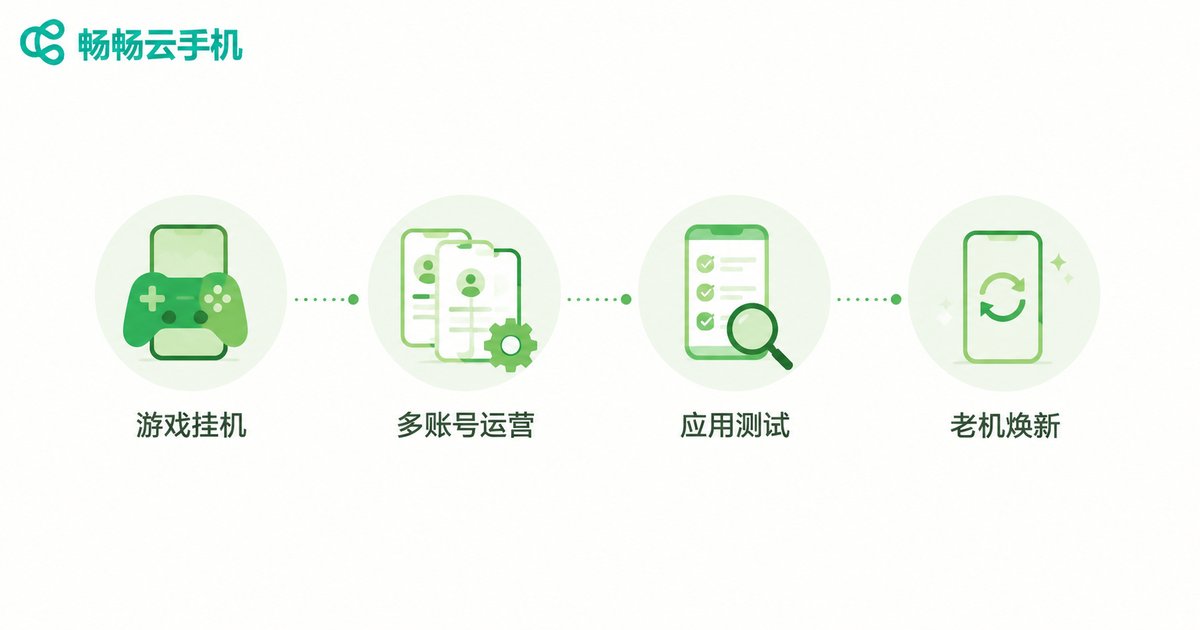
Cloud phones are not just toys for tech enthusiasts. They are genuinely useful in these everyday scenarios:
| Use Case | What the Cloud Phone Does for You |
|---|---|
| Game idle running | Stay online 24/7 for quests and resources without draining your real phone |
| Multi-account operation | Each cloud phone is an isolated environment, so multiple accounts stay online safely |
| App and game testing | Try new apps in the cloud first and keep your personal phone clean |
| Reviving old devices | Heavy computing happens in the cloud, so low-end phones run big apps smoothly |
| File backup and transfer | Data stays in the cloud, no more cable transfers between devices |
Getting Started: A Five-Step Walkthrough
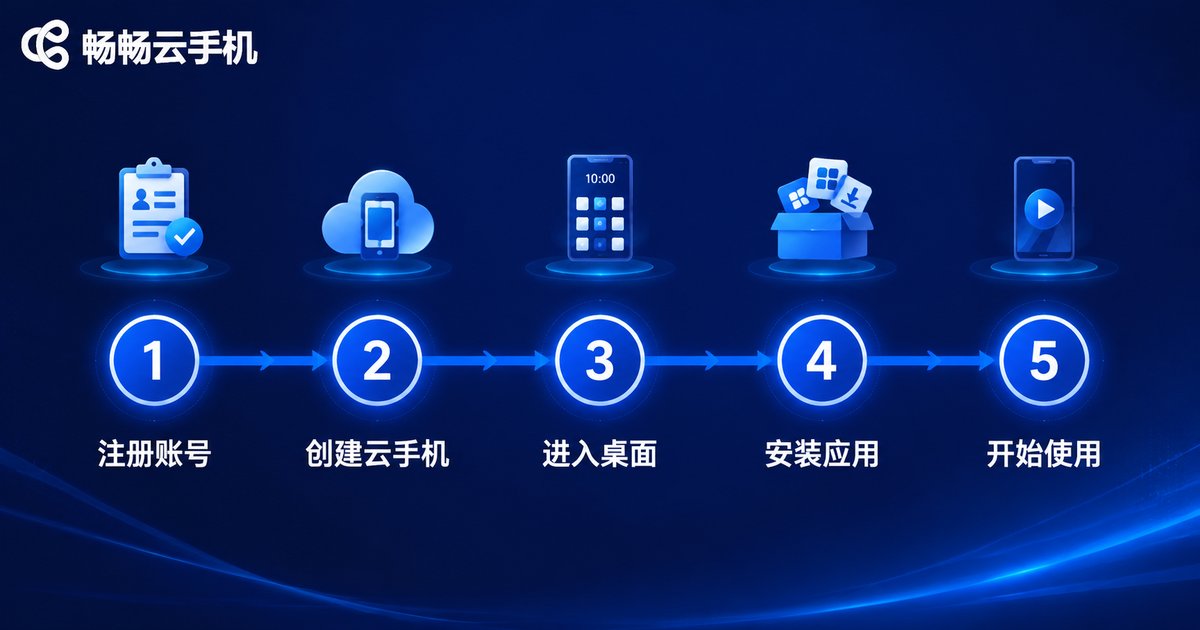
Your first cloud phone is only five steps away:
Step 1: Create an account. Pick a cloud phone provider — for example, ccloudphone — and register on its official website or client.
Step 2: Create your cloud phone. Log in, choose a device configuration that matches your needs, and create it. See the official website for current plans.
Step 3: Enter the cloud desktop. Tap the device to open a complete Android home screen that works just like a physical phone.
Step 4: Install apps and sign in. Download the apps you need and log in, exactly as you would on a brand-new phone.
Step 5: Set up background tasks and daily management. Leave long-running apps inside the cloud phone, then check on them anytime from your phone or computer.
Tips for Beginners
A stable connection is everything. Cloud phone video streams over the network, so Wi-Fi or a strong signal gives the best experience.
Start with one device. Get comfortable with a single cloud phone first, then add more only when a real need appears.
Secure your important accounts. Cloud storage is safe, but binding your game and app accounts to a phone number or email adds an extra layer of protection.
Frequently Asked Questions
Q: How is a cloud phone different from an emulator on my PC?
An emulator runs on your own computer and stops the moment the computer shuts down. A cloud phone runs on remote servers and stays online around the clock without using your local resources — much better for always-on scenarios.
Q: Does a cloud phone use a lot of data?
It streams video, so consumption is similar to watching online videos. Using Wi-Fi is the most economical choice.
Q: Will it lag if my phone is old and slow?
No. All the heavy computing happens in the cloud; your device only displays the picture, so even older phones run smoothly.
Q: Is my data safe in a cloud phone?
With a reputable provider like ccloudphone, data is stored in cloud data centers. Log in from any device to restore your environment — safer than keeping everything on a single physical phone.
Q: How many accounts can one cloud phone hold?
Each cloud phone is one independent Android environment with its own apps and accounts. For multiple accounts at the same time, simply create additional cloud phones.


