

How Do Cloud Phones Enable Batch Group Control? A Solution for Running Multiple Cloud Phones from One Computer
What Is Cloud Phone Group Control?
Cloud phone group control means using a single computer (the master end) to operate multiple cloud phones at the same time, making them perform identical or group-specific actions. In the traditional model, managing dozens of physical phones at once requires a full set of hardware—racks, cables, and sync boxes—along with high deployment and maintenance costs. Cloud phone group control moves the entire device room to the cloud: all phones run as cloud instances on remote servers, and all you need is the group control client on your computer to view every cloud phone in one interface and sync operations with one click.
Here is a quick comparison between traditional device farms and cloud phone group control:
| Factor | Traditional Device Farm | Cloud Phone Group Control |
|---|---|---|
| Hardware investment | Phones + racks + cables + sync boxes | One ordinary computer |
| Deployment time | Days (procurement, setup, wiring) | Minutes (cloud provisioning) |
| Uptime | Limited by local power and cooling | 24/7 operation in the cloud |
| Scaling | Buy more hardware | Create more cloud phones in the console |
| Maintenance | Frequent device wear and repairs | No local hardware to maintain |
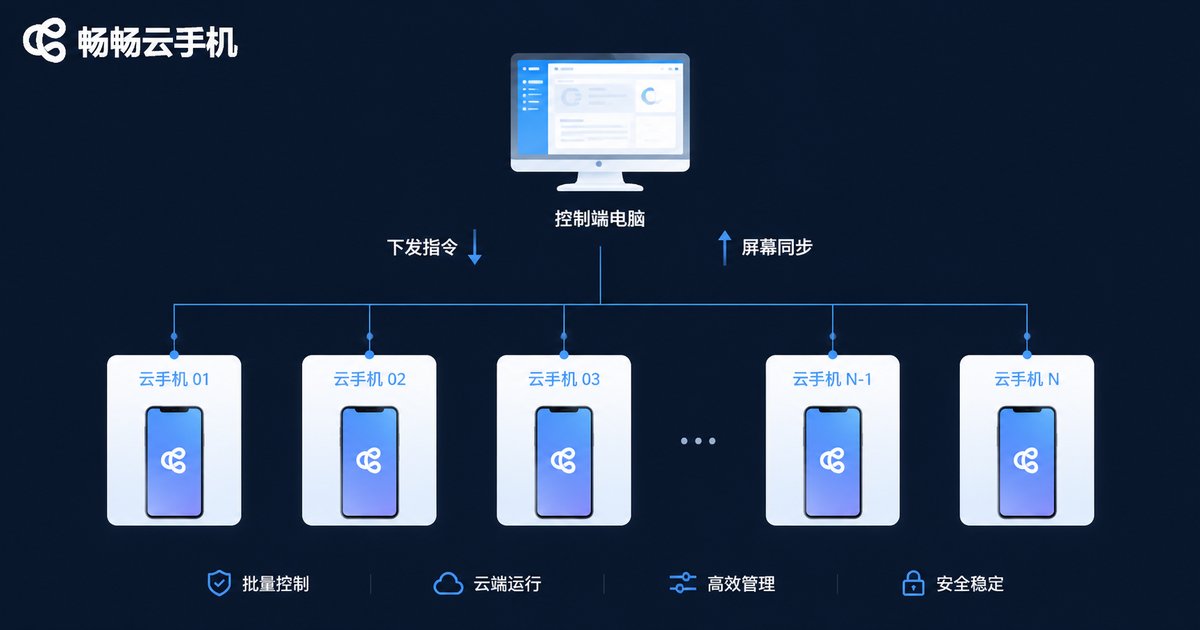
How Does It Work? Three Core Principles
1. Cloud-based cluster deployment. Each cloud phone is essentially an Android instance running on ARM servers in the cloud, with its own independent system environment, device information, and network environment. It relies on none of your local hardware—even when your computer is off, cloud phones keep running in the cloud.
2. Command synchronization from the master end. Every tap, swipe, and input on your computer is captured by the group control client, converted into standard commands, and delivered to all selected cloud phones at the same time. In other words, one action on your screen is executed by dozens of cloud phones simultaneously.
3. Real-time screen mirroring and monitoring. The screens of all cloud phones are streamed back to a grid view on the master end, so you can check the status of each device at any time, switch to any single phone for individual operation, and move freely between group control and single control.
A Complete Solution: One Computer, Multiple Cloud Phones
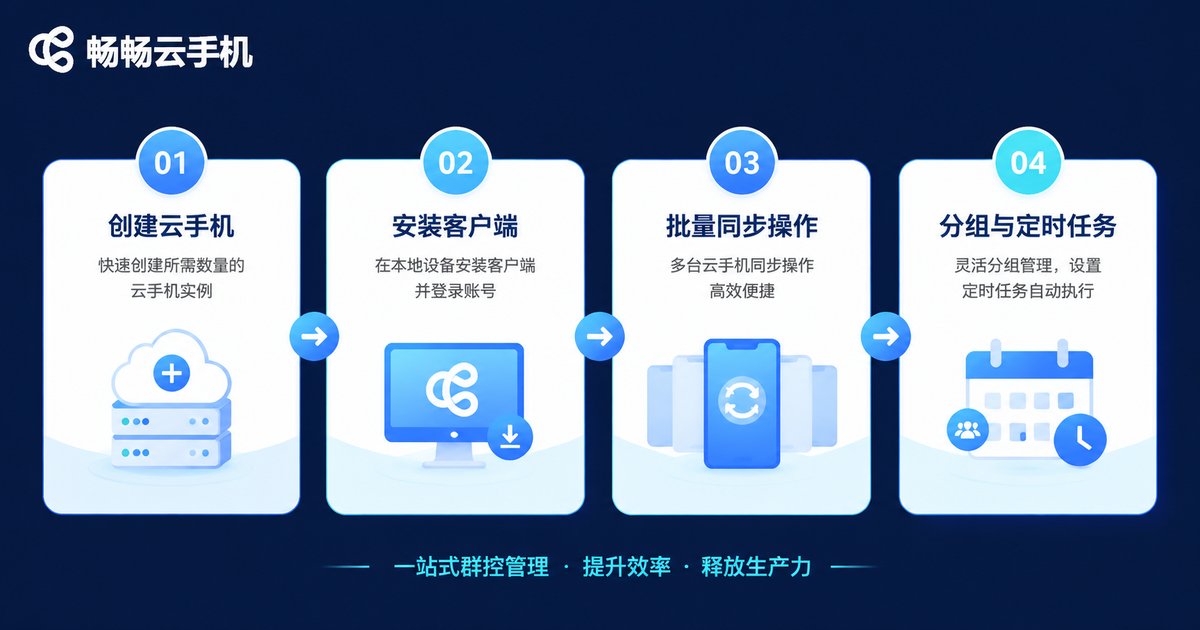
Here is a typical group control workflow using ChangChang Cloud Phone (ccloudphone) as an example:
Step 1: Create cloud phones in batch. Log in to the official ccloudphone website and create the cloud phones you need in the console, freely choosing quantity and configuration—deployment takes just a few minutes.
Step 2: Install the group control client. Download and install the group control client on your computer. After logging in with your account, all your cloud phones appear automatically in the device list.
Step 3: Enter group control mode and run synchronized operations. Select multiple cloud phones to enter group control mode, and every action on the master end is synced to all selected devices in real time—batch app installs, batch logins, and batch task execution, all completed with a single operation.
Step 4: Group management and scheduled tasks. Organize cloud phones into groups by purpose and assign different tasks to different groups; combined with scheduling, cloud phones can start and run automatically at set times for unattended operation.
Typical Use Cases for Group Control
Multi-account management: Manage multiple accounts from one computer, with each cloud phone running in an independent environment.
App testing and development: Batch install and test new builds, several times more efficient than physical devices.
E-commerce and store operations: Manage multiple stores in a unified, standardized workflow and reduce labor costs.
Content and new media operations: Distribute content across multiple accounts with unified scheduling—one computer handles all the publishing.
Four Things to Look for in a Group Control Platform
Stability: In group control scenarios, a single cloud phone going offline can affect the whole task, so prioritize providers with a stable cloud cluster architecture.
Synchronization precision: How quickly commands are delivered and how smoothly screens stream back directly determine the group control experience—test with a small batch first to check latency.
Environment independence: Each cloud phone should have independent device parameters and network environments to avoid cross-device association.
Ease of use: A good group control solution should work out of the box, with no extra sync boxes or cables. Group control on ChangChang Cloud Phone is implemented entirely in the cloud, so one ordinary computer is all you need to get started.
FAQ
Q: Does group control require additional hardware?
No. Cloud phone group control is implemented entirely in the cloud—one ordinary computer plus the group control client is enough, with no cables or sync boxes required.
Q: How many cloud phones can one computer control at once?
It depends on cloud phone configuration, task complexity, and network bandwidth. Dozens are usually no problem; it is best to test with a small batch first and scale up gradually.
Q: Is group control any different from normal usage?
Each cloud phone has an independent system environment and device information. As long as operation pacing is set reasonably, there is no difference from normal usage.
Q: Do cloud phones keep running after I turn off my computer?
Yes. Cloud phones run on remote servers, so after you close the client or shut down your computer, the apps, accounts, and data on your cloud phones are all retained—just log in again to continue.


